This is not a common scenario. You would only set up this type of connection if you want to connect an Aviatrix Transit gateway to a firewall that is outside your Cloud service provider (for example, in a branch office or warehouse).
  1. In CoPilot, navigate to Cloud Fabric > Gateways > Transit Gateways.
  2. Create a Transit gateway that will connect to your FortiGate firewall.
  3. To connect the transit VPC gateway to FortiGate, navigate to Networking > Connectivity > External Connections (S2C).
  4. Click +External Connection.
  5. In the Add External Connection dialog, configure the following:
FieldValue
Connect Public Cloud toExternal Device > BGP over IPsec
Local GatewaySelect the Transit gateway you created in step 2 above
Local ASNThe BGP AS number the Transit gateway will use to exchange routes with the external device.
Remote ASNEnter the BGP AS number the external device will use to exchange routes with the Transit Gateway.
Remote Device IPThis is the FortiGate WAN IP.
Ensure that the Local/Remote ASN and the Remote Device IP are correct before saving.
  1. Click Save.
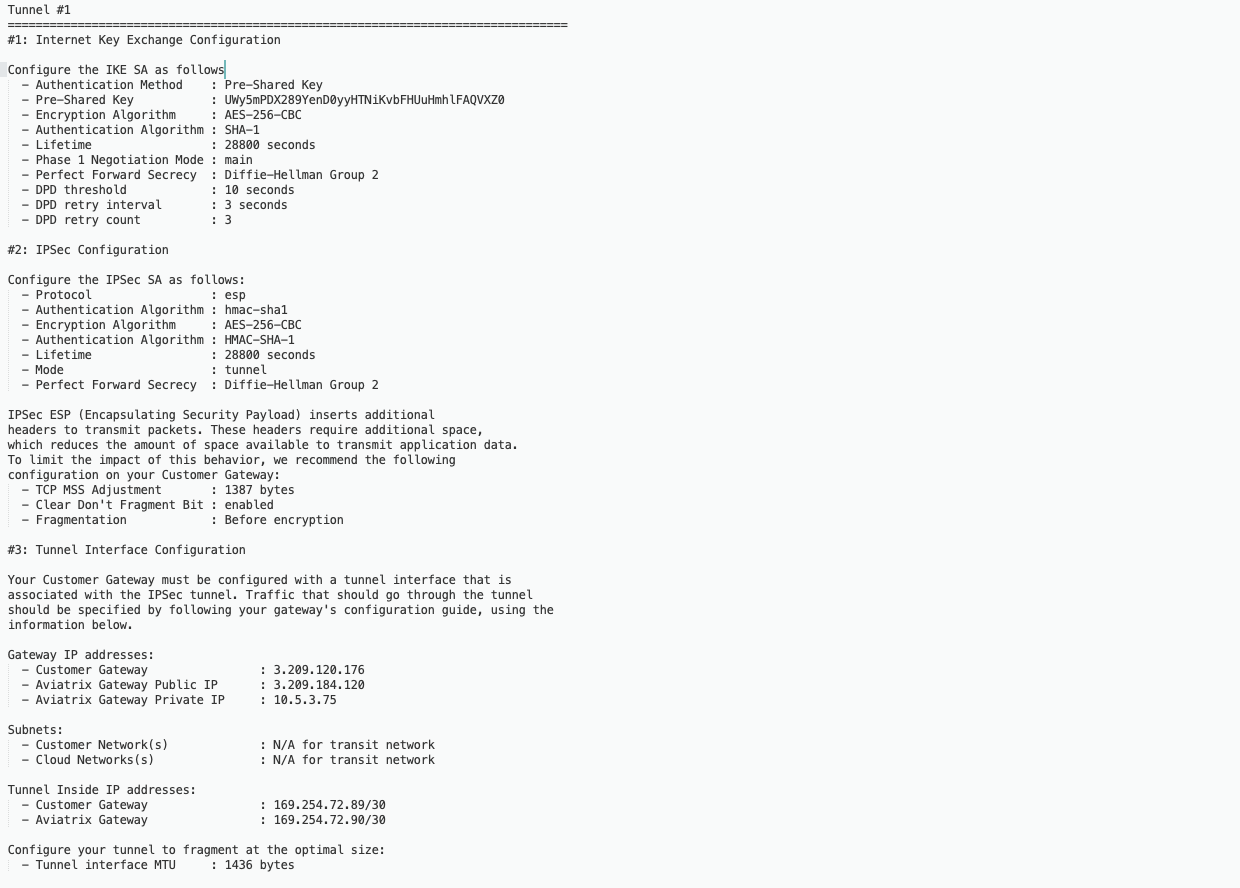
  2. Download the configuration. The following is a sample configuration based on the Site2Cloud configuration above. Sample configuration based on Site2Cloud
Configuring the Fortinet FortiGate Firewall

  1. Login into FortiGate and configure it as follows:
    1. Navigate to VPN > IPsec Tunnels.
    2. Click +Create New, and select IPsec Tunnel.
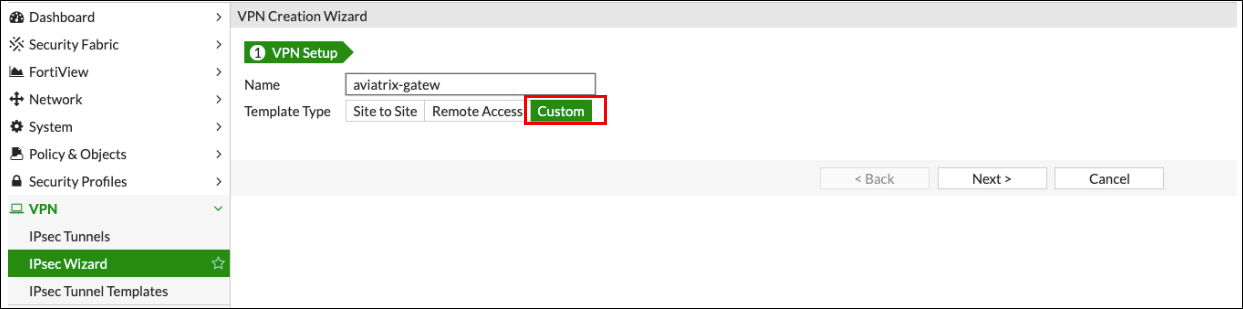
    3. In the VPN Creation Wizard, select the Custom template type.
    4. Populate the fields according to your preferences.
    5. Click Next.

VPN Setup

FieldExpected Value
NameAny name
Template TypeCustom
VPN Setup wizard

New VPN Tunnel Tab

  1. Complete the Network fields on the New VPN Tunnel tab as follows:
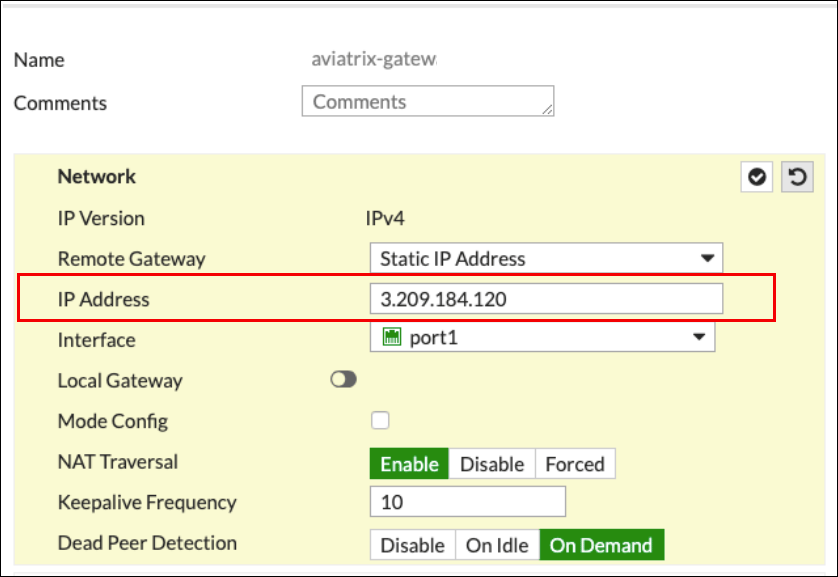
Network section of New VPN Tunnel tab
FieldExpected Value
IP VersionIPv4
Remote GatewayStatic IP Address
IP AddressPublic IP address of Aviatrix Gateway
InterfaceSelect the external port/interface
Local GatewayDisabled
Mode ConfigUnchecked
NAT TraversalRecommended: Enable
Keepalive FrequencyAny value
Dead Peer DetectionOn Demand
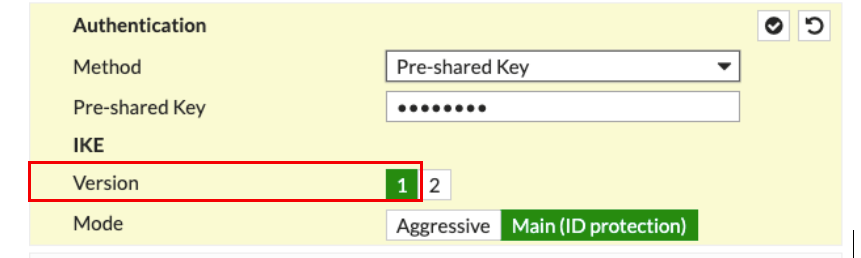
Network section of New VPN Tunnel tab Authentication section of New VPN Tunnel tab
FieldExpected Value
MethodPre-Shared Key
Pre-shared KeyIn the Pre-shared Key field, enter the value from the Pre-Shared Key row in the downloaded configuration file.
IKE Version1
IKE ModeMain (ID protection)
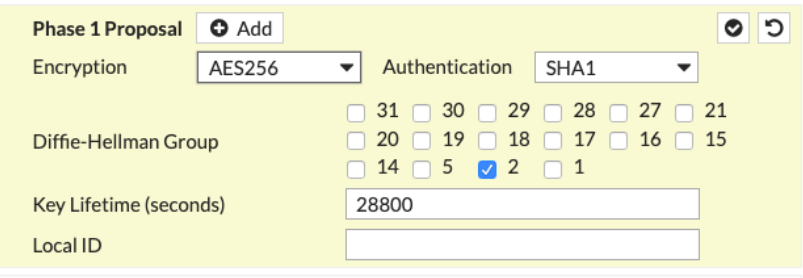
Authentication section of New VPN Tunnel tab Phase 1 Proposal section of New VPN Tunnel tab
FieldExpected Value
EncryptionIn the Encryption field, enter the value from the Encryption Algorithm row in the downloaded configuration file.
AuthenticationIn the Authentication field, enter the value from the Authentication Algorithm row in the downloaded configuration file.
Diffie-Hellman GroupSelect the appropriate value as per the Perfect Forward Secrecy row in the downloaded configuration file.
Key Lifetime (seconds)28800
Local ID
Phase 1 Proposal section of New VPN Tunnel tab XAUTH section of New VPN Tunnel tab
FieldExpected Value
TypeDisabled
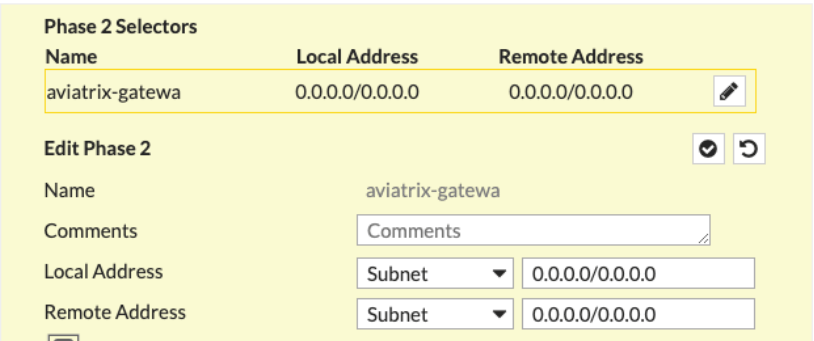
XAUTH section of New VPN Tunnel tab Phase 2 Selectors > New Phase 2 section of New VPN Tunnel tab
FieldExpected Value
NameAny string value
CommentsAny string value
Local Address0.0.0.0/0
Remote Address0.0.0.0/0
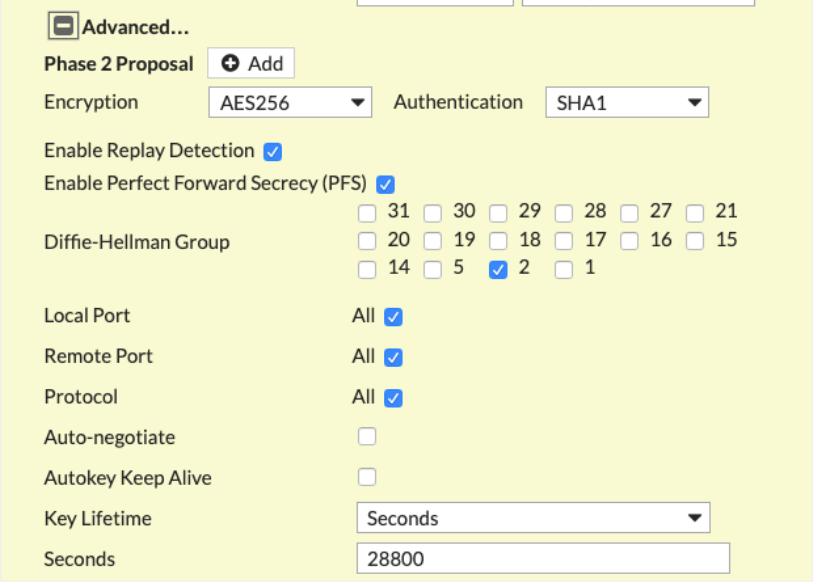
Phase 2 Selectors section of New VPN Tunnel tab Advanced section of New VPN Tunnel tab Click +Advanced to complete the fields listed below.
Obtain the following values from the downloaded configuration file.
FieldExpected Value
EncryptionIn the Encryption field, enter the value from the Encryption Algorithm row in the downloaded configuration file.
AuthenticationIn the Authentication field, enter the value from the Authentication Algorithm row in the downloaded configuration file.
Diffie-Hellman GroupSelect the appropriate value as per the Perfect Forward Secrecy row in the downloaded configuration file.
Key Lifetime (seconds)28800
Advanced section of New VPN Tunnel tab
  1. Click OK.
  2. Navigate to Network > Interfaces.
  3. Click on the Tunnel created above (e.g. aviatrix-gatew) and assign the IP address from the downloaded configuration file. Tunnel interface IP assignment
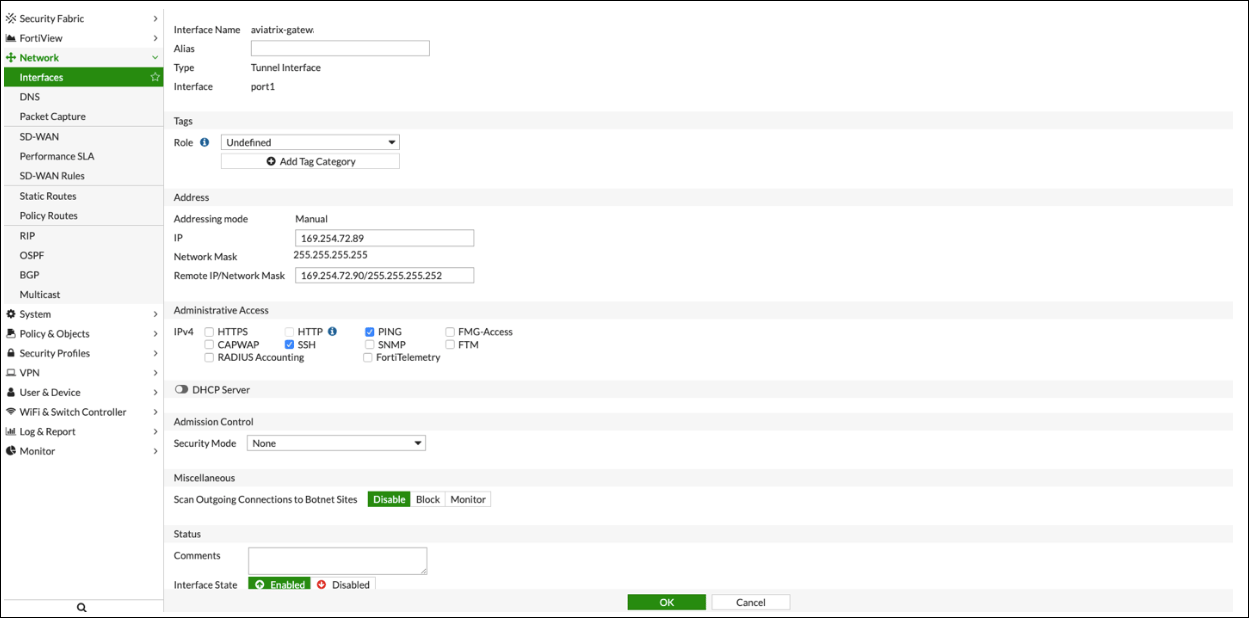
  4. Click OK.

Configure IPv4 Policy

  1. Navigate to Policy & Objects > IPv4 DoS Policy.
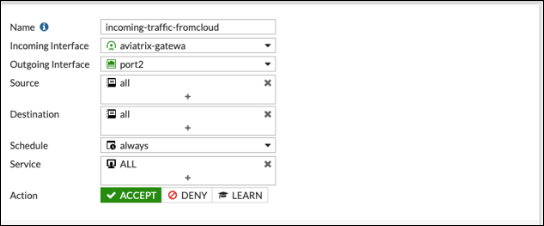
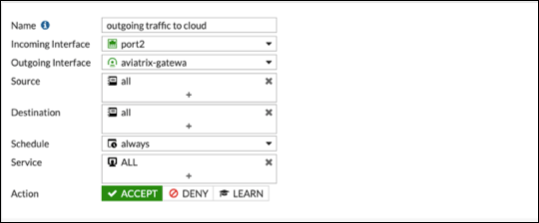
  2. Create two new IPv4 policies:
    1. Outbound traffic Outbound traffic policy
    2. Inbound traffic Inbound traffic policy
The reference to port2 in the screenshots should be replaced with your own interface name that represents the internal facing interface.
Be sure to select ACCEPT for Action and select ALL for Service.

IPSec Monitor

  1. In the Fortigate UI, navigate to Dashboard > Network and click the IPsec widget.
  2. Select the Aviatrix tunnel, and click Bring Up.
  3. You can then check the tunnel status in CoPilot under Diagnostics > Cloud Routes.

BGP

  1. In the FortiGate UI, navigate to Network > BGP.
  2. Configure the Local BGP Options as below:
    • RouterID: Tunnel IP address taken from the configuration file downloaded at step3
    • Neighbors: Remote tunnel IP address and ASN
    • Networks: All the networks needs to be advertised via BGP (here 10.0.3.0 is the local network of FortiGate)
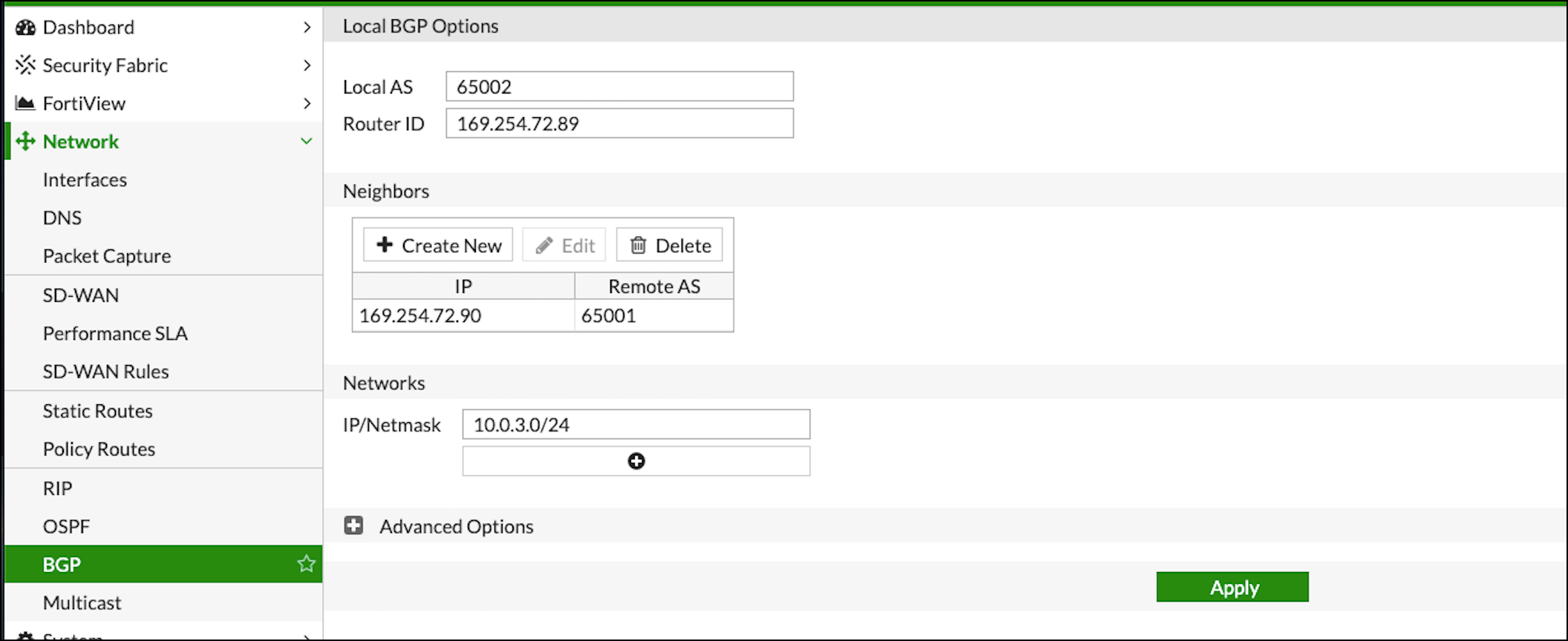
    BGP configuration
  3. In CoPilot, go to Diagnostics > Cloud Routes > BGP Info to verify the BGP Routes. The Status should be Established. If some external connections for the selected Transit Gateway are Not Established, the overall BGP Status for the Transit Gateway is Partially Established.