

The Problem
Organizations usually plan out cloud network address ranges for building non-overlapping connectivity to on-prem, but there are times when a cloud network CIDR conflicts with an on-prem network address range. Moreover, there might be a constraint that neither source NAT nor destination NAT can be performed in the on-prem network but still requires connectivity to on-prem.Aviatrix Solution
This document illustrates performing source NAT and destination NAT on an Aviatrix Spoke gateway where a customer needs connectivity between certain on-prem hosts and certain cloud instances, but the on-prem network range overlaps with the cloud network CIDR as shown in the diagram below. Additionally, traffic can be initiated from either side. The customized SNAT and DNAT apply to HPE-enabled and HPE-disabled Spoke gateways. Topology - Aviatrix Global Transit HA Network with Active Mesh: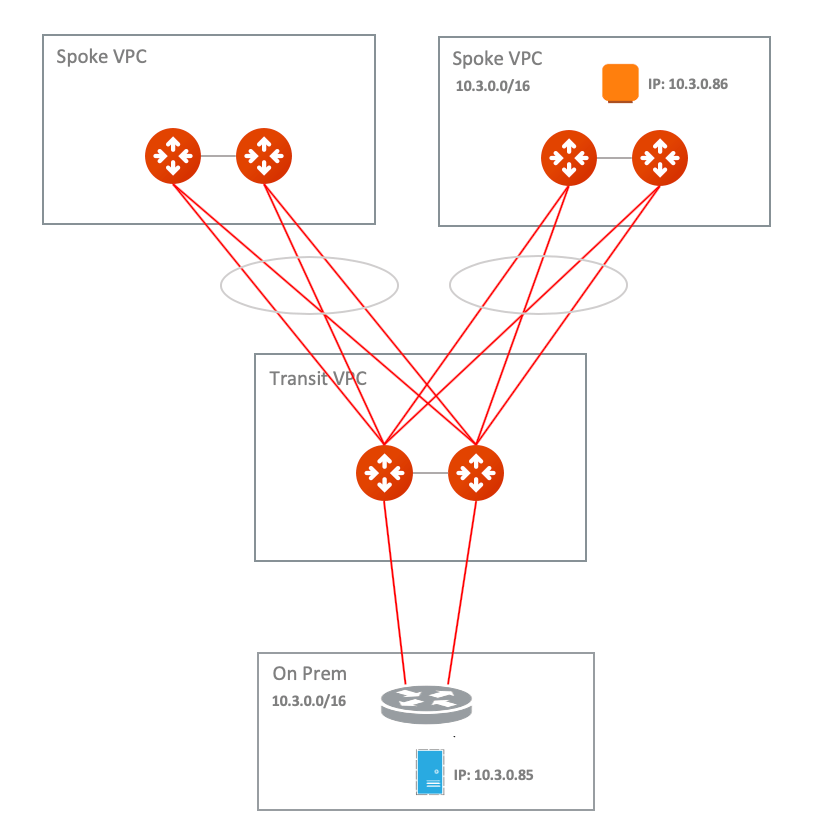
This example supports:
- Specific on-prem hosts and cloud instances which means no identical IP on each side including IPs of Aviatrix Spoke primary/HA gateway.
- Bi-directional traffic.
- Both on-prem and cloud network allow only the RFC 1918 CIDR.
- Deploying Aviatrix Global Transit HA Network with ActiveMesh.
- Deploying a virtual CIDR within the RFC 1918 range to solve the overlapping CIDR between the on-prem network and the cloud network.
- Customize Advertised Spoke VPC CIDRs
- Destination NAT with Mark and Exclude Route Table
- Customized SNAT with Mark and Exclude Route Table
- Traffic which is initiated from on-prem to cloud Spoke network sends to a virtual IP of the cloud instance. In addition, the cloud instance views a virtual IP of the on-prem host.
- Traffic initiated from the cloud Spoke network to on-prem sends to a virtual IP of on-prem host. In addition, on-prem views a virtual IP of cloud instance.
- All virtual IPs belong to the RFC 1918 range.
Prerequisites
- Upgrade the Aviatrix Controller to the latest version.
- From the Controller v8.1 onwards, customized SNAT and DNAT configurations support Spoke gateways launched in HPE mode.
- Prepare a Real/Virtual CIDR mapping table for the on-prem network and the cloud network.
- One of the key steps to solve overlapping network issues is to route a non-overlapping CIDR. Therefore, please prepare a virtual route table CIDR for your on-prem and spoke network. In this example, a Virtual CIDR within the RFC 1918 range is created.
Find out the Real IPs of certain on-prem hosts and certain cloud instances to
build a Real/Virtual IPs mapping table.
- Since this solution is to tackle a specific use case where a customer needs a connectivity between certain on-prem hosts and certain cloud instances in overlapping CIDR, please find out those IPs and plan a Real/Virtual IPs mapping table for routing advertisement and NAT configuration.
Build Aviatrix Global Transit HA Network with Active Mesh
Deploy the topology by following steps 1, 2, 3, 4, and 5 in Multicloud Network Transit Workflow.- Make sure HA is deployed for both Aviatrix Transit Gateway and Spoke Gateway.
- Make sure the on-prem router advertises only the Real IP with /32 of on-prem host not the whole Real CIDR or Virtual IP/CIDR.
Advertise VPC CIDRs
This action is to advertise the Virtual CIDR of cloud spoke network to the on-prem via BGP session so that on-prem is able to route the Virtual IP of the Cloud instance. Please refer to Customizing Spoke Advertised VPC CIDRs. To configure:- On the Cloud Fabric > Gateways > Spoke Gateways tab, click the name of the Aviatrix Spoke Gateway.
- Click the Settings tab.
- On the Settings tab, expand the Routing area.
- Under Customize Spoke Advertised VPC/VNet CIDRs, enter the Virtual CIDR of the cloud Spoke VPC that on-prem is able to route. Make sure to advertise the Virtual CIDR of the cloud Spoke VPC, not the virtual IP of specific cloud instance.
Attach Aviatrix Spoke Gateway to Aviatrix Transit Network
Attach Spoke Gateway to Transit.Configure Aviatrix DNAT function on Aviatrix Spoke Gateway
This is for the traffic which is initiated from on-prem to Cloud Spoke Network. This action instructs the Spoke gateway to translate a destination address from a Virtual IP of cloud instance to a Real IP of cloud instance in cloud spoke VPC. Refer to the Aviatrix DNAT function document.The Mark funtion in NAT is a unique number that is
associated with specific packets. In this document, we leverage it
for the purpose of tracking the session identified by the Source CIDR of
DNAT and then utilizing it for the SNAT IPs of customized SNAT. It is an
advanced option. Alternatively, you still can configure DNAT and customized SNAT rule without mark.If using AWS or Azure, you add the VPC/VNet route table IDs in the Exclude
Route Table field to prevent extra routes from being injected into the cloud
routing table.
- Go to the Settings sub-tab for the Spoke Gateway (Cloud Fabric > Gateways > select Spoke Gateway).
- Expand the Network Address Translation (NAT) area.
- Scroll down to Destination NAT and turn it On.
- Click +Rule.
- Fill in the fields as per the below example.
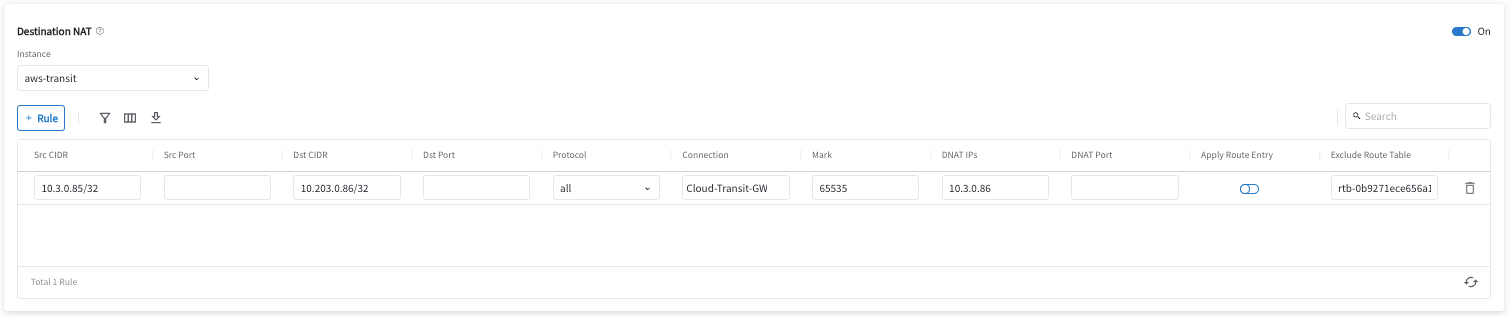
- Click Save.
- Repeat steps 4-6 for multiple entries.
- Slide Apply Route Entry On to commit the rule.
Configure Aviatrix Customized SNAT function on Aviatrix Spoke Gateway and Spoke HA Gateway
This if for the traffic which is initiated from on-prem to cloud Spoke network. This action changes the packet’s source IP address from a Real IP of the on-prem host to a Virtual IP representing the on-prem host. Refer to Aviatrix Customized SNAT. To configure:- Go to the Settings sub-tab for the Spoke Gateway (Cloud Fabric > Gateways > select Spoke Gateway).
- Expand the Network Address Translation (NAT) area.
- Scroll down to Source NAT and turn it On if it is not turned On already.
- Click Customized SNAT.
- Select the Spoke Gateway instance.
- Click +Rule.
- Fill in the fields as per the below example.
SNAT Port left blank means the gateway preserves the original source port
where possible and only remaps it on port collision (within the same port
tier; for example, ports 1024+ remain 1024+). This follows the standard Linux
kernel SNAT behavior documented in the iptables-extensions man
page (SNAT target
section). To force dynamic port allocation, specify a port range in SNAT
Port.
- Click Save.
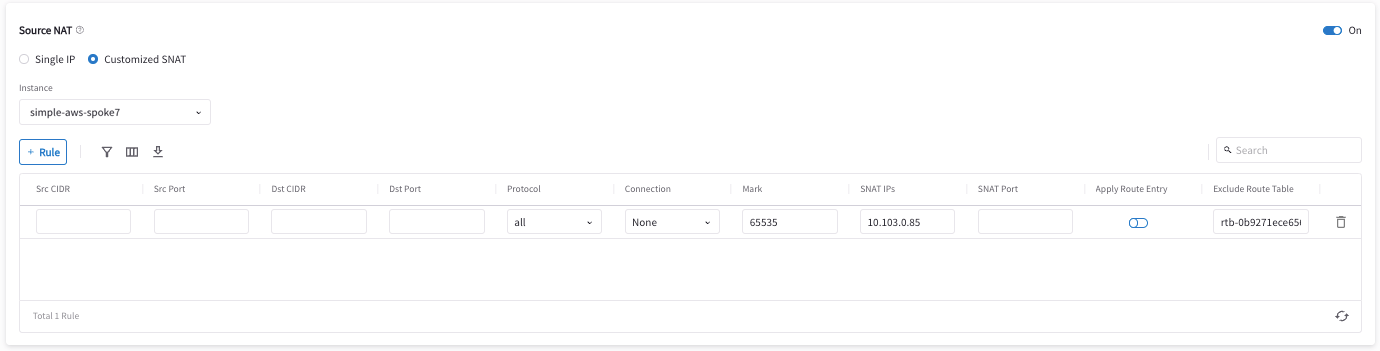
- Slide Apply Route Entry On to commit the rule.
- Repeat steps 5-9 for the Spoke HA Gateway.
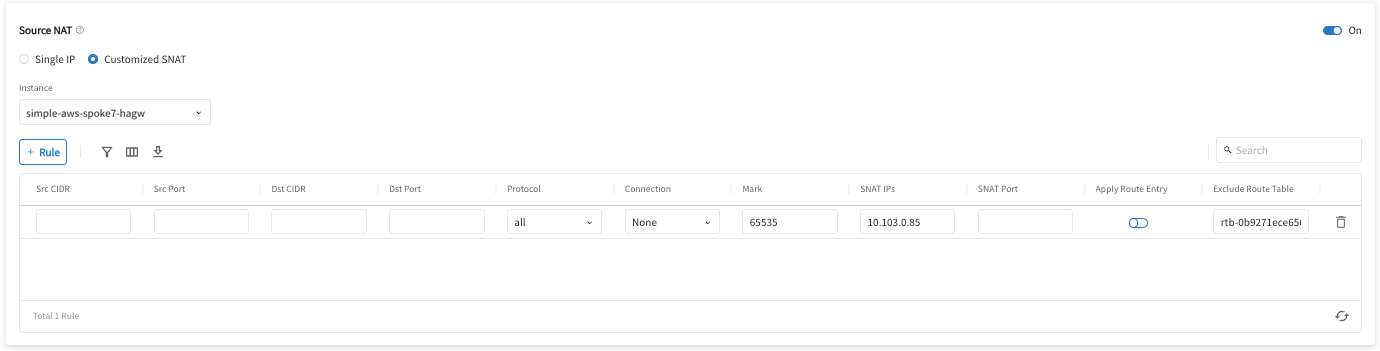
Configure Aviatrix DNAT function on Aviatrix Spoke Gateway
This is for the traffic which is initiated from the cloud Spoke network to on-prem. This action instructs the Spoke gateway to translate a destination address from a Virtual IP of on-prem host to a Real IP of on-prem host. Refer to the Aviatrix DNAT function document. To configure:- Go to the Settings sub-tab for the Spoke Gateway (Cloud Fabric > Gateways > select Spoke Gateway).
- Expand the Network Address Translation (NAT) area.
- Click +Rule.
- Enter the fields as per the below example.
- Click Save.
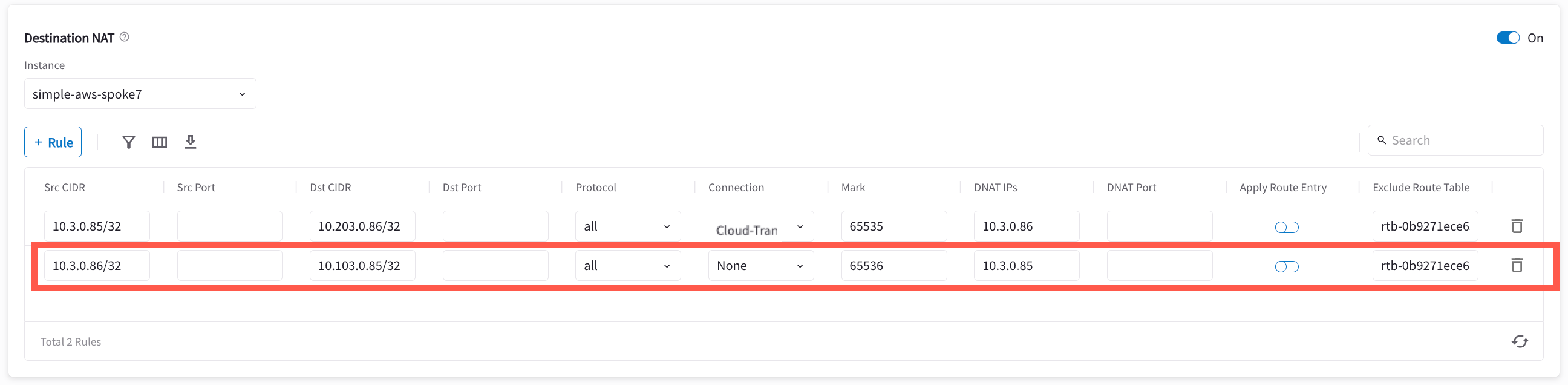
- Repeat steps 3-5 for multiple entries.
- Slide Apply Route Entry On to commit the rule.
Configure Aviatrix Customized SNAT function on Aviatrix Spoke Gateway and Spoke HA Gateway
This is for the traffic which is initiated from the cloud Spoke network to on-prem. This action changes the packet’s source IP address from a Real IP of cloud instance to a Virtual IP representing cloud instance. Please refer to Aviatrix Customized SNAT. To configure:- Go to the Settings sub-tab for the Spoke Gateway (Cloud Fabric > Gateways > select Spoke Gateway).
- Expand the Network Address Translation (NAT) area.
- Scroll down to Source NAT and turn it On if it is not turned On already.
- Click Customized SNAT.
- Select the Spoke Gateway instance.
- Click +Rule.
- Enter the fields as per the below example.
- Click Save.

- Repeat steps 6-8 for the Spoke HA Gateway. You can also repeat the steps to add more entries.
- Slide Apply Route Entry On to commit the rule.
Verify Traffic Flow
Traffic from on-prem to cloud spoke network- Issue ICMP traffic from on-prem host to a Virtual IP of cloud instance

- Execute packet capture on the cloud instance

- Issue ICMP traffic from cloud instance to a Virtual IP of on-prem

- Execute packet capture on the on-prem host
