

Deployment
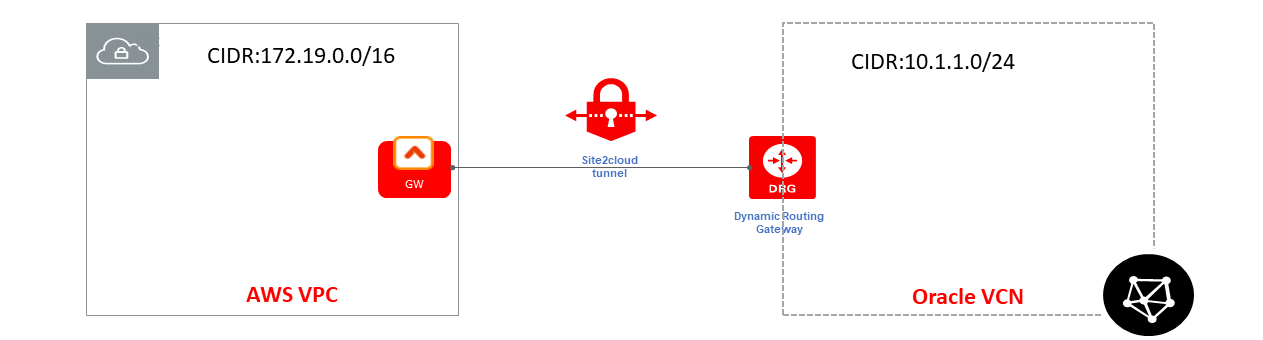
For this use case, you will create an IPsec connection from DRG first and then configure a Site2Cloud connection in Aviatrix CoPilot.Creating an IPsec Connection from DRG
Prerequisites
- You have a DRG created and attached to a VCN.
- You have an Aviatrix Gateway provisioned in a VPC/VNet. You will need this gateway’s public IP address and its VPC/VNet CIDR for the steps below.
-
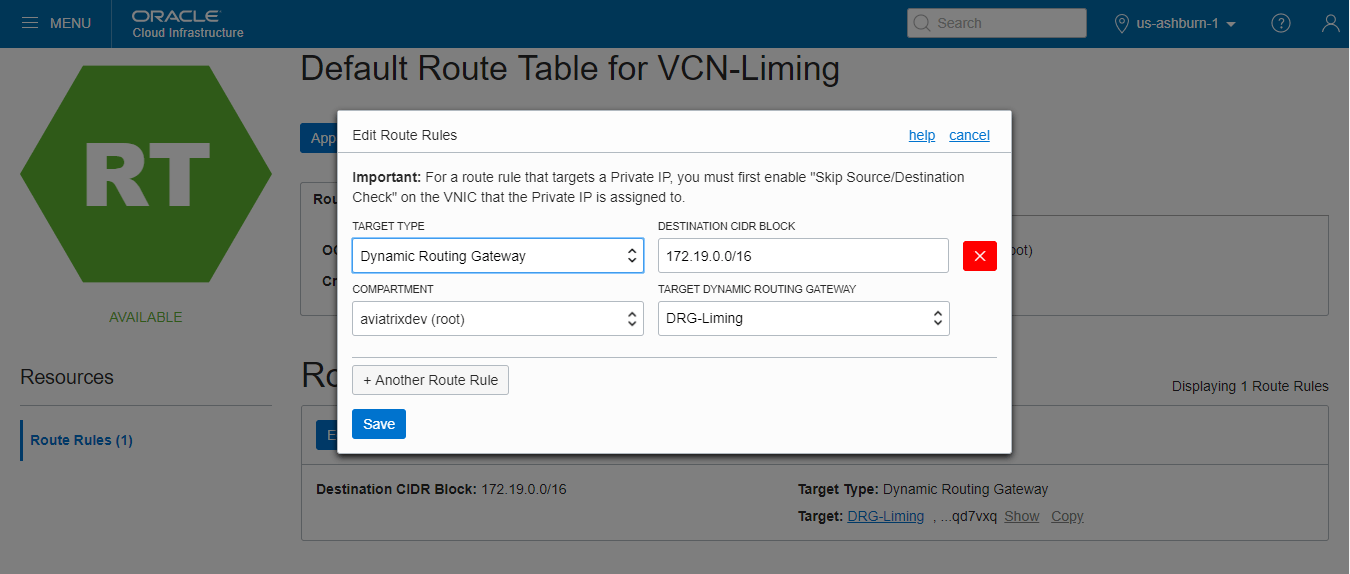
Log in to your Oracle Cloud Console and create a route rule for the DRG.
You need to modify the desired route table and create a route rule to take
any traffic destined for the Aviatrix Gateway’s VPC/VNet CIDR and route it to
the DRG.
- Under Core Infrastructure, go to Networking and click Virtual Cloud Networks.
- Click your VCN.
- Select the desired route table(s) for your VCN.
- Click Edit Route Rules.
-
Create a new route rule as follows and save it.
-
Log in to your Oracle Cloud Console and create security rules. Edit the
security list associated with your VCN subnets by adding two new rules: one
ingress rule for traffic coming from the Aviatrix Gateway’s VPC/VNet and one
egress rule for traffic going to the Aviatrix Gateway’s VPC/VNet.
- Under Core Infrastructure, go to Networking and click Virtual Cloud Networks.
- Click your VCN.
- Select the desired security list(s) associated with your subnets.
- Click Edit All Rules.
-
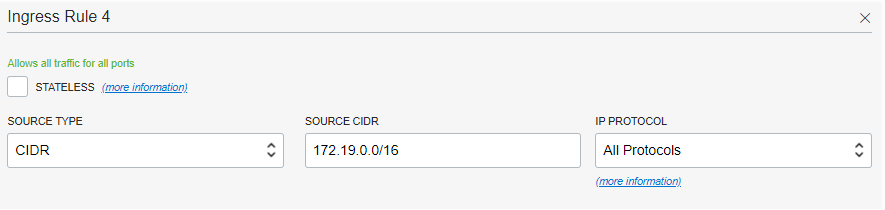
In Allowed Rule for Ingress section, enter the following values to
create a rule to allow incoming traffic from Aviatrix Gateway’s VPC/VNet.
-
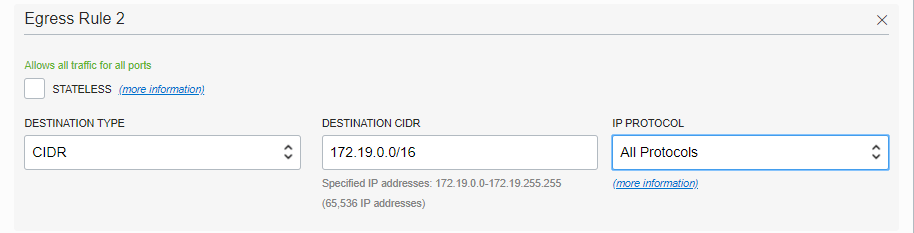
In Allowed Rule for Egress section, enter the following values to create
a rule to allow outgoing traffic to the Aviatrix Gateway’s VPC/VNet.
-
Create a CPE object.
In this task, you create the CPE object, which is a logical representation of
the Aviatrix Gateway.
- Under Core Infrastructure, go to Networking and click Customer-Premises Equipment.
- Click Create Customer-Premises Equipment.
-
Enter the following values and click Create.
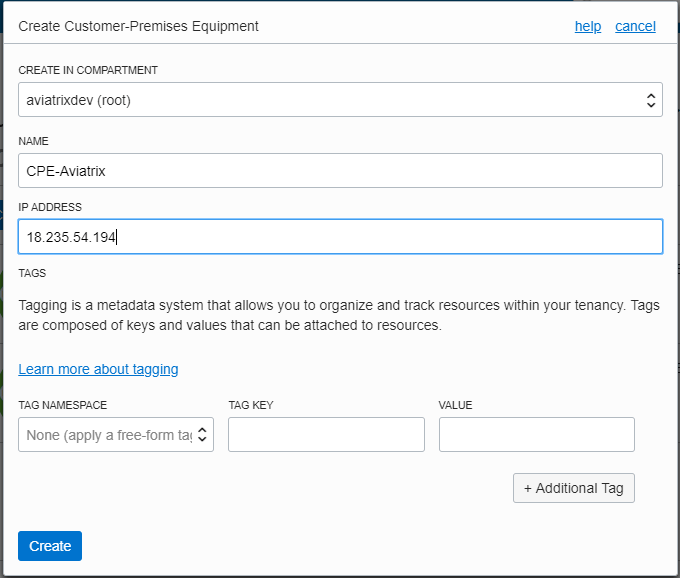
-
From the DRG, create an IPsec connection to the CPE object.
- Under Core Infrastructure, go to Networking and click Dynamic Routing Gateways.
- Click the DRG created earlier.
- Click Create IPsec Connection.
-
Enter the following values and click Create IPsec Connection.
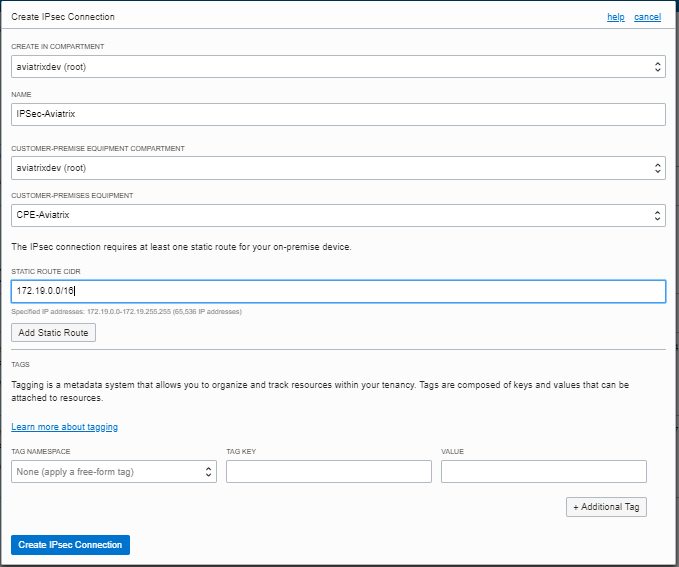
-
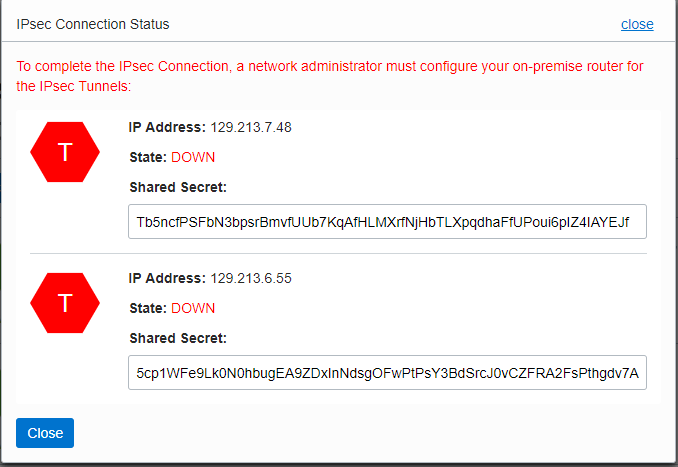
Once the IPsec connection enters the Available state, click the Action
icon (three dots), and then click Tunnel Information. Copy the IP
Address of the VPN headend and the Shared Secret for configuring an
external (S2C) connection in Aviatrix CoPilot.
- Log into Aviatrix CoPilot.
- Create a Transit Gateway.
- Follow the steps in Site2Cloud Configuration Workflow.
- Use one of these tables for specific field values (Unmapped):
-
Replace the following values as noted:
- Remote Device Type: Oracle
- Remote Subnet CIDR(s): Oracle VCN CIDR (10.1.1.0/24 in this example).
- Remote Device IP: IP address copied from the Oracle IPsec connection.
- Pre-Shared Key: Shared Secret copied from the Oracle IPsec connection.
Test
Once complete, test the communication using the tunnel by sending traffic between instances in the Aviatrix Gateway’s VPC/VNet and Oracle VCN.- In CoPilot, go to Diagnostics > Cloud Routes > External Connections.
- Verify that the external (S2C) connection Tunnel Status is Up.
Troubleshoot
Wait 2-3 minutes for the tunnel to come up. If it does not come up within that time, check the IP addresses to confirm they are accurate. Additional troubleshooting is available from Diagnostics > Diagnostic Tools.Creating a Second IPsec Connection Between the Same DRG and Aviatrix HA Gateway (Optional)
From the Oracle Cloud console, create a second IPsec connection between the same DRG and the Aviatrix HA Gateway created here.-
Create a new CPE at Oracle Cloud Console for the Aviatrix HA Gateway:
-
Create a new IPsec connection at Oracle Cloud Console for the Aviatrix HA
Gateway:
- Once the second IPsec connection enters the Available state, click the Action icon (three dots), and then click Tunnel Information. Please copy the IP Address of the VPN headend and the Shared Secret.