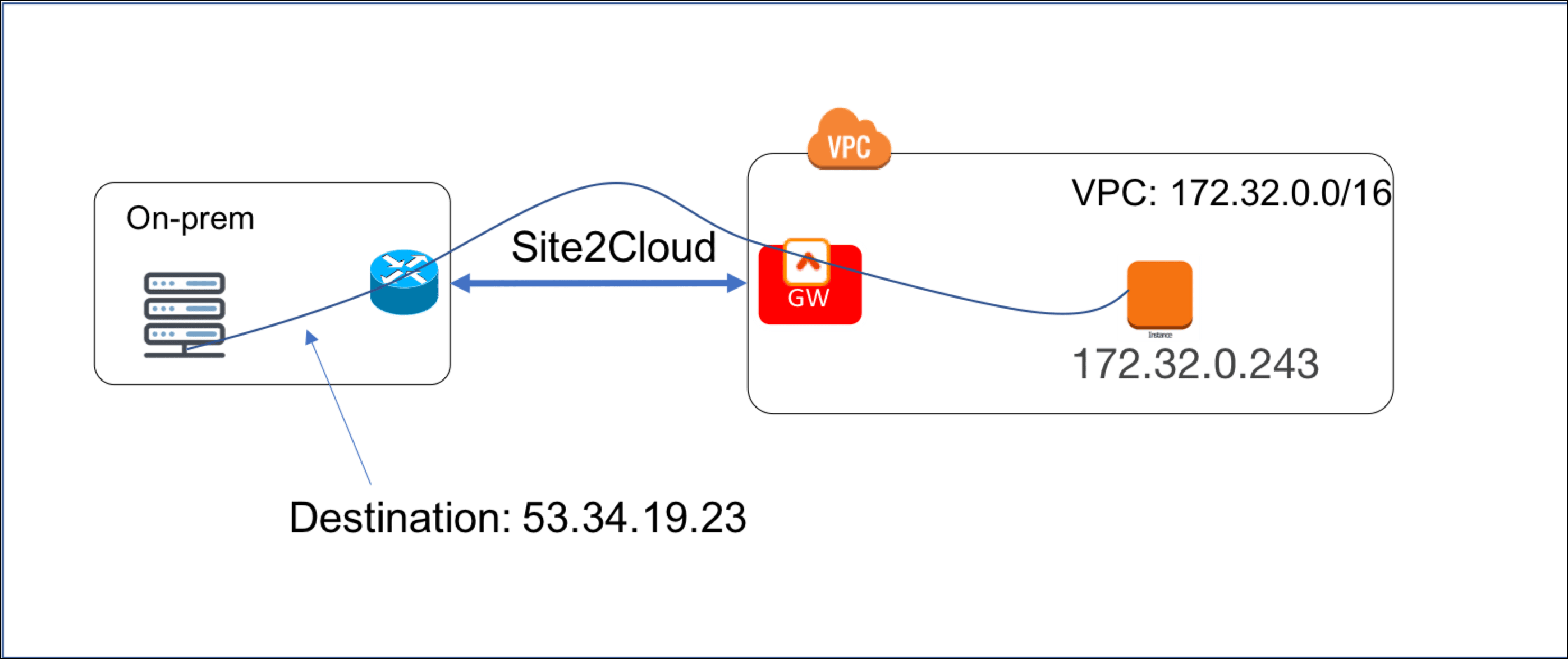
Determine the Public IP Address
As this public IP address is what the on-prem host sees, it should not change. You can do one of the following:- Allocate an EIP in the VPC for this public IP address. Make sure you do not associate this EIP to any instance.
- Alternatively, if the EC2 instance that on-prem hosts need to send data to has an EIP, you can use that EIP.
Launch a Spoke Gateway
Launch a Spoke gateway in VPC 172.32.0.0/16. In this example the gateway name is Spoke1.Create an External Connection
- Navigate to Networking > Connectivity > External Connections (S2C) and click Add New to create a Site2Cloud connection using the values for one of the below options (for either you can select either PSK or certificate-based authentication).
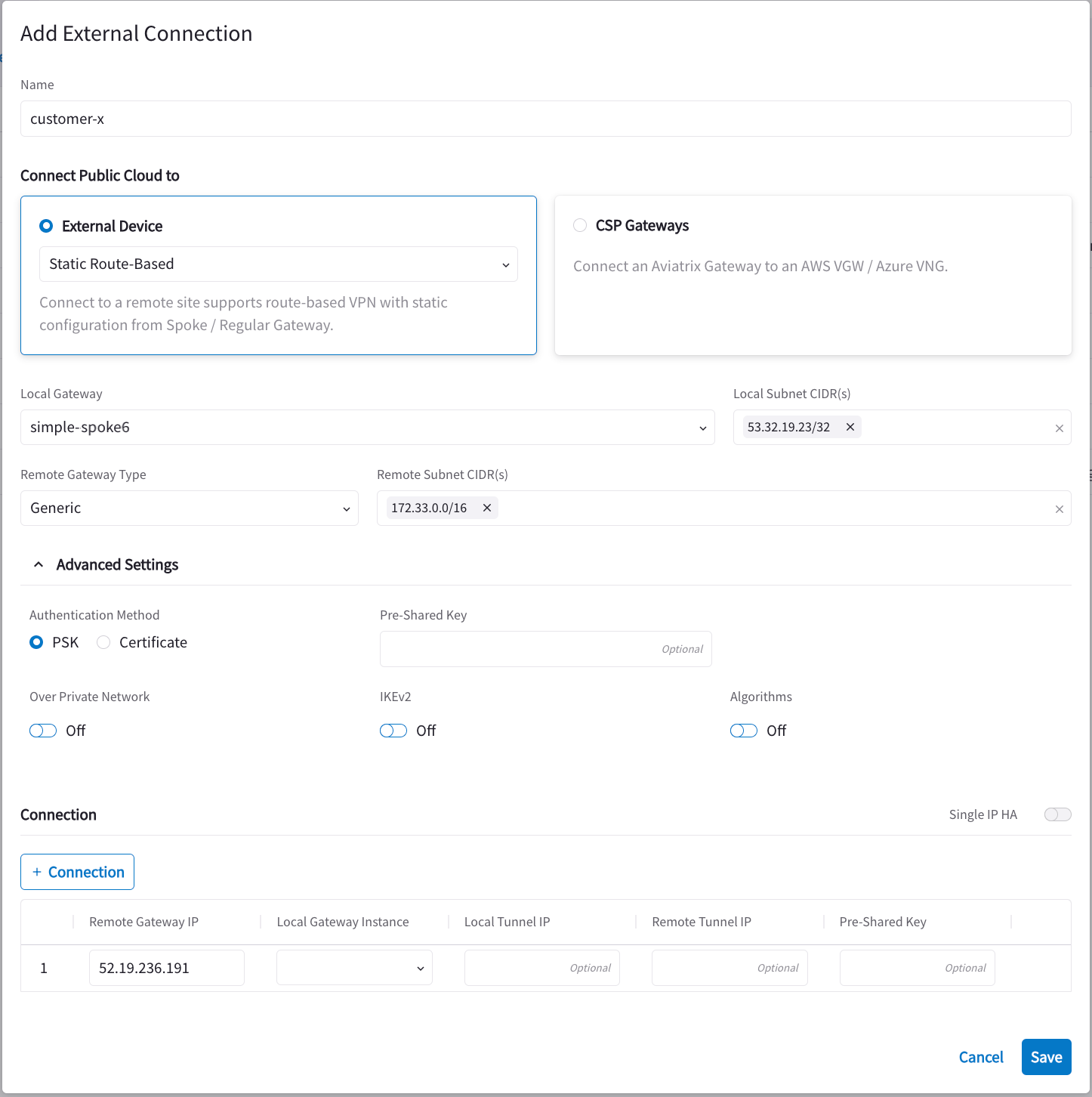
- The Local Subnet CIDR(s) field is the real or virtual public IP address that the on-prem host sends to. If there are multiple instances in VPC that needs to be addressed, enter multiple IP addresses separated by commas.
- The Remote Device IP is the on-prem firewall public IP.
- The Remote Subnet CIDR(s) is the on-prem network range.
Download the Configuration Template
Click the vertical ellipsis
Configure DNAT
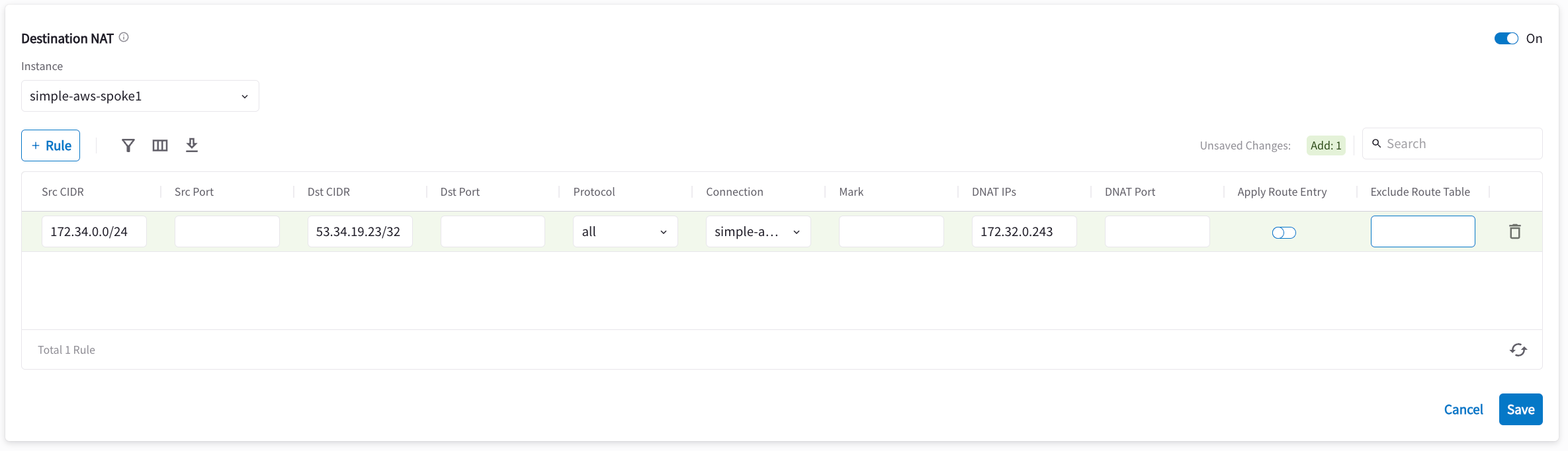
This step is to configure the gateway to translate the destination IP address 53.34.19.23 to the real private IP address 172.32.0.242.- Navigate to Cloud Fabric > Gateways > Spoke Gateways and select the Spoke Gateway created earlier in this document.
- Click the Settings tab and expand the Network Address Translation (NAT) area.
- Turn On Destination NAT.
- Add a rule using the following information from this example:
- Source CIDR: 172.34.0.0/24
- Destination CIDR: 53.34.19.23/32
- Protocol: all
- Connection: The Site2Cloud connection you configured earlier in this document
- DNAT IPs: 172.32.0.243