Introduction
Connecting to on-prem network over the GRE tunneling protocol in AWS is an alternative to IPsec. When GRE tunneling is used, Aviatrix Multicloud Transit Gateways interoperate directly with on-prem network devices over AWS Direct Connect.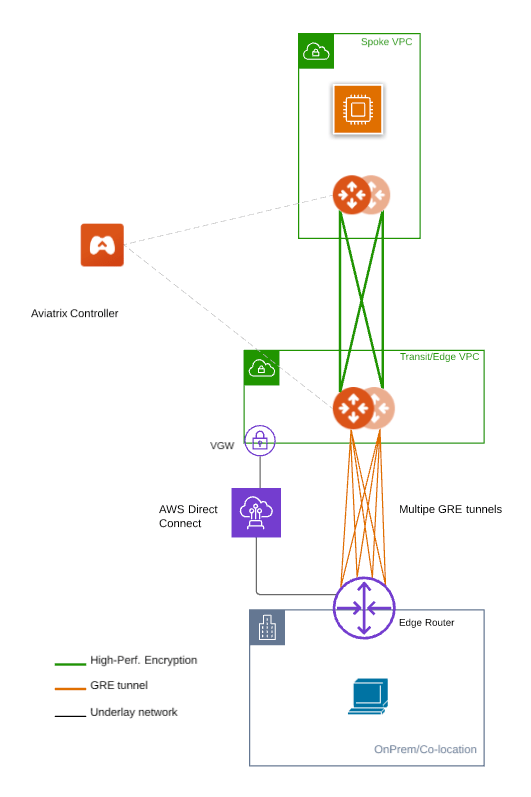
- Building underlay connectivity with AWS Direct Connect 10 Gbps capacity.
- Deploying Aviatrix Transit Solution.
- Establishing connectivity between edge router and Aviatrix Transit Gateway to form GRE tunnel.
- Building GRE tunnel and BGP over GRE.
- Enabling ECMP Load Balancing to achieve high performance.
- Multi Cloud Global Transit FAQ
- Global Transit Network Workflow Instructions (AWS/Azure/GCP/OCI)
- Aviatrix Transit Gateway to External Devices
- Transit Network Design Patterns
- ActiveMesh 2.0 is required. To migrate to ActiveMesh 2.0, see Migrating to ActiveMesh 2.0.
- This solution is not available to Azure and GCP as they do not support GRE.
- Reachability between Transit VPC CIDR and edge router is your responsibility, which is typically done by Colocation data center providers.
- Workflow on building underlay connectivity for private network with AWS Direct Connect here is just an example. Please adjust the topology depending on your requirements.
The key ideas for this solution are:
- The edge (WAN) router runs a BGP session to AWS VGW via AWS Direct Connect where the edge router advertises its GRE IPs. AWS VGW advertises the AWS Transit VPC CIDR.
- Leverage edge router BGP ECMP feature.
- Configure multiple GRE tunnels for greater aggregate throughput.
Reachability between Transit VPC CIDR and edge router is the responsibility of
customer.
Prerequisites
- Upgrade Aviatrix Controller to the latest version.
- In this example, we are going to deploy the below VPCs in AWS:
- AWS Aviatrix Transit VPC (i.e. 10.1.0.0/16) by utilizing Aviatrix feature Create a VPC with Aviatrix FireNet VPC option enabled
- AWS Aviatrix Spoke VPC (i.e. 192.168.1.0/24) by utilizing Aviatrix feature Create a VPC as the previous step or manually deploying it in each cloud portal. Moreover, feel free to use your existing cloud network.
- Edge router has high throughput supported on hardware interface(s) and GRE tunnel(s)
Building Underlay Connectivity with AWS Direct Connect
Building AWS Direct Connect is your responsibility. For more information about AWS Direct Connect, please see Connect Your Data Center to AWS. Adjust the topology depending on your requirements.Building AWS Direct Connect
See Equinix ECX Fabric AWS Direct Connect if you select an Equinix solution. This is just an example. Make sure to select 10 Gbps capacity.Associating AWS VGW to AWS Transit VPC
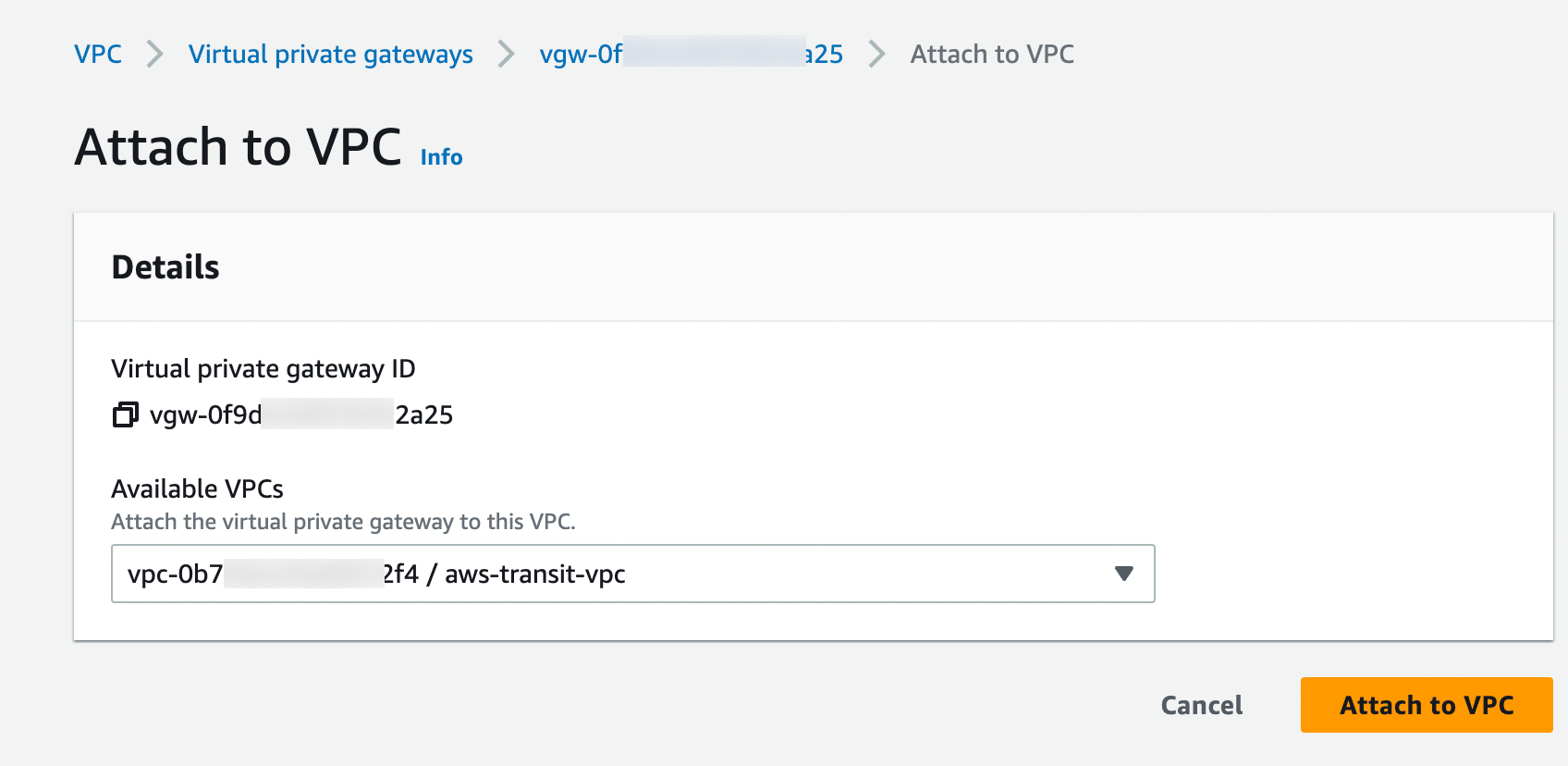
- Log in to the AWS VPC Portal and select Virtual Private Gateways under the Virtual Private Network (VPN) sidebar.
- Select the Virtual Private Gateway that you have the private virtual interface to AWS Direct Connect
- Click Actions.
- Select Attach to VPC.
- Select the AWS Transit VPC and click Attach to VPC.
Deploying the Aviatrix Multicloud Transit Solution
Refer to Single Region Transit Network Workflow Instructions for the steps below. Please adjust the topology depending on your requirements.Step 2.1. Deploy Aviatrix Multicloud Transit Gateway and HA in AWS
- Follow this step to Deploy the Aviatrix Transit Gateway to launch Aviatrix Transit gateway and enable HA with insane mode enabled in the AWS Transit VPC.
- In this example, sizes c5n.2xlarge and c5n.4xlarge are selected to benchmark performance.
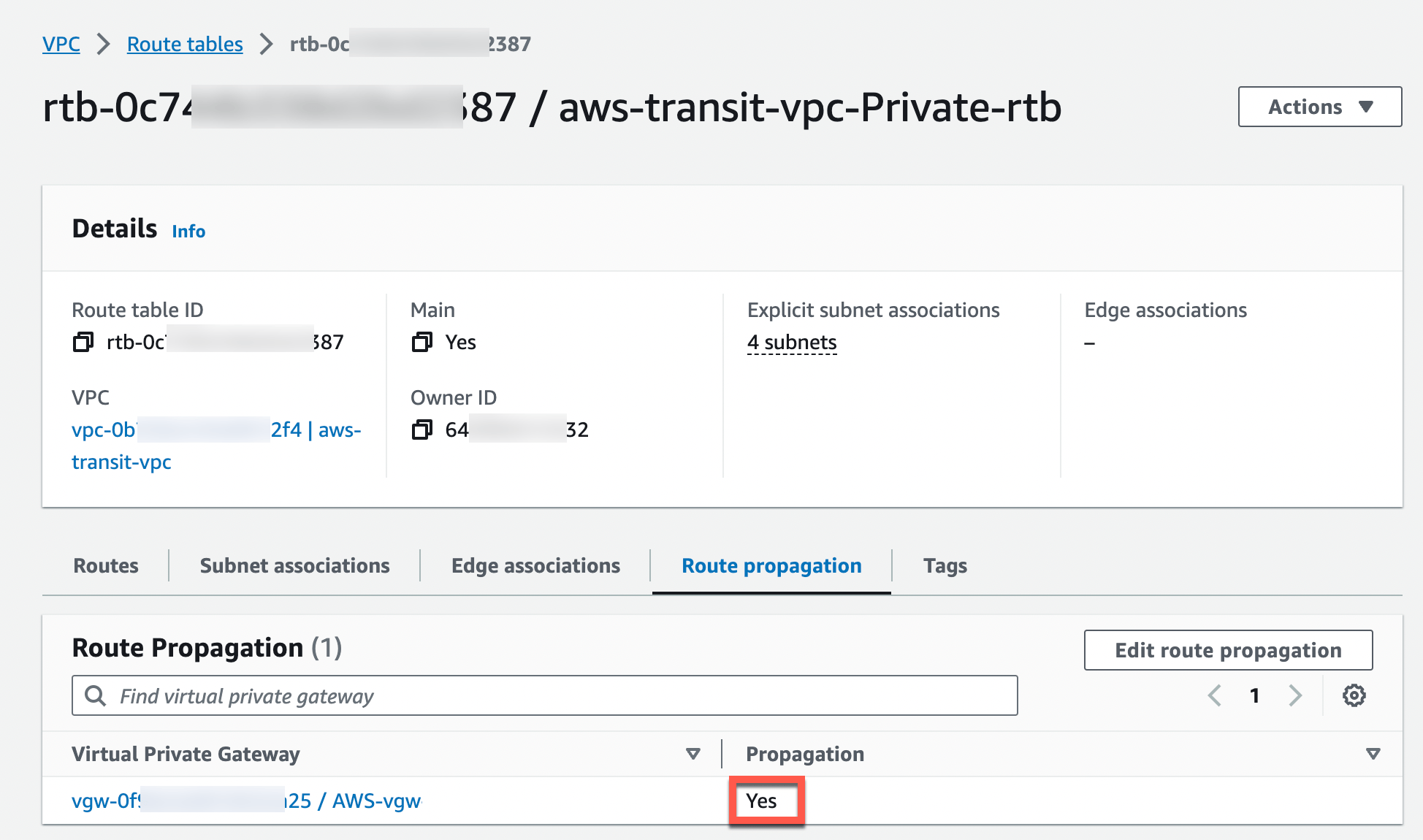
Enabling Route Propagation on the Subnet Route Table where Aviatrix Transit Gateway Locates on AWS Portal
- Log in to the AWS VPC portal and locate the subnet route table where the Aviatrix Transit Gateway is located.
- Select Route Propagation tab.
- Click Edit route propagation.
- Locate the AWS VGW that is associated with this Transit VPC and mark the Propagate checkbox.
- Click Save.
- Check that the Propagate status is Yes.
Deploying Spoke Gateway and HA
Deploy Spoke Gateways to launch Aviatrix Spoke gateway and enable HA with insane mode enabled in AWS Spoke VPC. In this example, sizes c5n.2xlarge and c5n.4xlarge are selected to benchmark performance.Attaching Spoke Gateways to Transit Network
Attach Spoke Gateways to Transit Network.Building Connectivity between Edge Router and Aviatrix Transit Gateway
Cisco ASR is used as an edge router in this example.Checking Whether the edge router has Learned AWS Transit VPC CIDR via the BGP Session Between Edge Router and AWS Direct Connect
- Log in to the edge router (i.e. Cisco ASR).
- Check whether edge router has learned AWS Transit VPC CIDR via the BGP session between edge router and AWS Direct Connect by issuing the related “show ip bgp” command.
Preparing IP for GRE source IP on Edge Router
In this example, we use ASR loopback interface with an unique IP address as a GRE source IP.- Create a loopback interface and assign an IP to itself as a GRE source IP.
Advertising that GRE source IP on Edge Router to the BGP Session Between Edge Router and AWS Direct Connect
The purpose of this step is to let AWS VGW learn the GRE source IP on edge router via BGP session between the edge router and AWS Direct Connect, so that the Aviatrix Transit Gateway can reach the GRE source IP on edge router to form a GRE tunnel over AWS Direct Connect. To demonstrate this concept, we utilize IOS “ip prefix-list” function and apply it on BGP neighbor with direction out function to distribute GRE source IP.- Create a prefix list that defines GRE source IP on edge router for BGP advertisement.
- Apply this prefix list to outgoing BGP advertisements
Checking Route Propagation Info on AWS Portal
- Log in to the AWS VPC portal and locate the subnet route table where Aviatrix Transit Gateway is located.
- Select the VPC > Route tables tab.
- Check whether there is a route entry “GRE source IP on edge router pointing to AWS VGW.”
Confirming that Edge Router and Aviatrix Transit Gateway can Reach each other’s IP for GRE Tunnel
In Aviatrix CoPilot, go to Networking > Connectivity > External Connections (S2C) tab.- Click + Connection.
- Enter the following values:
- Click Connect to generate GRE tunnel and its BGP session.
Downloading the GRE Configuration Sample
In CoPilot, go to the Networking* > Connectivity > External Connections (S2C) tab.- Find the connection you created and click the vertical ellipsis
 .
. - Click Download Configuration.
- Enter the following values:
- Click Download.
Configuring GRE tunnel on Edge Router
- Open the downloaded GRE configuration file.
- Populate these values as follows based on your setup throughout the Tunnel Interface Configuration.
- <tunnel_number1>: the primary GRE tunnel interface number connecting Aviatrix Transit Primary Gateway (i.e. 11)
- <tunnel_number2>: the secondary GRE tunnel interface number connecting Aviatrix Transit HA Gateway (i.e. 12)
- <ios_wan_interface1>: the IP which is assigned on the Loopback interface as an GRE source IP (i.e. 192.168.77.1)
- <ios_wan_interface2>: the IP which is assigned on the Loopback interface as an GRE source IP (i.e. 192.168.77.1)
- Copy and paste the updated Tunnel Interface Configuration into the edge router.
Configuring BGP over GRE tunnel on Edge Router
- Open the downloaded GRE configuration file and copy and paste the BGP Routing Configuration into edge router.
- Create a prefix list that defines CIDR where server locates in on-prem/co-location for BGP advertisement.
- Apply the prefix list to outgoing BGP advertisements.
Verifying GRE Tunnel Status on Aviatrix Controller
- In CoPilot, go to Networking > Connectivity > External Connections (S2C) tab.
- Find the connection that you created. The green dot next to the Connection Name indicates the connection is Up.
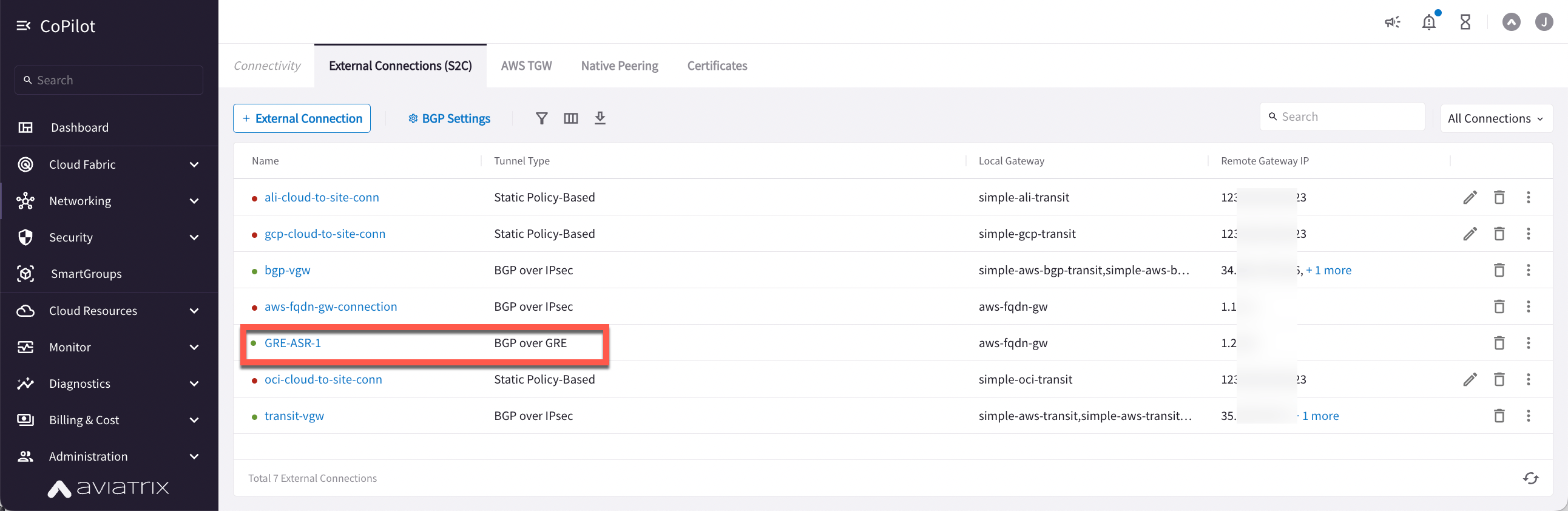
- Go to Cloud Fabric > Gateways > Transit Gateways.
- Select the Transit Primary Gateway that was created in the previous step.
- Click Details/Diag.
- Click the Connections sub-tab.
- Find the connection that you created with Connection Name in the previous step and check the Tunnel Status.
Verifying BGP Session Status
- Go to Diagnostics > Cloud Routes > BGP Info.
- Find the connection that you created with Connection Name in the previous step and check the status. The Status should be Established. If some external connections for the selected Transit Gateway are Not Established, the overall BGP Status for the Transit Gateway is Partially Established.
Configuring ECMP Load Balancing for High Performance
Building Multiple GRE tunnels between Edge Router and Aviatrix Transit Gateway
- Building multiple GRE tunnels by repeating Build connectivity between edge router and Aviatrix Transit Gateway.
- Build multiple BGP over GRE tunnels by repeating Build GRE tunnel and BGP over GRE.
Enabling BGP ECMP feature on Aviatrix Transit Gateway
- In CoPilot, go to Cloud Fabric > Gateways > Transit Gateways and select the Transit Gateway that was created in the previous step.
- On the Settings sub-tab, under Border Gateway Protocol, toggle the BGP ECMP setting to On.
Verifying BGP ECMP feature on Aviatrix Controller
- With the same Transit Gateway selected, click the VPC/VNet Route Tables tab.
- Select the Transit Primary Gateway that was created in the previous step.
- Click the Gateway Routes sub-tab.
- Search for the on-prem CIDR in the Destination column.
- Check whether there are multiple GRE tunnels with same Metric and Weight under the same route entry.
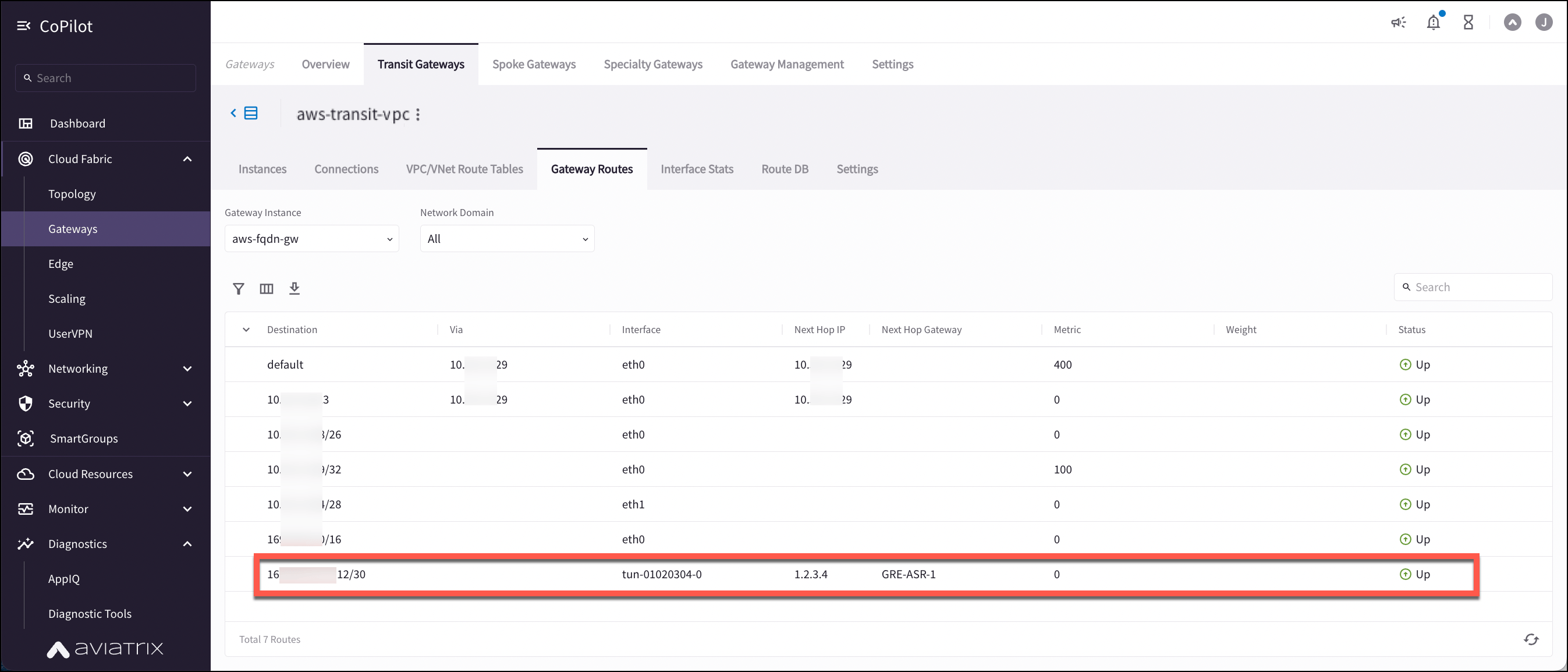
Enabling the BGP ECMP feature on Edge Router
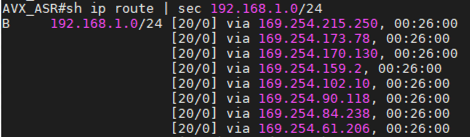
- Configure “maximum-paths” with higher number of equal-cost routes in BGP settings so that BGP will install in the routing table. In this example, we configure “maximum-paths 8” to achieve high performance over multiple GRE tunnels.
- Modify ECMP Load Balancing algorithm depending on traffic type.
Verifying the BGP ECMP feature on Edge Router
Check whether BGP install equal-cost routes in the routing table by issuing the related command “show ip bgp.”