

Environment Requirements
An Aviatrix Site to Site IPsec tunnel is accomplished by one gateway initiating the session with the other gateway. For this to work at least one of the Aviatrix virtual appliances needs to be accessible via a public IP address. This can be accomplished by setting up the public IP address on the edge router in the on-premises network and configuring NAT from that public IP address to the Aviatrix VM with a 1-1 IP address NAT. The only ports that need to be forwarded from the edge router to the VM are UDP ports 500 and 4500.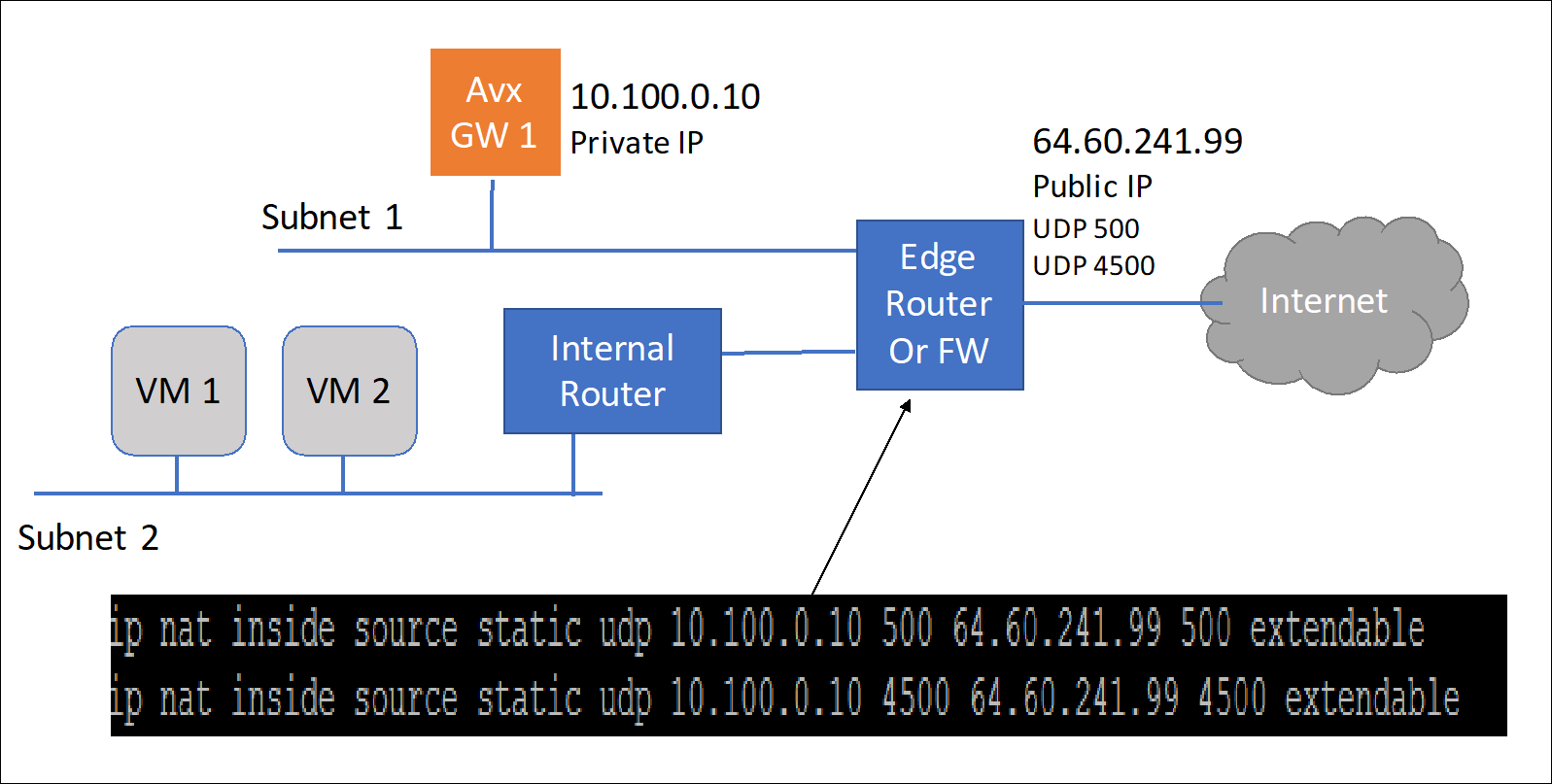

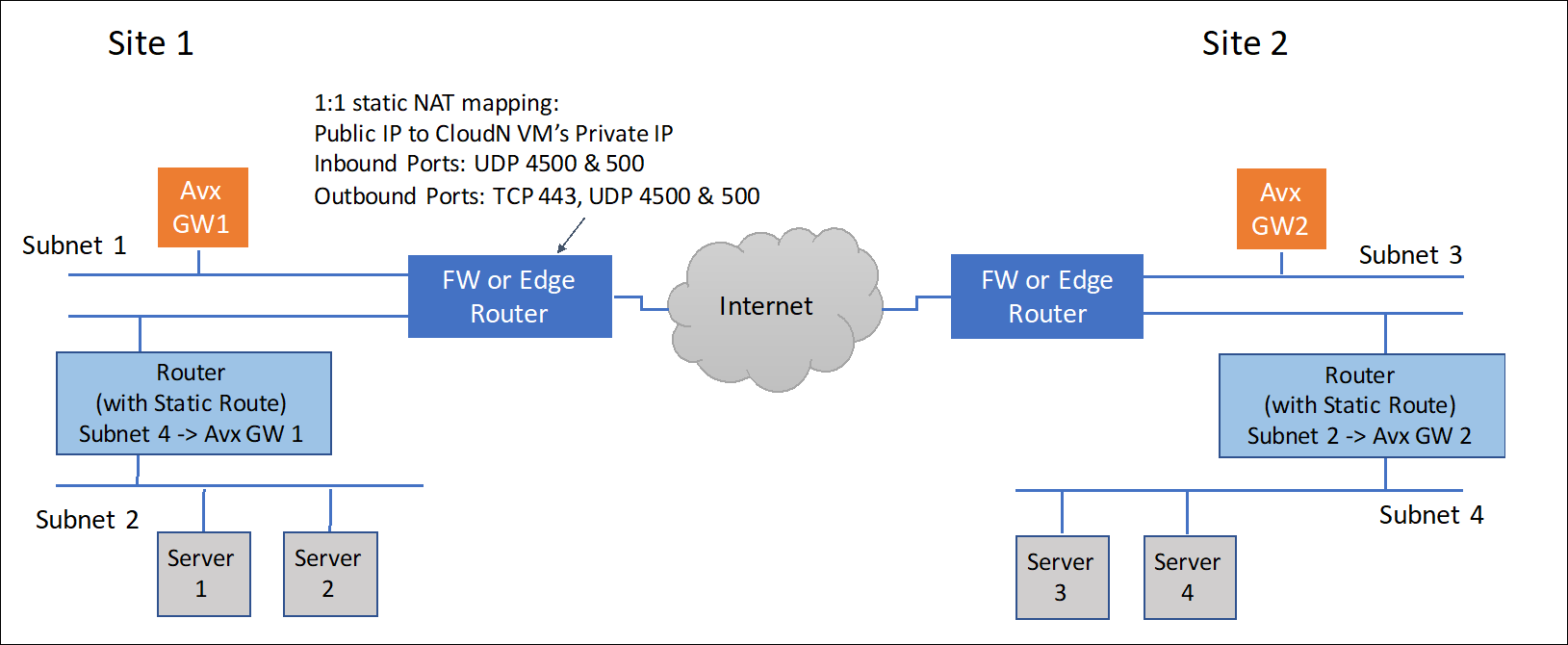
Steps to Configure IPSec Connectivity
- Install an Aviatrix gateway in each site. See Creating a Spoke Gateway.
-
Configure an external connection (Site2Cloud) for Gateway 1. Aviatrix
Site2Cloud feature builds an encrypted connection between the two sites over
the Internet.
a. In CoPilot, go to Networking > Connectivity > External Connections
(S2C) and click +External Connection. b. Enter a name for the connection.
c. Select the External Device radio button, then click on the dropdown
menu and select Static Route-Based for route-based VPN connection or
Static Policy-Based for policy-based VPN connection. d. Follow the
instructions in
Static Route-Based External Connection (Unmapped)
or
Static Policy-Based (Unmapped) External Connection Using Terraform
using the values in the table below:
e. Click Save. The connection is listed on the External Connections (S2C) tab.
- Download the configuration.
- Log in to Gateway 2’s CoPilot on the other site.
- On the Networking > Connectivity > External Connections (S2C) tab, add a new connection using the downloaded configuration information above. This will start the IPsec negotiations between both gateways. You can check the status of the connection by going to Diagnostics > Cloud Routes > External Connections.