

Create the Customer Gateway
Prerequisites
- You have a VGW created and attached to a VPC.
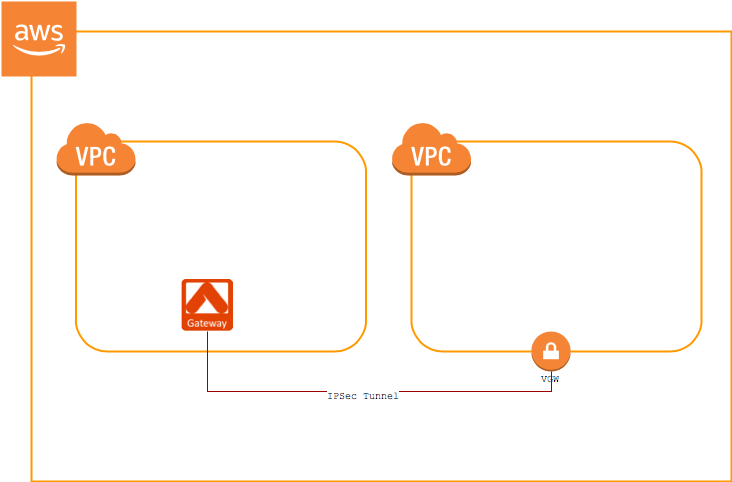
- You have an Aviatrix Gateway provisioned in a different VPC. You will need this gateway’s public IP address for the steps below.
- Log in to your VPC Dashboard in the region where your VGW is located.
-
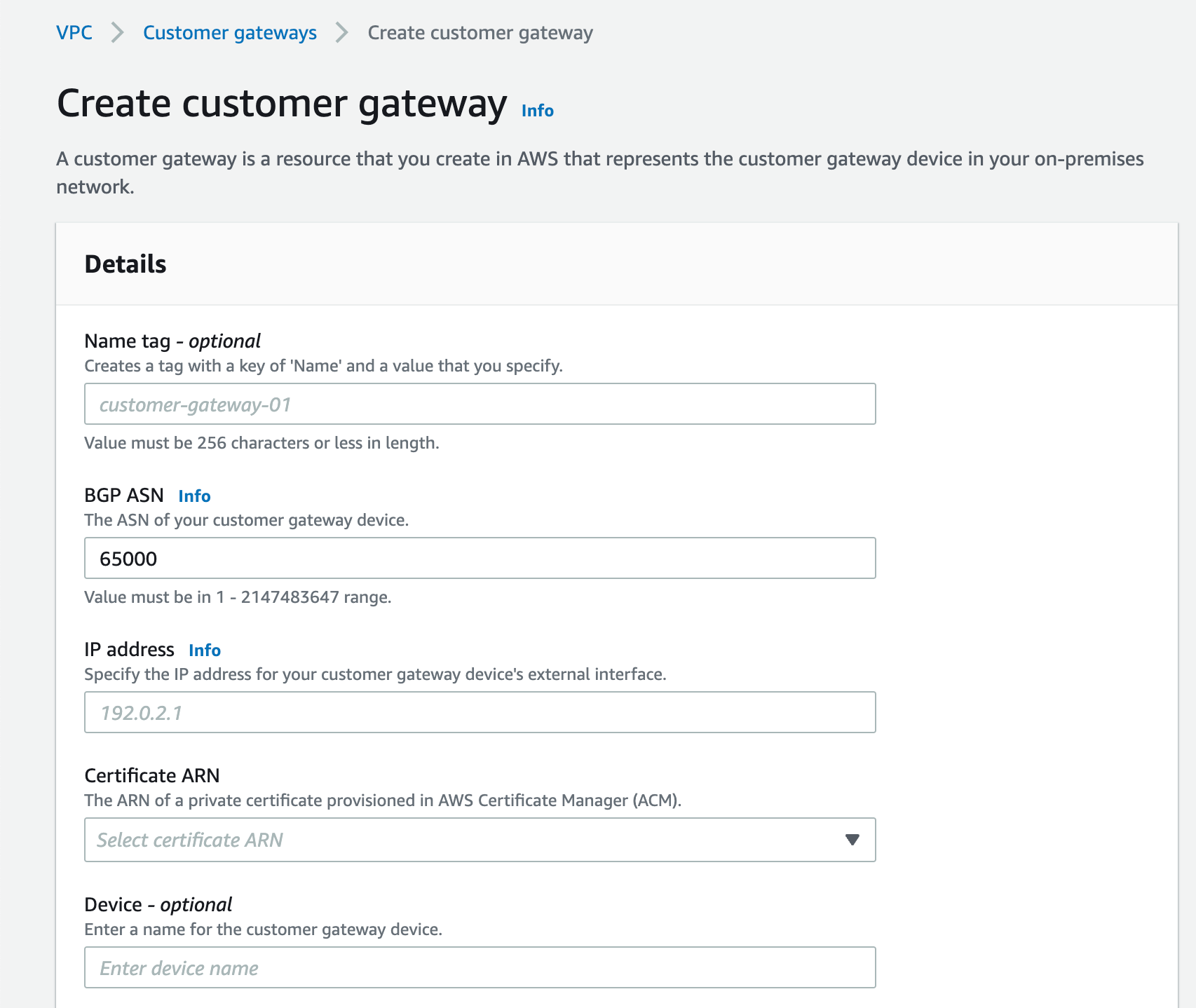
Create a new
Customer Gateway.
In the IP address field, enter the public IP address of the Aviatrix Gateway.
Create a VPN Connection
-
Create a
VPN Connection.
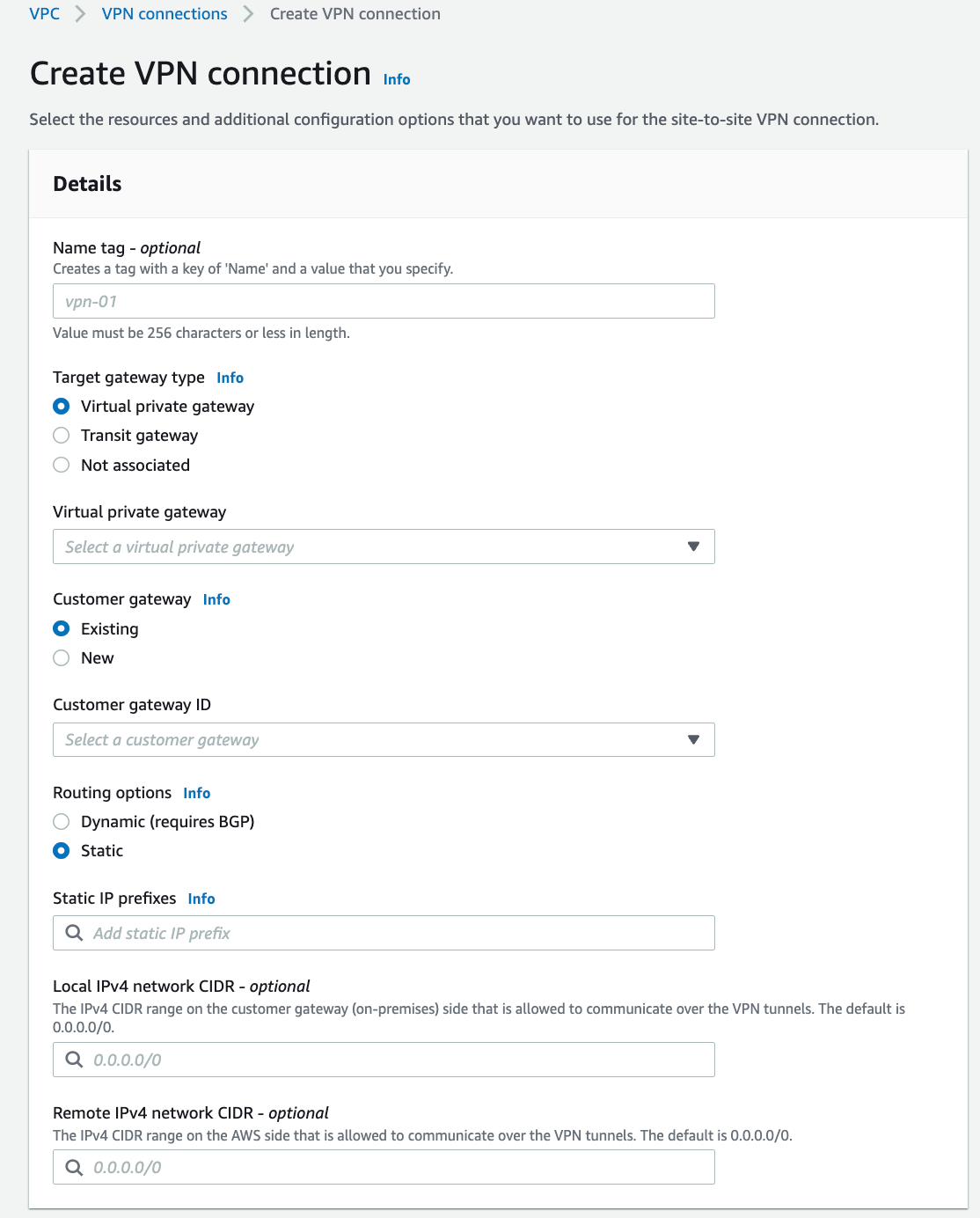
- You can leave the Tunnel 1 and 2 options as their defaults. Click Create VPN connection.
-
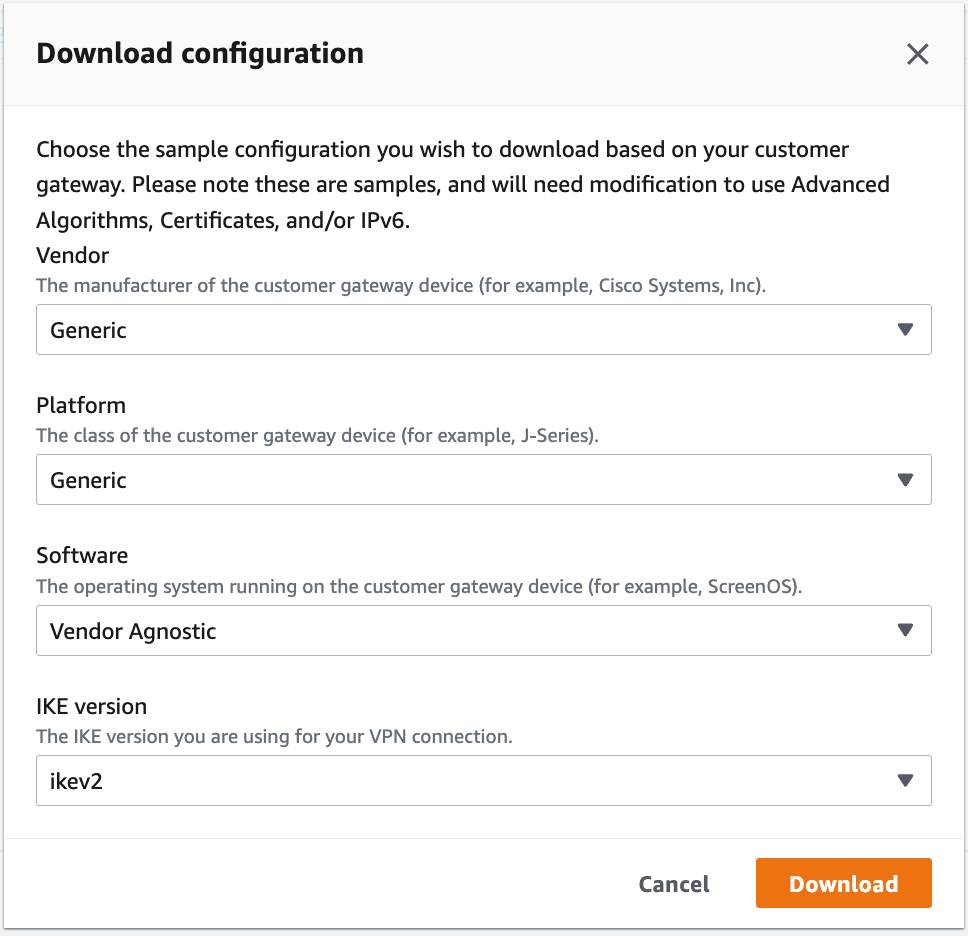
Select the VPN you just created and click Download Configuration.

- At the dialog, select Generic for the Vendor, Generic for the Platform and Vendor Agnostic for the Software.
-
Click Download. You will use this file to create the other side of the
tunnel.
Configure the External Connection
- Log in to CoPilot and go to Networking > Connectivity > External Connection.
- Click +External Connection.
- Follow the steps in one of these documents to create an Unmapped connection to an AWS TGW Remote Gateway:
When creating this external connection, do the following:
- Ensure that the Algorithms checkbox is selected.
- Select the Generic Remote Device Type. Any other Remote Devices listed here are only valid with Controller version 6.7 or lower.
- Enter the following values when configuring the external connection (make sure you have the downloaded configuration file from the previous section available):
- Remote Subnet CIDR(s): This is usually the the Spoke VPC that on-prem wants to reach (in this example, 10.20.0.0/20)
- Pre-Shared Key: Enter the value that matches the value from #1: Internet Key Exchange Configuration > Pre-Shared Key from the downloaded configuration file
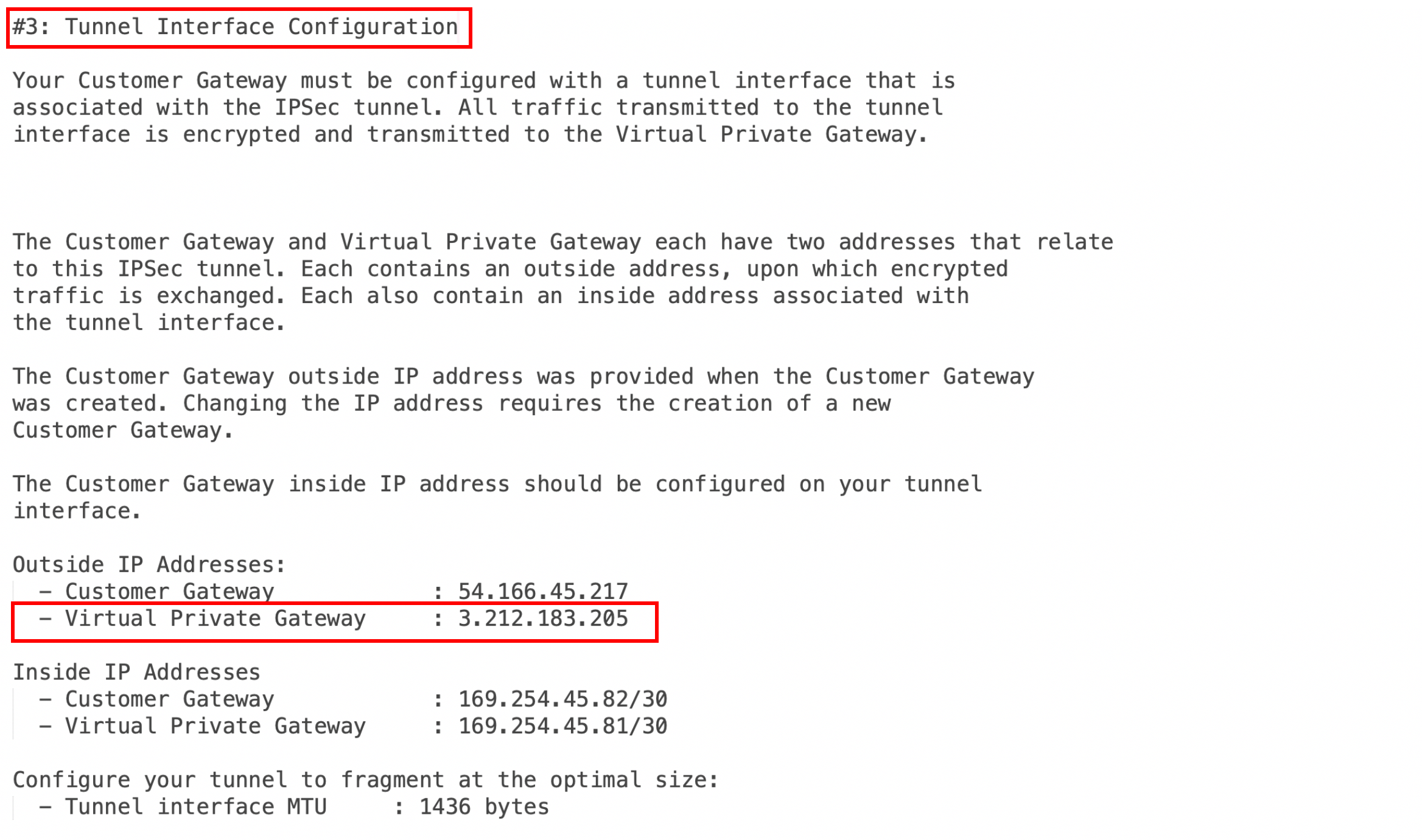
- Remote Device IP: Enter the value that matches #3: Tunnel Interface Configuration > Outside IP Addresses > Virtual Private Gateway from the downloaded file (in this example, 3.212.183.205)
Testing the Connection
Once complete, you can check the tunnel status at Diagnostics > Cloud Routes > External Connections.Troubleshooting
If the tunnel does not come up within the expected time frame, you can check the IP addresses to confirm that they are accurate. Additional troubleshooting is available under Diagnostics > Diagnostic Tools.Appendix: Enable HA
You can enable HA for Aviatrix Site2Cloud connection to AWS VGW. Please add the following extra steps to the configuration.Creating an Aviatrix HA Gateway
Before creating a Site2Cloud connection, make sure that you add an HA instance when creating your Aviatrix Gateway .Creating a VPN Connection Between VGW and the Aviatrix HA Gateway
Follow the steps from Create the Customer Gateway above. The only differences are:- When you create the Customer Gateway, enter the Aviatrix HA gateway public IP
- When you create the VPN connection:
- Select the same VGW used for the primary VPN connection
- Select the customer gateway you just created for HA
- Enter the CIDR(s) of the VPC where the HA Aviatrix Gateway resides under Static IP Prefixes
Create Aviatrix Site2Cloud Connection with HA
In CoPilot, go to Networking > Connectivity > External Connections (S2C) and add a new external connection. Add an instance for HA. Additional fields are displayed when checked.You need the information from the downloaded VPN configuration file to
configure the external connection between the AWS VPN and the Aviatrix HA
Gateway. Follow the same steps you did for the primary connection.
Other fields should be filled as instructed in above section
Configure the External Connection.