

Integration with Azure VNG
Multicloud Transit Integration with Azure Virtual Network Gateway (VNG) enables Aviatrix Multicloud Transit solution to work cohesively with native Azure Virtual Network Gateway (VNG). This integration allows the Aviatrix Transit Gateway to inspect not only east-west and egress traffic, but also traffic from on-premises to cloud. Both native Spoke VNets and Aviatrix Spoke Gateway based Spoke VNets are supported.Data Packet Forwarding and Traffic Inspection
Data packets are forwarded natively to on-premises through Azure Virtual Network Gateway (VNG), using either ExpressRoute or Internet connectivity. Aviatrix Transit Gateways are deployed in the data path between VNG and Spoke VNets, enabling advanced functions such as firewall inspection for traffic moving from on-premises to Spoke and between the Spokes.Configurtion Workflow Overview
This setup is illustrated by a network design featuring two Spoke VNets: one with an Aviatrix Spoke Gateway (172.60.0.0/16) and one native Spoke VNet (172.50.0.0/16).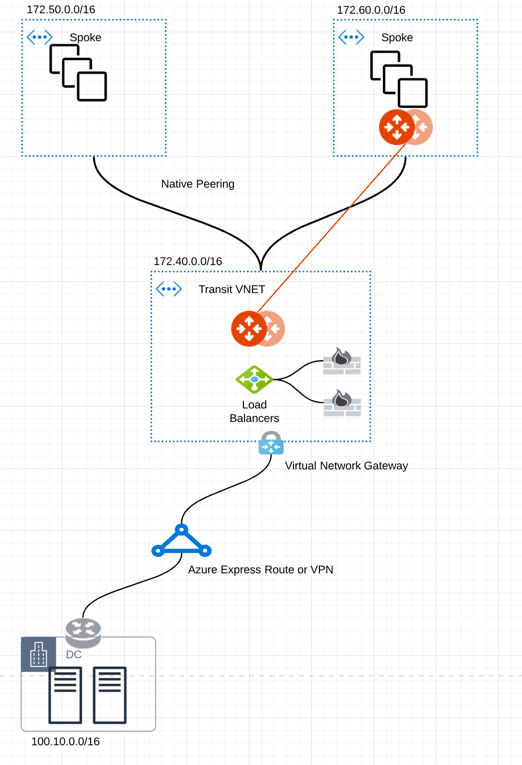
- The edge (WAN) router establishes a BGP session with Azure VNG via ExpressRoute or VPN. The edge router advertises on-premises routes to Azure VNG, while Azure VNG advertises Spoke VNet CIDRs.
- The Aviatrix Controller periodically retrieves route entries from the Transit VNet VNG route table—these routes are advertised from on-premises. The Controller then propagates these routes to both Spoke VNets and the Aviatrix Transit Gateway.
- Azure native VNet Peering is configured between each Spoke VNet and the Transit VNet VNG. The Allow Remote Gateway attribute is set on the Spoke VNets to automatically advertise routes from the Spoke VNets to VNG to on-premises.
- Traffic arriving from on-premises to the VNG is routed to the Azure Load Balancer, which then forwards traffic to both Aviatrix Transit Gateways (for active-mesh deployment). The same Load Balancer also distributes traffic to firewalls for inspection.
- Traffic originating from Spoke VNet is routed directly to Aviatrix Transit Gateway, which then forwards the traffic to the Azure Load Balancer.
Prerequisite
Upgrade Aviatrix Controller to the latest version.Connect VNG on On-Premises
If you have already created the VNG in Transit VNet, skip this section.
- Azure ExpressRoute landing page
- ExpressRoute documentation
- Equinix ECX Fabric Microsoft Azure ExpressRoute if you select the Equinix solution.
- Create an ExpressRoute circuit. See Tutorial: Create and modify an ExpressRoute circuit.
- Create Azure private network for your ExpressRoute circuit. Refer to the private peering section in Create and modify peering for an ExpressRoute circuit.
-
Create a VNG in Transit VNet
with Transit + FireNet enabled.
For more information, see Configure a virtual network gateway for ExpressRoute using the Azure portal.This process may take up to 45 minutes to complete.
- Connect a virtual network to an ExpressRoute circuit. See Connect a virtual network to an ExpressRoute circuit using the portal.
- Check ExpressRoute Circuits by accessing the List Routes Table on the Azure portal.
Check ExpressRoute Circuits Routes Table in Azure
- Log in to the Azure portal and search for “ExpressRoute circuits” using the search bar.
- Select the ExpressRoute circuit that you created.
- Select the Azure private peering row.
- Select Get route table to verify routes learned from on-premises.
Connect Aviatrix Transit Gateway with VNG
Refer to Global Transit Network Workflow instructions for the following steps. Adjust the network topology as needed for your specific requirements.Deploy an Aviatrix Multicloud Transit Gateway and HA in Azure
- Deploy the Aviatrix Transit Gateway in the Azure Transit VNet with High Availability and High Performance Encryption (HPE) enabled. HPE is not required but an optional feature to increase throughput. A minimum instance size of Standard_D5_v2 is required for High Performance Encryption to achieve higher throughput. For detail performance information, refer to High Performance Encryption Performance Benchmarks .
- Add Transit FireNet to the Transit Gateway .
Connect Transit Gateway to Azure VNG
Connect Transit Gateway to Azure VNG
This procedure assumes the Azure VNG is already deployed in the Transit VNet.
- In Aviatrix CoPilot, go to Networking > Connectivity > External Connections (S2C) tab.
- From the + External Connection dropdown menu, select Azure Virtual Network Gateway.
- Enter the following values:
- Click Save. The new Azure VNG connection appears in the table.
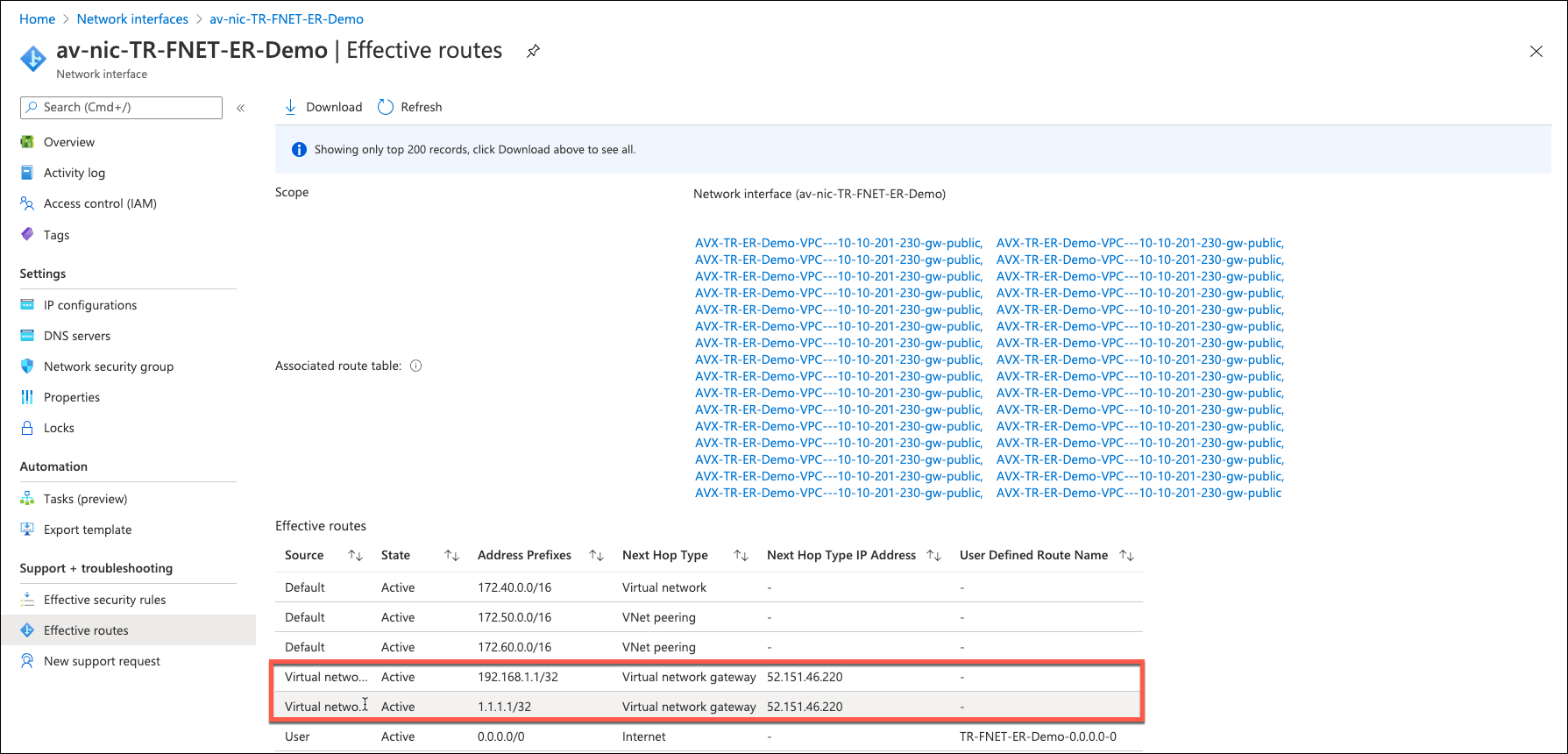
Check Effective Routes Info on Azure Portal
- Log in to the Azure portal and search for “Network interfaces” using the search bar.
- Select the interface associated with the Aviatrix Transit Gateway.
- Go to the Effective routes page by selecting Effective routes under the Support + troubleshooting section.
-
Review the route entry for On-premises, where the Next Hop Type should be
Virtual network gateway.
Attach Spoke VNet to Aviatrix Transit Gateway
- Deploy an Aviatrix Spoke Gateway in a Spoke VNet. You may create an Azure VNET for Aviatrix Spoke Gateway by using the Aviatrix feature Create a VNG in Transit VNet or manually deploy it via the cloud portal. Alternatively, you can use existing virtual network.
-
Deploy a Spoke Gateway in the Azure Spoke VNet
, ensuring High Availability is enabled. High Performance Encryption (HPE)
may also be enabled if required, though it is optional.
For optimal throughput with HPE mode, select an instance size of at least Standard_D5_v2. For detail performance information, see High Performance Encryption Performance Benchmarks .
-
Attach the Spoke Gateways to the Transit Network.
- Attach Spoke Gateways to Transit Network (Azure)
- To attach the Azure Native VNet Spoke to Aviatrix Transit Gateway, follow the steps in Attach Native Azure VNET to Transit Network .