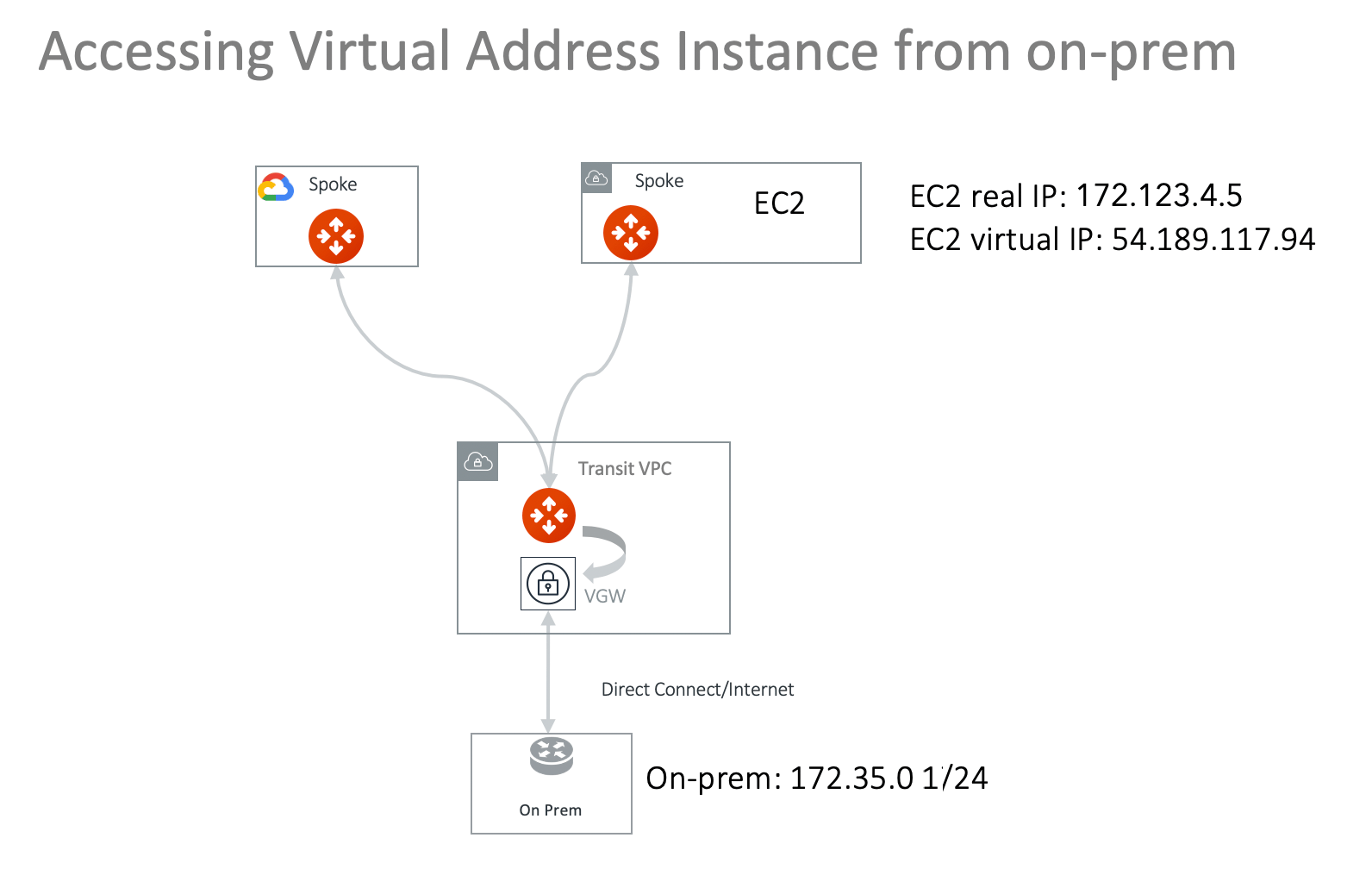
Determine the Virtual IP address
As this virtual IP address is what the on-prem host sees, it should not change. There are a couple of options for a virtual IP address:- You can allocate an EIP in the VPC for this virtual IP address. Do not associate this EIP to any instance.
- Alternatively, if the EC2 instance that on-prem hosts need to send data to has an EIP, you can use that EIP.
Launch a Spoke Gateway
Create a Spoke Gateway in VPC 172.32.0.0/16.Customize Spoke Gateway Advertised Routes
- After creating the Spoke Gateway, click the name of the Gateway and then click the Settings tab.
- Expand the Routing area.
- In the Customize Spoke Advertised VPC/VNet CIDRs area, enter 54.189.117.94/32. With this customization, the Spoke gateway advertises 54.189.117.94/32 to the Transit Gateway and subsequently to on-prem.
Attach the Spoke Gateway
You can attach the Spoke Gateway to Transit by clicking the edit
Configure DNAT on the Spoke Gateway
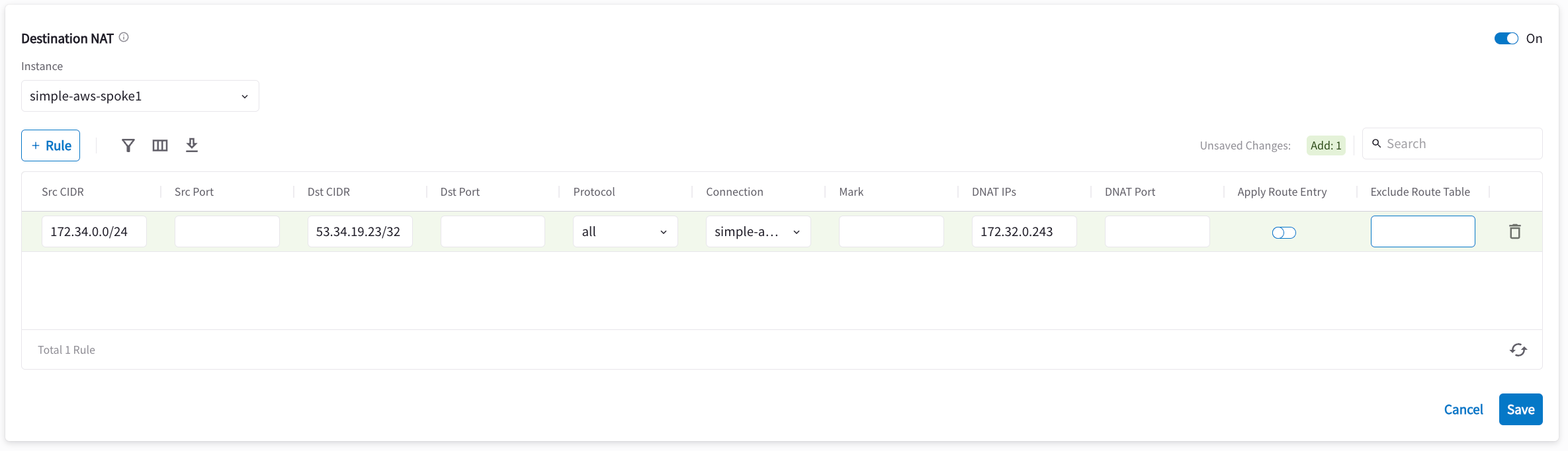
This step is to configure the Spoke gateway to translate the destination virtual IP address 54.189.117.94 to the real private IP address 172.123.4.5.- On the Gateway page, highlight the Spoke gateway and click Edit.
-
Scroll down to Destination NAT. Follow the instructions in
Destination NAT
to configure, as shown below. Use the “Connection” field to specify the
Site2Cloud connection name configured in Step 3.