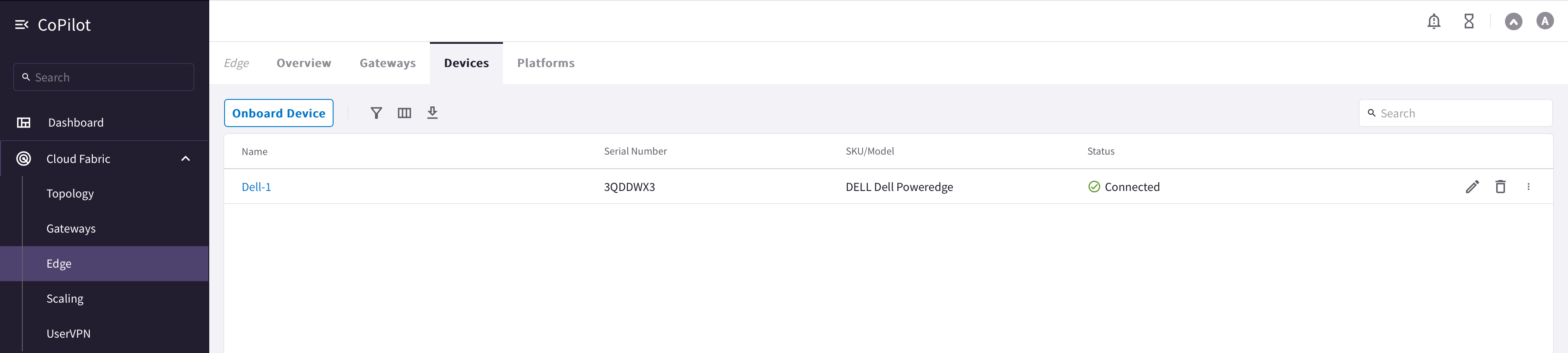
1. Prerequisites
- Before you start to onboard and install the Edge OS on the edge device, make sure these prerequisite steps are completed.
- Download and install a software on your laptop which you can use to Flash an OS to a USB drive or SD card, like balenaEtcher - Flash OS images to SD cards & USB drives.
2. Prepare a USB Installer with Aviatrix Edge OS
Prepare a USB installer with Aviatrix Edge OS.- Download the latest Aviatrix Edge OS from Aviatrix Support.
- Connect a USB drive to a laptop.
-
Open Balena Etcher
- Select the Aviatrix Edge OS image
- Select the USB drive
- Flash
3. Onboard Edge Device onto Aviatrix Edge Platform
Onboard the edge device onto the Aviatrix Edge Platform.- In Aviatrix CoPilot, go to Cloud Fabric > Hybrid Cloud > Devices tab.
- Click Onboard Device, then provide the following information.
- Expand Device Interface Configuration and configure the device’s
Function MGMT (Management) interface.
- If you plan to use DHCP for the device Management interface, turn DHCP toggle to On.
- If you plan to configure a Static IP address for the device Management interface, leave DHCP toggle to Off.
- If DHCP is Off, enter the Static IP address for the Management interface.
- If you are using a proxy server to route internet traffic, from Proxy Profile dropdown menu, select the profile to upload to the edge device.
- Under Advanced, specify the Edge Management CIDR that will be used on the Edge gateway interface. If a CIDR is not specified, the system auto assigns 10.100.101.0/24 CIDR range and assigns 10.100.101.2 IP address on the interface.
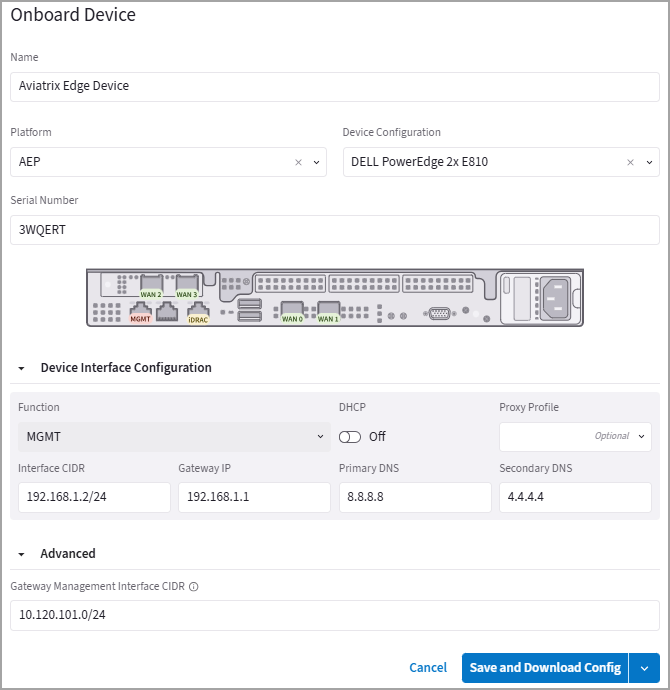
- Save the configuration.
- When DHCP is selected for MGMT interface, click Save.
- When Static IP is selected for MGMT interface, from the Save and Download Config drop-down menu, click Save.

- Connect a USB drive to your laptop.
- Open Balena Etcher.
- Select the device’s bootstrap-config.img image file.
- Select the USB drive.
- Flash
4. Install Aviatrix Edge OS with a USB Installer
Install Aviatrix Edge OS on the edge Device using the USB installer.This procedure is based on the Aviatrix OS installer on a USB drive. When an
iDRAC license is available to enable virtual media functions, you can use an
ISO installer file over a network.
- Connect VGA/serial and keyboard to Dell server, and power it on.
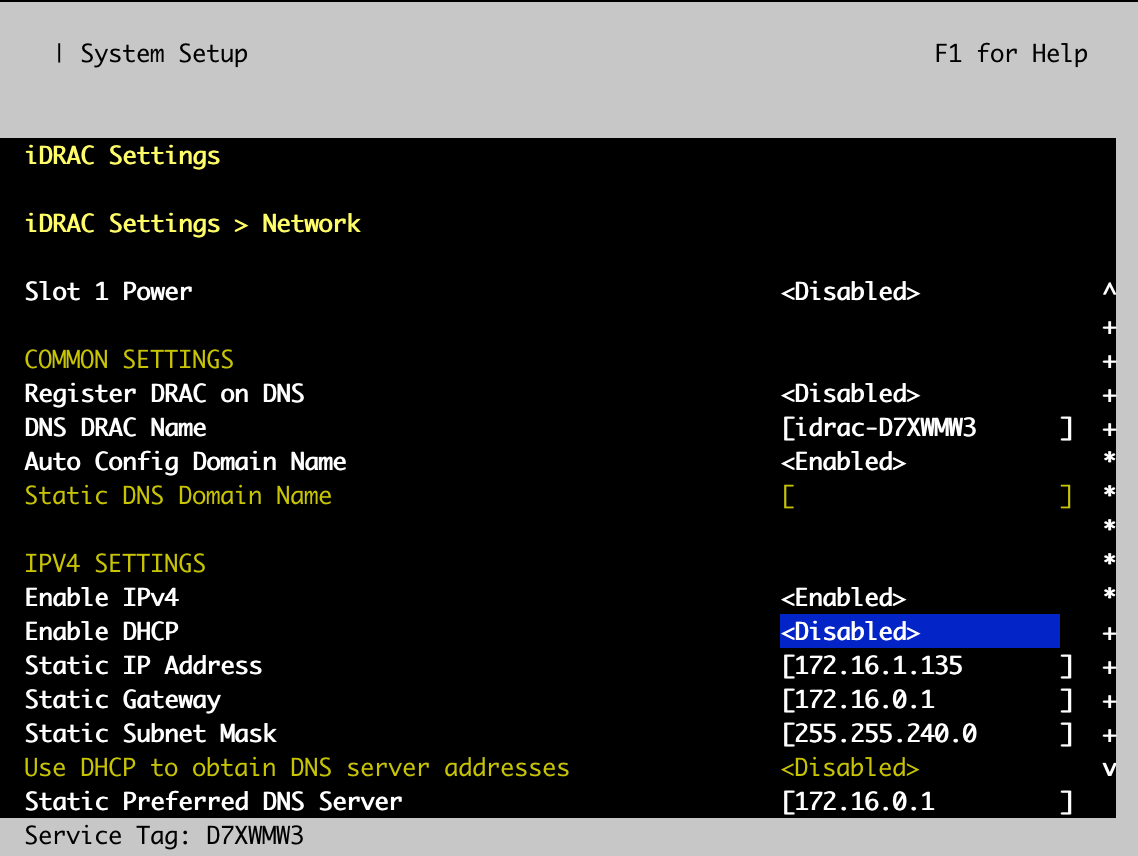
- From the Dell server’s VGA/serial console, from iDRAC Settings > Network to setup iDRAC with Static IP address or desired IP address settings, apply the new settings and then reboot the system.
- Identify the Dell server’s face panel with dual USB ports and plug in Aviatrix OS installer USB disk to the USB port labeled with SS; then browse to iDRAC’s IP address to login to the iDRAC UI with default credentials, which can be found from the Dell service tag label.
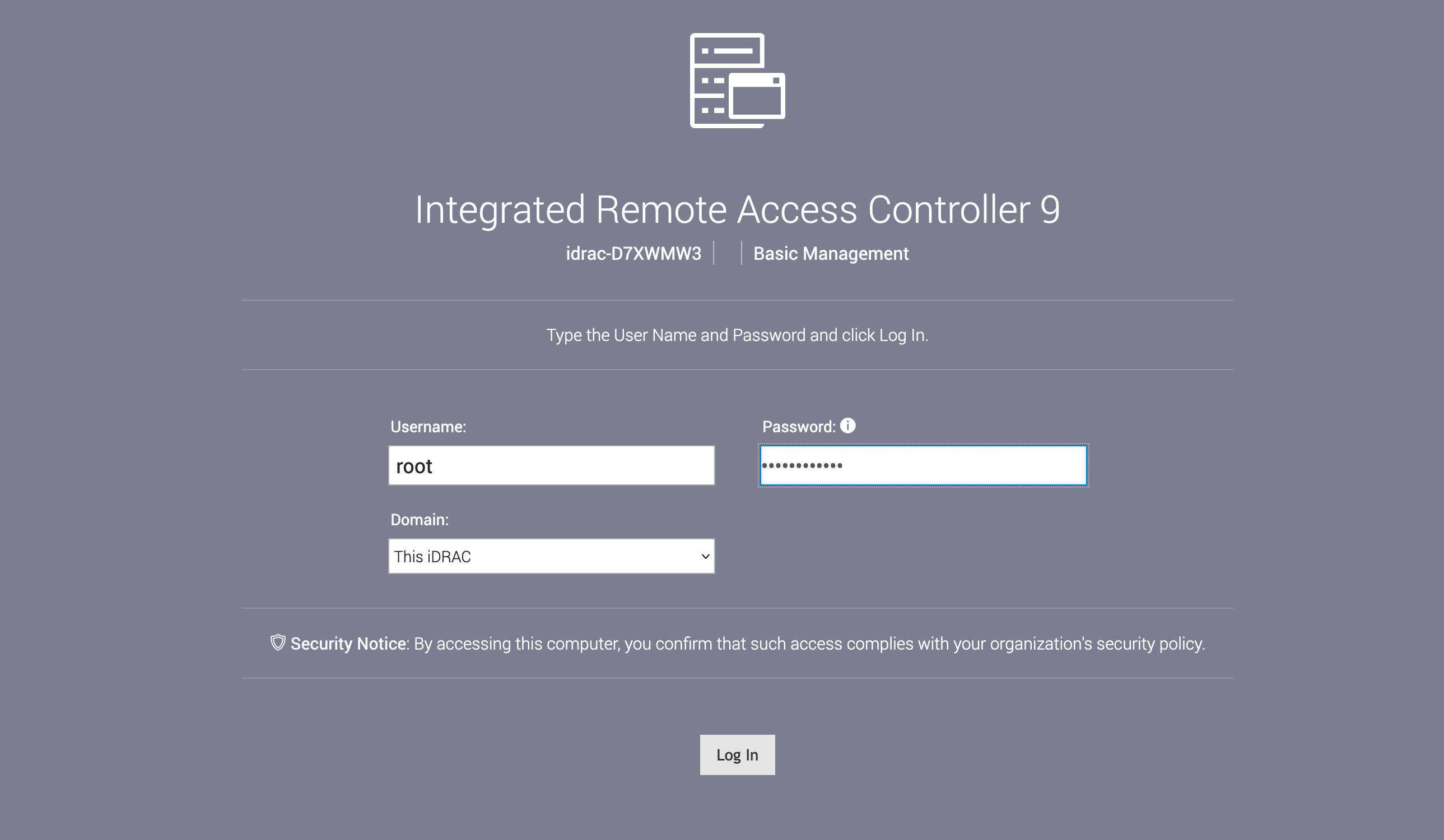
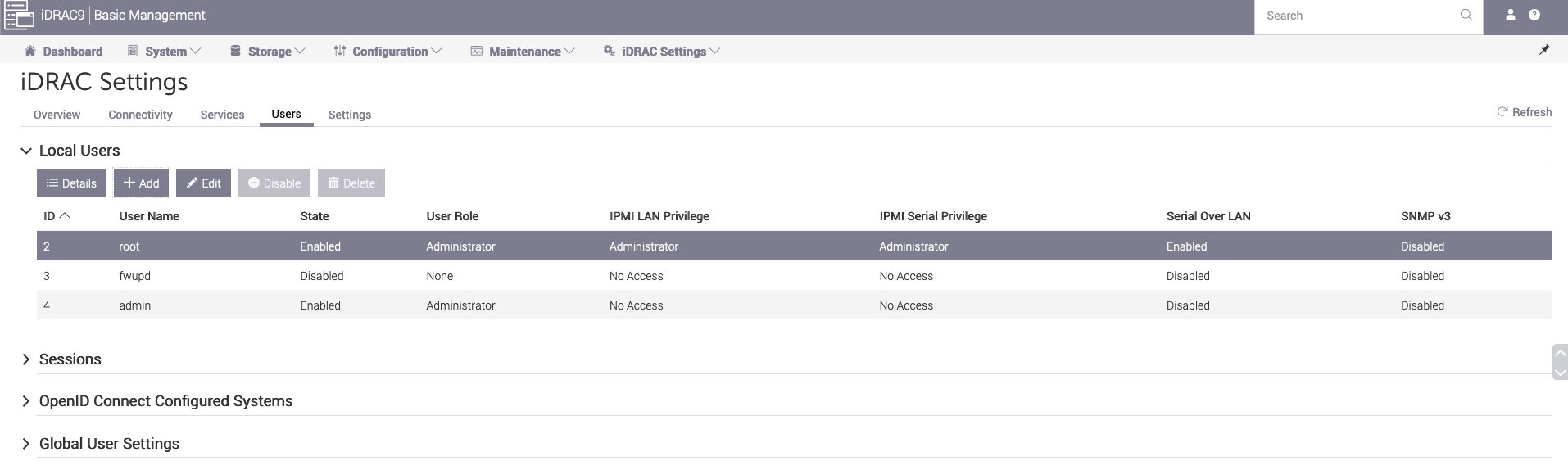
- After you login to iDRAC UI, go to IDRAC Settings > Users add a default login user account.
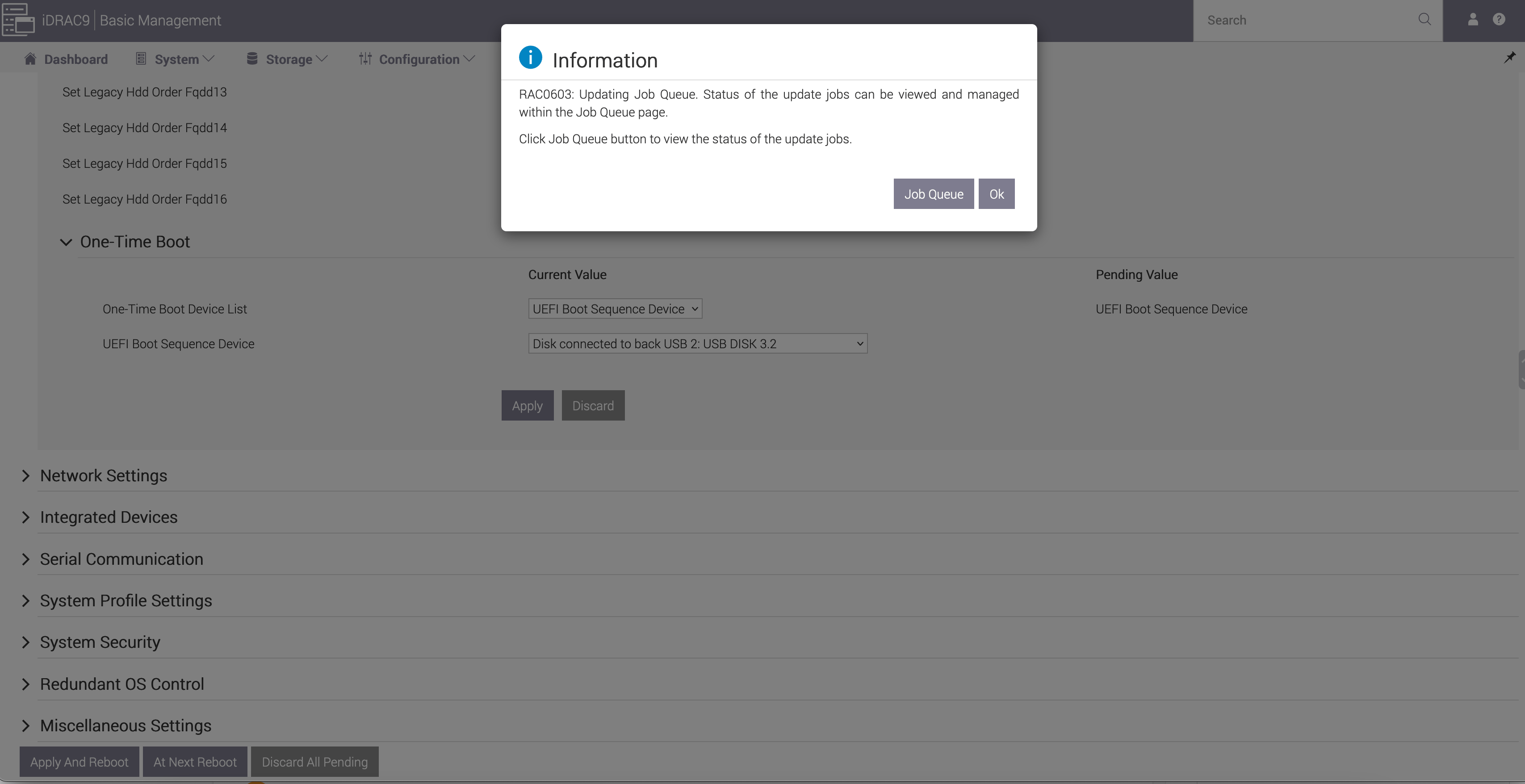
- From iDRAC9 UI Configuration > BIOS Settings, follow Aviatrix’s recommended BIOS configuration in Dell PowerEdge BIOS Configuration .
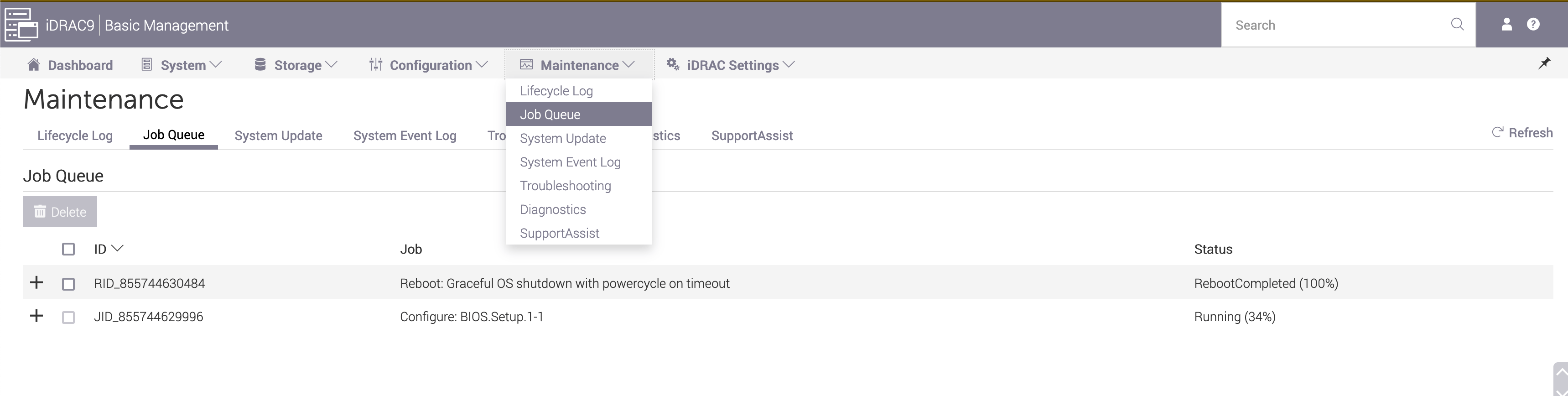
- Go to Maintenance > Job Queue, you can see current Job queue and task status.
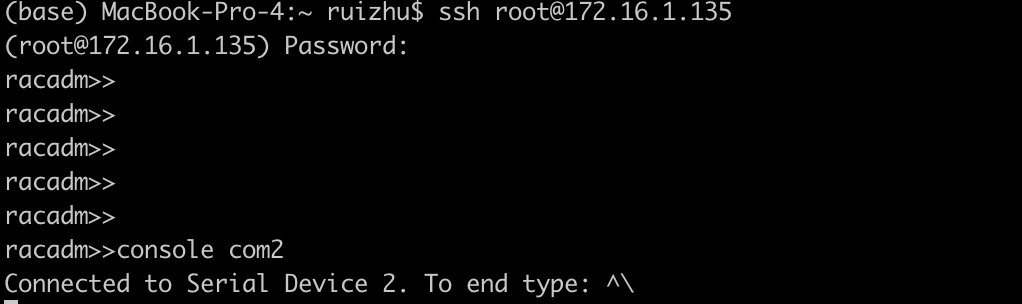
- Login to iDRAC9 console using SSH.
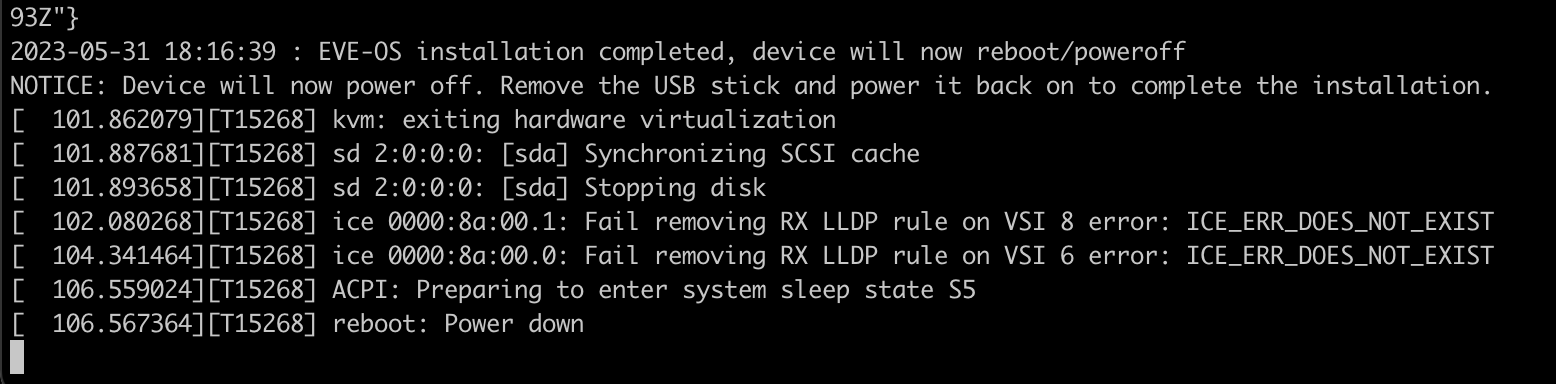
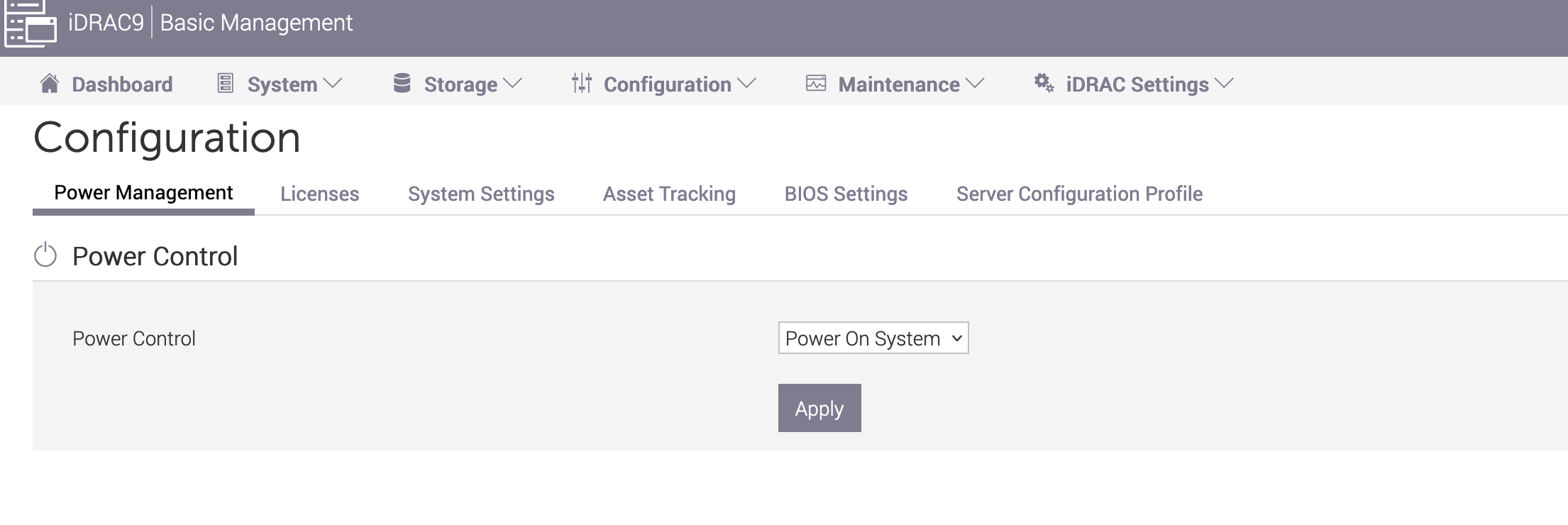
- Detach the USB installer from the Dell R450 and power it on from Configuration > Power Management, from Power Control dropdown, choose Power On System and click Apply.
- The device will power off once the installation is done. At this stage, connect the USB drive which has the static IP information to the device and power on the device. Aviatrix Edge OS will read the static IP information from the USB and configure the device. To view the configuration logs, you can SSH to the device and connect to the serial console.
If you power on the device without inserting the USB drive which has the
static IP information, you can do it at a later time. Connect the USB to the
device and reset the system (warm boot). Aviatrix Edge OS will read the
information from the USB and configure the device.
- After the static IP is configured, the device should be able to dial out to AEP (controller.edge.aviatrix.com) and register with the service. The device should show up as Connected in CoPilot and can now be used to launch an Edge gateway. For details on how to launch an Edge Transit or Edge Spoke Gateway, see Hybrid Cloud Connectivity.