

Overview
The Aviatrix Platform supports multi-peer BGP over LAN connections on Aviatrix Edge Transit and Edge Spoke Gateways designed to provide resilient and scalable architecture. Multi-Peer BGP over LAN peering allows Edge gateways to establish full mesh BGP sessions with two highly available (HA) BGP neighbors and provide failover redundancy. For instance, if an Edge gateway loses connection with one LAN router, a full mesh peering allows the Edge gateway to route network traffic to the other LAN router. Without the full mesh capability, traffic would need to be routed through multiple hops (to another Edge gateway and LAN router) causing delay in latency. To create full mesh BGP peering to HA LAN routers, you must enable BGP ActiveMesh for the Edge gateway connection to the LAN routers. You can set up the BGP connections from the Edge gateway’s LAN interface. The Edge gateway’s LAN interface and the LAN routers IP addresses must be in the same subnet.Deployment Models
You can set up multi-peer BGP over LAN connections from the Edge gateway LAN interfaces towards on-premises router.Primary Edge Gateway to HA Remote Devices
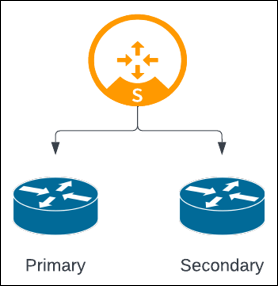
- With ActiveMesh, two BGP connections are created (Edge gateway to Primary and Secondary routers).
- Without ActiveMesh, only one BGP connection is created (Edge gateway to Primary router).
HA Edge Gateways to HA Remote Devices
Edge gateways can also be deployed in high availability (HA) Active-Active or Active-Standby mode.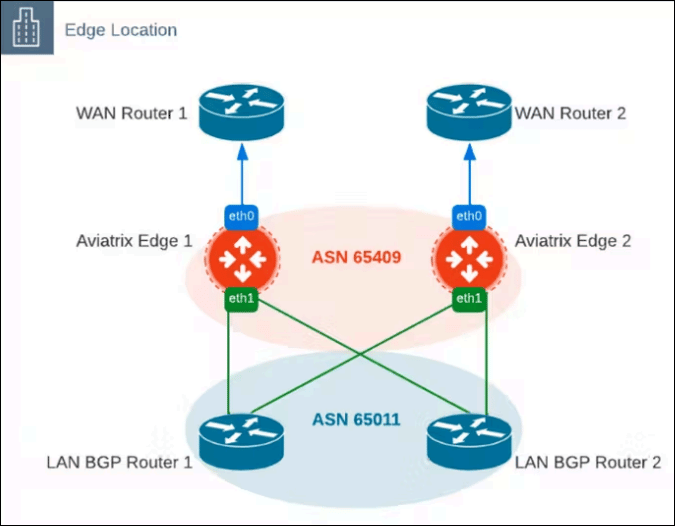
- With ActiveMesh, four BGP connections are created (Edge 1 to router 1 and 2, Edge 2 to router 1 and 2).
- Without ActiveMesh, only two BGP connections are created (Edge 1 to router 1, Edge 2 to router 2).
Create Multi-Peer BGP over LAN Connections for Edge Gateway
To create BGP over LAN connections from an Edge gateway to multiple LAN BGP routers:- In Aviatrix CoPilot, go to Networking > Connectivity > External Connections (S2C).
- From the + External Connection dropdown menu, select External Device.
- In Create External Connection to External Device, provide the following information.
- In the BGP Configuration section, provide the following information.
- In the LAN Configuration section, provide the following information.
- To connect the Edge gateway to another remote device, click + Remote Device, then provide the IP address and ASN of the remote device.
- Click Save.