To deploy an Aviatrix Edge Transit or Spoke Gateway, you must first procure and onboard your edge device onto the Aviatrix Edge Platform.
To deploy an Aviatrix Edge Transit or Spoke Gateway, you must first procure and
onboard your edge device onto the Aviatrix Edge Platform.This following topics provide the prerequisite and deployment steps to install
Aviatrix Edge OS and onboard Dell hardware onto the Aviatrix Edge Platform.
Onboarding Dell Hardware
Using iDRAC Remote Console and ISO
USB
This topic provides the instructions to install Edge OS and onboard edge device.
If you do not already have your edge device, you need to evaluate the hardware
that you require for your edge computing and procure the hardware. Contact your
Aviatrix account manager for the hardware you may require.For a list of Aviatrix supported hardware, seeSupported Edge Hardware for the Aviatrix Edge Platform
.
Obtain the Serial Number of your edge device. To onboard and register the edge
device with the Aviatrix Edge platform, you will be required to provide the
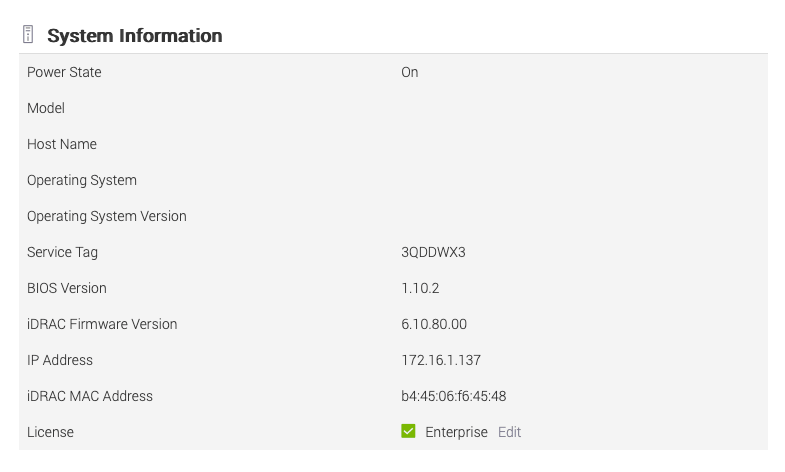
device Serial Number.The device Serial Number can be found from the iDRAC. Login to the iDRAC. On the
Dashboard, look for System Information/Service Tag:
To onboard and register the edge device onto the platform, you will need to
create an Aviatrix Edge Platform Account.To set up the account, seeSetting up Accounts for Edge Platforms
.
If you are using a Proxy setup, you can configure a proxy profile and associate
the profile with the edge device. To create a proxy profile, seeUsing a Proxy Profile on the Edge Device
.
MGMT interface is used to establish connectivity to AEP backend. MGMT
interface can either get DHCP IP address from customer network or can be
statically configured. MGMT requires IPv4 network, mask and gateway.
When using static IP on MGMT port, an image file is requried to be downloaded
from CoPilot and loaded onto the device. Steps are documented in the Using
iDRAC Remote Console and ISO and
USB tabs.
LAN port is used by Edge gateway for connectivity to datacenter on-premises
devices. The Edge gateway LAN interface requires IPv4 address, subnet length
and gateway IP (which is the downstream datacenter on-premises router).
WAN port is used by Edge gateway to connect to upstream network over which
connectivity to Transit in cloud is established. WAN interface on Edge
gateway requires IPv4 address, subnet length and gateway IP (which is the
downstream datacenter on-premises router).
The Management Port needs internet access to communicate with the Aviatrix
Platform.Ensure your firewalls allow access to the IP addresses in the Aviatrix Edge
Platform access (Edge Gateway deployed on hardware form factors which are
Aviatrix managed) table at
Aviatrix Products: Required Access for External Sites
on the Aviatrix Customer Support website.
This topic provides instructions for installing Aviatrix Edge OS on Dell
hardware by using iDRAC remote console and ISO.
These instructions require that a Dell iDRAC license is applied on the Dell
server, which would allow the operator to access the server’s remote virtual
console and load virtual media. The license is typically applied at factory by
Dell, please choose enterprise iDRAC as described in Dell tech specs for
Aviatrix Edge.
This document does not cover user management for Dell iDRAC. You are
responsible to configure user access on the Dell server. You will need an
admin user or one with equivalent access to install Aviatrix Edge OS on the
server.
Before you start to onboard and install the Edge OS on the edge device, make
sure these prerequisite steps (in the Onboarding
Dell Hardware tab) are completed.
In Aviatrix CoPilot, go to Cloud Fabric > Hybrid Cloud >
Devices tab.
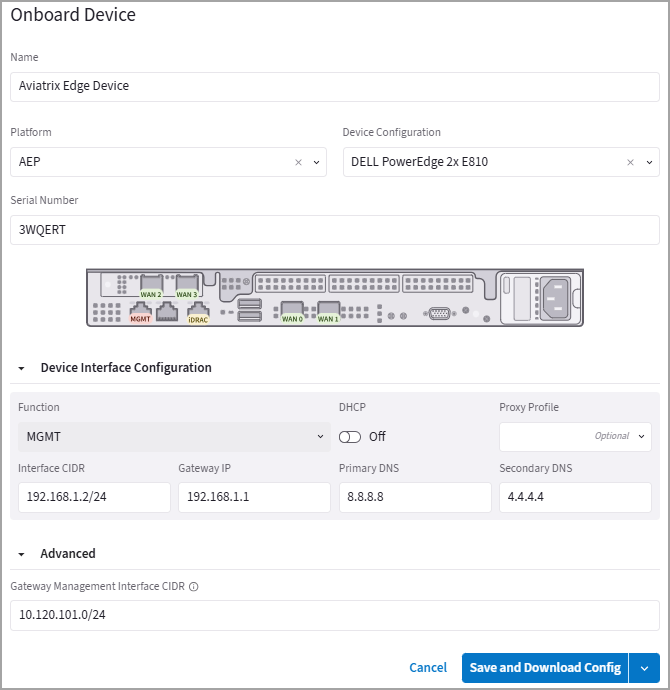
Click Onboard Device, then provide the following information.
Field
Description
Name
A name to identify the edge device.
Platform
The Aviatrix Edge Platform Account where to onboard the device.
Device Configuration
Dell HW with single ethernet controller for Edge Spoke Gateway, select DELL Poweredge 1x E810. Dell HW with two ethernet controllers for Edge Spoke or Transit Gateway, select DELL Poweredge 2x E810.
Serial Number
The serial number of the edge device.
Expand Device Interface Configuration and configure the device’s
Function MGMT (Management) interface.
If you plan to use DHCP for the device Management interface, turn DHCP
toggle to On.
If you plan to configure a Static IP address for the device Management
interface, leave DHCP toggle to Off.
If DHCP is Off, enter the Static IP address for the Management
interface.
Field
Description
Interface CIDR
The Static IP address of the Management interface.
Gateway IP
The Management Default Gateway IP address.
Primary DNS
The primary DNS server IP address.
Secondary DNS
(Optional) The secondary DNS server IP address.
If you are using a proxy server to route internet traffic, from the
Proxy Profile dropdown menu, select the proxy profile to upload to the
edge device (see
Using a Proxy Profile on the Edge Device
).
Under Advanced, specify the Edge Management CIDR that will be used on the
Edge gateway interface. If a CIDR is not specified, the system auto assigns
10.100.101.0/24 CIDR range and assigns 10.100.101.2 IP address on the
interface.
If the auto assigned CIDR is used, ensure that this range does not overlap
with any other network.
Save the configuration.
When DHCP is selected for MGMT interface, click Save.
When Static IP is selected for MGMT interface, from the Save and Download
Config drop-down menu, click Save.
This will download a bootstrap-config.img file (for example,
3QDDWX3-bootstrap-config.img). Your device will show up as Provisioned in
Copilot.
If you need to change the management interface’s configurations (from DHCP to
Static or vice versa), you can click Edit icon and update the configuration.
Save the changes you made to the device.
Download the latest, production Aviatrix Edge OS .iso file to a
jumphost which is in the same network as the Dell server. The jumphost
enables a fast upload of the ISO file to the server as compared to getting it
over the internet. If the server has fast internet access, you can mount the
ISO file from your laptop.
If the ISO file is fetched over the internet and if the download speed is
poor, it may increase the overall installation time. It is recommended that
the file be downloaded to a laptop/jumphost in the same network as the server.
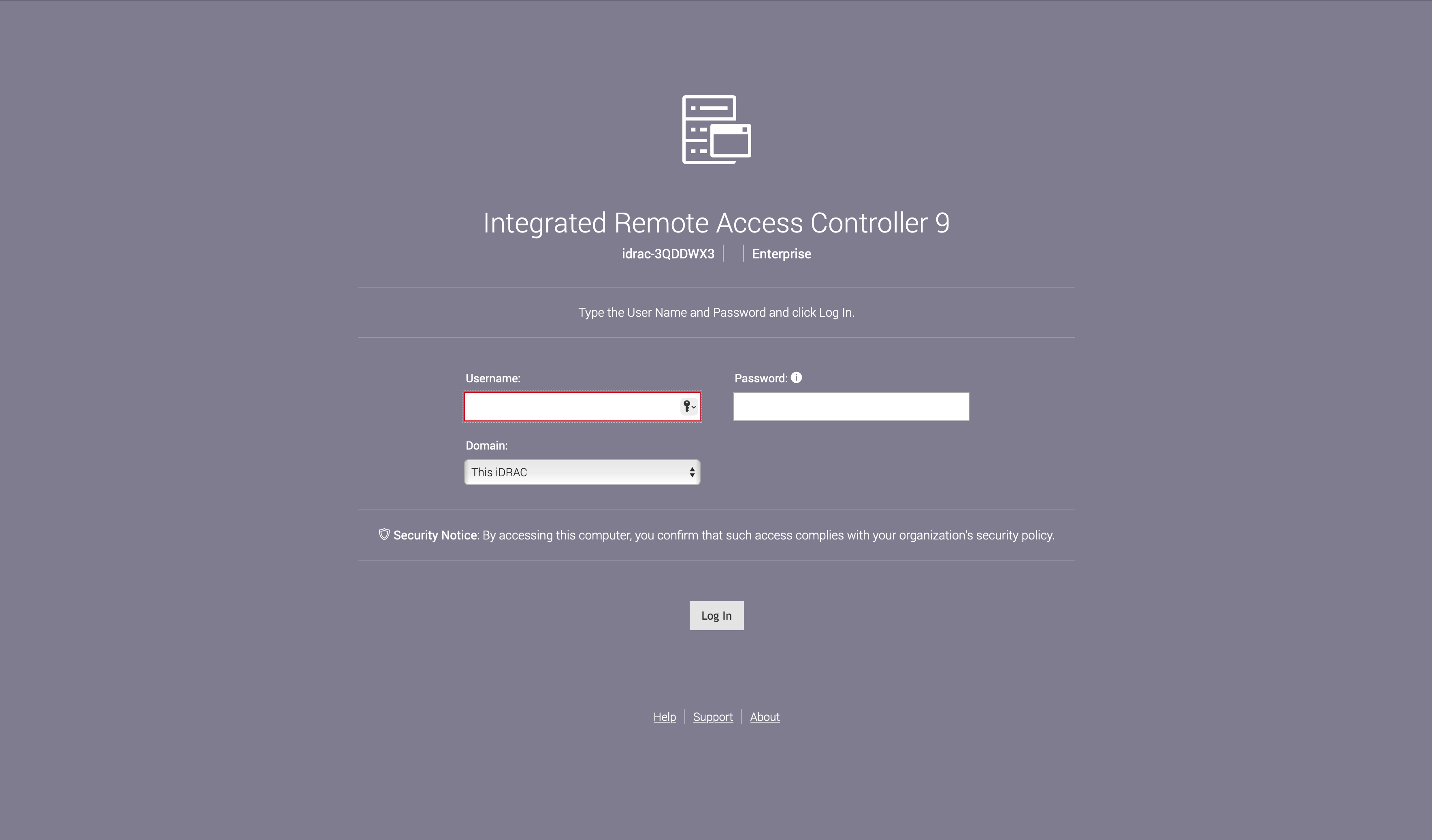
From the jumphost, login to the Dell server’s iDRAC UI.
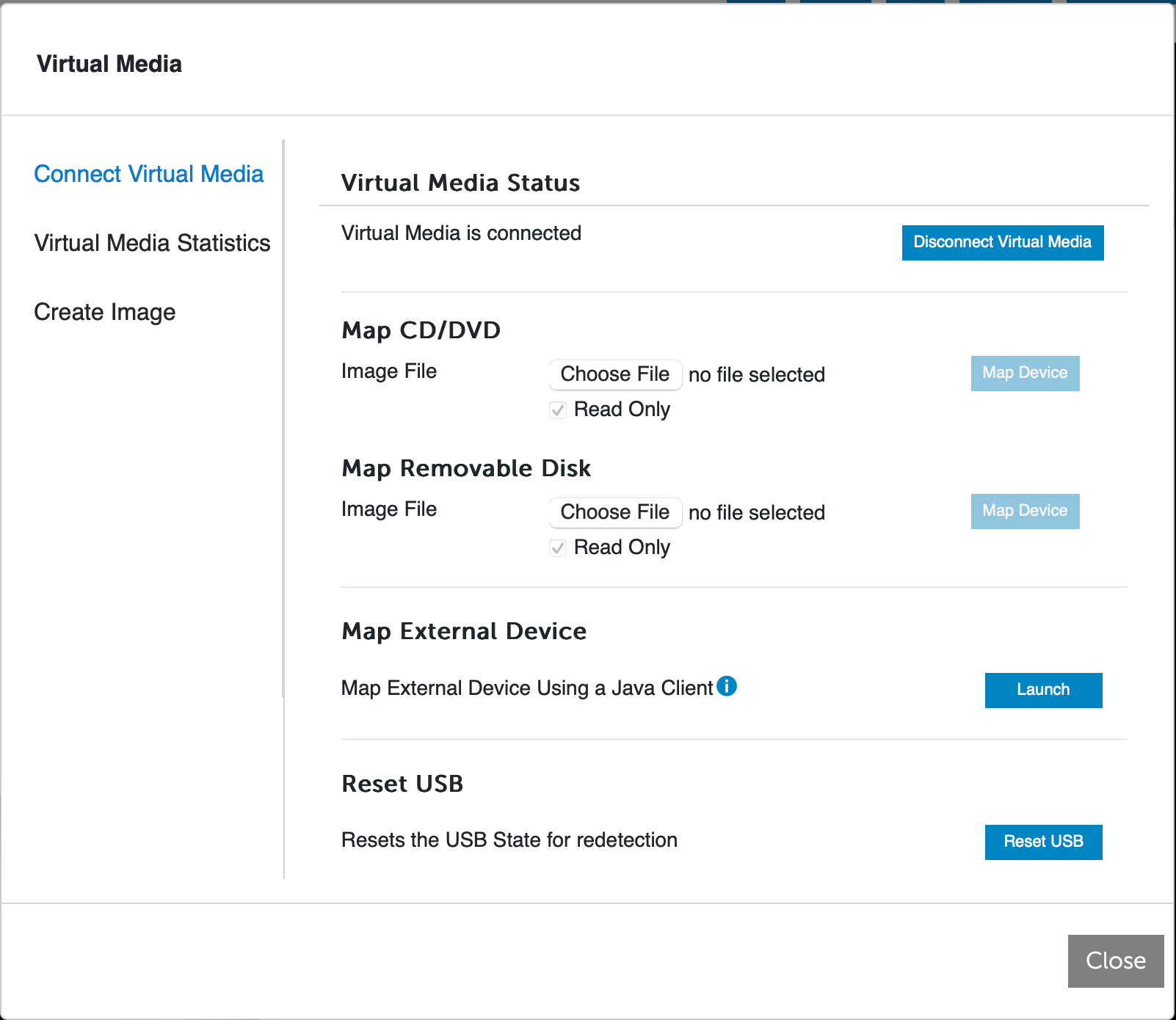
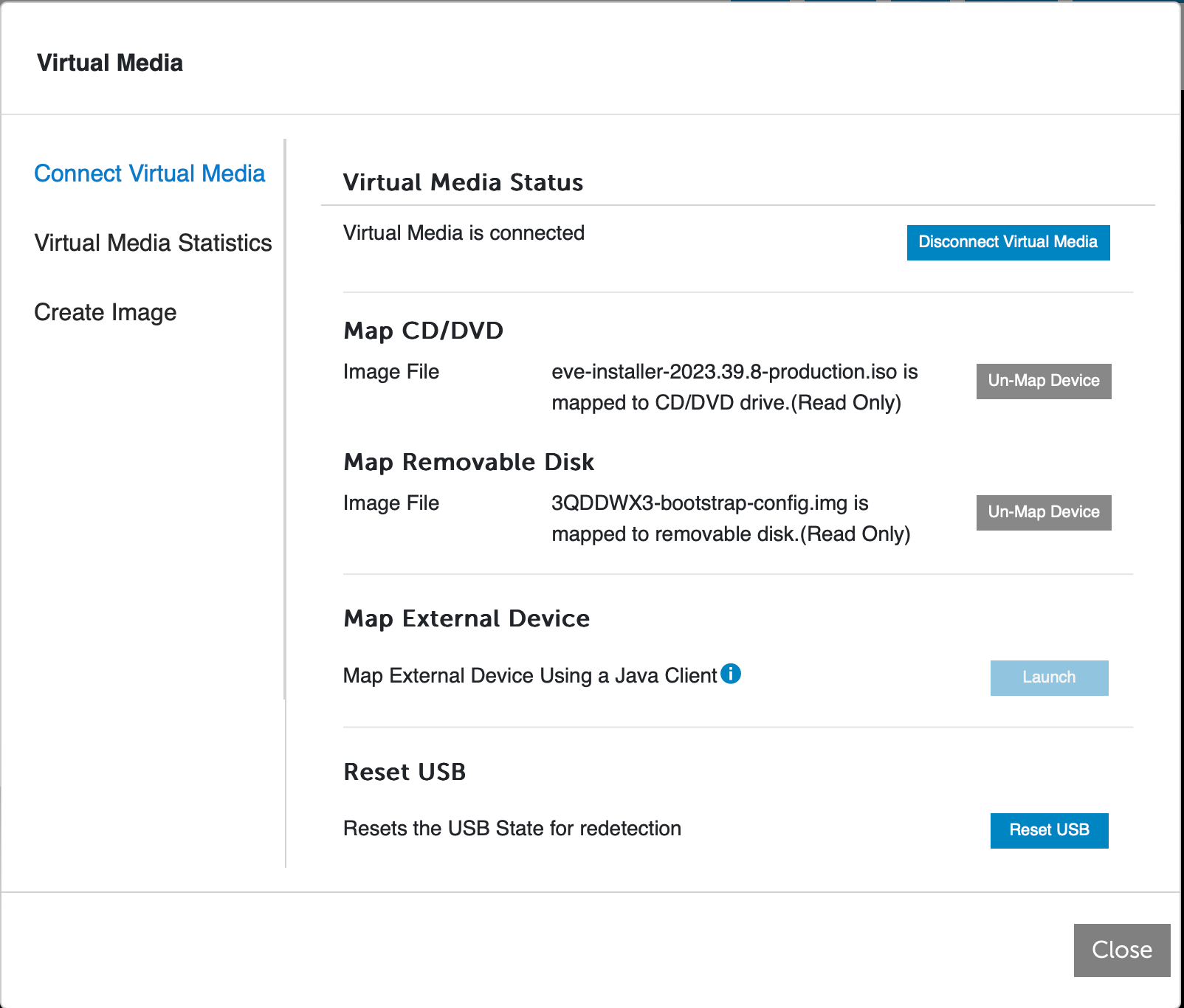
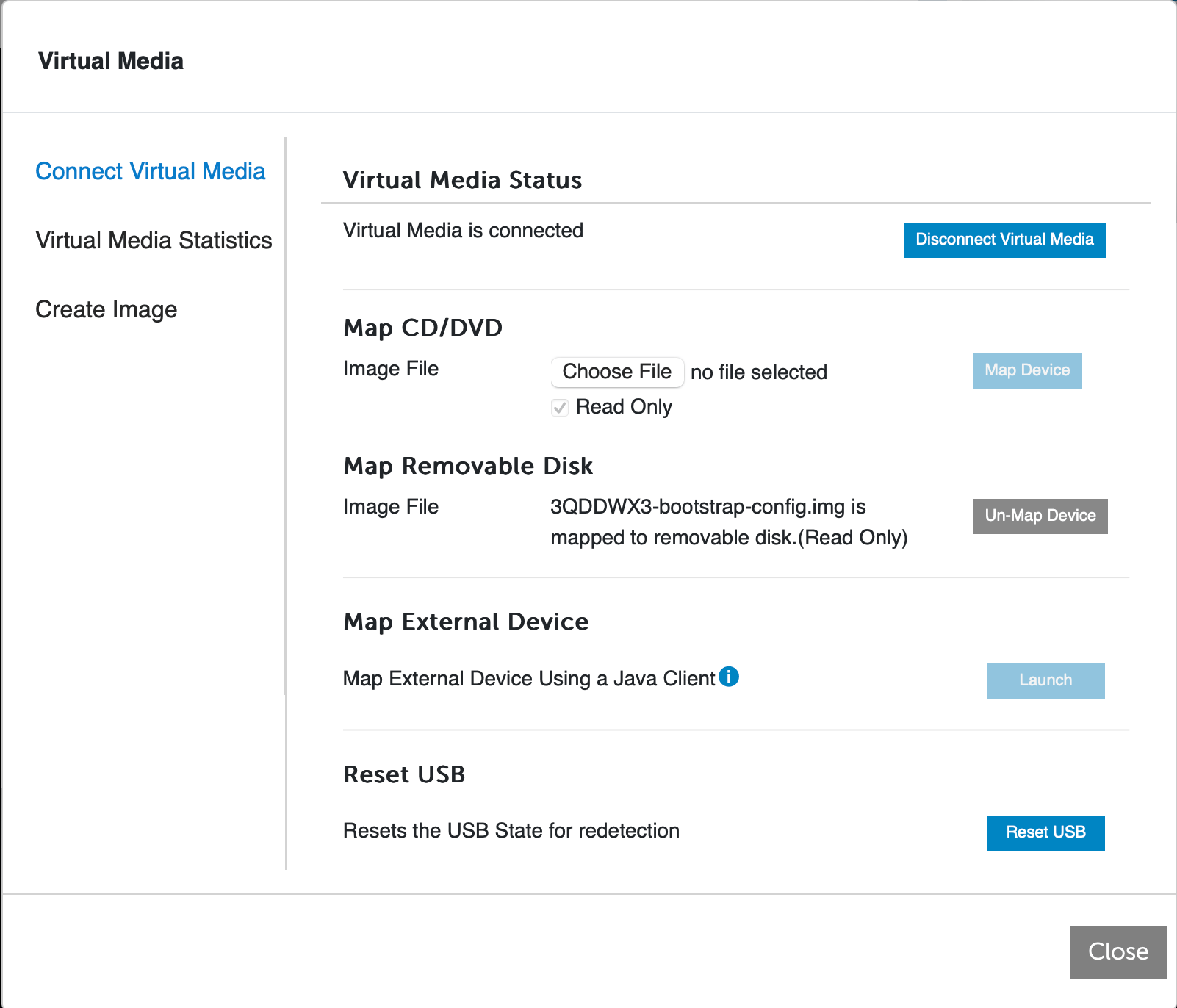
Open the Virtual Console to the server. On the Virtual Console window, click
Virtual Media > Connect Virtual Media > Connect Virtual
Media. Virtual Media should show up as connected.
Under Map CD/DVD, choose the Edge OS ISO file and click Map Device.
Under Map Removable Disk, select the bootstrap-config.img file and
again click Map Device. The removable disk is a virtual USB.
If you selected DHCP for the device’s management interface, you do not need to
map a file to the removable disk. You only need the Edge OS ISO file.
Your virtual media dialog box should look like this:Close this dialog box.
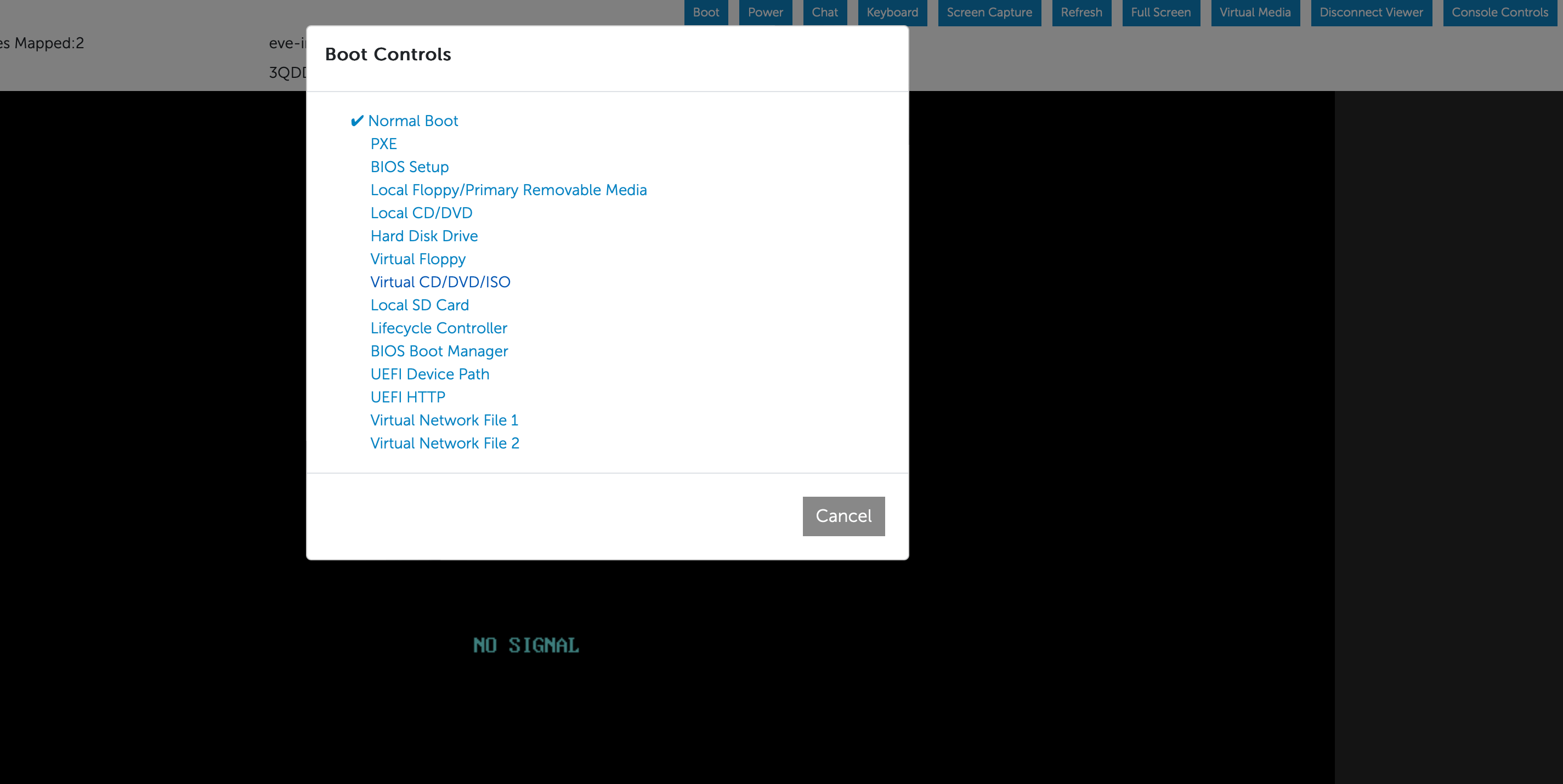
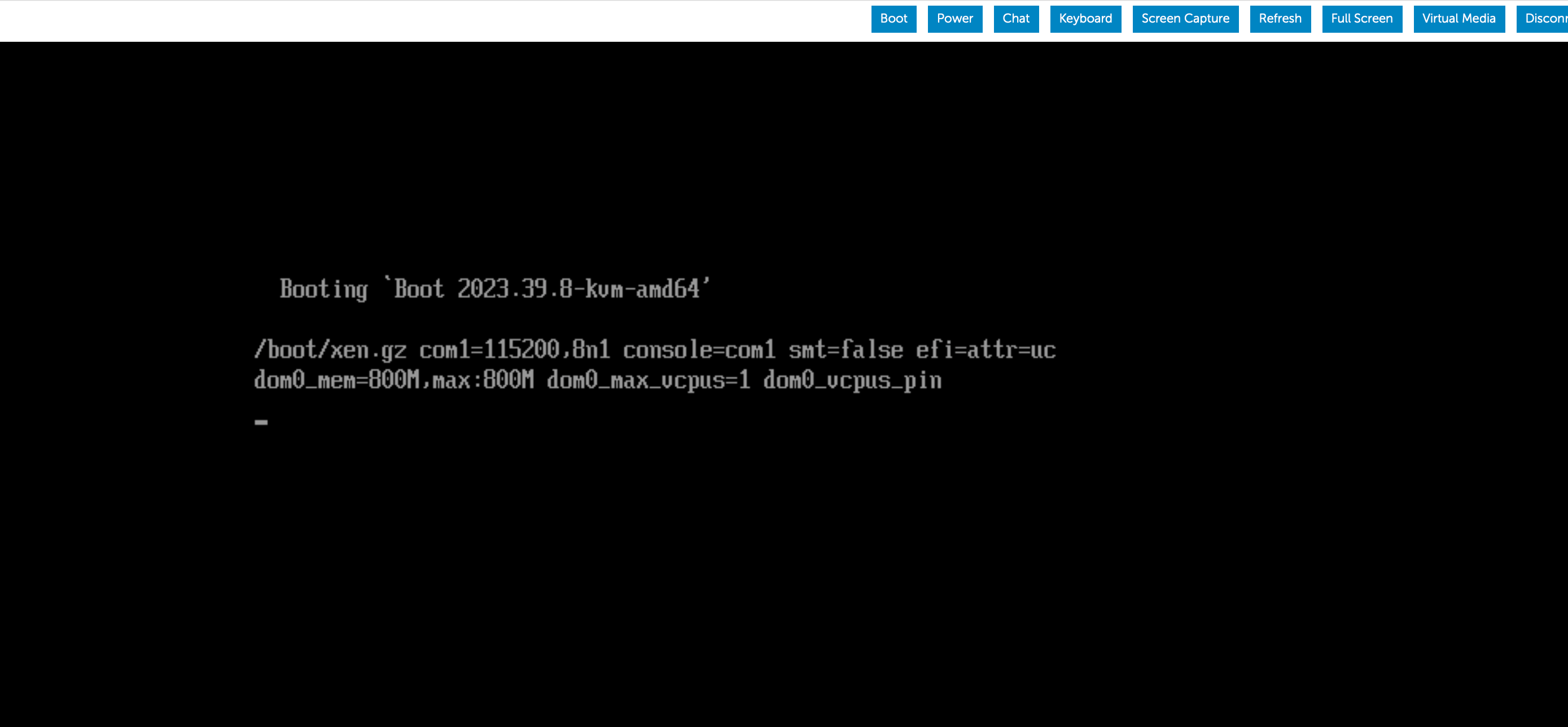
From the Virtual Console, click Boot and under Boot Controls, and
select Virtual CD/DVD/ISO. A dialog box will open, asking you to confirm
the boot action. Click Yes.
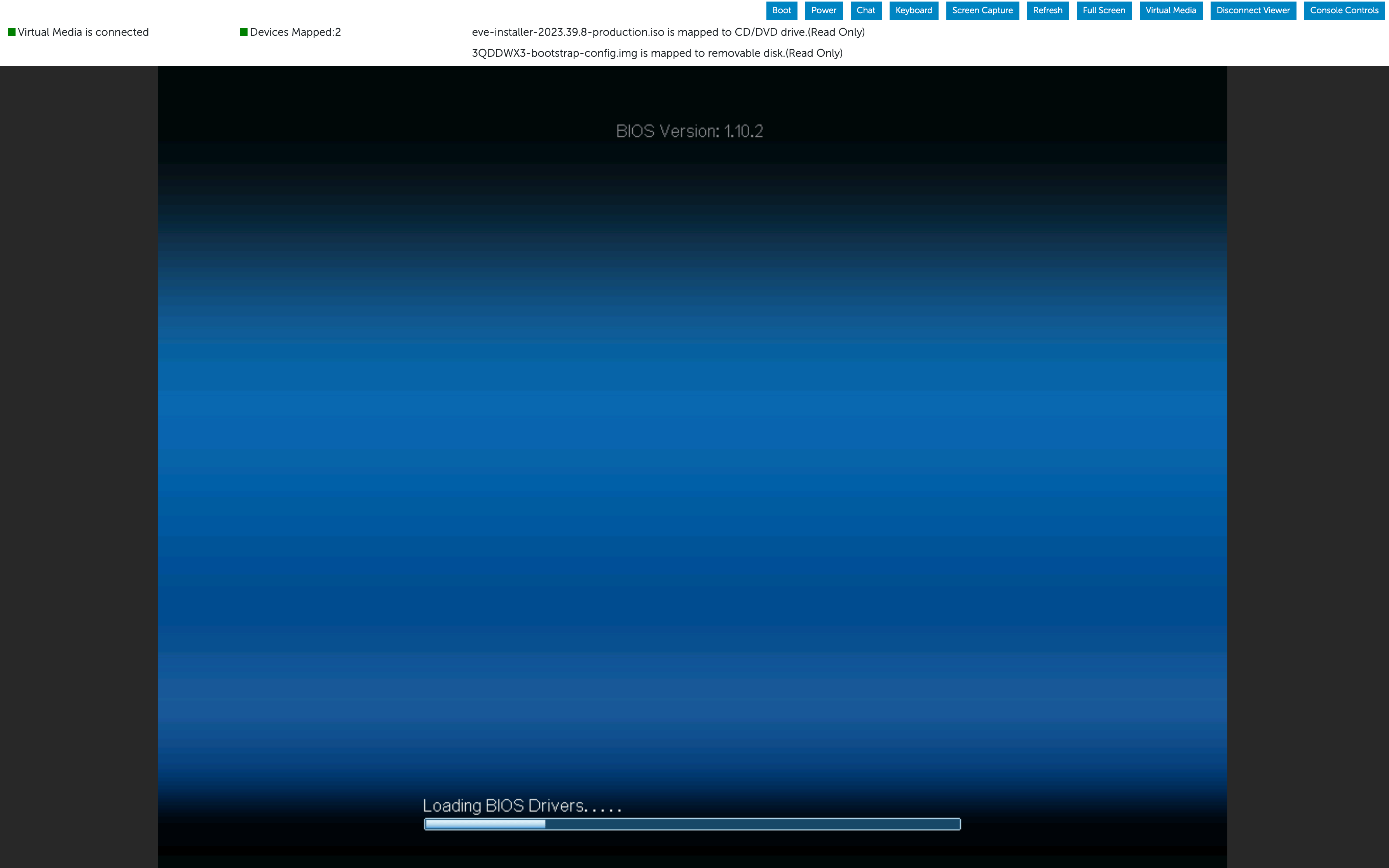
From the Virtual Console, click Power and select the Reset System (warm
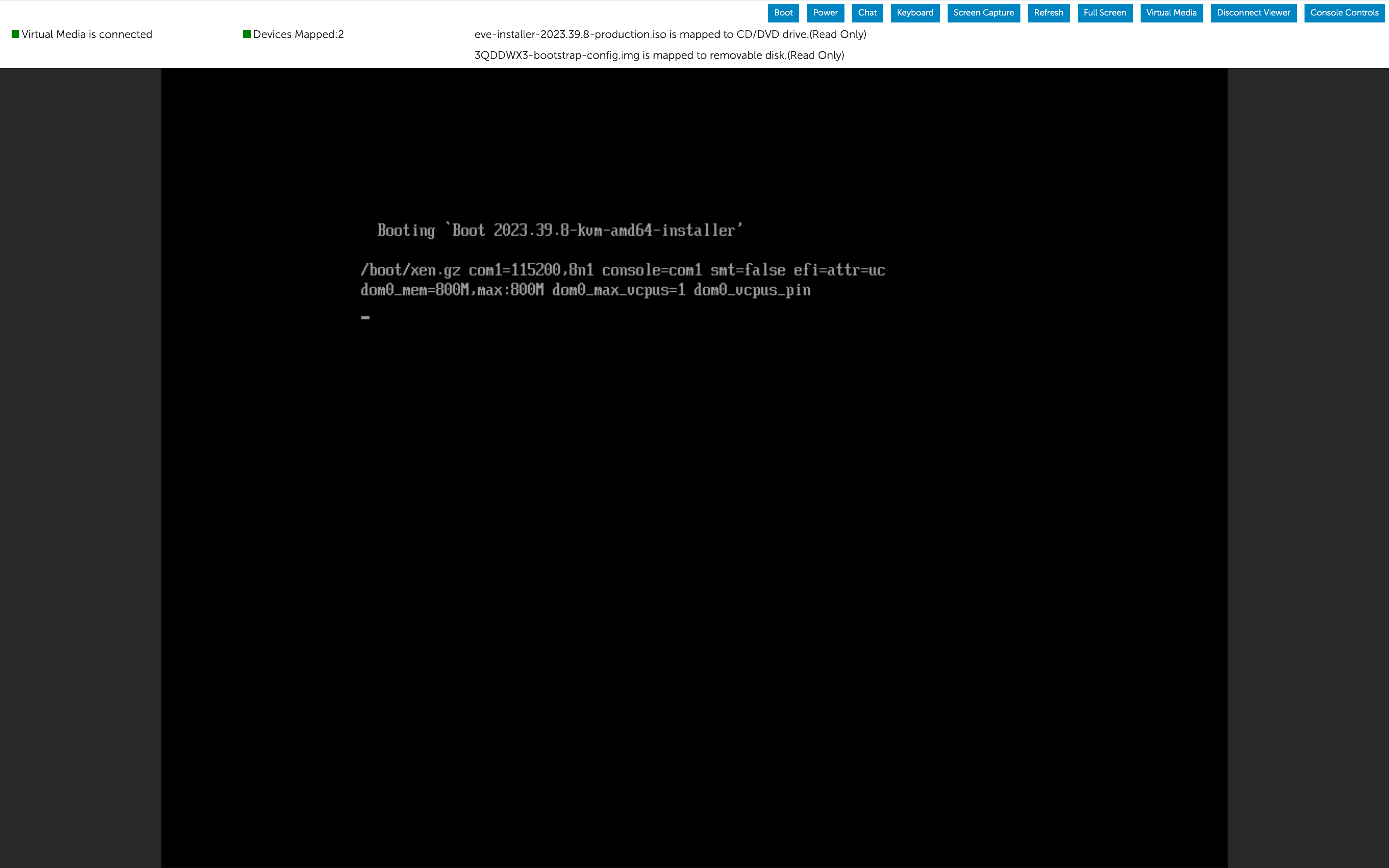
boot) option. This will start the installation of Aviatrix Edge OS (AEP
EvE) on the server.
Do not close the Virtual console window.
If you have SSH access to the iDRAC, you can SSH to it and type console
com2. This will connect you to the serial console of the server and you
will see the Aviatrix Edge OS (AEP EvE) installation logs.
The installation typically takes 10 to 15 minutes. It may vary depending on
where the ISO file is being uploaded to the server via the Virtual Console.
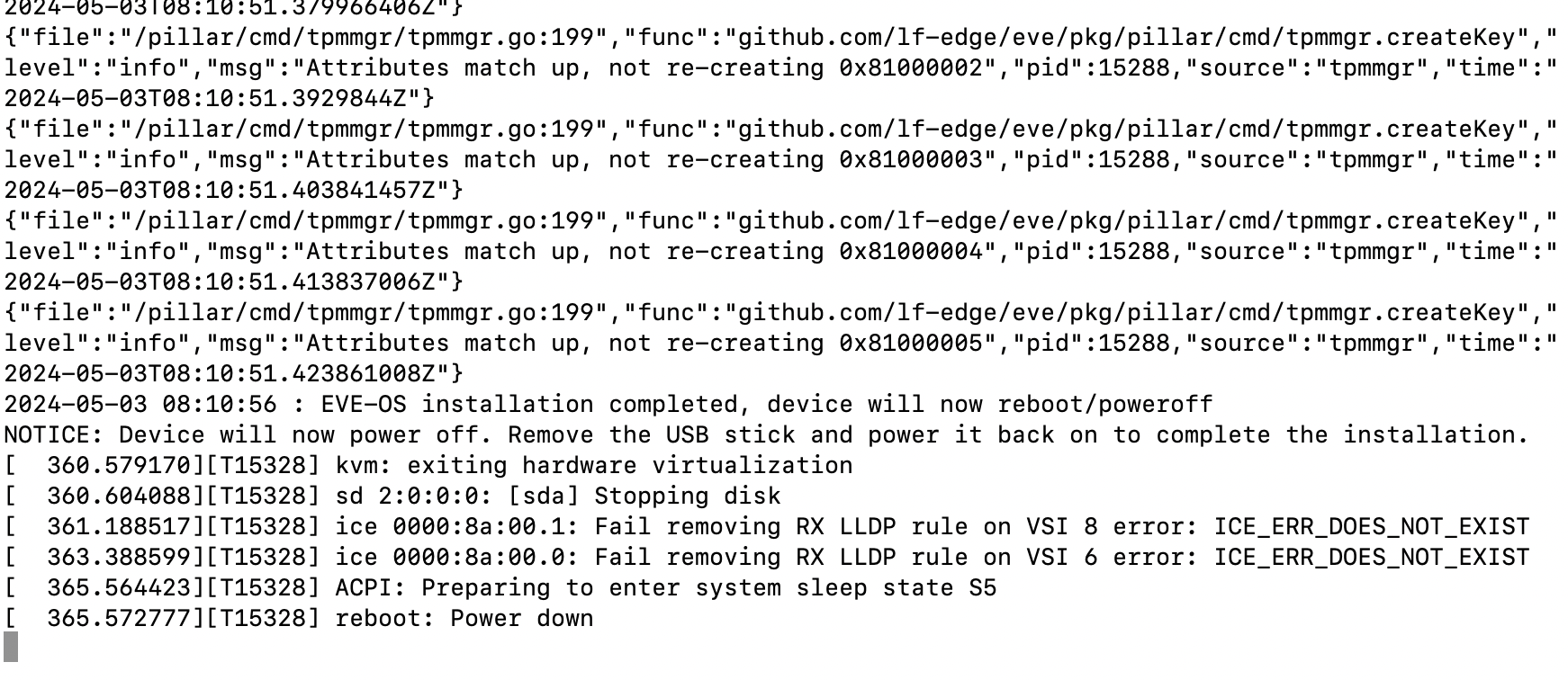
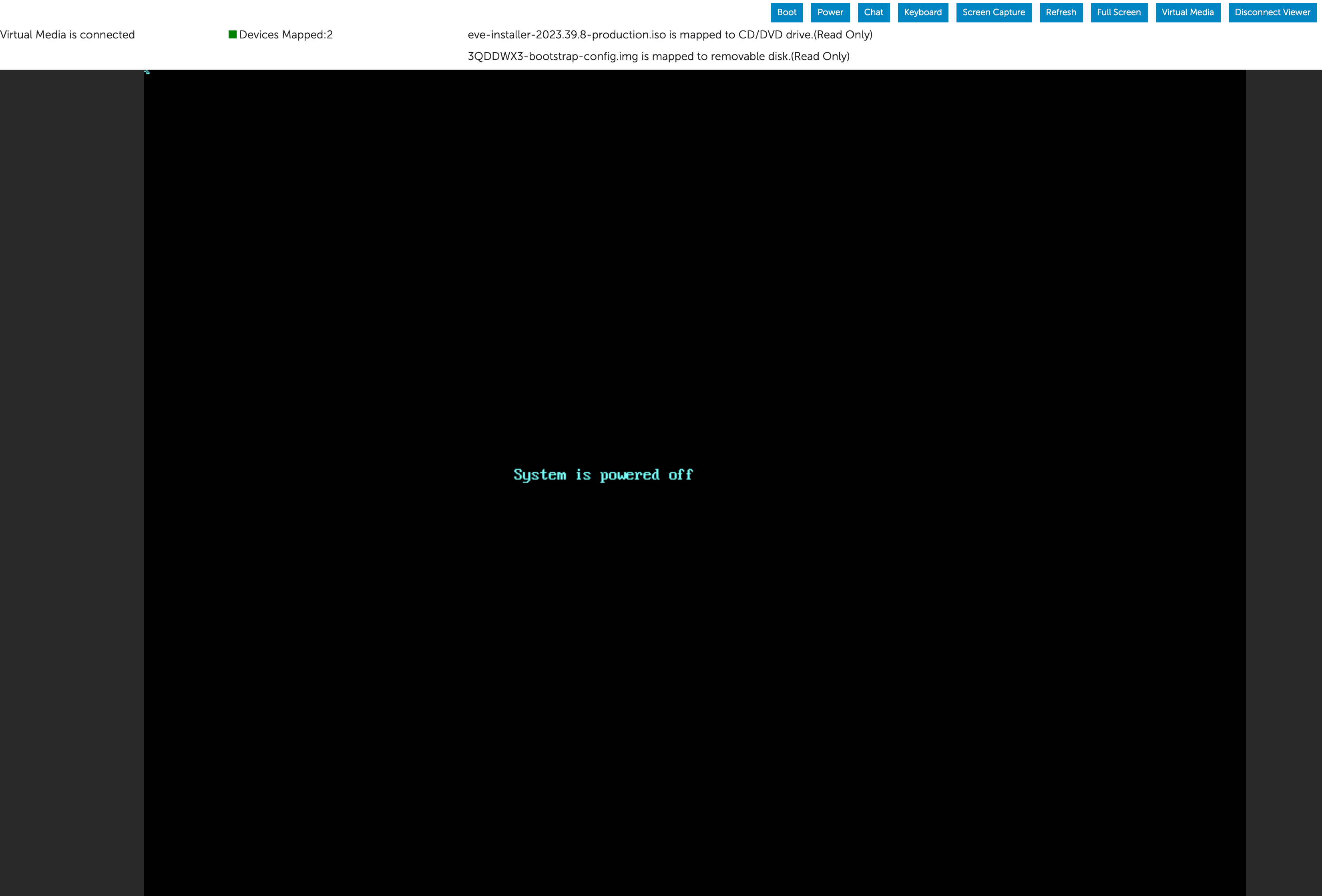
Once the installation is complete, the server will automatically power down.
This can also be confirmed from the EvE installation logs in the serial console.
From the Virtual Console, go to Virtual Media and under Map CD/DVD,
click Un-Map Device. Confirm the un-map action by clicking Yes. This
will remove the ISO file from the Virtual Console.
If you had mapped a bootstrap-config.img file to the removable disk/virtual
USB, keep it as is. We will configure the server’s management interface with the
static IP information in this virtual USB.Click Close to save the changes.
From the Virtual Console, go to Power. You will see only one option this
time, Power On System. Confirm the power action by clicking on Yes.
Allow the server to power on. It will boot AEP EvE.
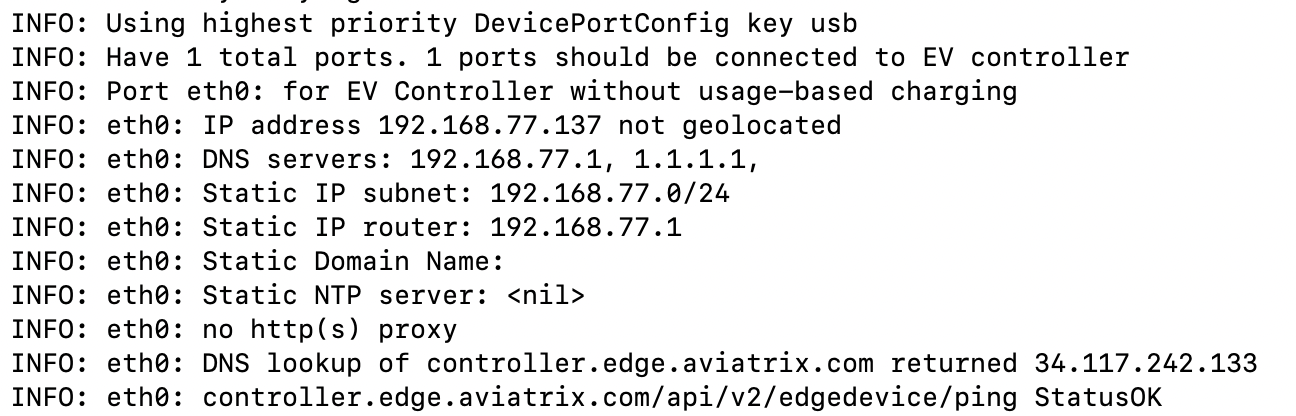
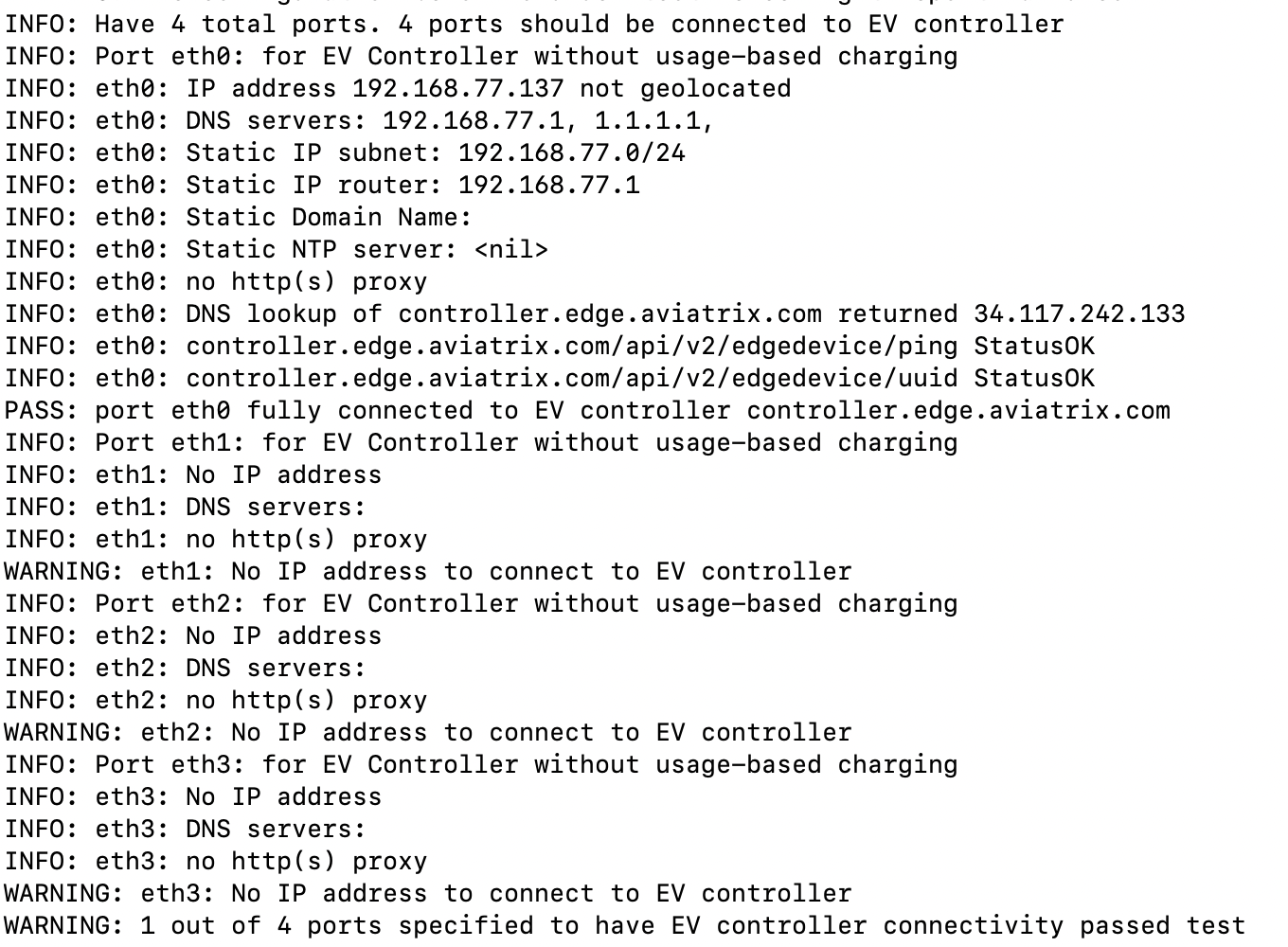
If you have access to the server’s serial console, you will see the boot
logs. Aviatrix Edge OS will read the static IP configuration from the
virtual USB and configure it on the server. The server will dial out to AEP
(controller.edge.aviatrix.com) and connect to it. Look for logs (the actual
log text may vary) with these entries:
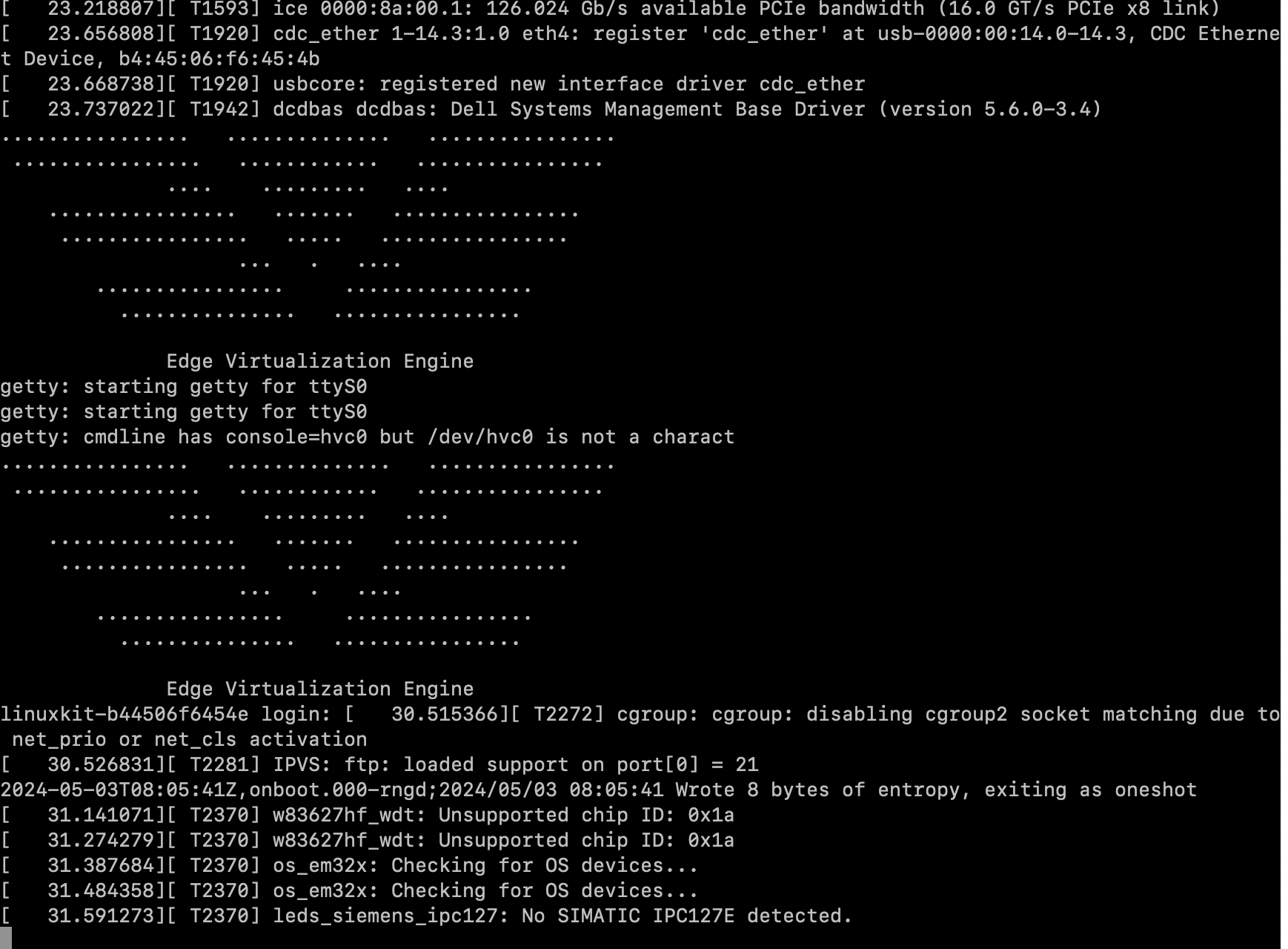
PASS: port eth0 fully connected to EV controller
controller.edge.aviatrix.com
1 out of 4 ports specified to have EV controller connectivity passed test
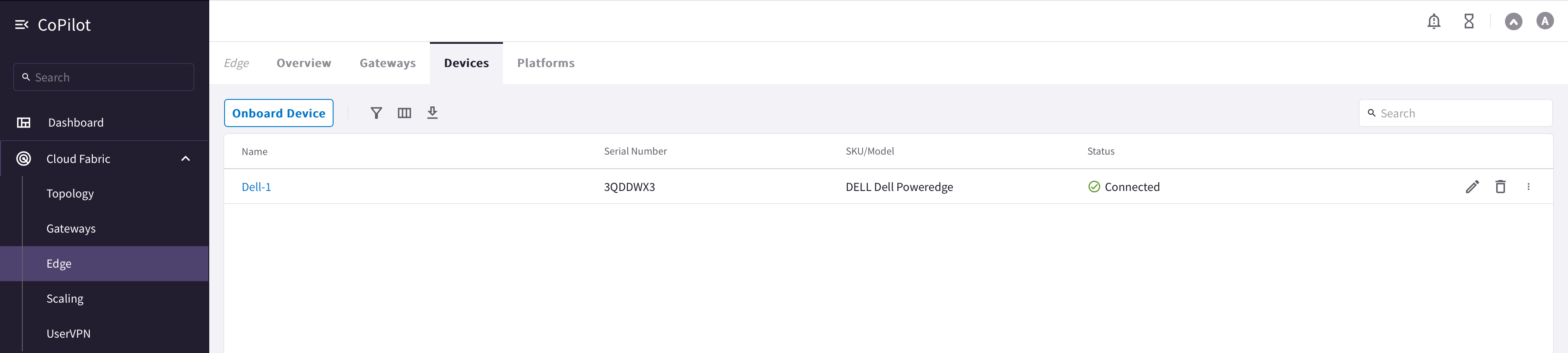
The Dell device will show up as Connected in Copilot (go to Cloud
Fabric > Hybrid Cloud > Devices) and can now be used to
launch an Edge gateway. For details on how to launch an Edge Transit or Edge
Spoke Gateway, see
Hybrid Cloud Connectivity.
Return to the Virtual Console, go to Virtual Media > Disconnect
Virtual Media. Click Yes. This will unmap and disconnect all virtual
media files. Close the virtual media box. You can now also close the Virtual
Console.
AEP EvE installation is complete and it will persist across server reboots.
This topic provides instructions for installing the Aviatrix Edge OS on Dell
hardware using USB.If you use iDRAC with virtual media to install Edge OS, we recommend using the
remote console to configure a static IP on the device. See the
Using iDRAC Remote Console and ISO tab.
Before you start to onboard and install the Edge OS on the edge device, make
sure these prerequisite steps (in the
Onboarding Dell Hardware tab) are completed.
Onboard the edge device onto the Aviatrix Edge Platform.
In Aviatrix CoPilot, go to Cloud Fabric > Hybrid Cloud >
Devices tab.
Click Onboard Device, then provide the following information.
Field
Description
Name
A name to identify the edge device.
Platform
The Aviatrix Edge Platform Account where to onboard the device.
Device Configuration
Dell HW with single ethernet controller for Edge Spoke Gateway, select DELL Poweredge 1x E810. Dell HW with two ethernet controllers for Edge Spoke or Transit Gateway, select DELL Poweredge 2x E810.
Serial Number
The serial number of the edge device.
Expand Device Interface Configuration and configure the device’s
Function MGMT (Management) interface.
If you plan to use DHCP for the device Management interface, turn DHCP
toggle to On.
If you plan to configure a Static IP address for the device Management
interface, leave DHCP toggle to Off.
If DHCP is Off, enter the Static IP address for the Management
interface.
Field
Description
Interface CIDR
The Static IP address of the Management interface.
Gateway IP
The Management Default Gateway IP address.
Primary DNS
The primary DNS server IP address.
Secondary DNS
(Optional) The secondary DNS server IP address.
If you are using a proxy server to route internet traffic, from Proxy
Profile dropdown menu, select the profile to upload to the edge device.
Under Advanced, specify the Edge Management CIDR that will be used on the
Edge gateway interface. If a CIDR is not specified, the system auto assigns
10.100.101.0/24 CIDR range and assigns 10.100.101.2 IP address on the
interface.
If the auto assigned CIDR is used, ensure that this range does not overlap
with any other network.
Save the configuration.
When DHCP is selected for MGMT interface, click Save.
When Static IP is selected for MGMT interface, from the Save and Download
Config drop-down menu, click Save.
This will download a bootstrap-config.img file (for example,
3QDDWX3-bootstrap-config.img). Your device will show up as Provisioned in
Copilot.
Connect a USB drive to your laptop.
This USB drive should be different from the one which was Flashed with the
Aviatrix Edge OS image.
Open Balena Etcher.
Select the device’s bootstrap-config.img image file.
4. Installing Aviatrix Edge OS with a USB Installer
Install Aviatrix Edge OS on the edge Device using the USB installer.
This procedure is based on Aviatrix OS installer on a USB drive. When we have
iDRAC license to enable virtual media functions, we can use an ISO installer
file over a network (see the Using iDRAC Remote Console and ISO tab).
Connect VGA/serial and keyboard to Dell server, and power it on.
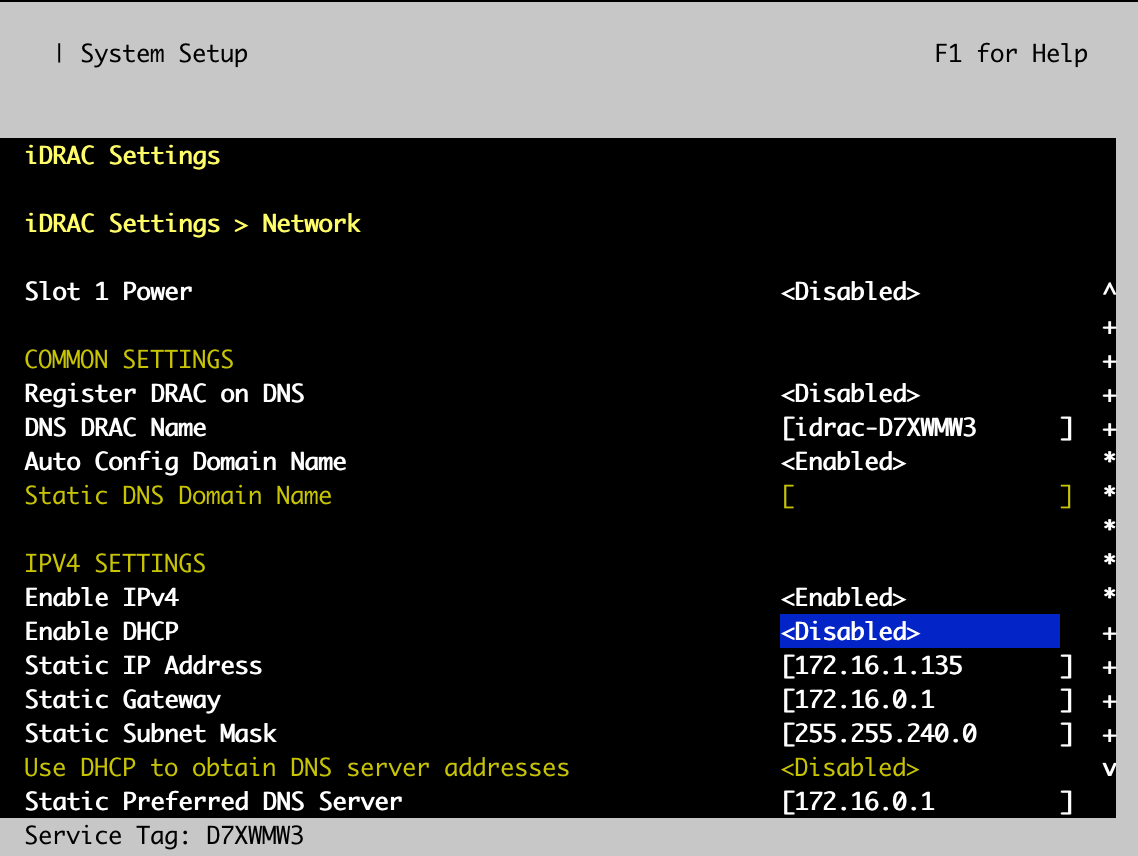
From the Dell server’s VGA/serial console, from iDRAC Settings >
Network to setup iDRAC with Static IP address or desired IP address
settings, apply the new settings and then reboot the system.
Identify the Dell server’s face panel with dual USB ports and plug in
Aviatrix OS installer USB disk to the USB port labeled with SS; then
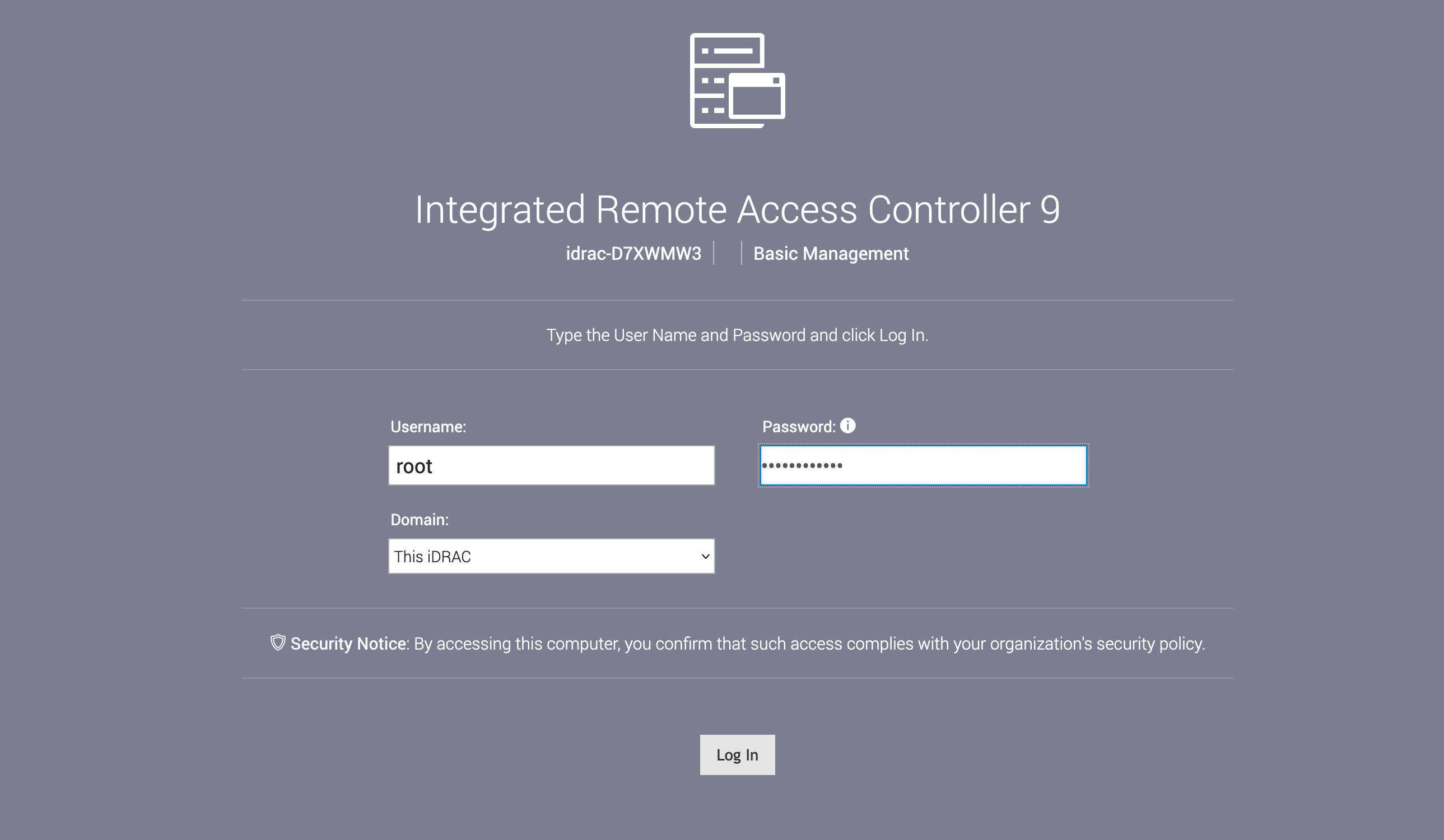
browse to iDRAC’s IP address to login to the iDRAC UI with default
credentials, which can be found from the Dell service tag label.
Do not reset the root password when prompted to do so.
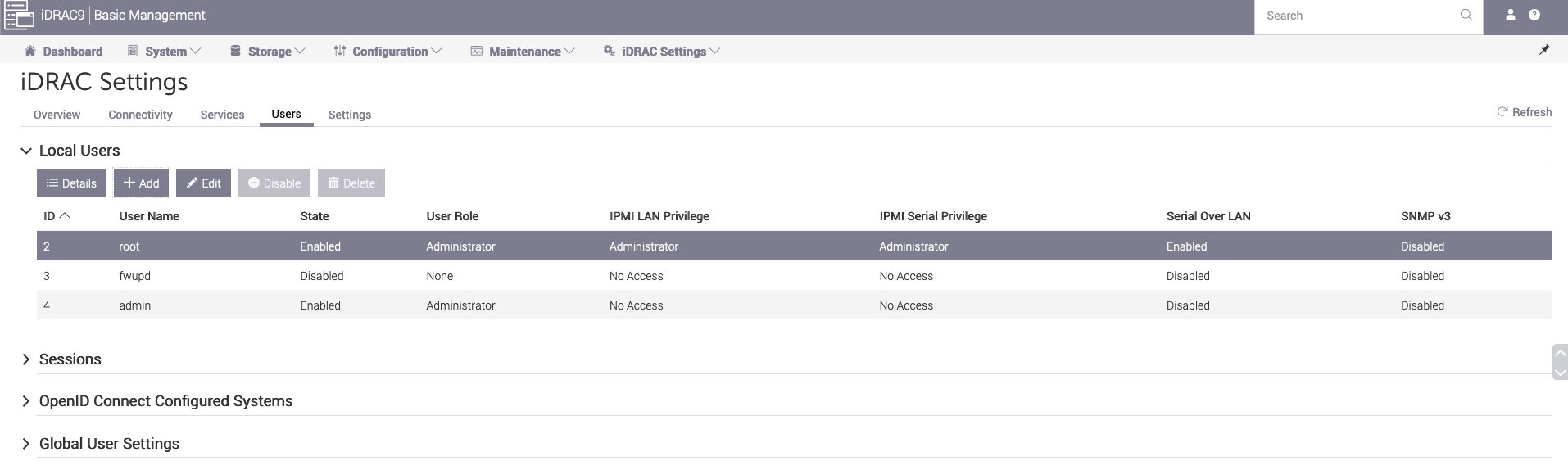
After you login to iDRAC UI, go to IDRAC Settings > Users add a
default login user account.
From iDRAC9 UI Configuration > BIOS Settings, follow Aviatrix’s
recommended BIOS configuration in
Dell PowerEdge BIOS Configuration
.
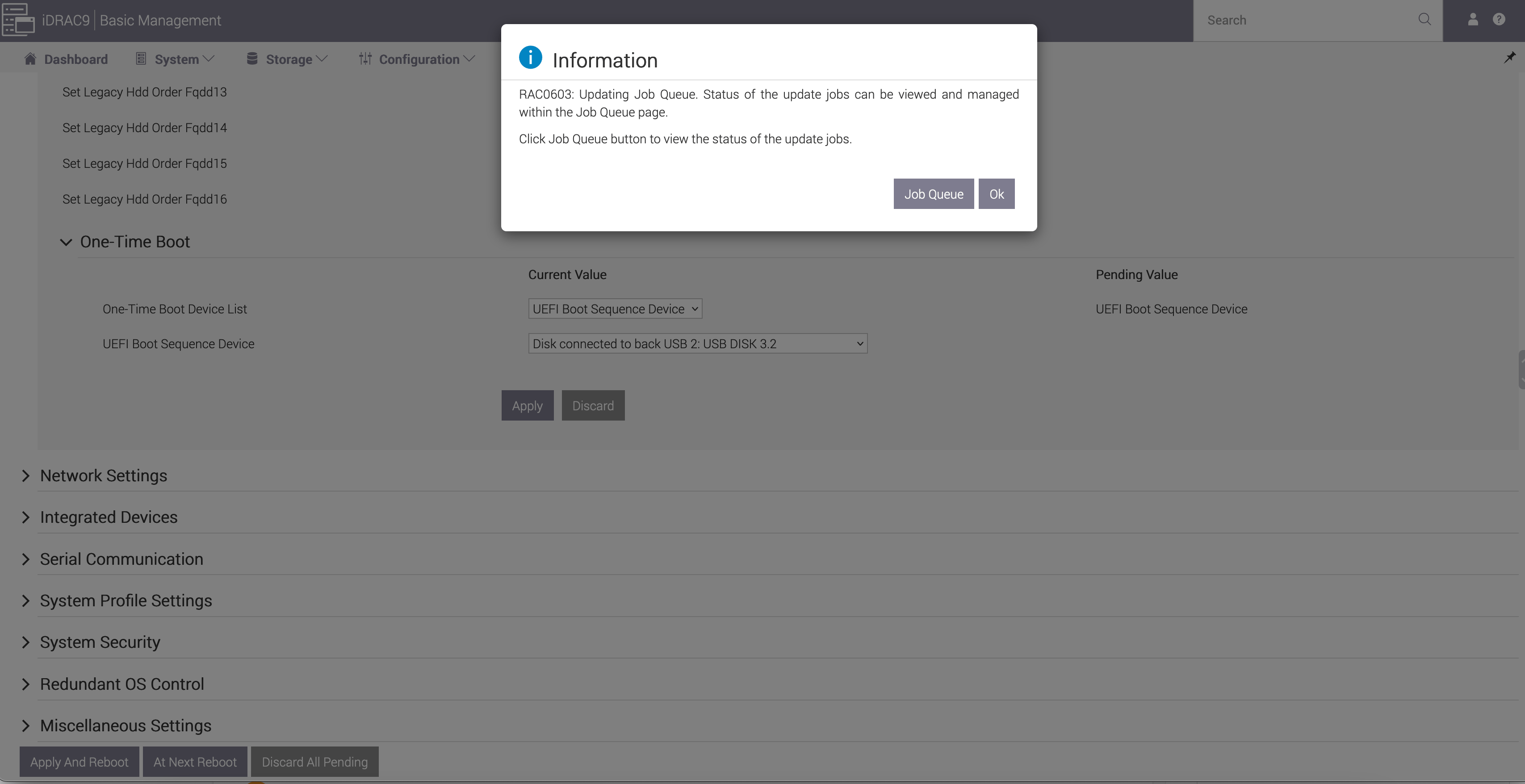
Apply BIOS setting changes, go to the bottom of the page and click Apply AND
Reboot and OK.
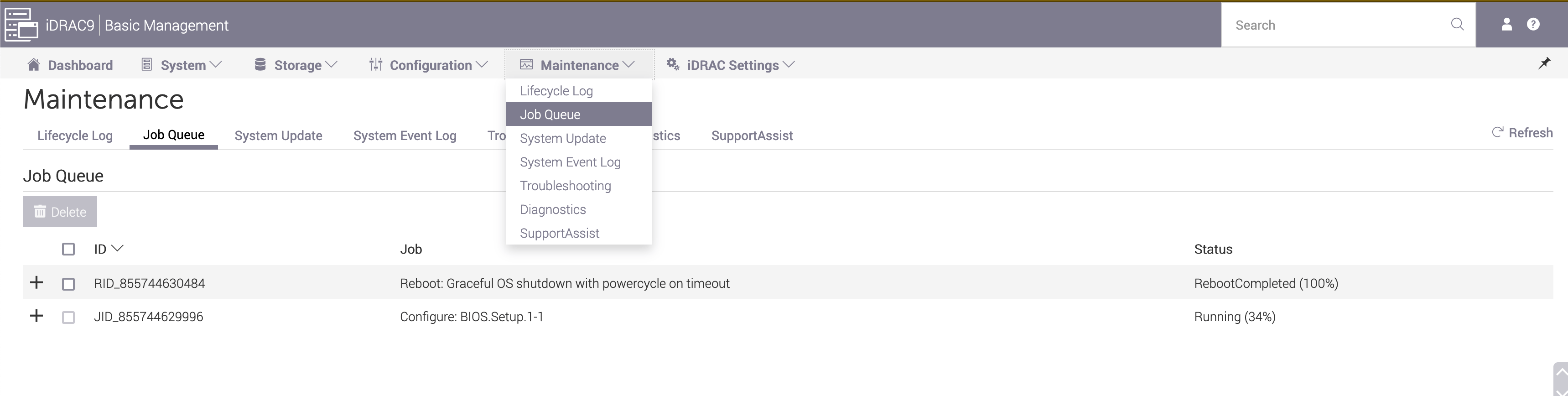
Go to Maintenance > Job Queue, you can see current Job queue and
task status.
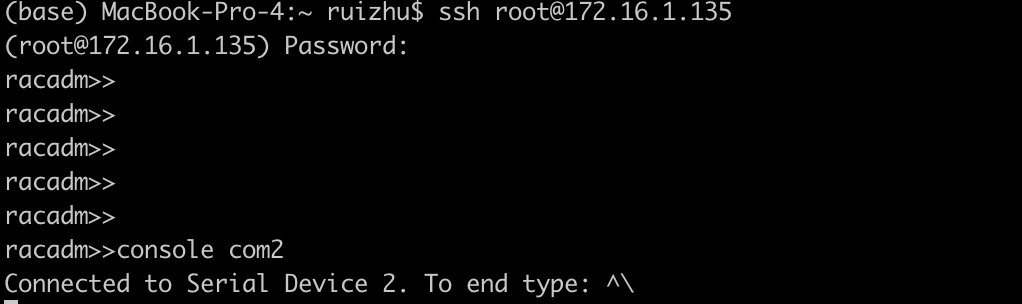
Login to iDRAC9 console using SSH.
ssh admin@idrac9_mgmt_ip
and issue the following command to enter Eve device console:
console com2
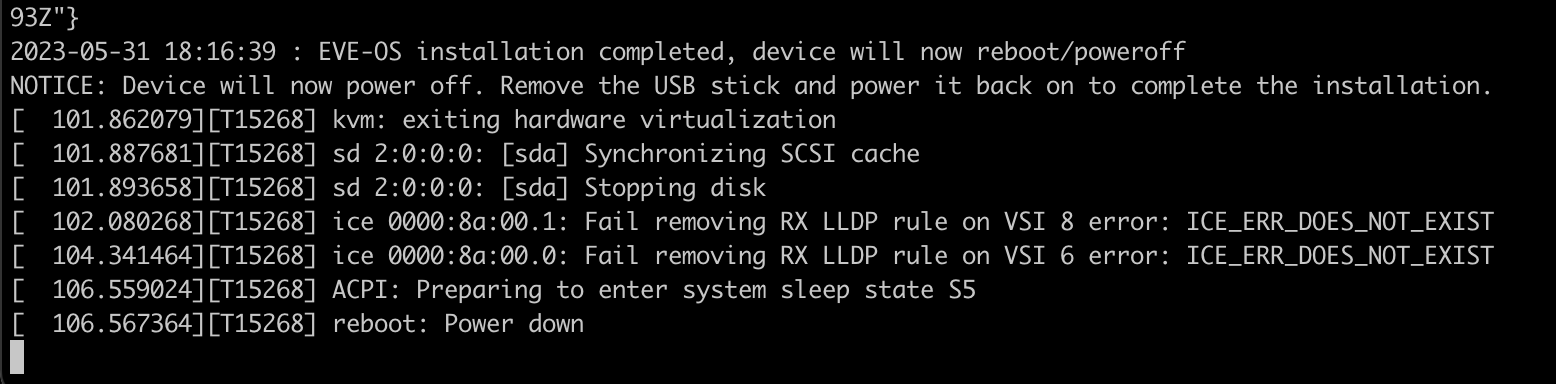
Wait 5 to 10 minutes until the installation is done and you should see the log
below log from iDRAC9 console.
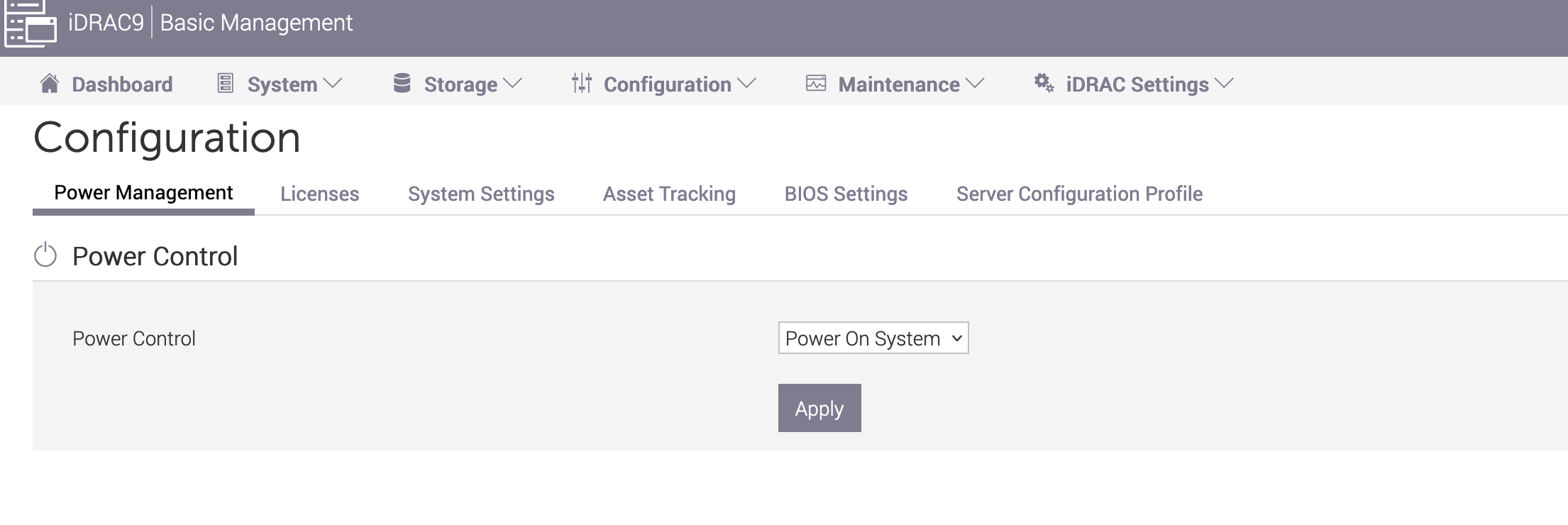
Detach the USB installer from the Dell R450 and power it on from
Configuration > Power Management, from Power Control dropdown,
choose Power On System and click Apply.
Wait 5 to 10 minutes while Aviatrix OS boots up.
The device will power off once the installation is done. At this stage,
connect the USB drive which has the static IP information to the device and
power on the device. Aviatrix Edge OS will read the static IP information
from the USB and configure the device. To view the configuration logs, you
can SSH to the device and connect to the serial console.
If you power on the device without inserting the USB drive which has the
static IP information, you can do it at a later time. Connect the USB to the
device and reset the system (warm boot). Aviatrix Edge OS will read the
information from the USB and configure the device.
After the static IP is configured, the device should be able to dial out to
AEP (controller.edge.aviatrix.com) and register with the service. The device
should show up as Connected in CoPilot and can now be used to launch an
Edge gateway. For details on how to launch an Edge Transit or Edge Spoke
Gateway, see
Hybrid Cloud Connectivity.
Was this page helpful?
⌘I
Assistant
Responses are generated using AI and may contain mistakes.