In this document, we provide an example to set up the Check Point Security Gateway instance for you to validate that packets are indeed sent to the Check Point Security Gateway for VPC-to-VPC and from VPC to internet traffic inspection.
Both “Firewall” and “Security Gateway” will be used interchangeably in this document. Both refer to the Check Point Security Gateway product.

Prerequisites for Check Point in AWS Firewall

Before you start setting up your Check Point Security Gateway with AWS example to verify that packets are sent to the gateway for traffic inspection, make sure you meet the basic requirements:
  • Basic Check Point Architecture understanding
  • Check Point CloudGuard IaaS product is subscribed to in the AWS Marketplace
The following Check Point AMIs and software versions are supported.
Supported AMI NameSoftware Version
CloudGuard IaaS Next-Gen Firewall with Threat Prevention & SandBlast BYOLR80.40, R80.30
CloudGuard IaaS Next-Gen Firewall with Thread PreventionR80.40, R80.30
CloudGuard IaaS All-In-One R80.40R80.40
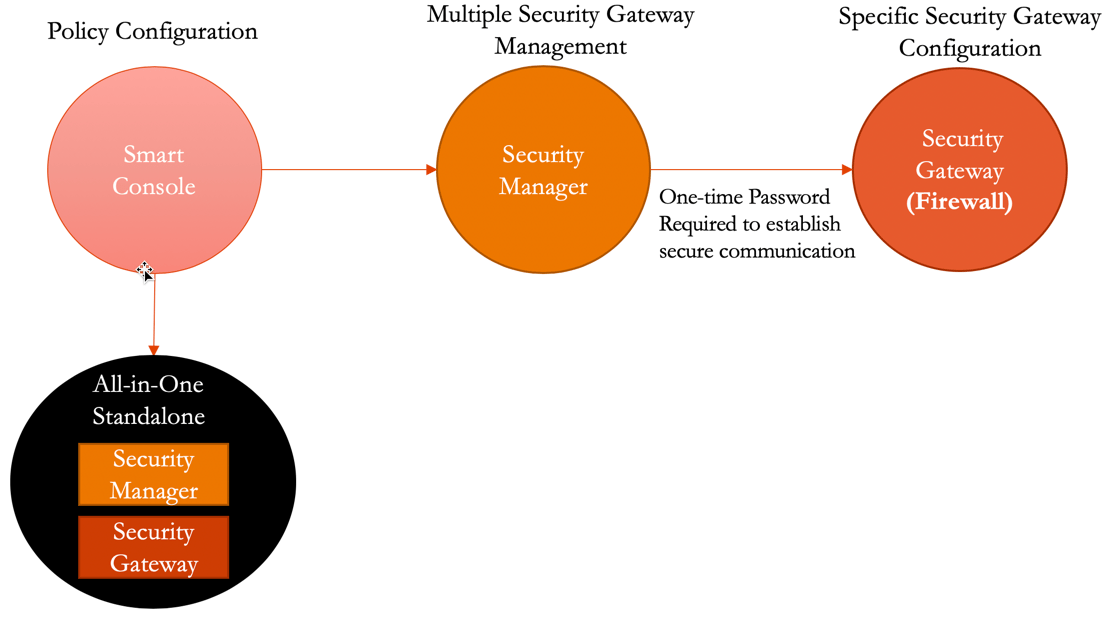
The basic Check Point architecture is shown below: cp_arch_reference In this document, we provide an example to set up the Check Point Firewall instance for you to validate that packets are indeed sent to the Check Point Firewall for VPC-to-VPC and from VPC to internet traffic inspection.
You must first create a Transit FireNet in AWS, and deploy a Check Point firewall in that Transit FireNet.
After you launch a Check Point firewall instance, the Security > FireNet > Firewall tab displays the public IP address of the firewall’s management/egress interface. You click this to access the firewall UI.

Launching Check Point Firewall from Aviatrix CoPilot (AWS)

You must first create a Transit FireNet in AWS, and deploy a Check Point firewall in that Transit FireNet.
You can use the Security Gateway information in this example for your reference. Adjust it depending on your requirements.
Example settingExample value
Firewall ImageCheck Point CloudGuard IaaS All-In-One R80.40
Firewall Image VersionR80.40-294.581
Firewall Instance Sizem5.large
Egress Interface SubnetSelect the subnet whose name contains “FW-ingress-egress.”
Key Pair Name (Optional)The .pem file name for SSH access to the firewall instance.
AttachCheck
Make note of the SIC (Secure Inter-communication) Key; it is required to add the Security Gateway inside the Security Manager. The Check Point Firewall instance has two interfaces as described below. Additionally, firewall instance eth1 is on the same subnet as FireNet Gateway eth2 interface.
Check Point VM instance interfacesDescriptionInbound Security Group Rule
eth0 (on subnet -Public-FW-ingress-egress-AZ-a)Egress or Untrusted interfaceAllow ALL
eth1 (on subnet -dmz-firewall)LAN or Trusted interfaceAllow ALL (Do not change)
Below are the steps for initial setup.

Setting up Check Point Gateway (Firewall) SSH login Using Password

For Metered AMI, open a terminal and run the following command. After you download the access key (.pem file), change the file permission to 600. It usually takes 5-10 minutes for the Check Point Gateway to be ready.
ssh -i <private_key.pem> admin@<public-ip_address>
set expert-password
Enter new expert password:
Enter new expert password (again):
gw-358e82> expert
Enter expert password:

Warning! All configurations should be done through clish
You are in expert mode now.

[Expert@gw-358e82:0]# sed -i 's/PasswordAuthentication no/PasswordAuthentication yes/' /etc/ssh/sshd_config
[Expert@gw-358e82:0]# sed -i 's/PermitRootLogin forced-commands-only/PermitRootLogin yes/' /etc/ssh/sshd_config
[Expert@gw-358e82:0]# service sshd reload
Reloading sshd:                                            [  OK  ]
[Expert@gw-358e82:0]# exit
Terminate the SSH session.

Logging in to the Check Point Firewall Gaia Portal

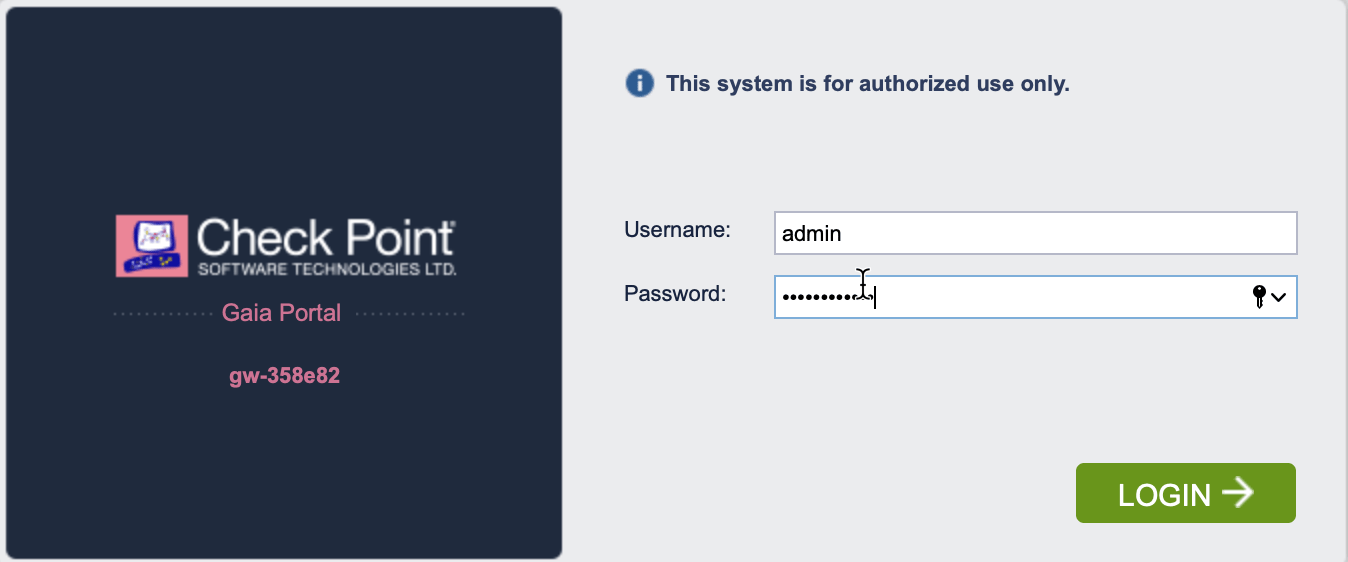
After the firewall launch is completed in Aviatrix CoPilot, go to Security > FireNet > Firewall and click on the firewall link in the Management UI column. This step applies to AWS and Azure. v2_cp_login_UI The URL takes you to the Check Point Firewall Gaia Portal you just launched. Launching Check Point firewall instances from Aviatrix CoPilot automatically initiates its onboarding process. For initial Check Point login information, go to Credentials for Check Point Initial Login. You must be registered to access the Aviatrix Customer Support website. If you are not already registered, you can sign-up at https://support.aviatrix.com.
Initializing and Logging in to the Check Point Firewall via Gaia Portal

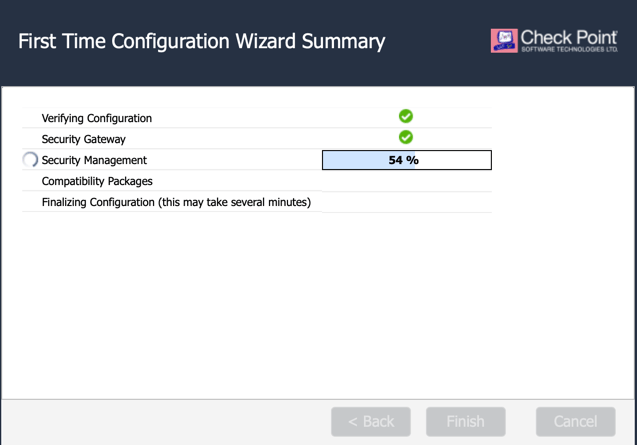
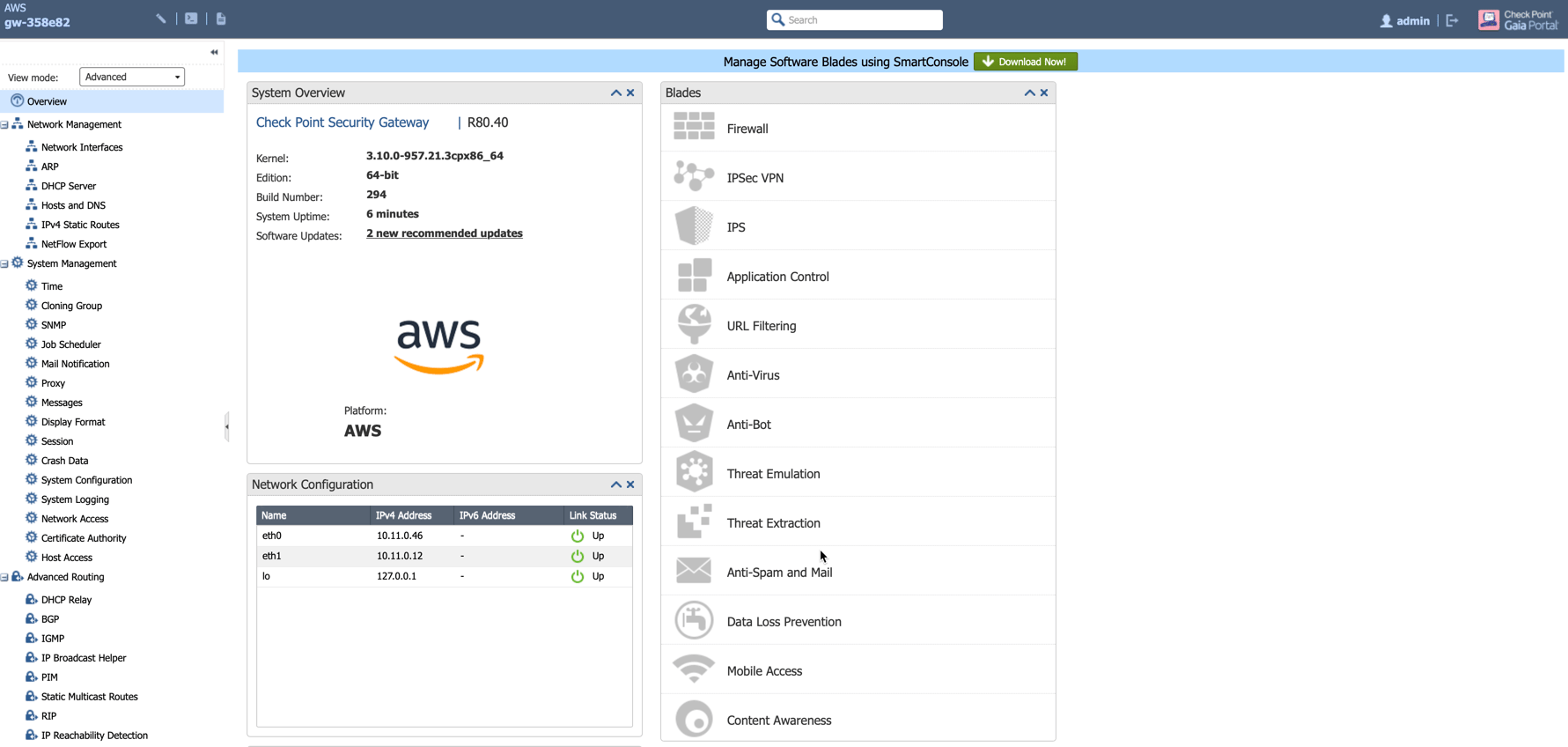
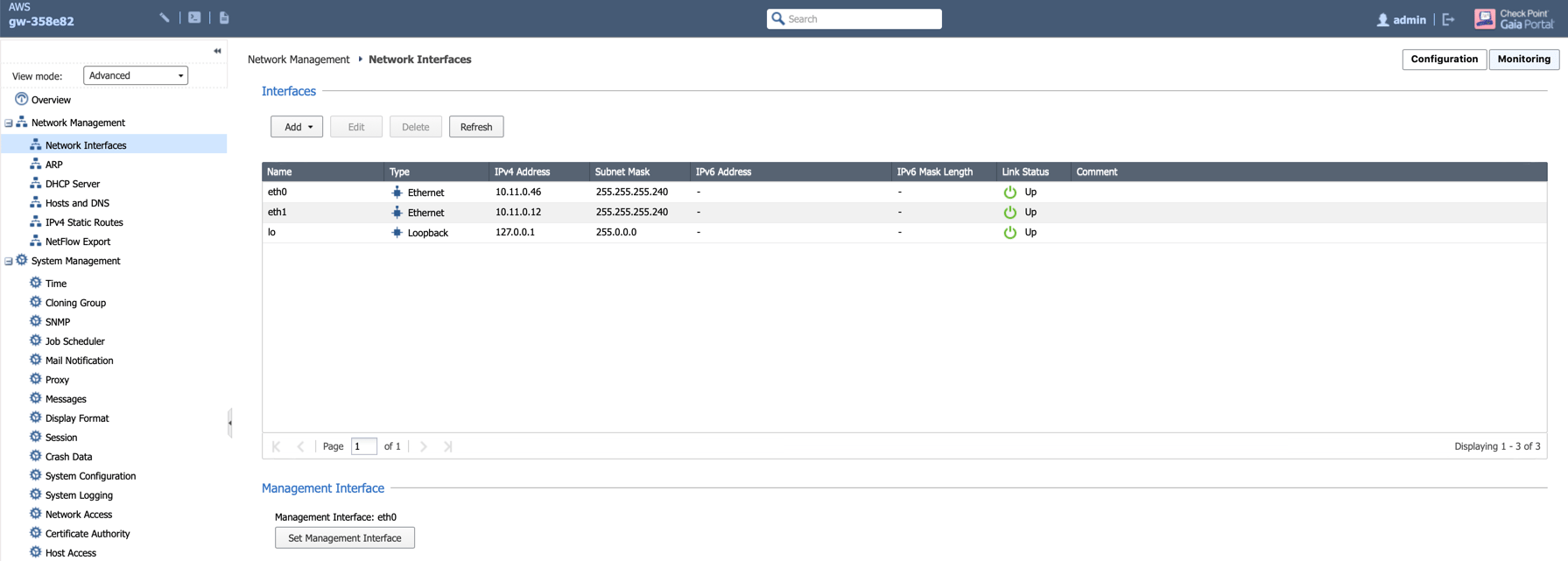
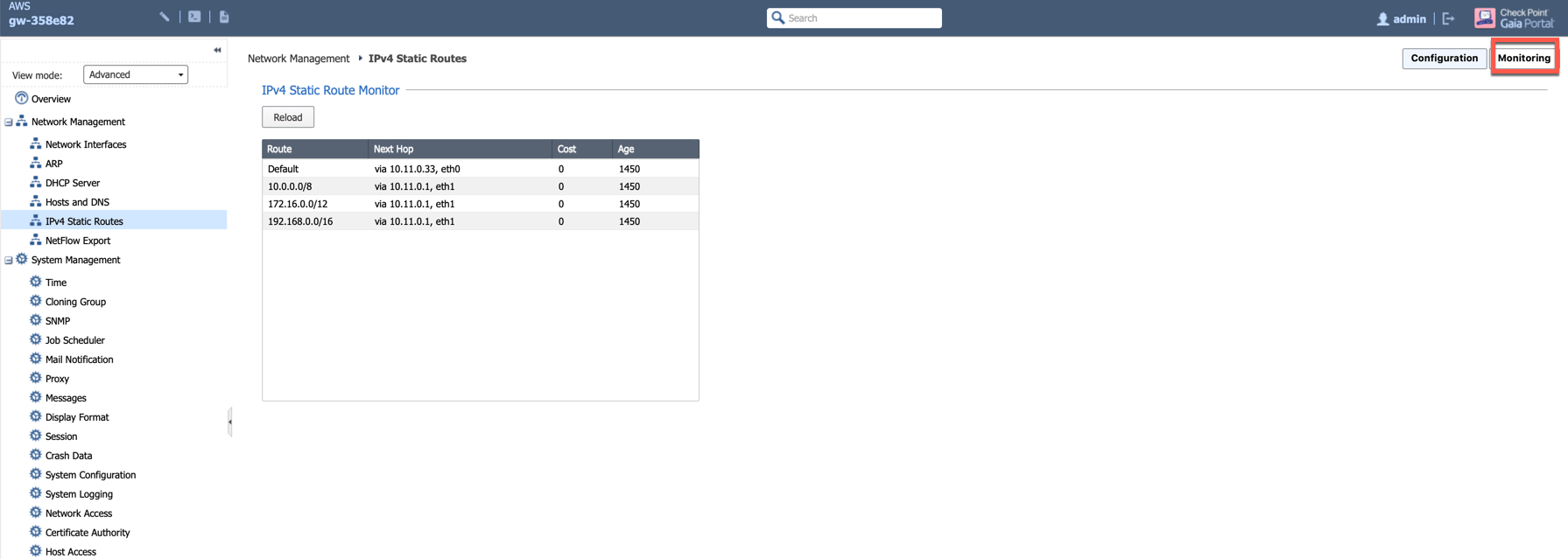
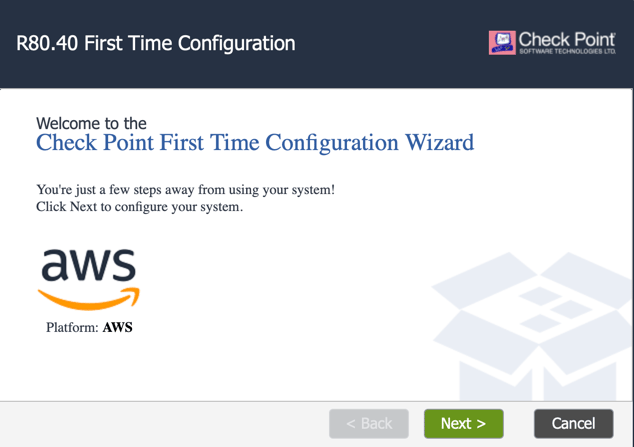
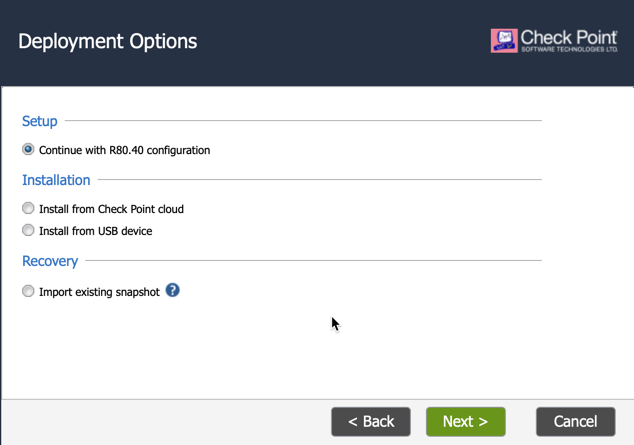
When you log in for the first time you see the Check Point First Time Configuration Wizard screen as shown below. 400 Click Next in each dialog and then click Finish. 400 400 Since Aviatrix CoPilot automatically configures the Check Point interfaces and RFC1918 static routes which are required for the FireNet feature, initialize wizard configurations are no longer required. However, you must complete the wizard steps to initialize the firewall properly. After the initialization is completed, you see the Check Point Firewall Gaia Portal Overview page. v2_CheckPoint_Gaia_Portal_Overview Navigate to Network Management > Network Interfaces to review eth0 (WAN) and eth1 (LAN) configuration as shown below. cp_firewall_interfaces_aws Review static routes RFC 1918 which is configured on LAN port, the purpose of those static route is to send the packets back to the Gateway (GW). Routes can also be reviewed by clicking Monitoring on the page Network Management > IPv4 Static Routes. cp_firewall_routes_monitoring_aws
Vendor Integration

Click here for information on vendor integration.

Downloading and Installing the SmartConsole

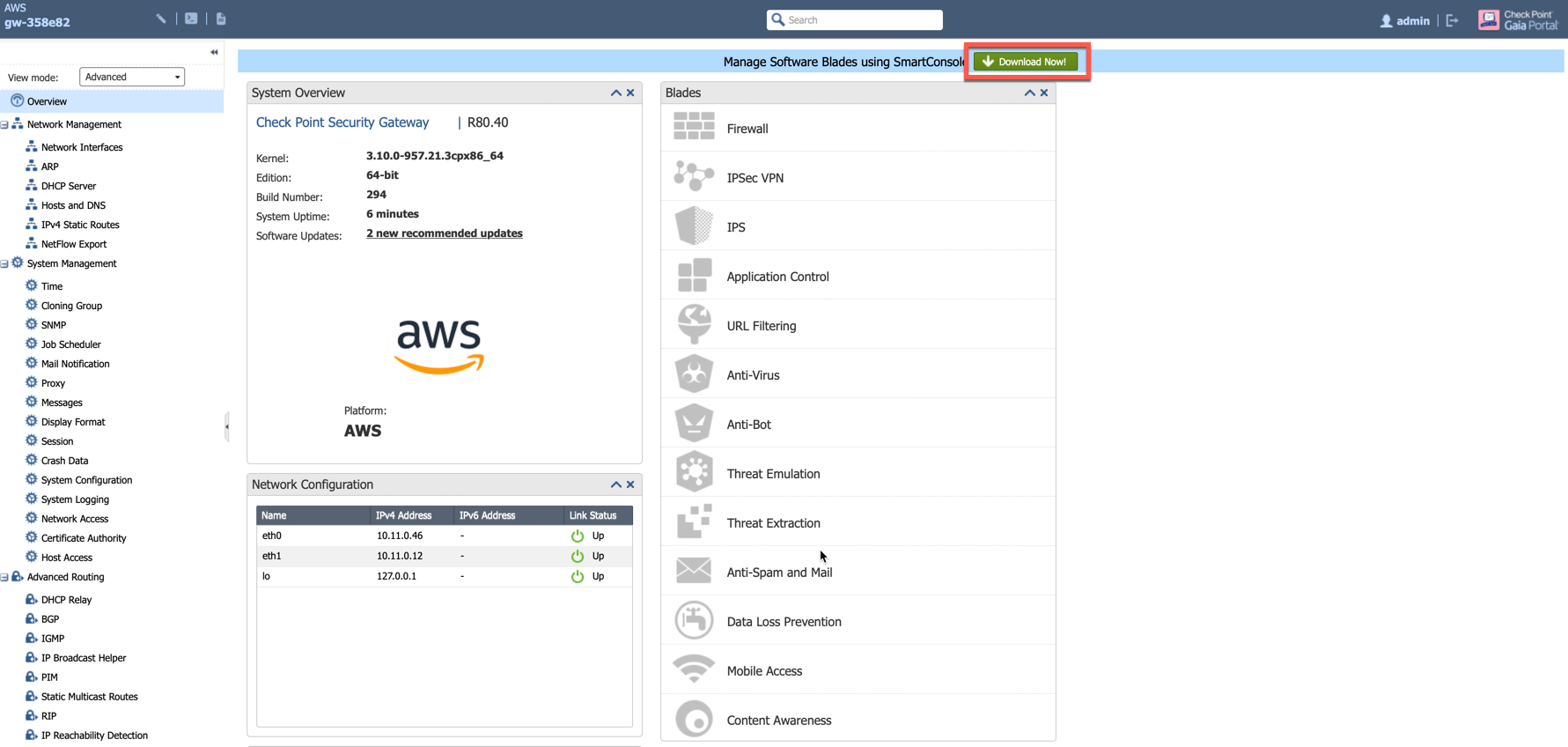
The Check Point Single Gateway ‘All-In-One’ image is used in this example and does not require Check Point Security Manager. All other Gateway images require Check Point Security Manager. If you are not using the ‘All-In-One’ image, skip this step and follow the Deploying and Installing the SmartConsole steps. The SmartConsole must be downloaded on a Windows-based computer. Log in to the Check Point Gateway and download the SmartConsole on a Windows-based computer. Option 1: click Download Now! with the message “Manage Software Blades using SmartConsole” on the Overview page as shown below. v2_CheckPoint_Gaia_Portal_SmartConsole_DL Option 2: download it by using this link: R80.40.
Installing and Logging into the SmartConsole

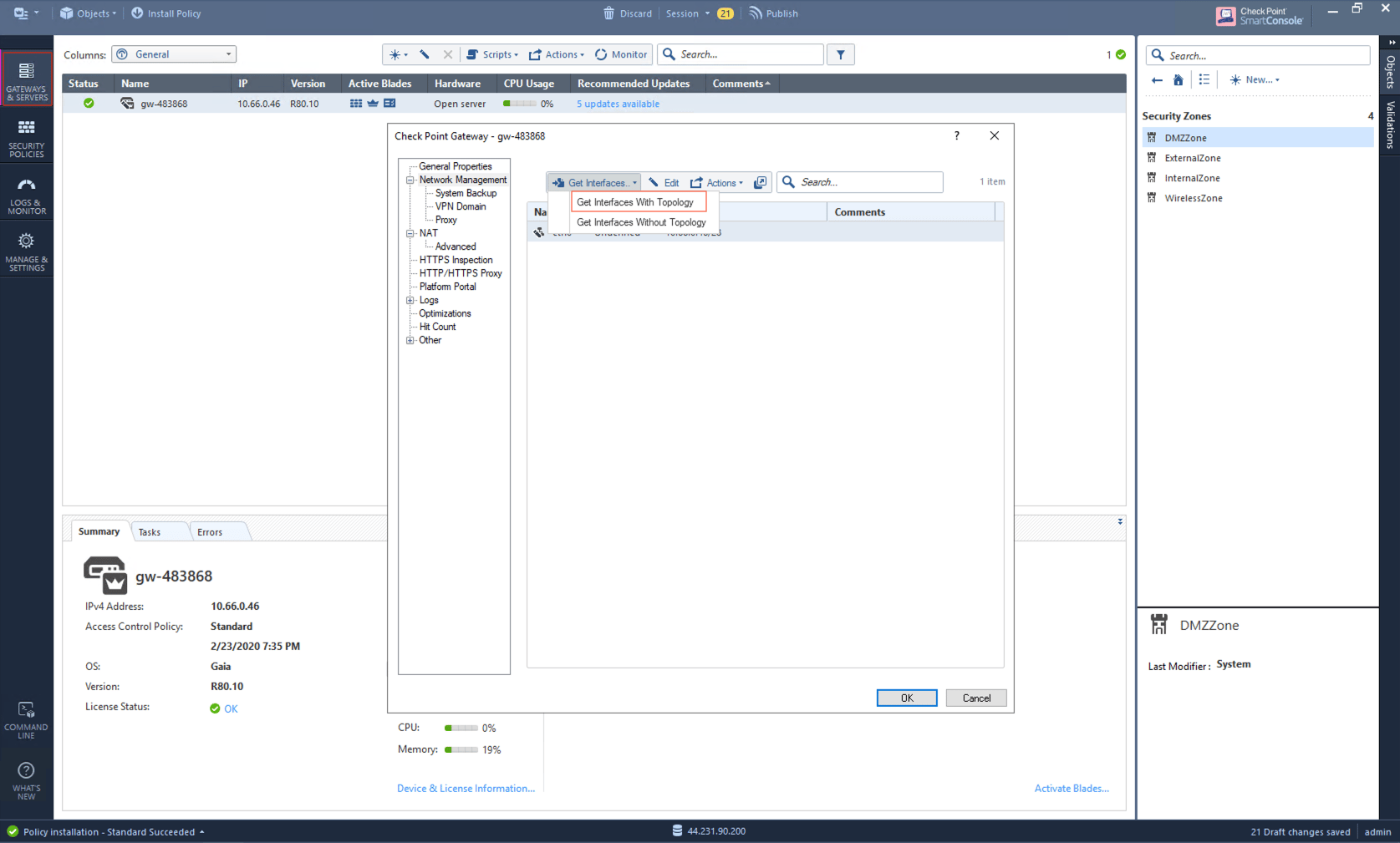
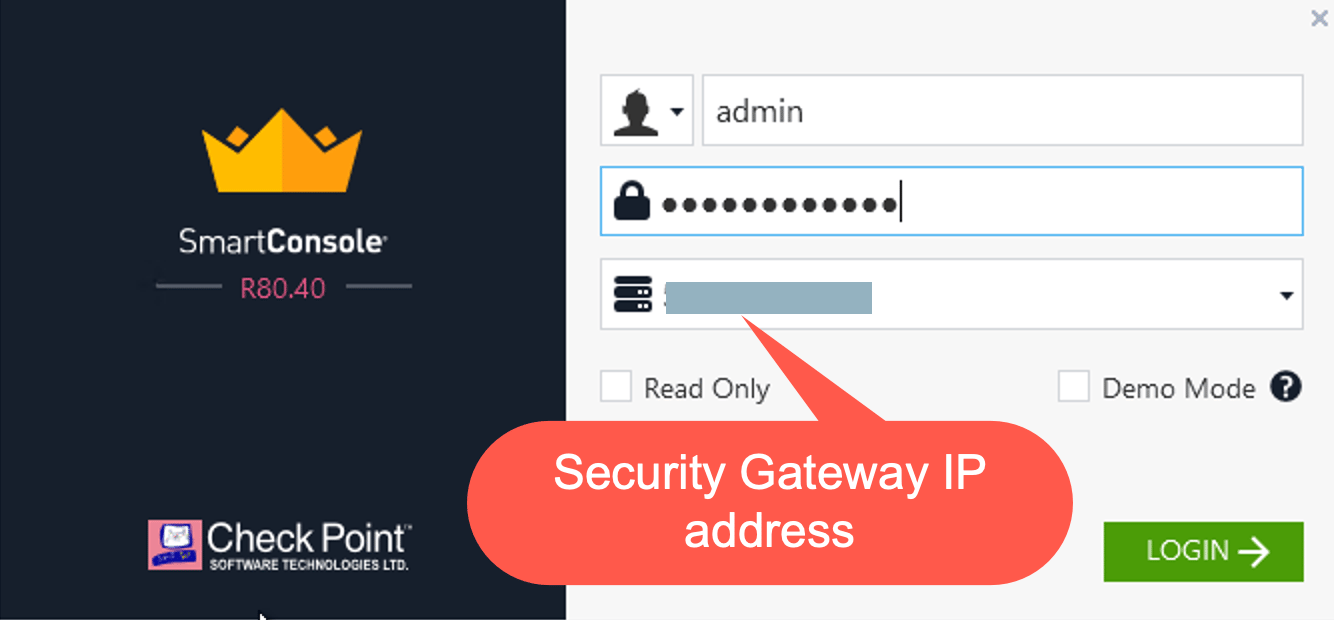
The Check Point SmartConsole is a Windows-based application used to configure and manage polices. These policies can be applied to one or more Security Gateways. Install the SmartConsole and log in with the Gaia Portal username, password and IP Address of the Check Point Gateway. 400 Execute the “Get Interfaces With Topology” function to sync up the settings that we have configured via the Gaia Portal. smartconsole_gateway_login_aws
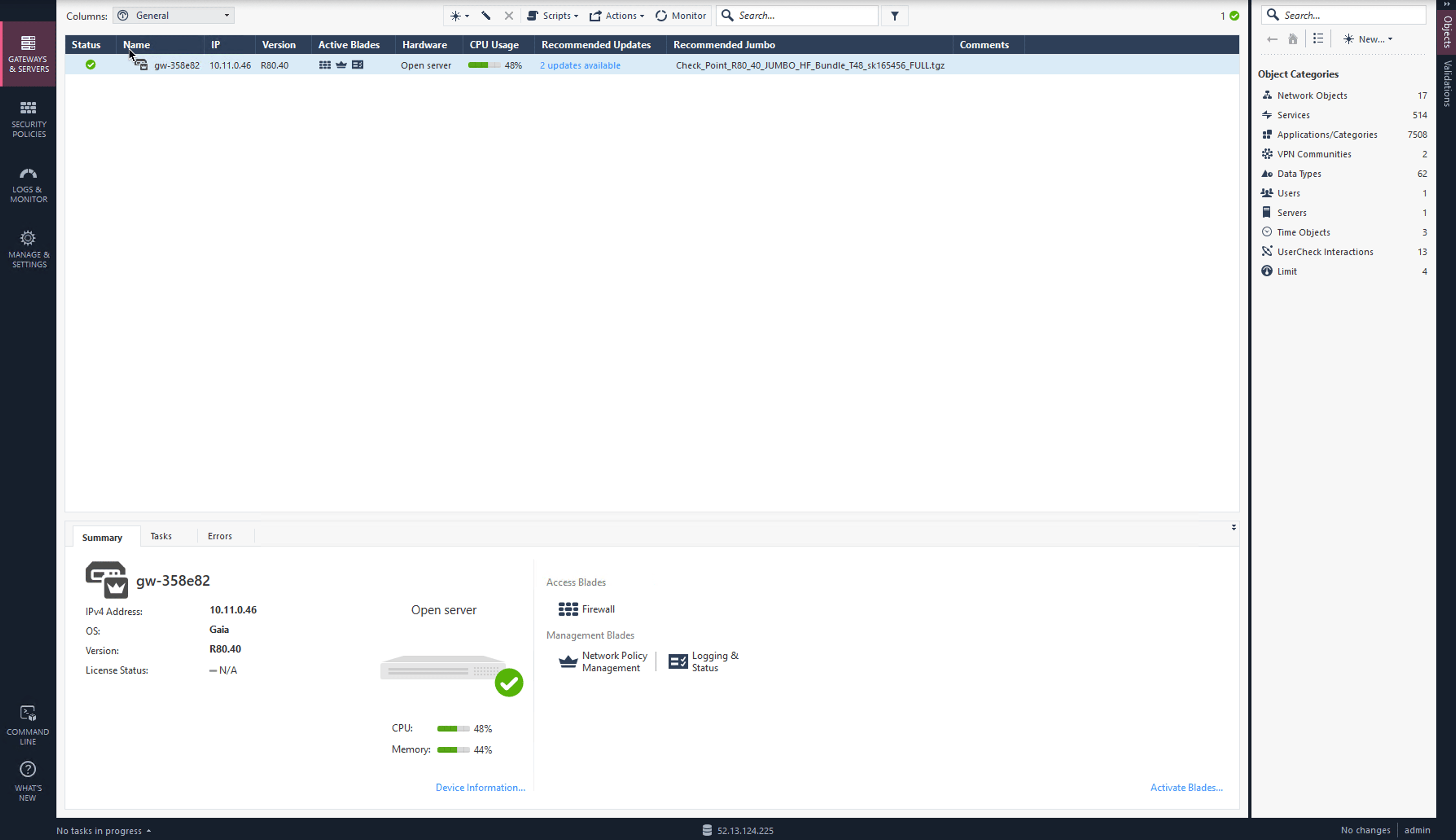
  1. Select Gateways & Servers on the left.
  2. Double-click on the Check Point Firewall.
  3. Select Network Management on the left.
  4. Click Get Interfaces to expand options.
  5. Click Get Interfaces With Topology.
  6. Click Yes.
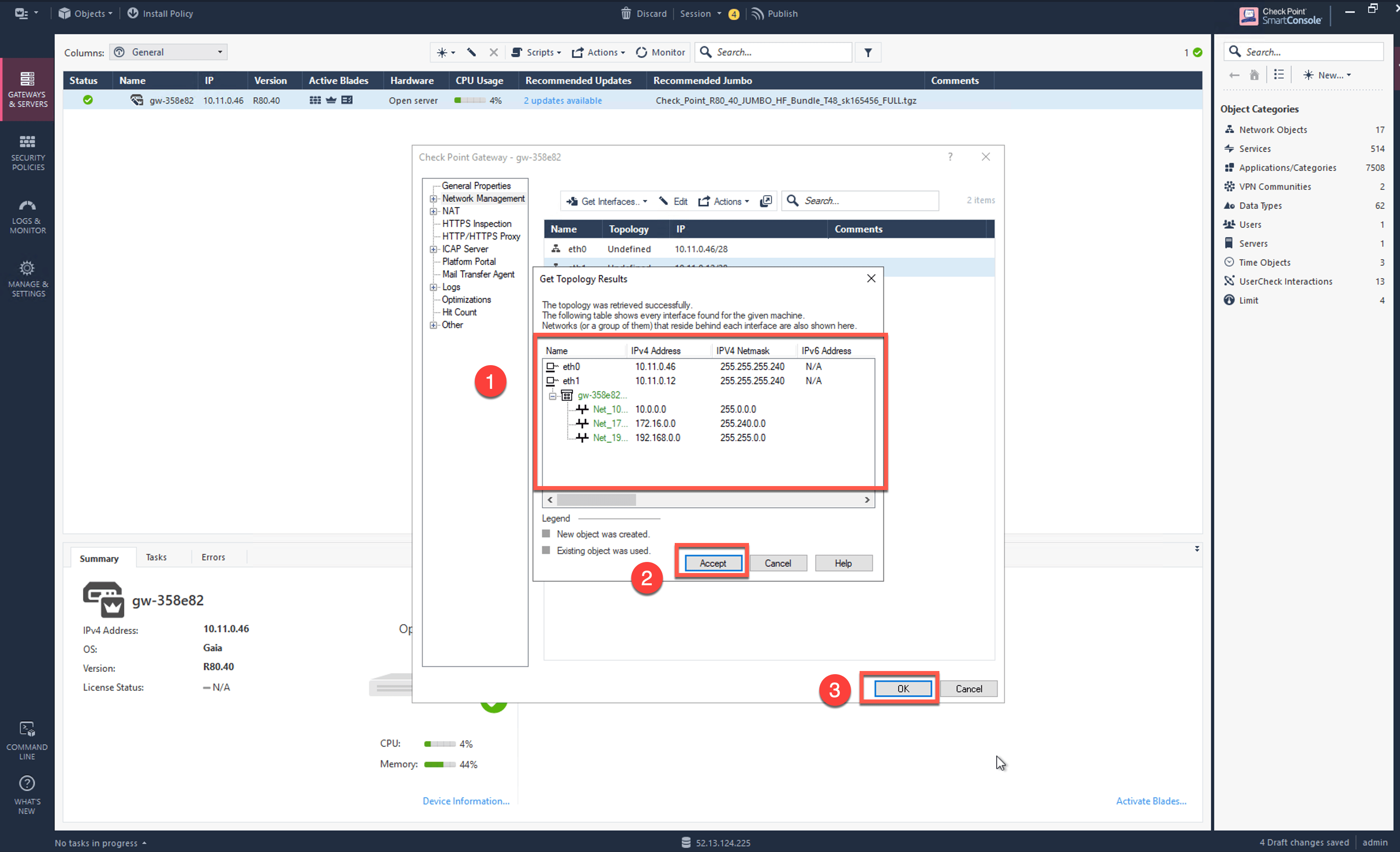
v2_CheckPoint_SmartConsole_syncup_01 Review the Get Topology Results which should match to the settings that we have configured via Gaia Portal. v2_CheckPoint_SmartConsole_syncup_02
  1. Click Accept.
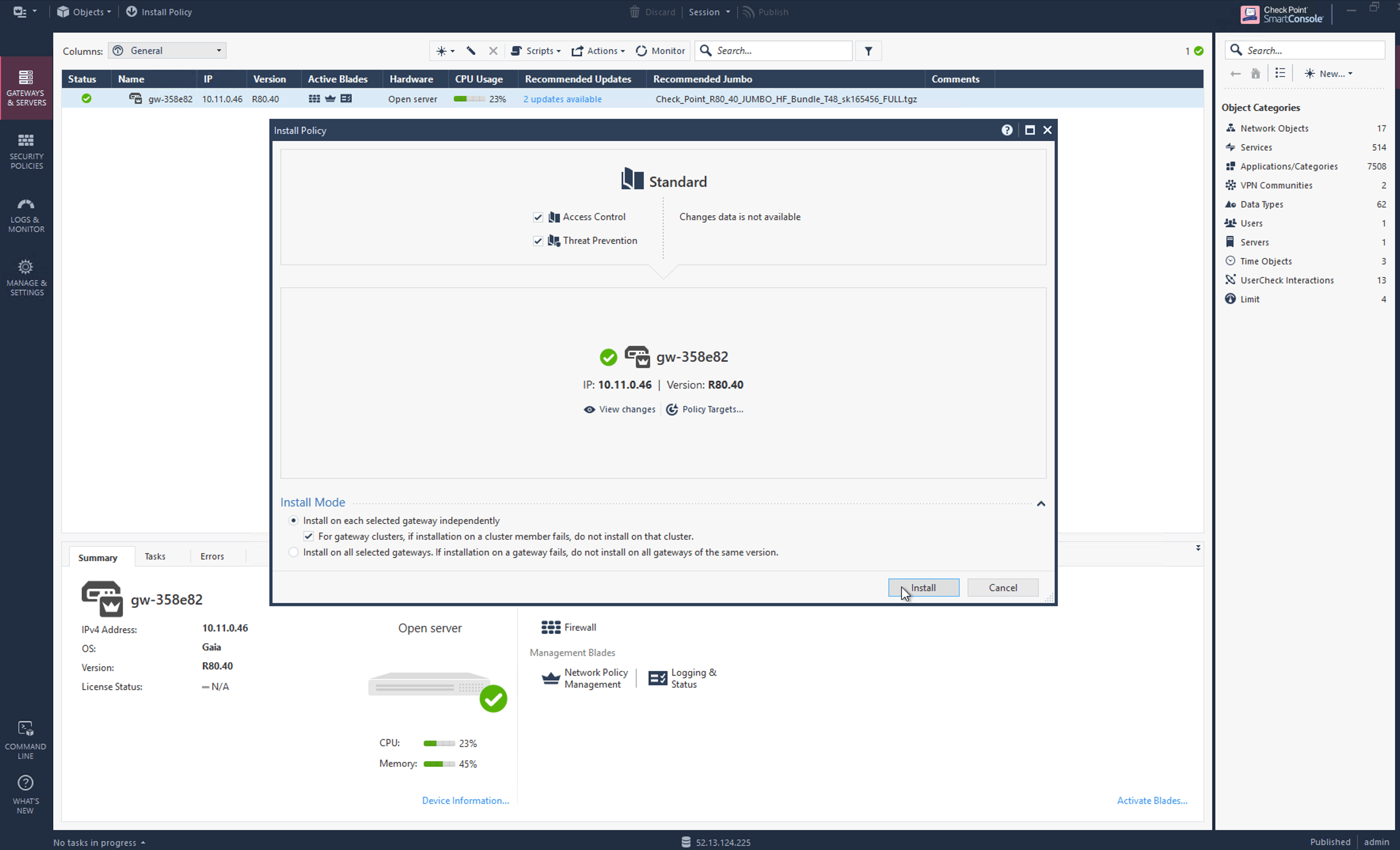
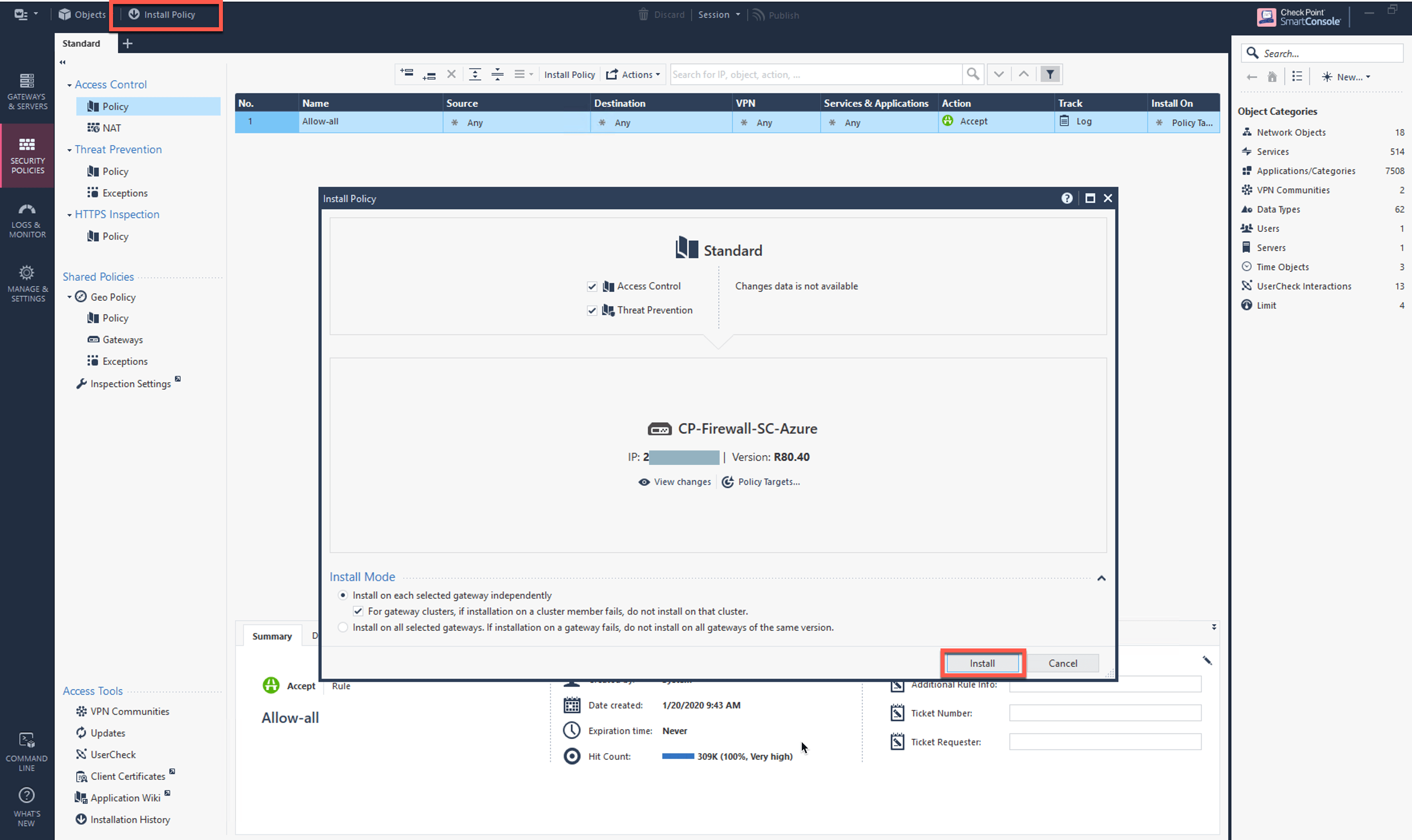
Go to Security Policies > Access Control > Policy and click Install Policy and then Install to commit the settings. install_policy_aws

Configuring the Basic Traffic Policy to Allow Traffic VPC-to-VPC

In this step, you will configure a basic traffic security policy that allows traffic to pass through the firewall. In the Check Point UI, from Security Policies > Access Control > Policy, configure a policy by either modifying the default Cleanup rule or adding a new rule above the default rule.
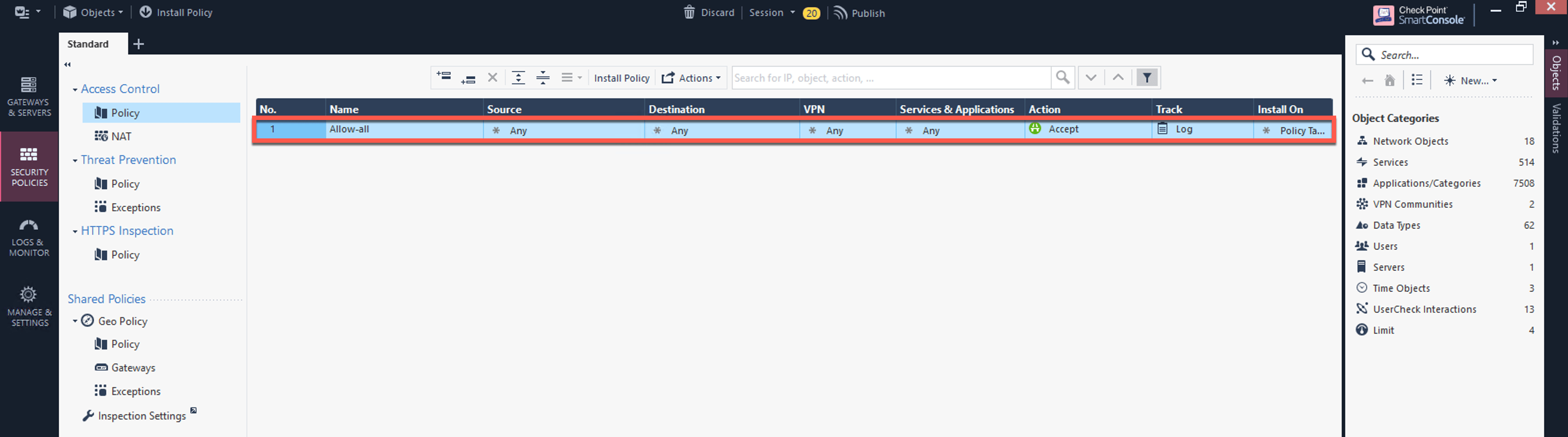
FieldValue
NameConfigure any name for this policy (i.e. allow-all)
SourceAny
DestinationAny
VPNAny
Service & ApplicationsAny
ActionAccept
TrackLog
v2_CheckPoint_policy_vpc_to_vpc Click Install Policy and then Install to commit the settings. v2_CheckPoint_policy_vpc_to_vpc_install

(Optional) Configuring the Basic Traffic Policy to Allow Traffic VPC to Internet

In this step, you will configure a basic traffic security policy that allows Internet traffic to pass through the firewall. Given that Aviatrix Gateways will only forward traffic from the TGW to the LAN port of the firewall, we can just set our policy condition to match any packet that is going into the LAN interface and out of the WAN interface. You must enable the Egress inspection feature on FireNet if it is not already enabled. To enable it:
  1. In Aviatrix CoPilot, navigate to Security > FireNet > FireNet Gateways on the left navigation menu.
  2. Click the Edit icon edit icon next to a FireNet Gateway.
  3. Scroll down to the Egress toggle switch and turn it On.
  4. Click Save.
  5. Verify the Egress status on the FireNet Gateways tab.
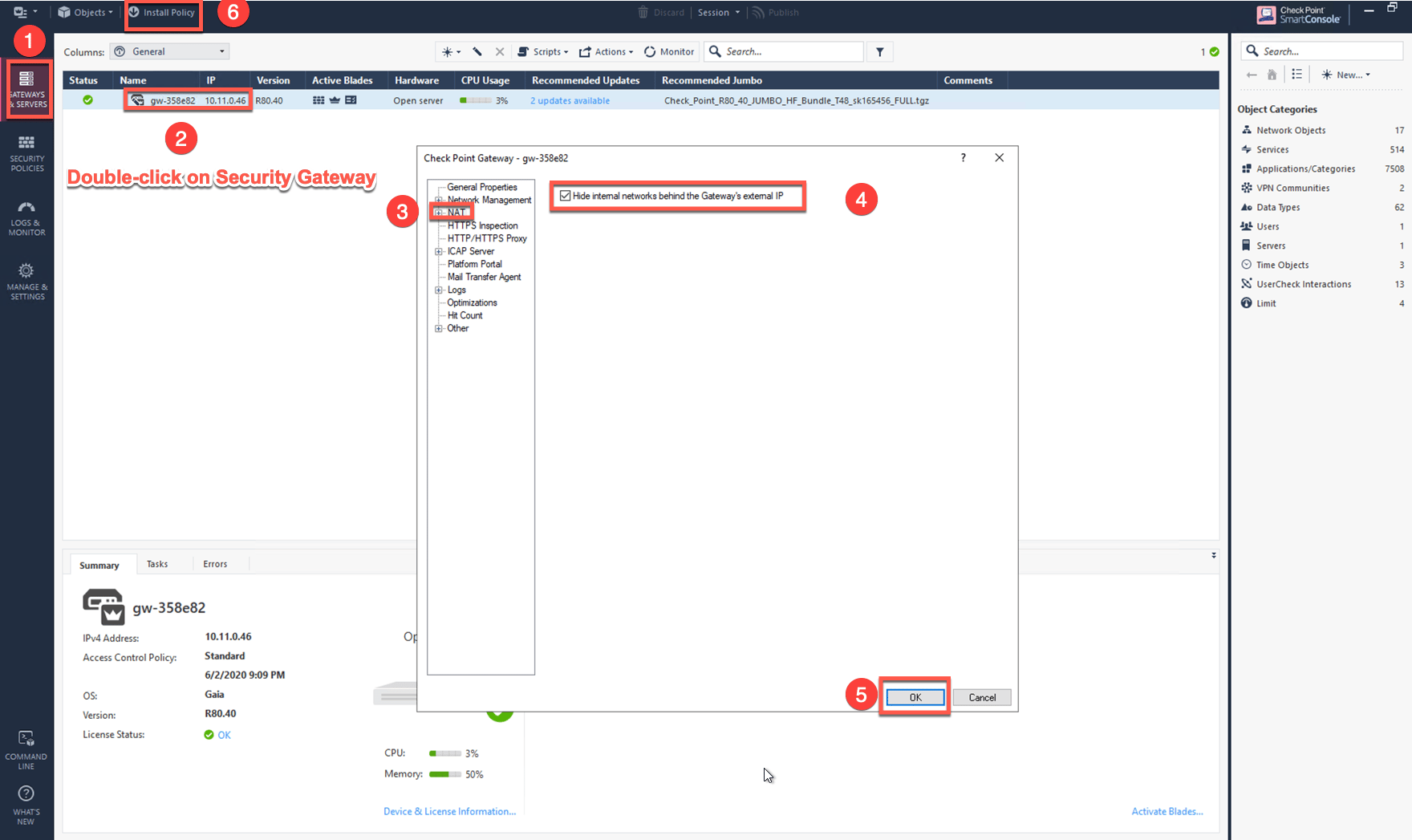
In the Check Point Firewall SmartConsole, navigate to the Gateways & Servers page and then double-click on the gateway to enable NAT function as per the following screenshot.
  1. Click NAT.
  2. Select the Hide internal networks behind the Gateway’s external IP checkbox.
  3. Click OK.
  4. Click Install Policy.
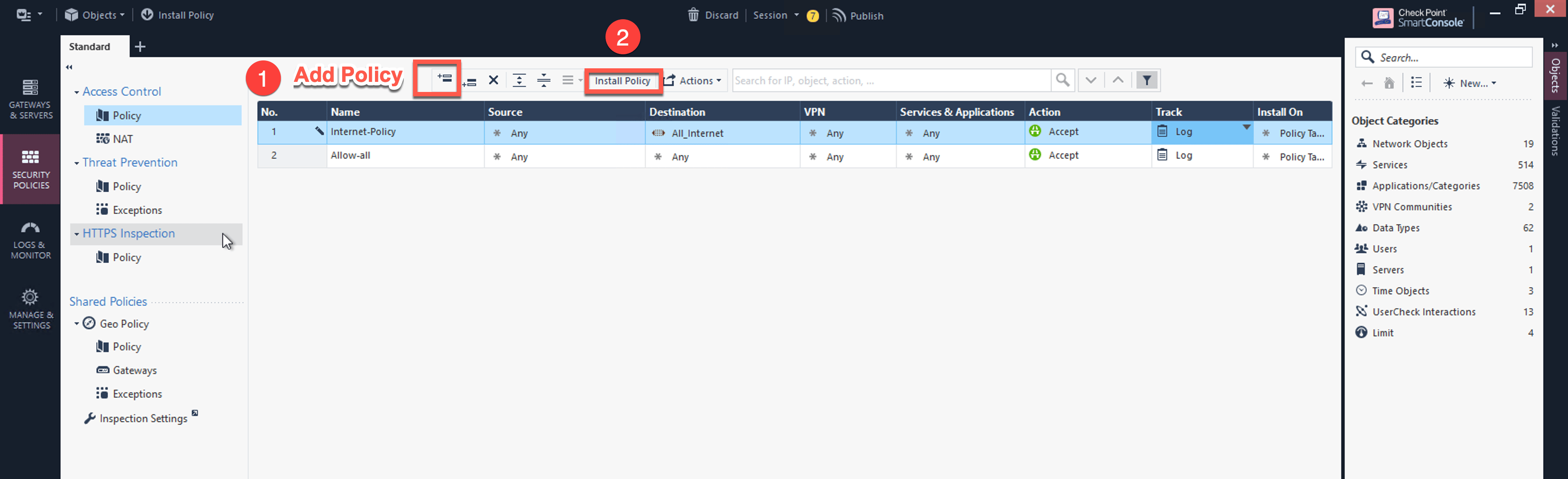
v2_CheckPoint_policy_vpc_to_internet_nat_enabled The NAT function needs to be enabled on the Check Point FW interface eth0 for this VPC to Internet policy. Refer to Check Point’s NAT instruction for details. (Optional) If you have the default “Cleanup rule”, navigate to Security Policies > Access Control > Policy and inject a new rule for Internet Policy on top of the default Cleanup rule.
FieldValue
NameConfigure any name for this policy (i.e. Internet-Policy)
SourceAny
DestinationSelect the object with All_internet
VPNAny
Service & ApplicationsAny
ActionAccept
TrackLog
cp_policy_vpc_to_internet_aws Click Install Policy and then Install to commit the settings. After validating that your traffic is being routed through your firewall instances, you can customize the security policy to your requirements.

Validate Check Point in AWS firewall Instance

Now your firewall instance is configured and ready to receive packets. The next step is to validate your configurations and polices using FlightPath and Diagnostic Tools (ping, traceroute, etc.).

Viewing Traffic Log for Check Point in AWS/Azure

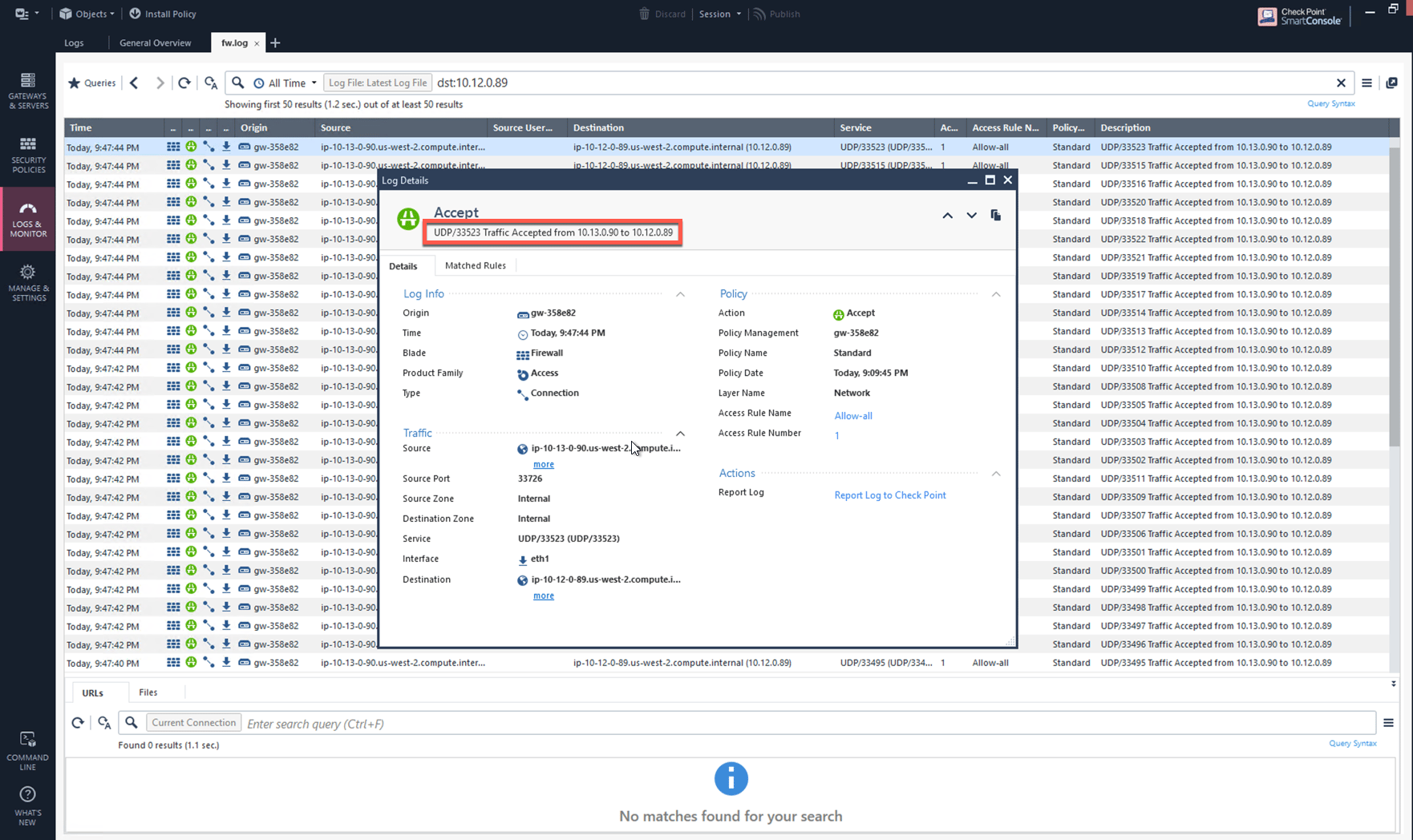
You can view if traffic is forwarded to the firewall instance by logging in to the Check Point Firewall SmartConsole and navigating to the Logs & Monitor page.

Verifying VPC-to-VPC traffic

Launch one instance in PROD Spoke VPC and another in DEV Spoke VPC. Start pinging packets from a instance in DEV Spoke VPC to the private IP of another instance in PROD Spoke VPC. The ICMP traffic should go through and be inspected in the firewall. v2_CheckPoint_view_traffic_log_vpc_to_vpc
(Optional) Verifying VPC to Internet traffic

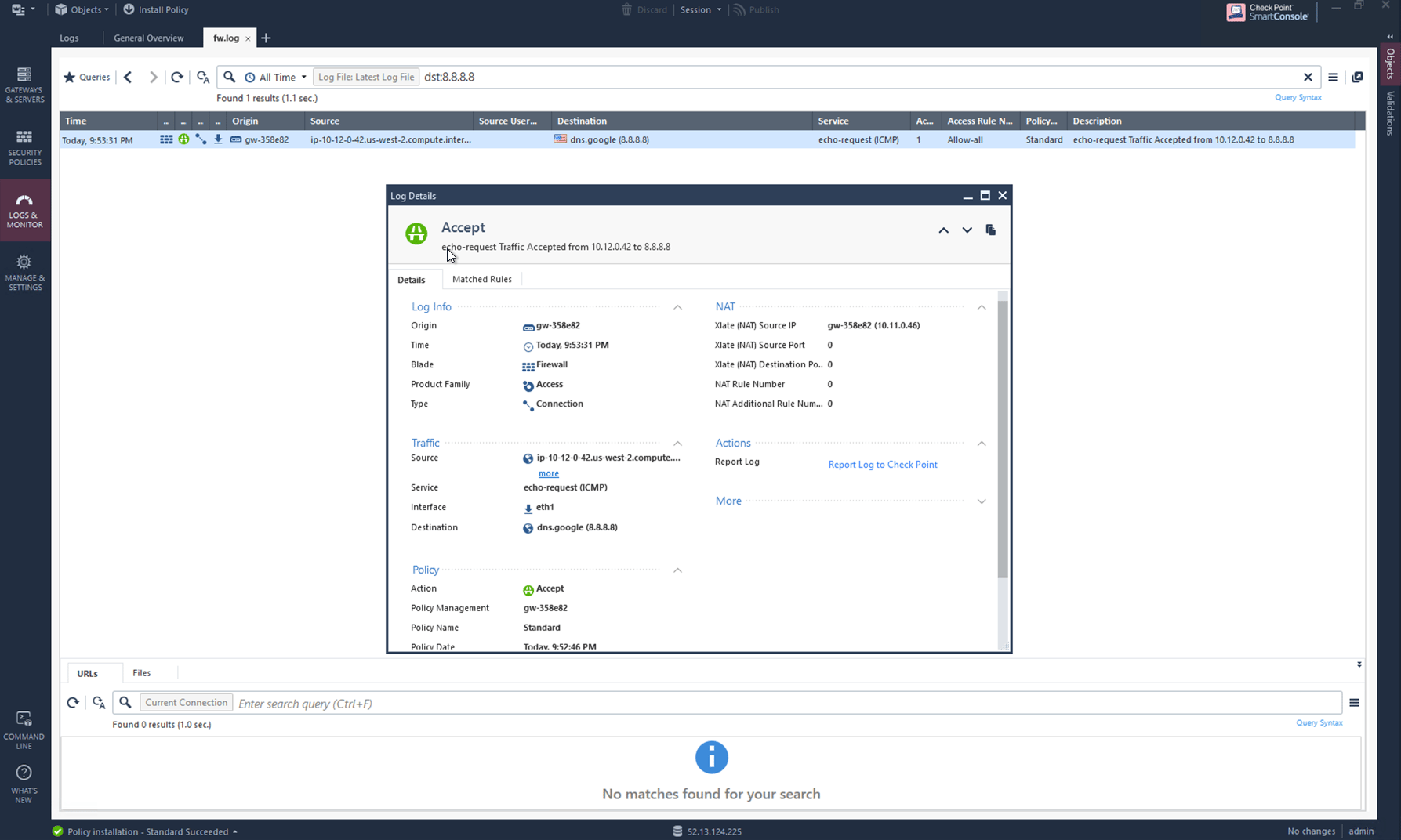
To verify VPC to internet traffic for your Check Point in AWS firewall, launch a private instance in the Spoke VPC (i.e. PROD Spoke VPC) and start pinging packets from the private instance towards Internet (e.g 8.8.8.8) to verify the egress function. The ICMP traffic should go through, and be inspected on the firewall. v2_CheckPoint_view_traffic_log_vpc_to_internet