You must first have launched a firewall instance in GCP.Palo Alto firewall versions greater than 9.1.3 are not supported in the GCP
Transit FireNet configuration.
Downloading VM-Series Access Key
After this step in the workflow is completed, you can click the vertical ellipsis buttonIf you get a download error, usually it means the VM-Series is not ready. Wait
until it is ready, refresh the browser and then try again.
Resetting VM-Series Password
After you download the .pem file, change the file permission to 400. If you
are asked to enter a password during the login, the VM-Series is still not
ready. Wait and try again. It usually takes up to 15 minutes for the VM-Series
to be ready. When the VM-Series is ready, you will no longer be prompted for a
password.
Logging in to the VM-Series
In Aviatrix CoPilot, navigate to Security > FireNet > Firewall. Click the Management UI link for the firewall. It takes you to the VM-Series you just launched. Login with Username “admin”. The password is the password you set in the previous step.Dynamic Updates
From Device > Dynamic Updates in the Palo Alto firewall UI, click on Check Now to download and install the latest versions of Applications and Threats and Wildfire updates. Click on Check Now again to download and install the latest version of Antivirus.Configuring VM-Series ethernet1/1 with WAN Zone
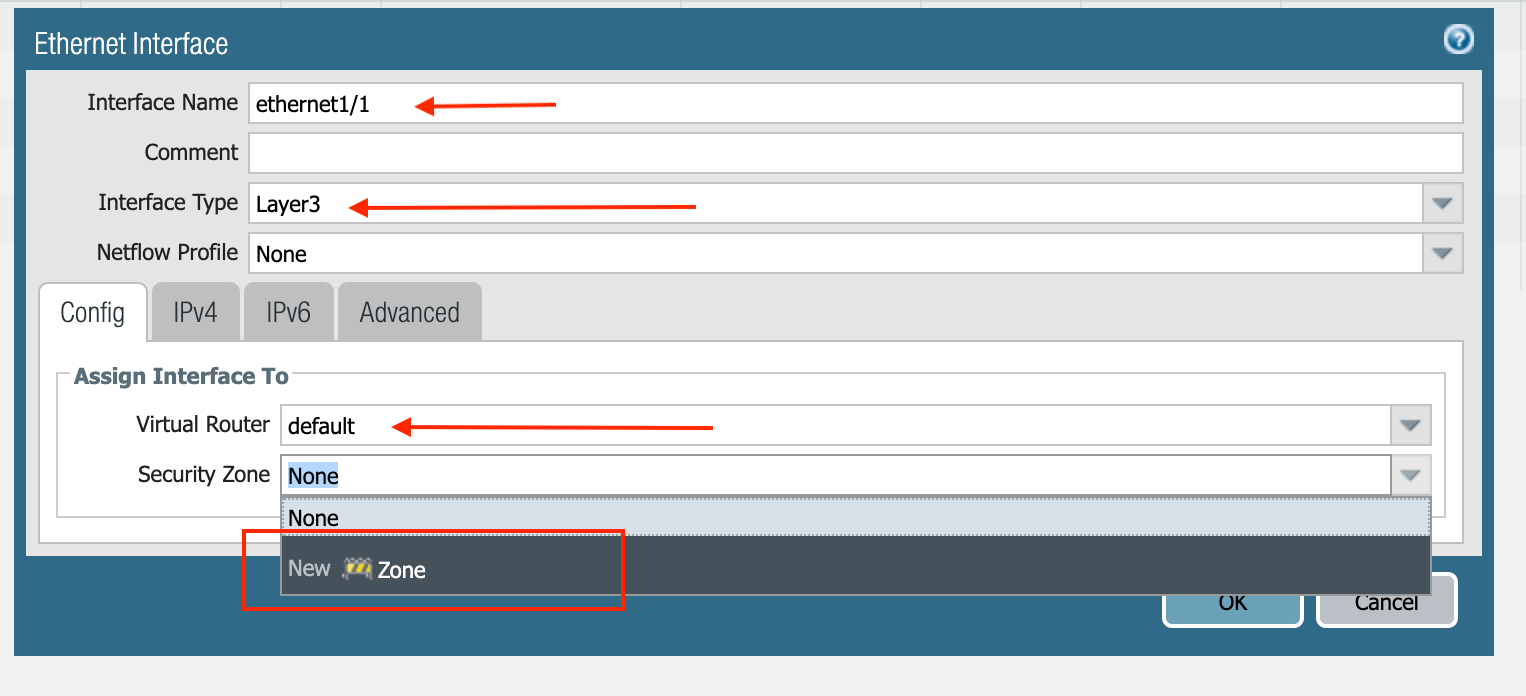
After logging in, select the Network tab to see a list of ethernet interfaces. Click ethernet1/1 and configure as per the following screenshot.- Select the Network tab.
- Click ethernet1/1.
- Select layer3 for Interface Type.
- Select the Config tab in the popup Ethernet Interface window.
- Select the default for Virtual Router at the Config tab.
- Click New Zone for Security Zone to create a WAN zone.
- At the next popup screen, name the new zone “WAN” and click OK.
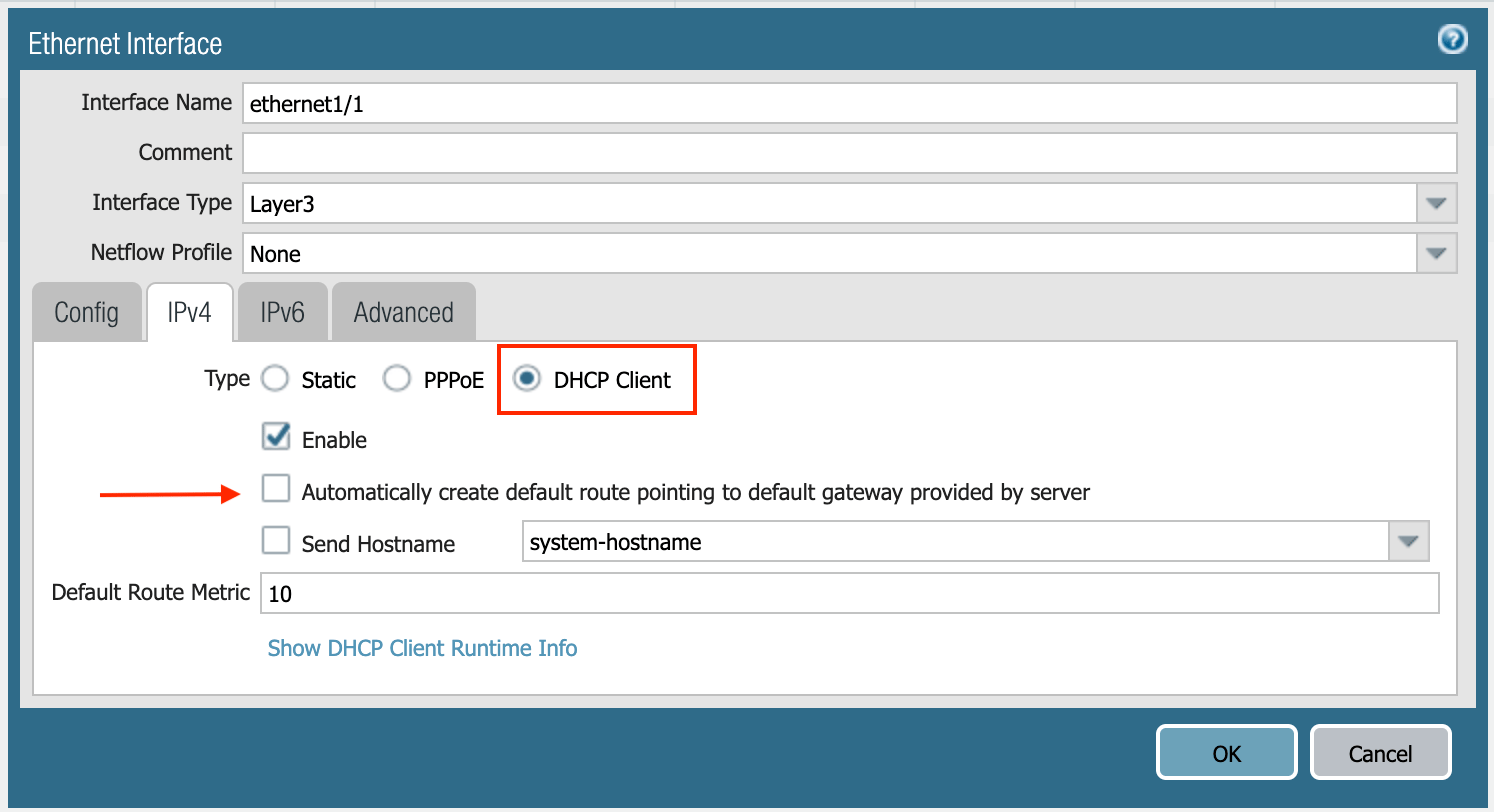
- Select IPV4 tab in the popup Ethernet Interface window.
- Select DHCP Client.
- Uncheck the Automatically create default route pointing to default gateway provided by server, as shown below.
Configuring VM-Series ethernet1/2 with LAN Zone
Repeat the steps from Configuring VM-Series ethernet1/1 with WAN Zone section above for ethernet1/2. Name the new zone LAN. Click Commit. Once Commit is complete, you should see the Link State turn green at the Network page for ethernet1/2.GCP VM-Series Health Check
Configuring a DNAT rule for Health Check is a mandatory requirement in GCP. Go to Polices > NAT > Add NAT. See the example below for NAT configurations.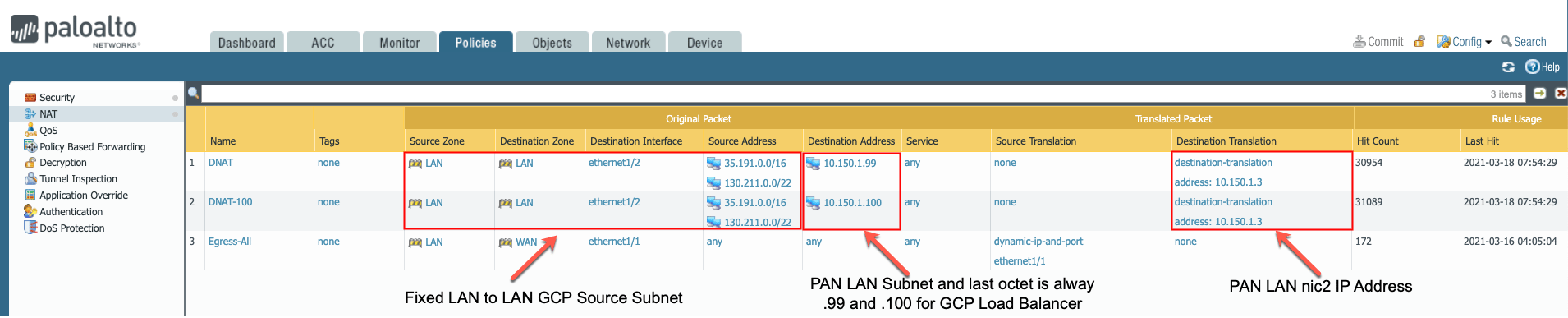
Configuring Basic Allow-all Policy
In this step, we will configure a basic traffic security policy that allows traffic to pass through the VM-Series firewall.- Select the Policies tab.
- Select the +Add in the bottom-left corner to create a new policy.
- Select the General tab. Name the policy Allow-all.
- Select the Source tab. Select Any for both panels.
- Select the Destination tab. Select Any for both panels.
- Select the Application tab. Select Any.
- Click OK.
- Click Commit to install the Allow-all policy.
Configuring NAT for Egress
If you would also like to enable NAT to test egress, follow these steps.- Navigate to Policies > NAT and click Add.
- Select the General tab.
- Name the policy and click Original Packet.
- At Source Zone, click Add, select “LAN”.
- At Destination Zone, select WAN.
- At Destination Interface, select Ethernet1/1, as shown below.
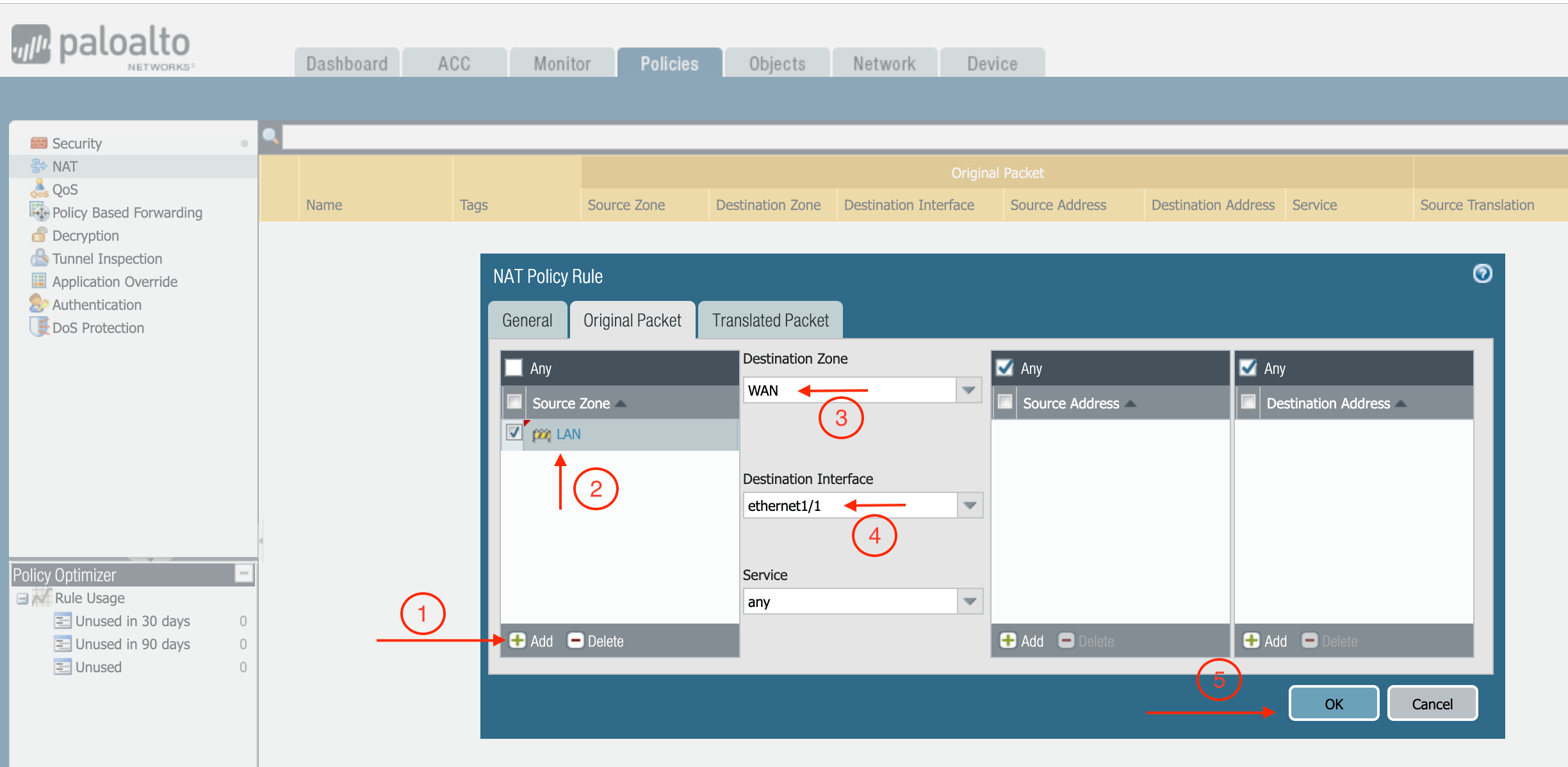
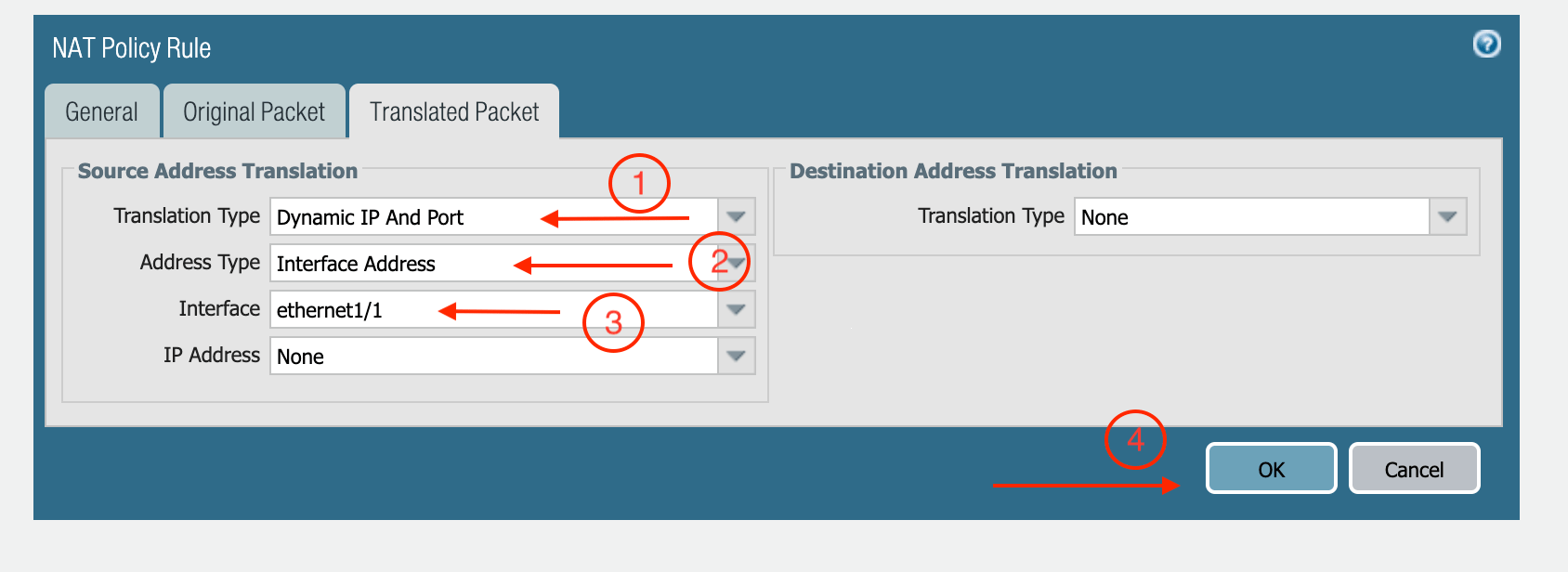
- Click Translated Packet. At Translation Type, select Dynamic IP And Port. At Address Type, select Interface Address.
- At Interface, select ethernet1/1, as shown below.