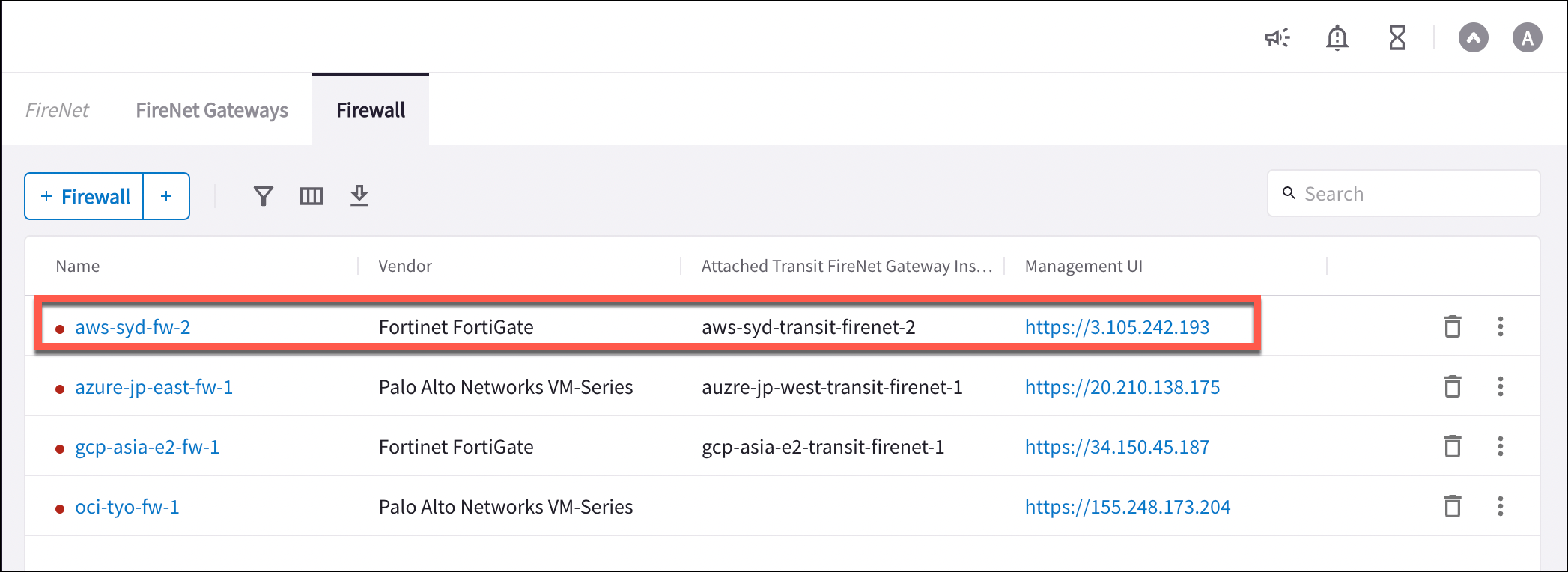
You must first create a Transit FireNet in AWS, and deploy a Fortinet FortiGate firewall in that Transit FireNet.If you do not use Aviatrix vendor integration, you can manually configure
Fortinet route table entries. For AWS that does not use the AWS Native Load
Balancer, the RFC 1918 routes should point to the Aviatrix FireNet Gateway LAN
interface IP.
The FortiGate Next Generation Firewall instance has two interfaces as
described below. Additionally, firewall instance eth1 is on the same subnet as
FireNet gateway eth2 interface.
Below are the steps for initial setup.
Vendor Integration (Optional)
Click here for information on vendor integration.Configuring FortiGate Next Generation Firewall port1 with WAN
After logging in with the new password, go to the page Network > Interfaces to configure Physical Interface port1 as per the following screenshot. Select the interface with port 1 and click Edit. Enter an Alias (i.e.: WAN) for the interface. Specify appropriate role (WAN). Enable DHCP to ensure FW retrieve private IP information from the AWS console. Enable Retrieve default gateway from server.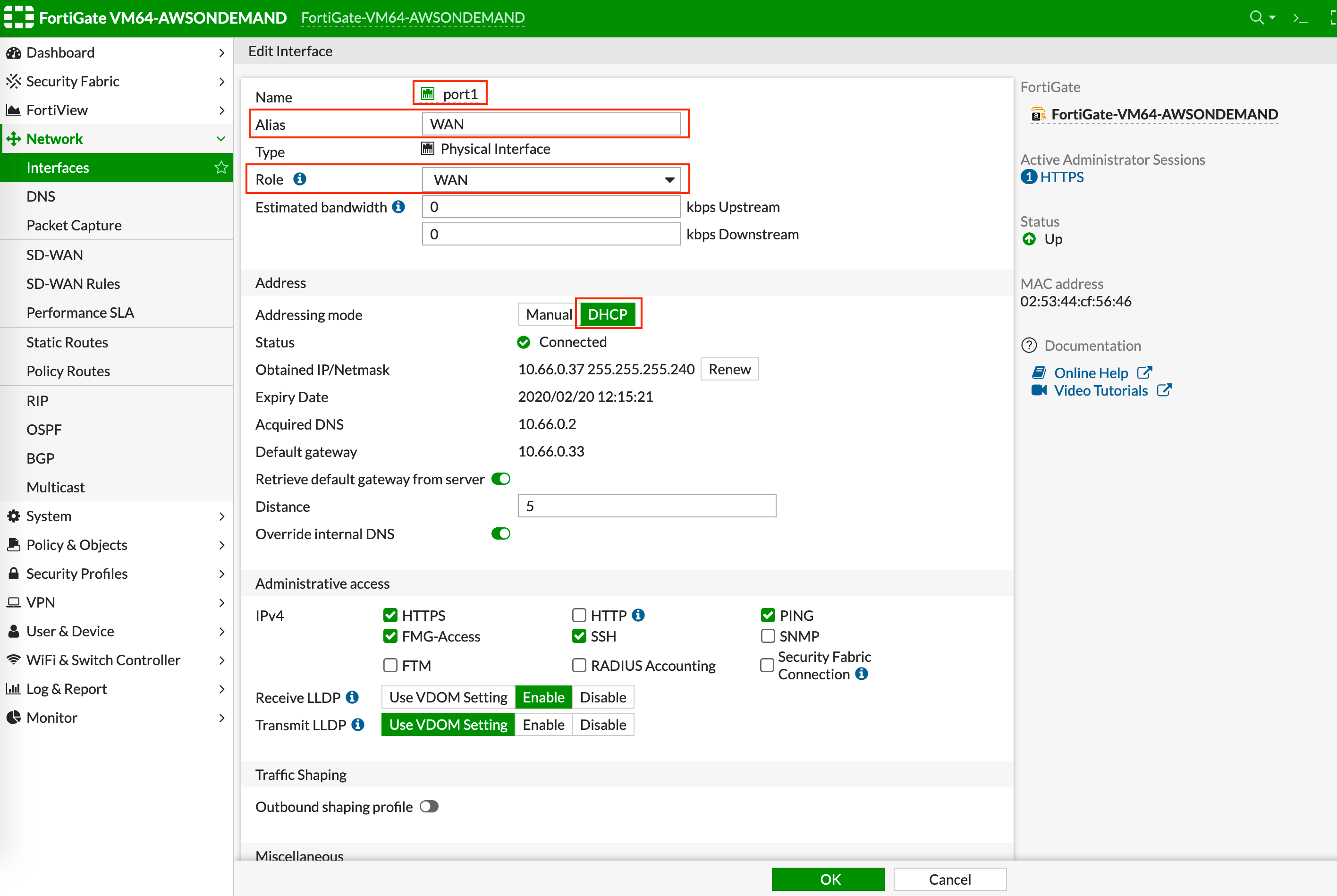
Configuring FortiGate Next Generation Firewall port2 with LAN
Go to the page Network > Interfaces to configure Physical Interface port2 as per the following screenshot. Select the interface with port 2 and click Edit. Enter an Alias (i.e.: LAN) for the interface. Specify appropriate role (LAN). Enable DHCP to ensure FW retrieve private IP information from AWS console. Enable Administrative Access: IPv4 > HTTPS. Disable Retrieve default gateway from server.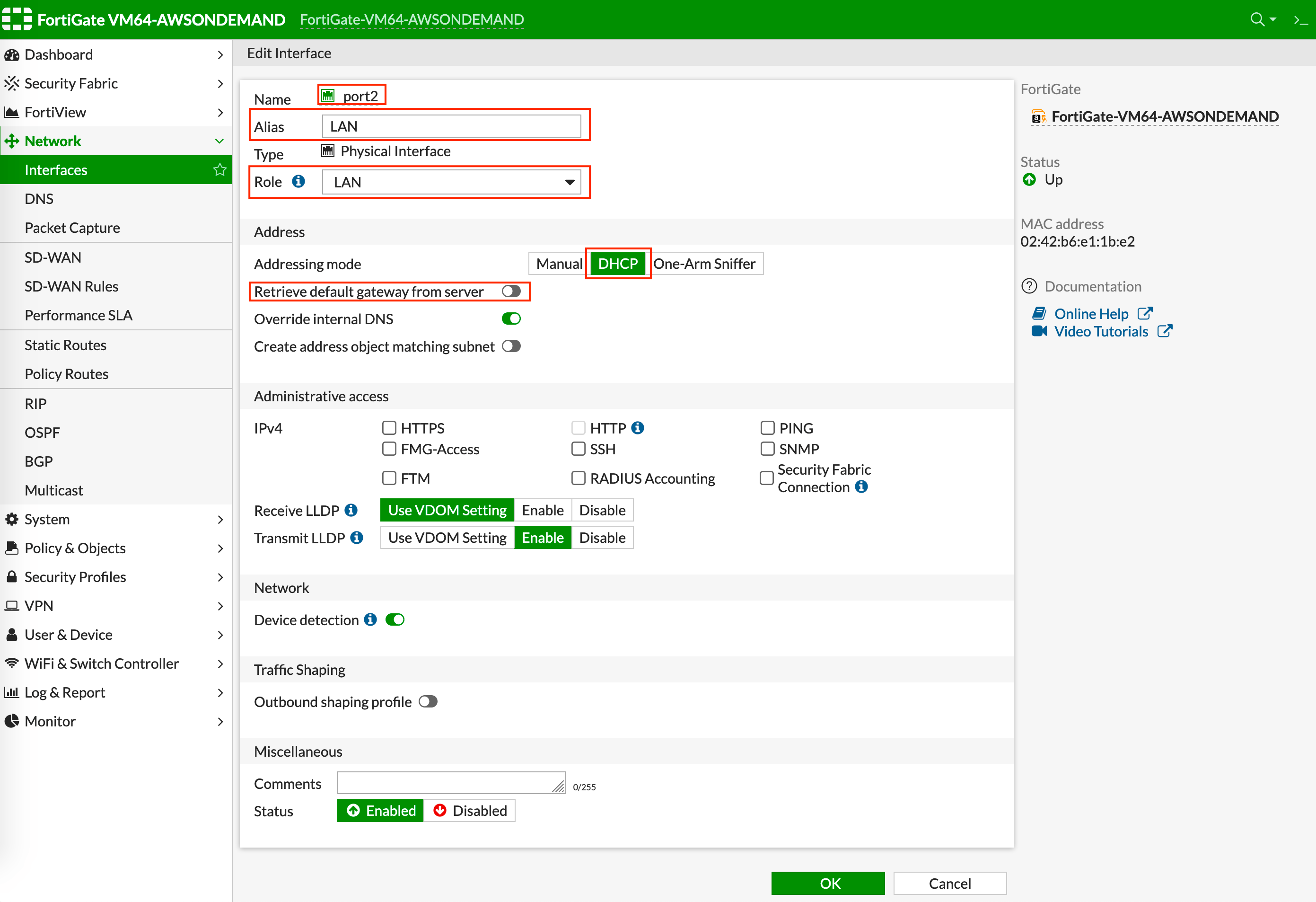
Creating Static Routes for Routing of Traffic VPC to VPC
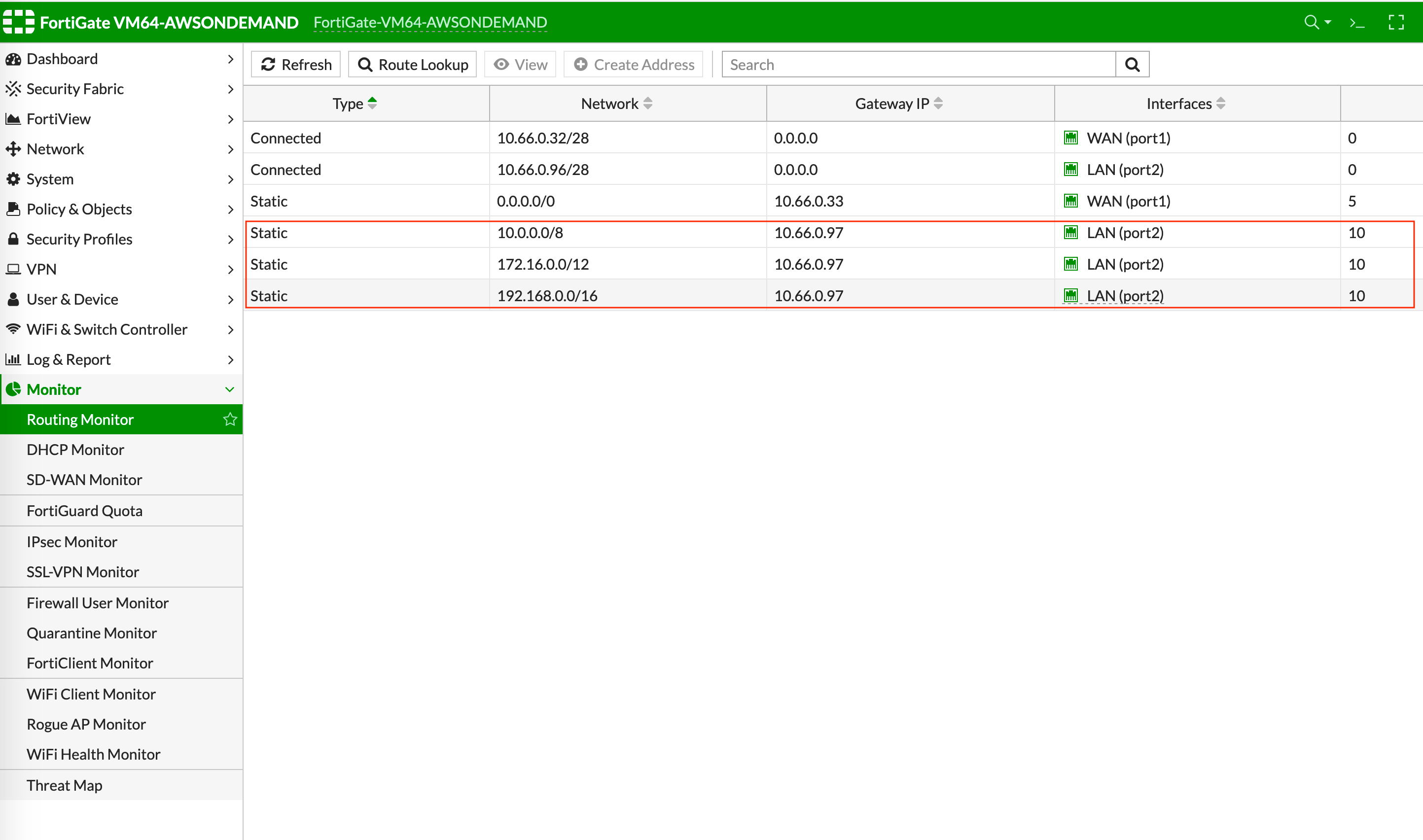
Packets to and from TGW VPCs, as well as on-premises, will be hairpinned off the LAN interface. As such, you need to configure appropriate route ranges that you expect traffic for packets that need to be forward back to TGW. For simplicity, you can configure the FW to send all RFC 1918 packets to LAN port, which sends the packets back to the TGW. In this example, we configure all traffic for RFC 1918 to be sent out of the LAN interface. In the FortiGate UI, go to Network > Static Routes to create a Static Route as the following screenshot.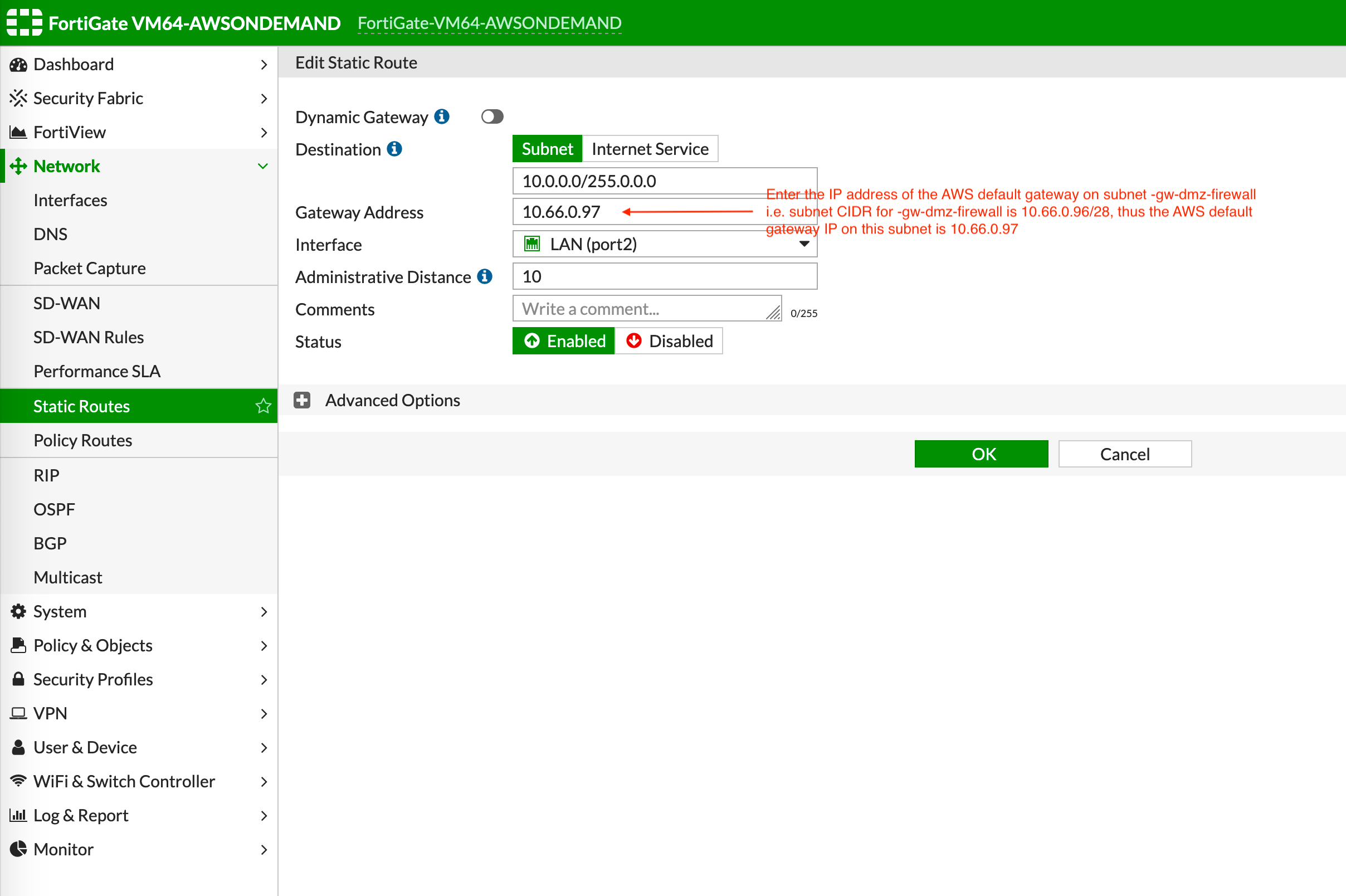
The subnet CIDR for -dmz-firewall is 10.66.0.96/28, thus the AWS default
gateway IP on this subnet is 10.66.0.97.
Configuring Basic Traffic Policy to Allow Traffic VPC-to-VPC
In this step, you will configure a basic traffic security policy that allows traffic to pass through the firewall. Given that Aviatrix Gateways will only forward traffic from the TGW to the LAN port of the Firewall, you can set your policy condition to match any packet that is going in/out of the LAN interface. In the Fortigate UI, navigate to Policy & Objects > IPv4 Policy > Create New / Edit to configure the policy as shown in the following table.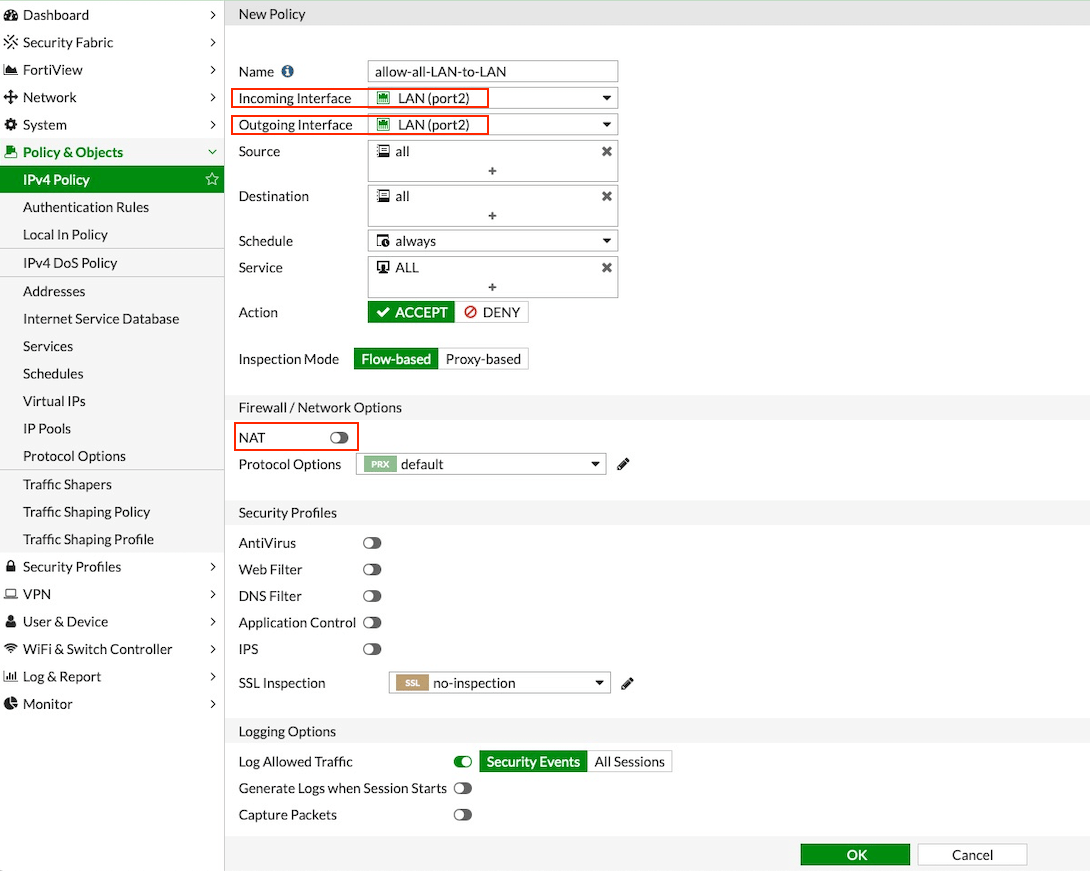
(Optional) Configuring Basic Traffic Policy to Allow Traffic from a VPC to the Internet
In this step, we will configure a basic traffic security policy that allows Internet traffic to pass through the firewall. Given that Aviatrix Gateways will only forward traffic from the TGW to the LAN port of the Firewall, you can set your policy condition to match any packet that is going into the LAN interface and going out of the WAN interface. First you enable egress inspection: In CoPilot, select FireNet on the left. On the FireNet Gateways tab, select a Transit FireNet in the list and click the pencil (Edit) icon. In the Edit FireNet dialog, under FireNet Configuration, toggle the Egress slider to On. On the FireNet tab, verify the Egress status by making sure that the Egress column reads yes. You then create the new traffic policy in the FortiGate UI: Navigate to Policy & Objects > IPv4 Policy > Create New / Edit to configure the policy as per the following table.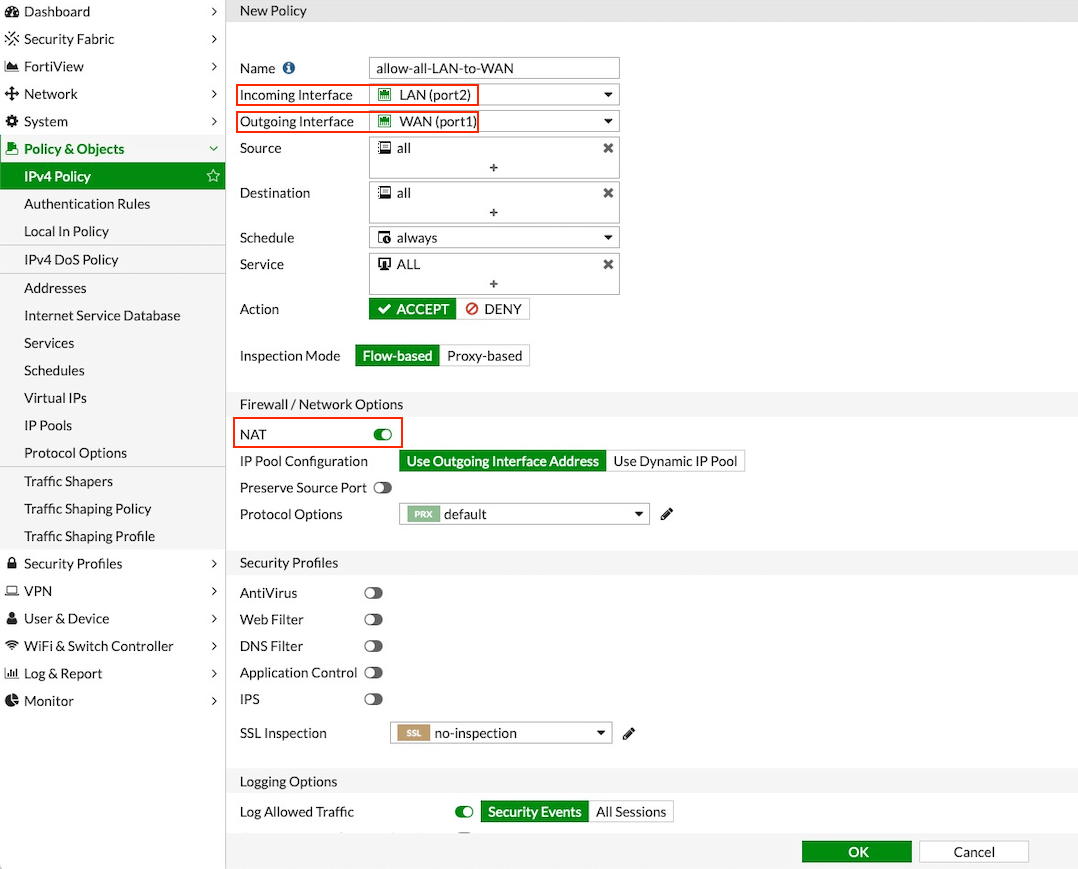
The NAT function needs to be enabled on this VPC to Internet policy.
Packet Inspection and Attaching VPC to AWS TGW
Now your firewall instance is ready to receive packets. The next step is to specify which Network Domain needs packet inspection by defining a connection policy that connects to the Firewall Domain. In addition, attach VPC to TGW by Step 1 in the TGW Orchestrator Build workflow. For example, deploy Spoke-1 VPC in Network_Domain_1 and Spoke-2 VPC in Network_Domain_2. Build a connection policy between the two domains. Build a connection between Network_Domain_2 to Firewall Domain.Viewing the Traffic Log
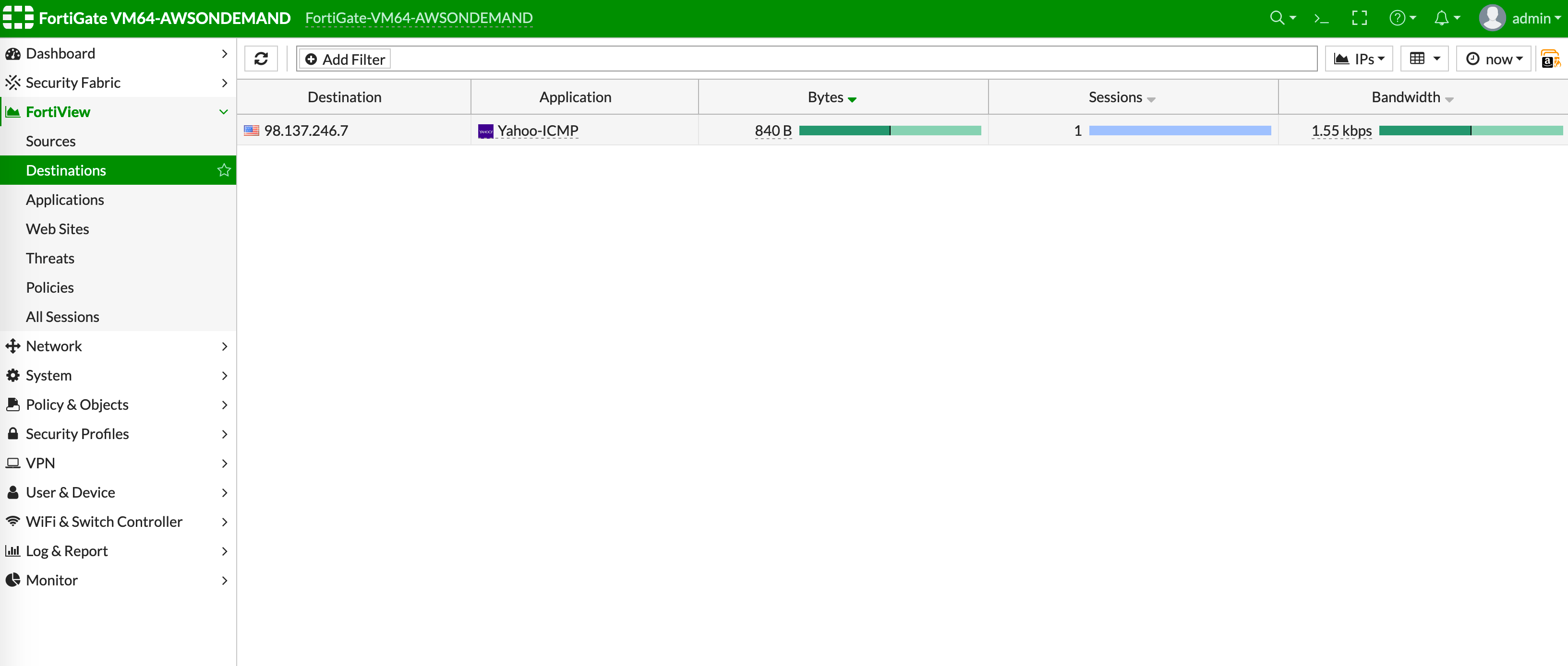
You can view if traffic is forwarded to the firewall instance by logging in to the FortiGate Next Generation Firewall console. Go to FortiView > Destinations.VPC-to-VPC Traffic
Launch one instance in Spoke-1 VPC and one in Spoke-2 VPC. Start pinging packets from an instance in Spoke-1 VPC to the private IP of another instance in Spoke-2 VPC where one or both of the Network Domains are connected to Firewall Network Domain. The ICMP traffic should go through and be inspected on the firewall.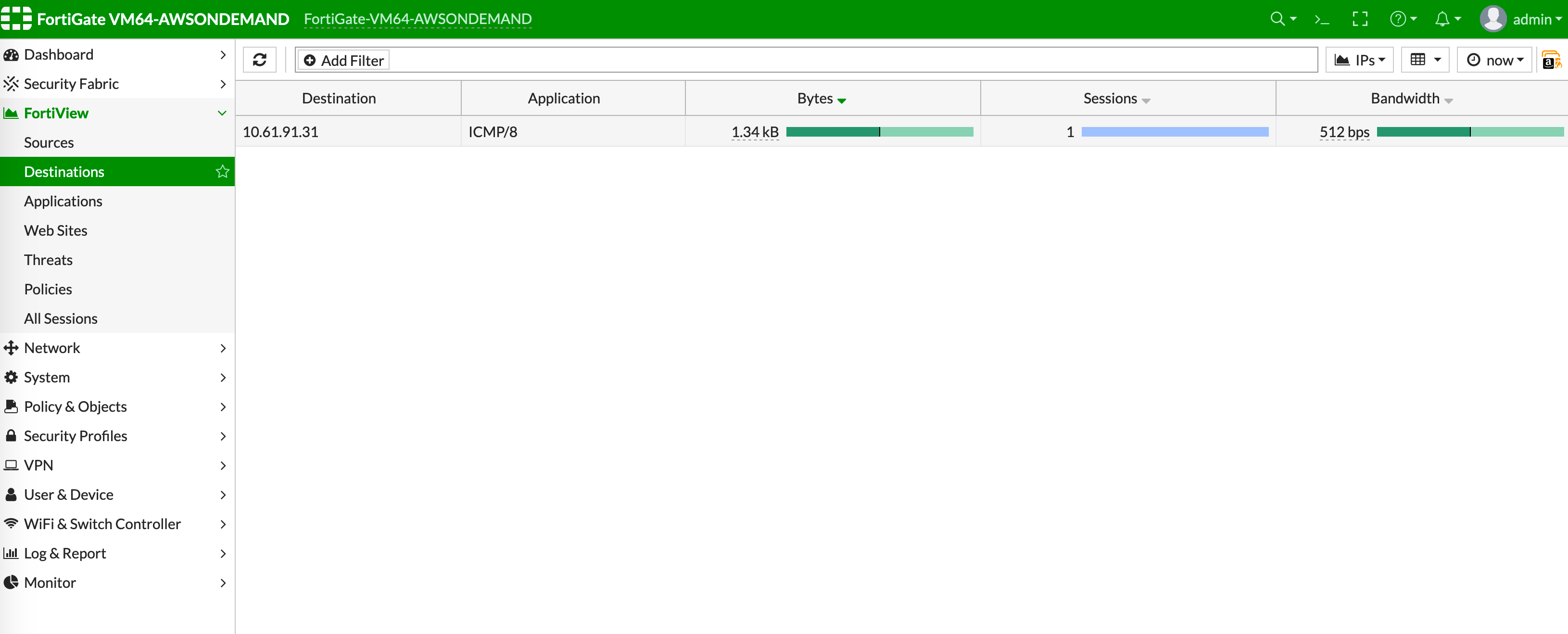
[Optional] VPC to Internet Traffic
Launch a private instance in the Spoke VPC (i.e. Spoke-2 VPC) where the Network Domain (i.e. Network_Domain_2) is connected to Firewall Network Domain. Start pinging packets from the private instance to the Internet service to verify egress function. The ICMP traffic should go through and be inspected on the firewall.