

You must first create a Transit FireNet in Azure, and deploy a Fortinet FortiGate firewall in that Transit FireNet.If you do not use Aviatrix vendor integration, you can manually configure
Fortinet route table entries. In Azure, the RFC 1918 routes should point to the
firewall LAN interface subnet cloud provider’s default gateways.
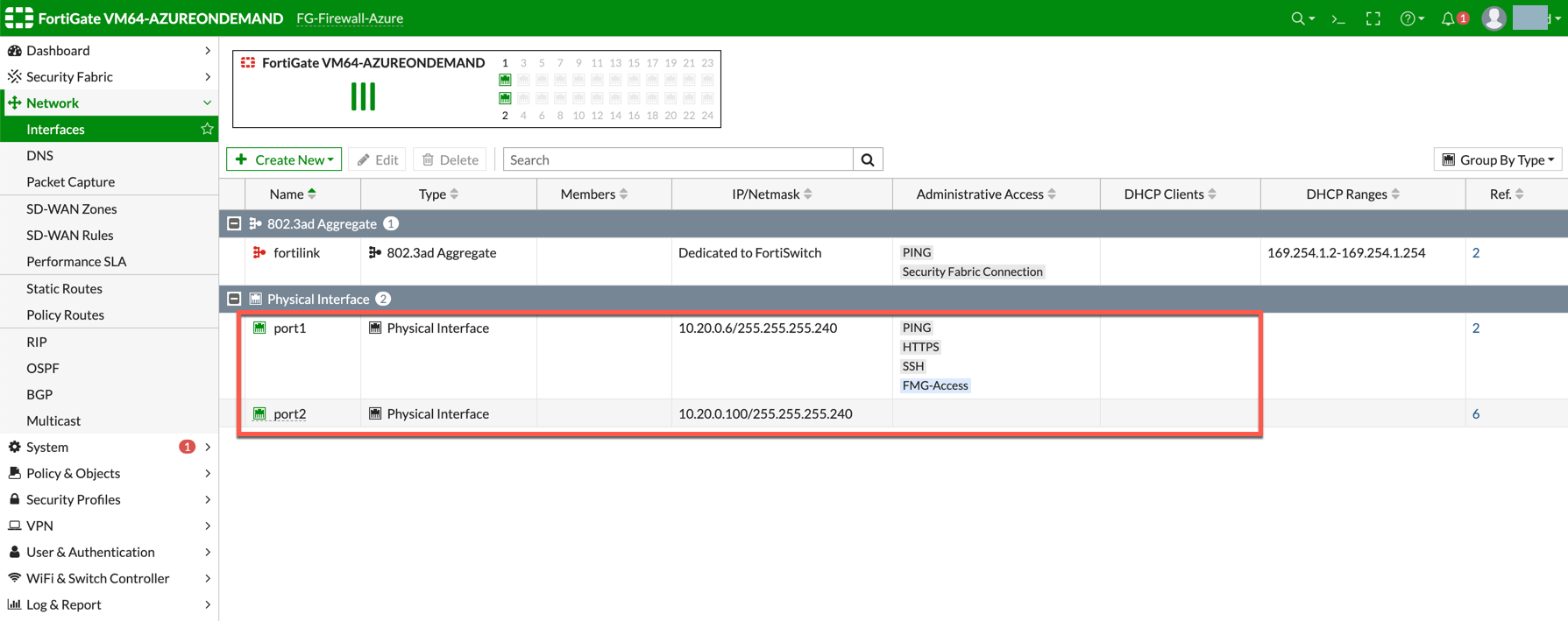
The FortiGate Next Generation Firewall instance has two interfaces as
described below. Additionally, firewall instance eth1 is on the same subnet as
FireNet gateway eth2 interface.
FortiGate Next Generation Firewall Initial Setup
Once logged in with username and password provided during launch, it will ask you to do an initial setup as shown below: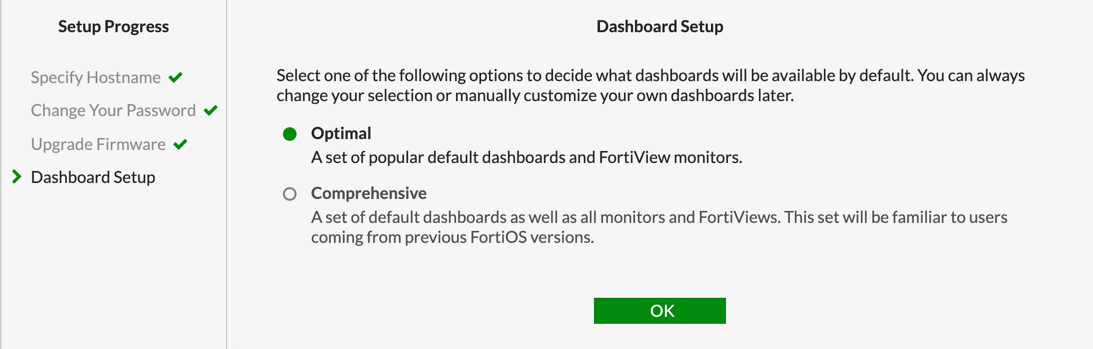
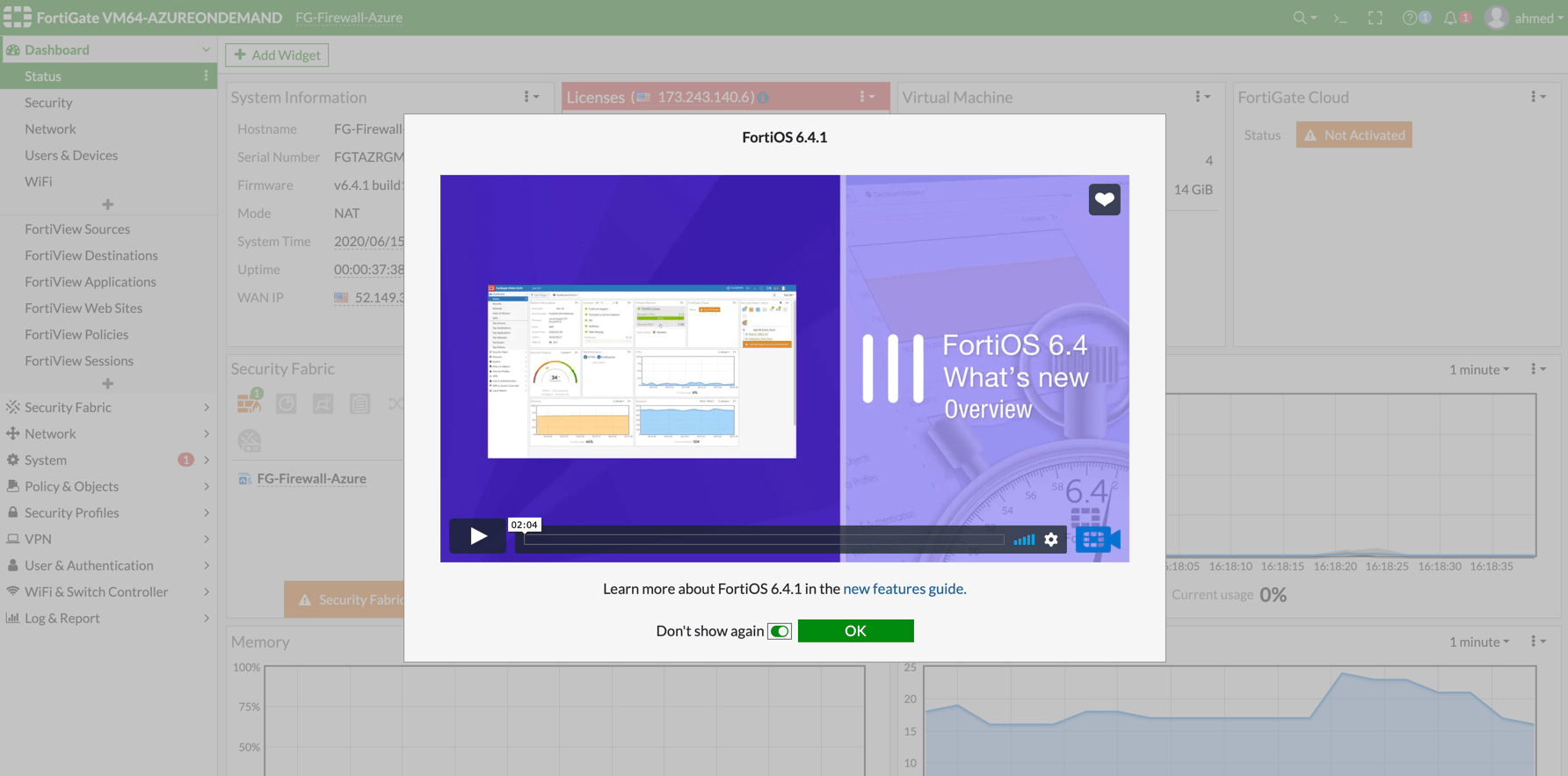
Creating Static Routes for Routing of Traffic VNet to VNet
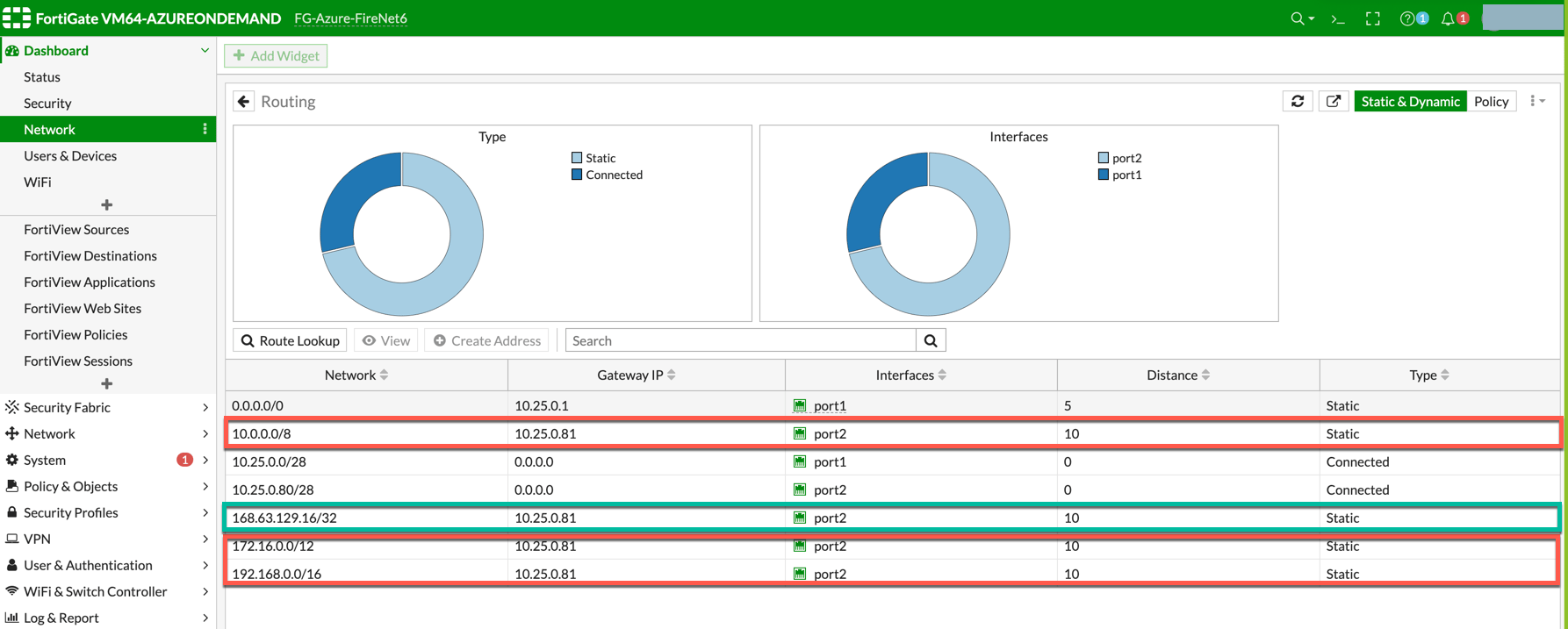
For simplicity, in this example we configure the firewall to send all RFC 1918 packets to LAN port. Go to Network > State Routes to create a Static Route as the following screenshot.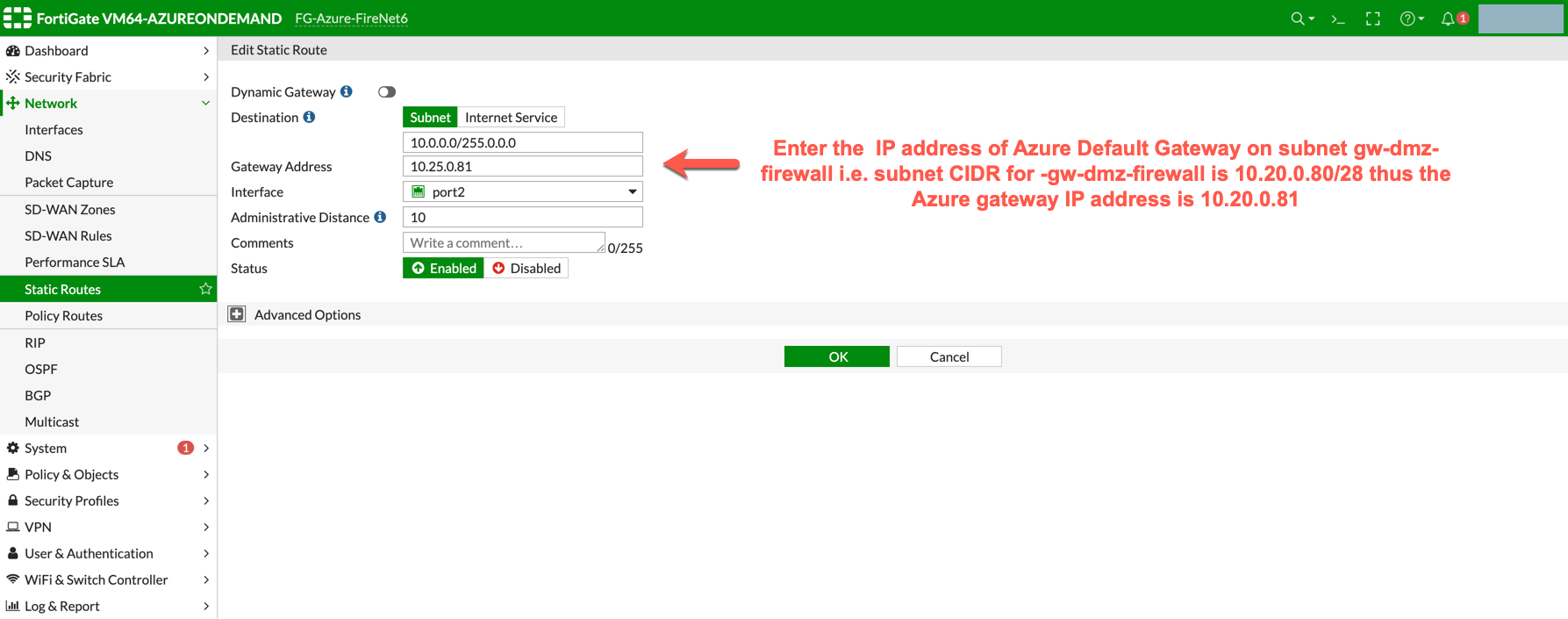
dmz-firewall-lan subnet can be found in the Aviatrix Controller. Go to
Aviatrix Controller > Gateway > Select Gateway and click Edit > click More details to check all subnets.
The Load Balancer static route 168.63.129.16/32 needs to be added manually
pointing to the lan interface (port 2). 168.63.129.16/32 is the health probe
source address.
Vendor Integration
Click here for information on vendor integration.Enabling Health Check Policy in Firewall
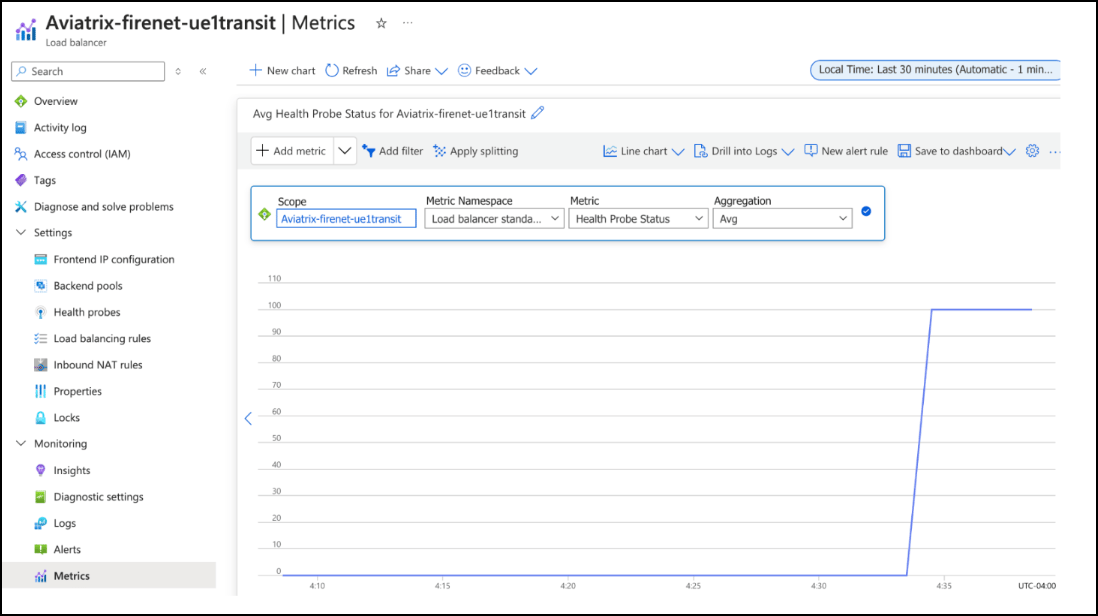
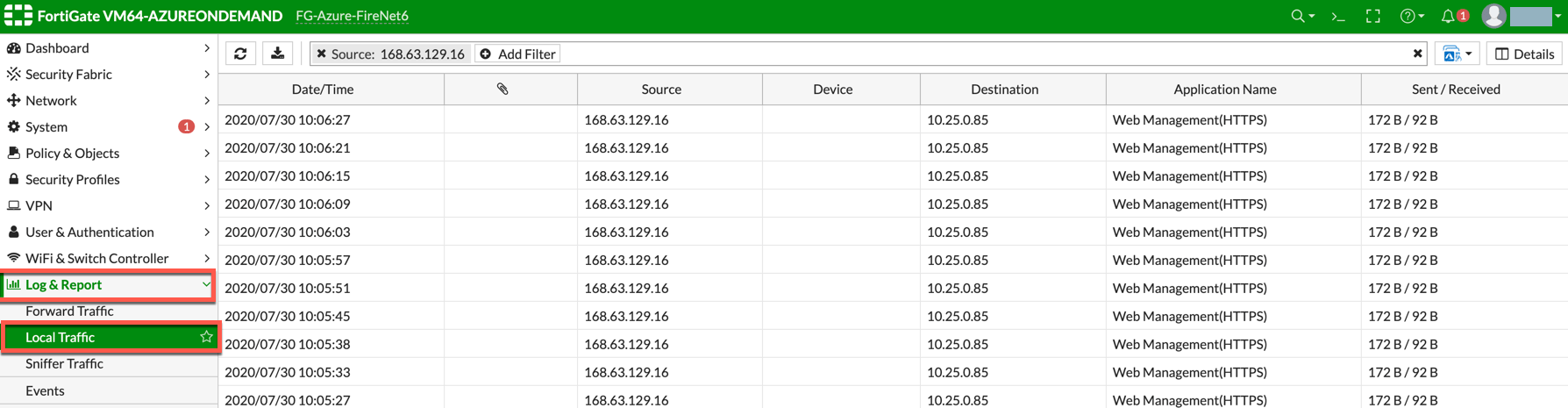
Aviatrix CoPilot uses HTTPS (TCP 443 port) to check the health of the firewall every five seconds. You must enable this port in the firewall as per given instructions. Follow the steps to allow HTTPS in FortiGate: Login to FortiGate using your username and password. Go to Network > Interfaces, select port 2, and click Edit. Mark the HTTPS checkbox under Administrative access > IPv4 and click OK.Example FortiGate Port 2 Interface
Example Health-Check Logs in FortiGate
Configuring Basic Traffic Policy to Allow Traffic
VNet to VNet In this step, you will configure a basic traffic security policy that allows traffic to pass through the firewall. Given that Aviatrix gateways will only forward traffic from the TGW to the LAN port of the Firewall, you can set your policy condition to match any packet that is going in/out of LAN interface. In the FortiGate UI, navigate to Policy & Objects > Firewall Policy > Create New / Edit to configure policy as the following screenshot.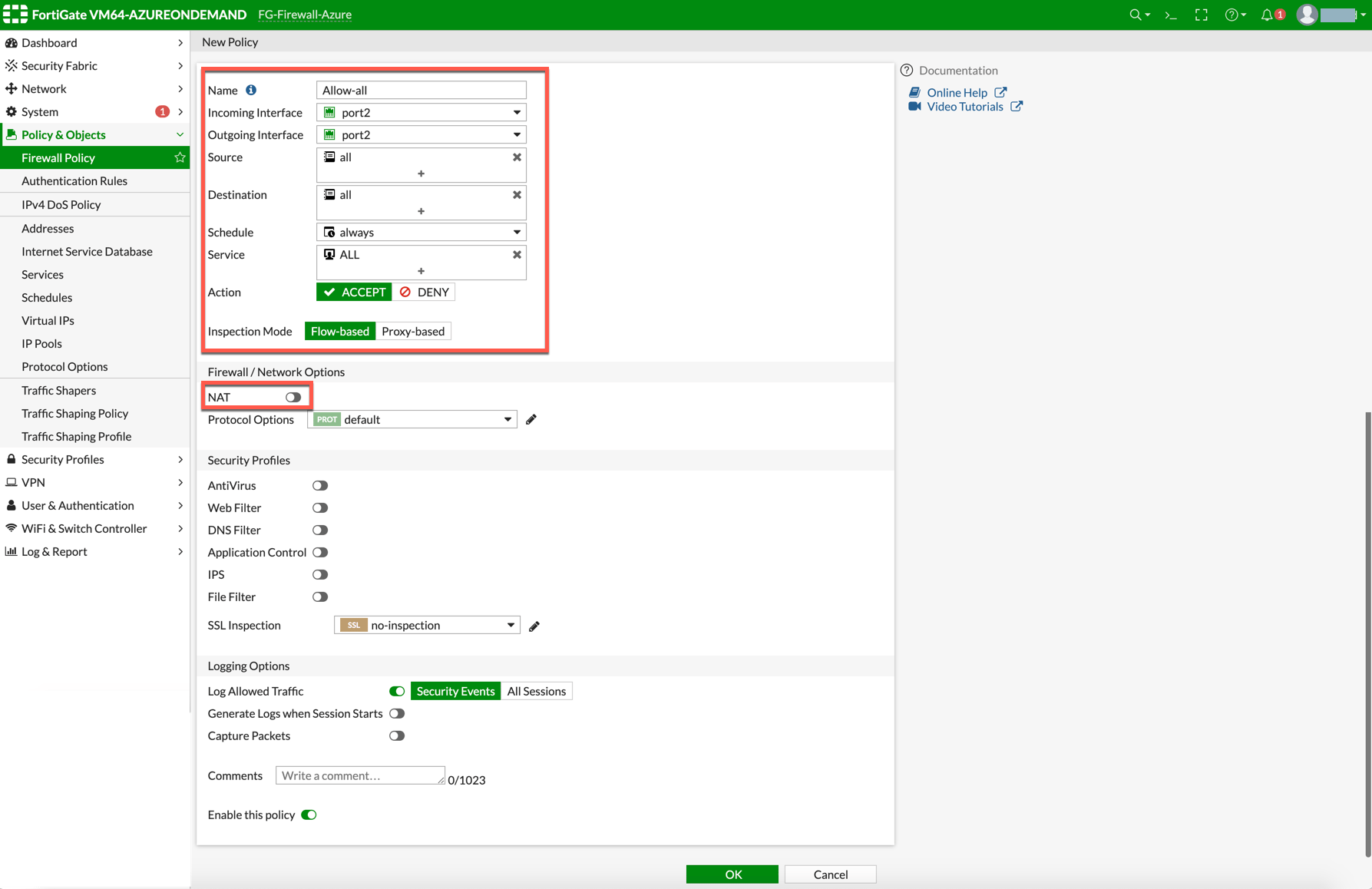
After validating that your traffic is being routed through your firewall
instances, you can customize the security policy to tailor to your requirements.
(Optional) Configuring Basic Traffic Policy to Allow Traffic from a VNet to the Internet
In this step, you will configure a basic traffic security policy that allows internet traffic to pass through the firewall. Given that Aviatrix Gateways will only forward traffic to the LAN port of the firewall, set your policy condition to match any packet that is going into LAN interface and out of the WAN interface. First you enable egress inspection: In CoPilot, select Security > FireNet. On the FireNet Gateways tab, select a Transit FireNet in the list and click the Edit icon. In the Edit FireNet dialog, under FireNet Configuration, toggle the Egress slider to On. Verify the Egress status on the Firewall Network > List > Firenet page in the Egress column for this firewall. In the FortiGate Next Generation Firewall console, create the new policy: Navigate to Policy & Objects > IPv4 Policy > Create New / Edit to configure policy as per the following table.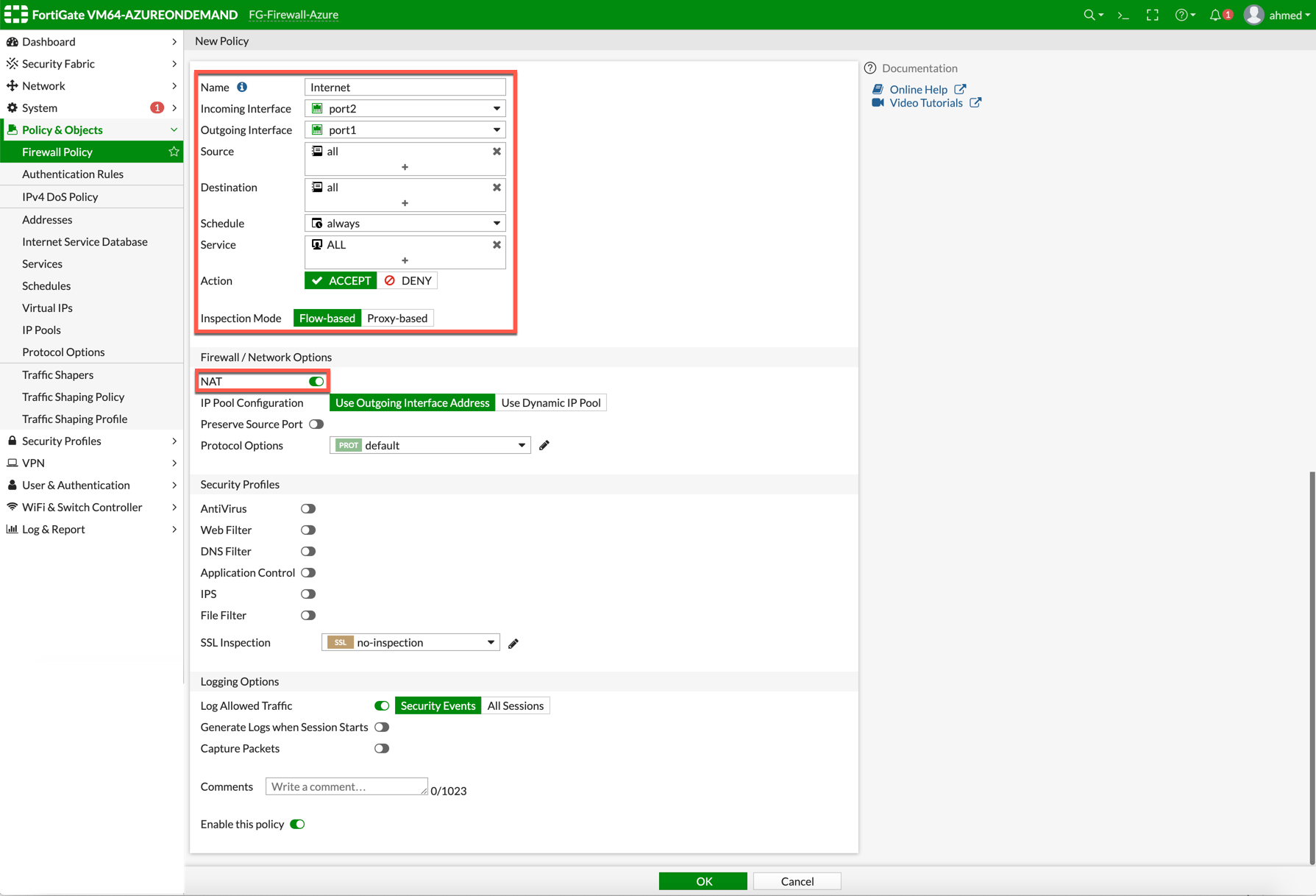
NAT function needs to be enabled on this VNET to Internet policy.
After validating that your traffic is being routed through your firewall
instances, you can customize the security policy to tailor to your requirements.
Validating Configuration and Policies
Now your Security Gateway instance is configured and ready to receive packets. The next step is to validate your configurations and polices using FlightPath and Diagnostic Tools (ping, traceroute etc.).Viewing Traffic Log
You can view if traffic is forwarded to the firewall instance by logging in to the FortiGate Next Generation Firewall console. Go to Dashboard > FortiView Sessions or FortiView Destinations. Traffic can also be viewed from Logs & Report. To view Forward Traffic logs under Logs & Report, go to Policy & ObjectsFirewall Policy > Select a Policy. Click Edit > Logging Options > Select All Sessions for Log Allowed Traffic.
VNet to VNet Traffic
Launch one instance in PROD Spoke VNet and another in DEV Spoke VNet. Start pinging packets from an instance in DEV Spoke VNet to the private IP of another instance in PROD Spoke VNet. The ICMP traffic should go through the firewall and be inspected in the firewall.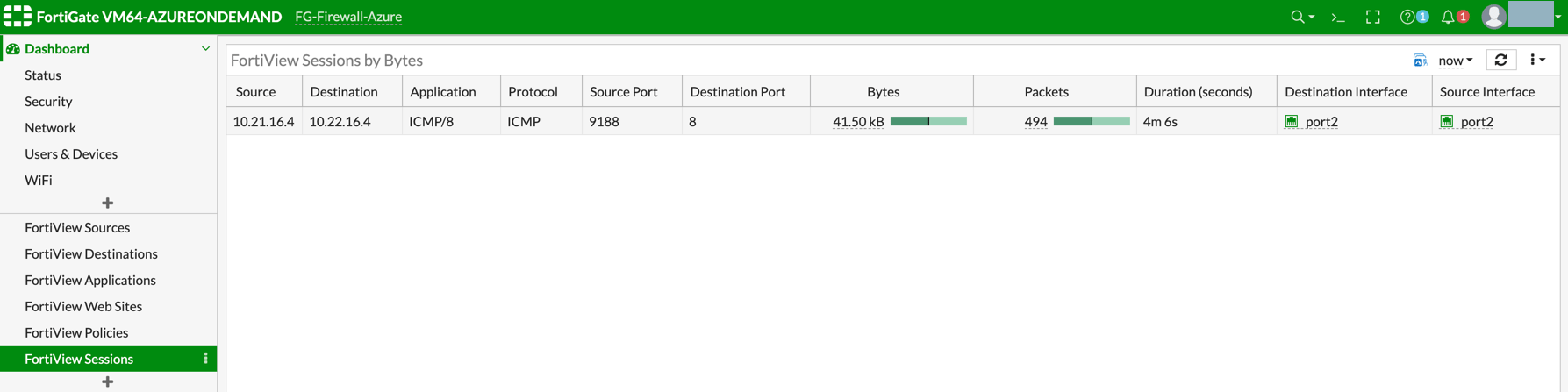
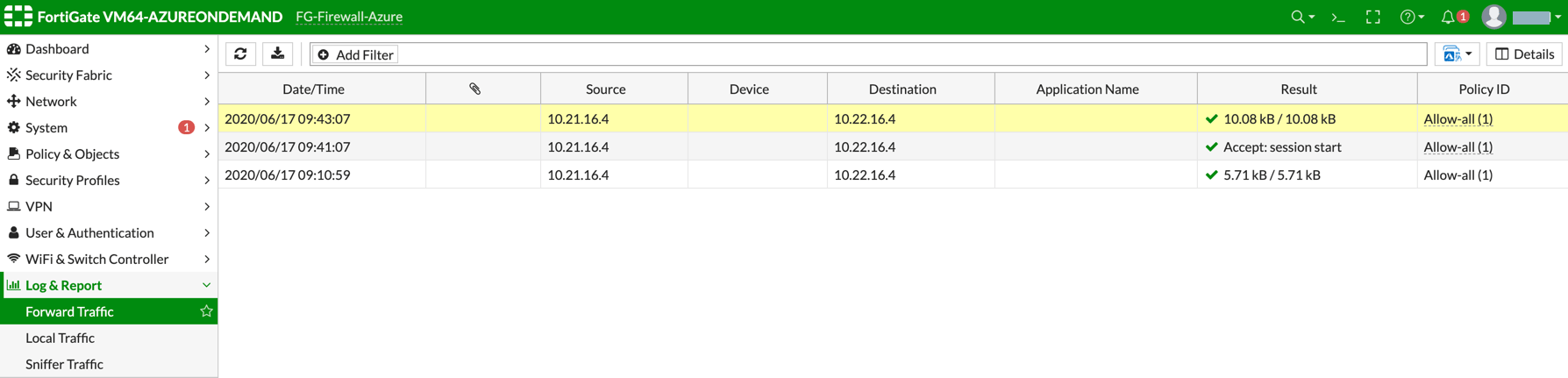
(Optional) VNet to Internet Traffic
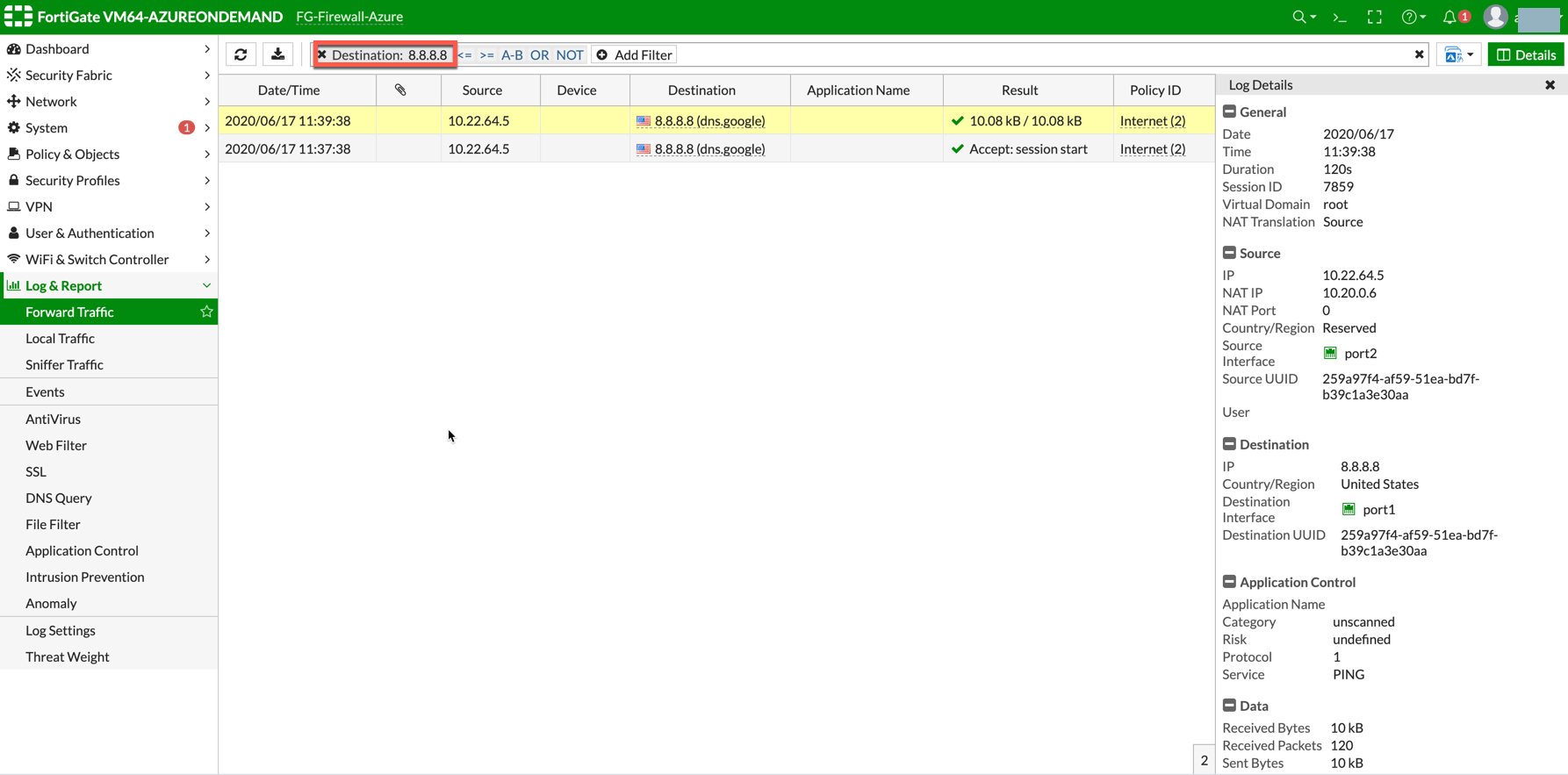
Launch a private instance in the Spoke VNet (i.e. PROD Spoke VNet) and start pinging packets from the private instance towards the Internet (e.g. 8.8.8.8) to verify the egress function. The ICMP traffic should go through and get inspected on the firewall.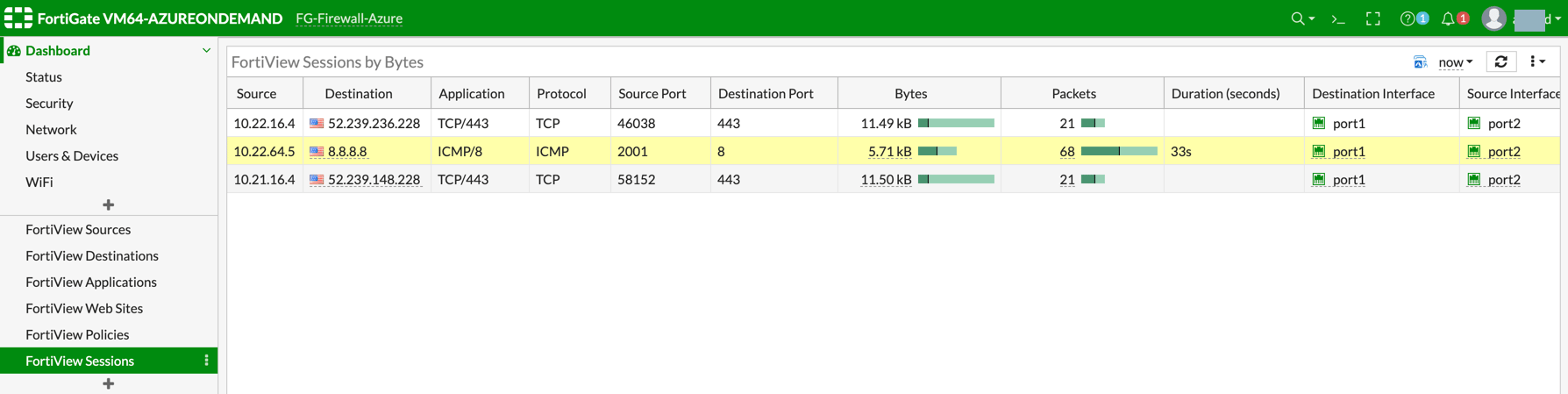
Egress Inspection is only applicable to all VNets that deploy
non-public-facing applications. If you have any Spoke VNets that have public
facing web services, you should not enable Egress Inspection. This is because
Egress Inspection inserts a default route (0.0.0.0/0) toward the Transit GW to
send the Internet traffic toward the firewall to get inspected. Azure’s System
Default Route pointing towards the Internet will be overwritten by the
User-defined default route inserted by the Controller.