You can only configure information on this dialog if a firewall is already attached to the Transit FireNet.
Configuring Vendor Integration
-
From the Security > FireNet Gateways tab, click the vertical ellipsis icon
in a FireNet Gateway row and select Manage Vendor Integration.
- In the Vendor Integration dialog, select Through Firewall or Through Firewall Manager. You should only select the latter if the Vendor is a Palo Alto firewall (managed by Panorama).
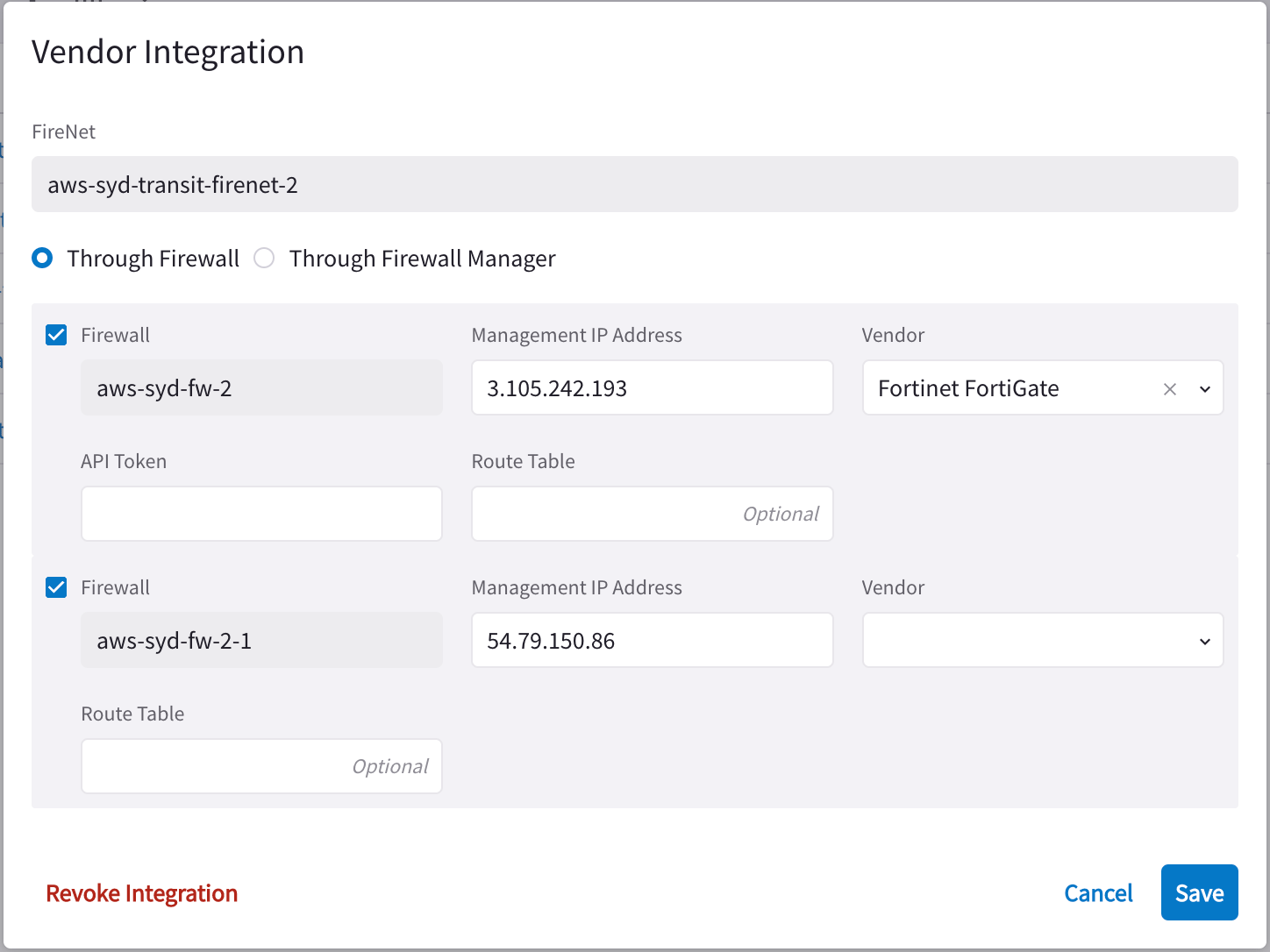
- Configure the following:
| Field | Description |
|---|---|
| Firewall | Name of the attached firewall (this is pre-populated with the name of the attached firewall). |
| Firewall Manager Vendor (Through Firewall Manager option only) | Palo Alto Networks Panorama |
| Management IP Address | Management IP address of the firewall. |
| Vendor (Through Firewall option only) | Firewall vendor (Palo Alto Networks VM-Series, Fortinet FortiGate, Check Point CloudGuard). |
| Authentication (Check Point CloudGuard) | Password or Private Key |
| Username (Check Point, Palo Alto) | Username for logging on to the firewall. |
| Password (Check Point, Palo Alto) | Password for logging on to the firewall. |
| Private Key (Check Point) | If you selected Private Key authentication for your Check Point firewall, you must upload the private key here. |
| FireNet Instance | |
| Template Name (Firewall Manager Vendor only) | Name of the template. |
| Template Stack Name (Firewall Manager Vendor only) | Name of the Template Stack. |
| Route Table | Optional |
| API Token (Fortinet FortiGate only) | API token generated from the Fortinet FortiGate instance |
- Click Save.
Revoking Vendor Integration
You cannot revoke vendor integration for FireNet gateways that have the Generic vendor selected.
- Select Vendor Integration as per step 1 above, and then click Revoke Integration on the dialog.
- When prompted about being sure you want to revoke, click Revoke.
Syncing Routes to Firewall
The Vendor Integration tab only displays for a Transit FireNet if you have configured a Firewall Manager (Panorama) and attached it to this Transit FireNet.
You can also sync routes to the firewall from the Security > FireNet > Firewall details tab.
You can also sync routes to the firewall from the Security > FireNet > Firewall tab (click a firewall to see its details, and then click Sync Routes to Firewall).