

Transit FireNet Workflow Prerequisites
- Subscribe to the firewall instance (AWS only) .
- If you want to attach Spokes to your FireNet, you must create the Spokes beforehand.
- Any Transit FireNet connections that use BGP over LAN must also have DNAT or SNAT configured.
- For AWS TGW, ensure that a Firewall Domain is created in the AWS TGW before adding FireNet functionality.
- If desired, you can create VPCs/VNets ahead of time that have the Transit + FireNet VPC Function option selected, ensuring that the necessary subnets and interfaces are already created in those VPC/VNets in preparation for using the Transit FireNet feature. If when adding FireNet to a Transit gateway you decide to use a VPC/VNet that does not have the Transit + FireNet function selected, you must subsequently create the necessary subnets and interfaces in the relevant cloud service provider.
Adding FireNet to an AWS TGW
Ensure you have completed any prerequisites before beginning. See Minimum Gateway Instance Sizes for FireNet deployment for information on the interfaces/NICs created when you add FireNet to a Transit Gateway. You can add FireNet functionality to your AWS TGW or to a Native AWS Gateway Load Balancer.- On the Security > FireNet > FireNet Gateways tab, click the down arrow next to + Add FireNet and click Add AWS TGW FireNet.
- In the Add FireNet to Transit Gateway dialog, select if you want to add FireNet to an existing Transit gateway or on a new Transit gateway.
If you are adding FireNet to an existing Transit gateway that has the BGP
over LAN slider On, that Transit gateway must also have DNAT/SNAT
configured.
Only Transit gateways that have the Transit Egress Capability toggle enabled (selected when you create a Transit gateway from Cloud Fabric > Gateways > Transit Gateways) are displayed in the Existing Transit Gateway List.
- If creating a new Transit gateway, enter a name in the Name field.
- If adding FireNet functionality to a Transit gateway, use the information in the table below.
If adding FireNet functionality to a Native AWS Gateway Load Balancer, use the
information in the table below.
- Click Add.
Attaching a Spoke to a Transit FireNet
After adding a Transit FireNet, you can attach Spoke gateways. The GCP Spoke gateways can have Global VPC enabled.Managing Gateway Attachment
- Navigate to Cloud Fabric > Gateways > Spoke Gateways.
- Click the Manage Gateway Attachments icon
 next
to a Spoke Gateway.
next
to a Spoke Gateway. - In the Manage Gateway Attachments dialog, click Attachment on the Transit Gateway tab to select the Transit Gateway to which the Spoke Gateway will be attached.
- Click Save.
 next to
the Transit gateway in the list, and click Save.
next to
the Transit gateway in the list, and click Save.
Editing Transit Gateway Attachment for a Spoke Gateway
- Navigate to Cloud Fabric > Gateways > Spoke Gateways.
- Click the Edit icon
 next
to the Spoke gateway.
next
to the Spoke gateway. - Select the FireNet-enabled Transit gateway from the Attach Transit Gateway drop-down, or the Egress Transit FireNet from the Attach to Egress Transit FireNet drop-down.
- Click Save.
Deploying a Firewall
You can also associate an existing firewall. Supported firewalls are Check Point CloudGuard, Fortinet FortiGate, and Palo Alto VM-Series. Supported firewall managers are Panorama (Palo Alto VM-Series). After firewalls are launched, you can configure them to check traffic flow . AWS only: If you want to launch a firewall, you must first subscribe to a firewall instance in the AWS Marketplace . You can have more than one firewall in a FireNet Transit gateway.- On the Security > FireNet > Firewall tab, click +Firewall to open the Deploy Firewall dialog and add a new firewall instance.
- If deploying a new firewall, fill out the following fields:
Firewall Bootstrap Configuration
On the Deploy Firewall dialog, the Bootstrap Configuration option simplifies the initial configuration setup of a firewall within the selected cloud. The Bootstrap Configuration toggle is disabled by default if you have not selected both a firewall instance and a firewall image. After the Bootstrap Configuration toggle is enabled, you can configure your bootstrap options. The fields to complete for bootstrap configuration depend on the selected cloud for the Transit FireNet gateway instance, and the selected firewall. Use the links in the below table to complete the bootstrap configuration. See the firewall example configuration topics for specific firewall image versions, instance size, and more.- Click Save. This launches the firewall and also associates it with the selected Transit FireNet gateway.
Configuring Transit FireNet Inspection Policies
By default, Transit FireNet inspects ingress and east-west traffic only.The Policy tab and inspection policy procedure are not relevant for Egress
Transit FireNet because the traffic from this type of Transit gateway egresses
directly to the Internet without being inspected.
- Spoke gateway (can attach Spoke gateways here)
- Edge gateway
- Peered Transit gateway
- Site2Cloud (added from Networking > Connectivity > External Connections)
Azure only: See Azure Spoke Subnet
Groups
to synchronize and add subnet groups for Spoke Gateways attached to Azure
Transit FireNets. You cannot add subnet groups to a Spoke Gateway if it has
inspection enabled.
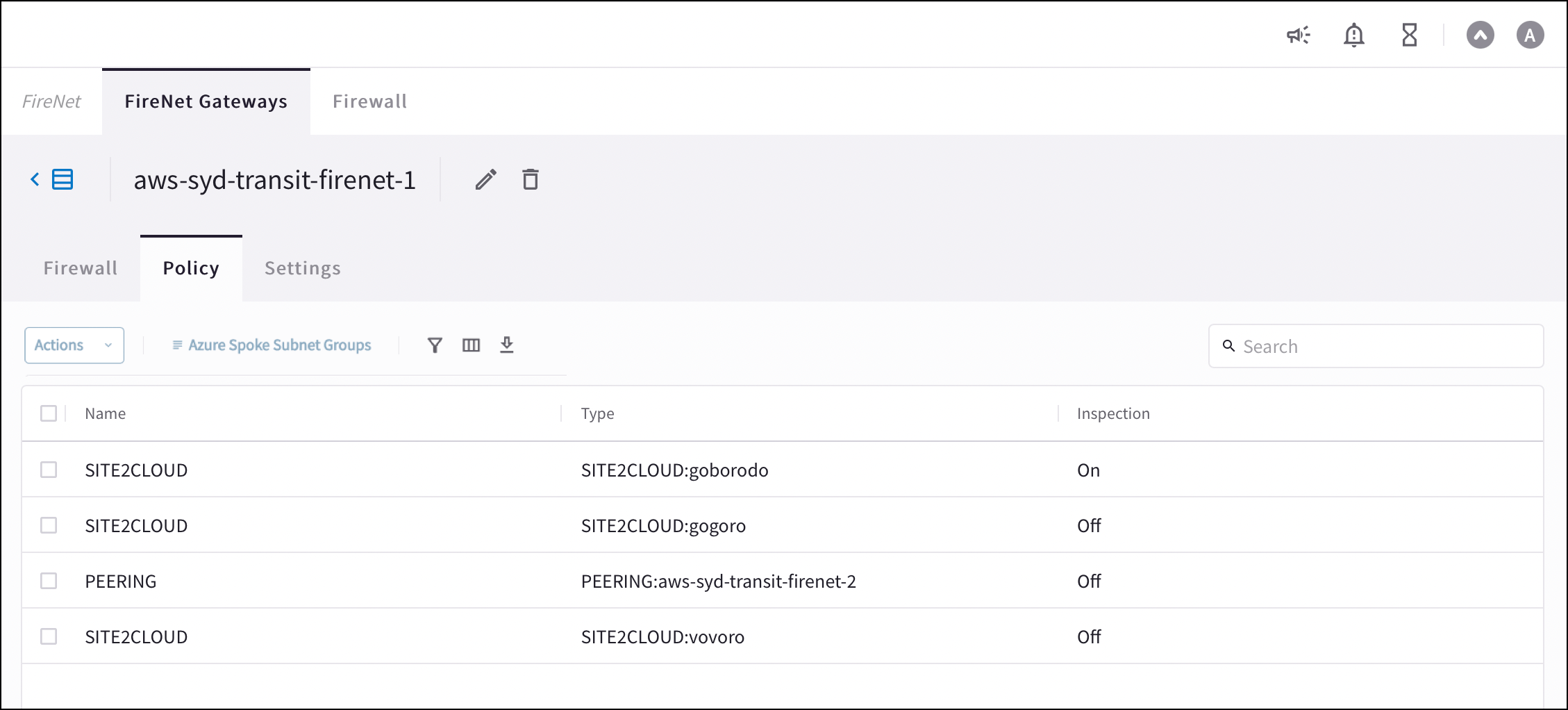
- Navigate to Security > FireNet > FireNet Gateways and click a Transit FireNet in the list.
- Click the Policy tab. The list of attachments for that Transit FireNet displays.
- Select the attachments that you want to add for inspection.
- From the Actions menu, select Add. The selected attachments now show On in the Inspection column.
Transit FireNet Vendor Integration
The Vendor Integration function allows you to log into a firewall or firewall manager and change the route table on the firewall to program the routing for Transit FireNet, or to change routing if a gateway in Transit FireNet fails. You can also use Vendor Integration to configure the RFC 1918 and non-RFC 1918 routes between the Aviatrix Gateway and the vendor’s firewall instance.To turn On IPv6 on an existing FireNet, revoke the existing Vendor Integration
settings, enable IPv6 on the FireNet, and then reconfigure Vendor Integration.
The IPv6 Vendor Integration is only for Palo Alto Networks standalone
firewalls (without Panorama).
Configuring Vendor Integration
- From the Security > FireNet Gateways tab, click the vertical ellipsis icon

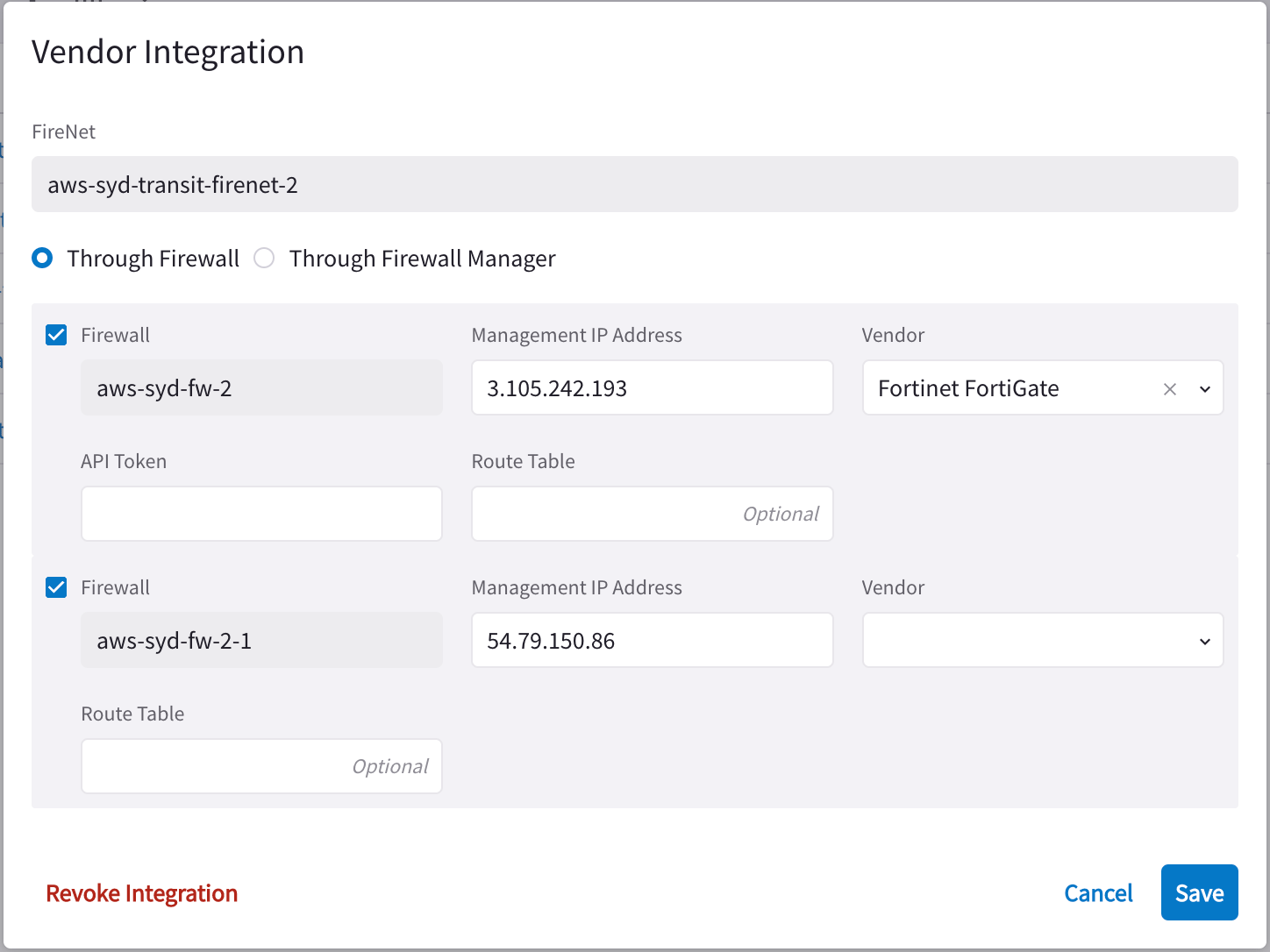
- In the Vendor Integration dialog, select Through Firewall or Through Firewall Manager.
- Configure the following:
- Click Save.
Revoking Vendor Integration
You cannot revoke vendor integration for FireNet gateways that have the Generic vendor selected. To revoke Vendor Integration:- Select Vendor Integration as per step 1 above, and then click Revoke Integration on the dialog.
- When prompted about being sure you want to revoke, click Revoke.
Syncing Routes to Firewall
The Vendor Integration tab only displays for a Transit FireNet if you have
configured a Firewall Manager (Panorama) and attached it to this Transit
FireNet.