- Ensure that you have completed all Transit FireNet steps up to but not including the launch of the Check Point firewall instance.
- Current Aviatrix requirements mean that a Management Server needs to be configured along with the Gateway Server.
- You have access to a Windows client so you can run the SmartConsole, which is provided by Check Point and is specific per version of CloudGuard being installed. You can use this link: https://supportcenter.checkpoint.com/supportcenter/portal?eventSubmit_doGoviewsolutiondetails=&solutionid=sk119612[R80.10].
Recommendations and Caveats
- Check Point versions R77.30 and R80.10 support standalone deployments. For more information see https://supportcenter.checkpoint.com/supportcenter/portal/user/anon/page/default.psml/media-type/html?action=portlets.DCFileAction&eventSubmit_doGetdcdetails=&fileid=24831[Download Details: R77 Versions Installation and Upgrade Guide for Gaia Platforms].
- For more information on the differences across the available models/versions see https://supportcenter.checkpoint.com/supportcenter/portal?eventSubmit_doGoviewsolutiondetails=&solutionid=sk95746[Check Point Default Version and Release Terminology]. Check Point has recommended the upgrade to R80 as part of their roadmap. For more information regarding such advisories, check the https://supportcenter.checkpoint.com/supportcenter/portal?eventSubmit_doGoviewsolutiondetails=&solutionid=sk110980[Check Point R80 image updates FAQ].
- For the purpose of this installation guide, we are going to consider only version R80.10 in standalone mode using the latest CloudFormation template available at the time this document was written.
- Currently we do not have a full integration between the Aviatrix dashboard and the CloudGuard, which means that you will not be able to update the firewall routing table via API, as it is currently possible with the Palo Alto VM-Series.
Check Point CloudGuard Prerequisites
Ensure that you have completed all Transit FireNet steps up to but not including the launch of the Check Point firewall instance. Current Aviatrix requirements mean that a Management Server needs to be configured along with the Gateway Server. You have access to a Windows client so you can run the SmartConsole, which is provided by Check Point and is specific per version of CloudGuard being installed. You can use this link: R80.10.Recommendations and Caveats
Check Point versions R77.30 and R80.10 support standalone deployments. For more information see Download Details: R77 Versions Installation and Upgrade Guide for Gaia Platforms. For more information on the differences across the available models/versions see Check Point Default Version and Release Terminology. Check Point has recommended the upgrade to R80 as part of their roadmap. For more information regarding such advisories, check the Check Point R80 image updates FAQ. For the purpose of this installation guide, we are going to consider only version R80.10 in standalone mode using the latest CloudFormation template available at the time this document was written. Currently we do not have a full integration between the Aviatrix dashboard and the CloudGuard, which means that you will not be able to update the firewall routing table via API, as it is currently possible with the Palo Alto VM-Series.Setup Firewall Network (FireNet)
After you have prepared your FireNet VPCs and added the necessary Transit FireNet gateways, you can prepare your Check Point firewall as follows.Deploying Check Point Instance From AWS Marketplace
Go to aws.amazon.com/marketplace and search for the chosen instance model/version in AWS Marketplace. Click Continue to Subscribe.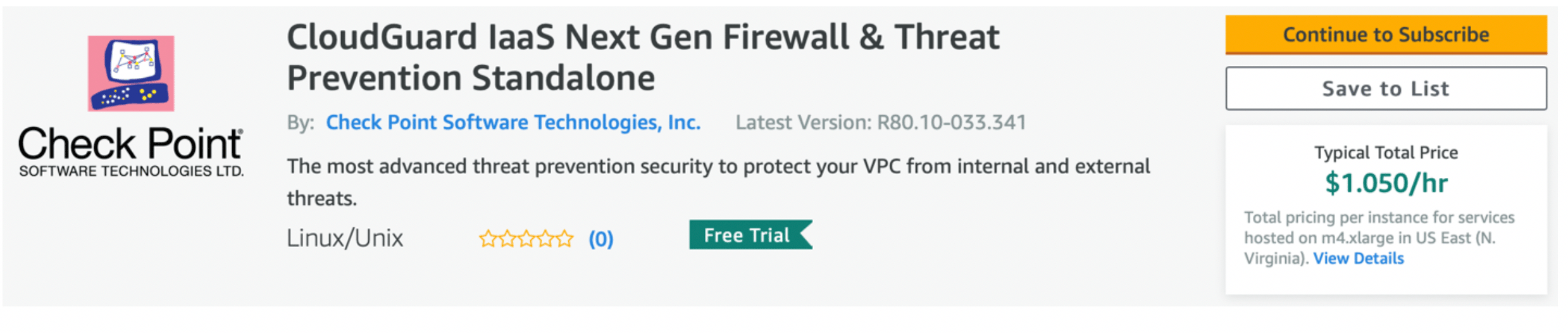
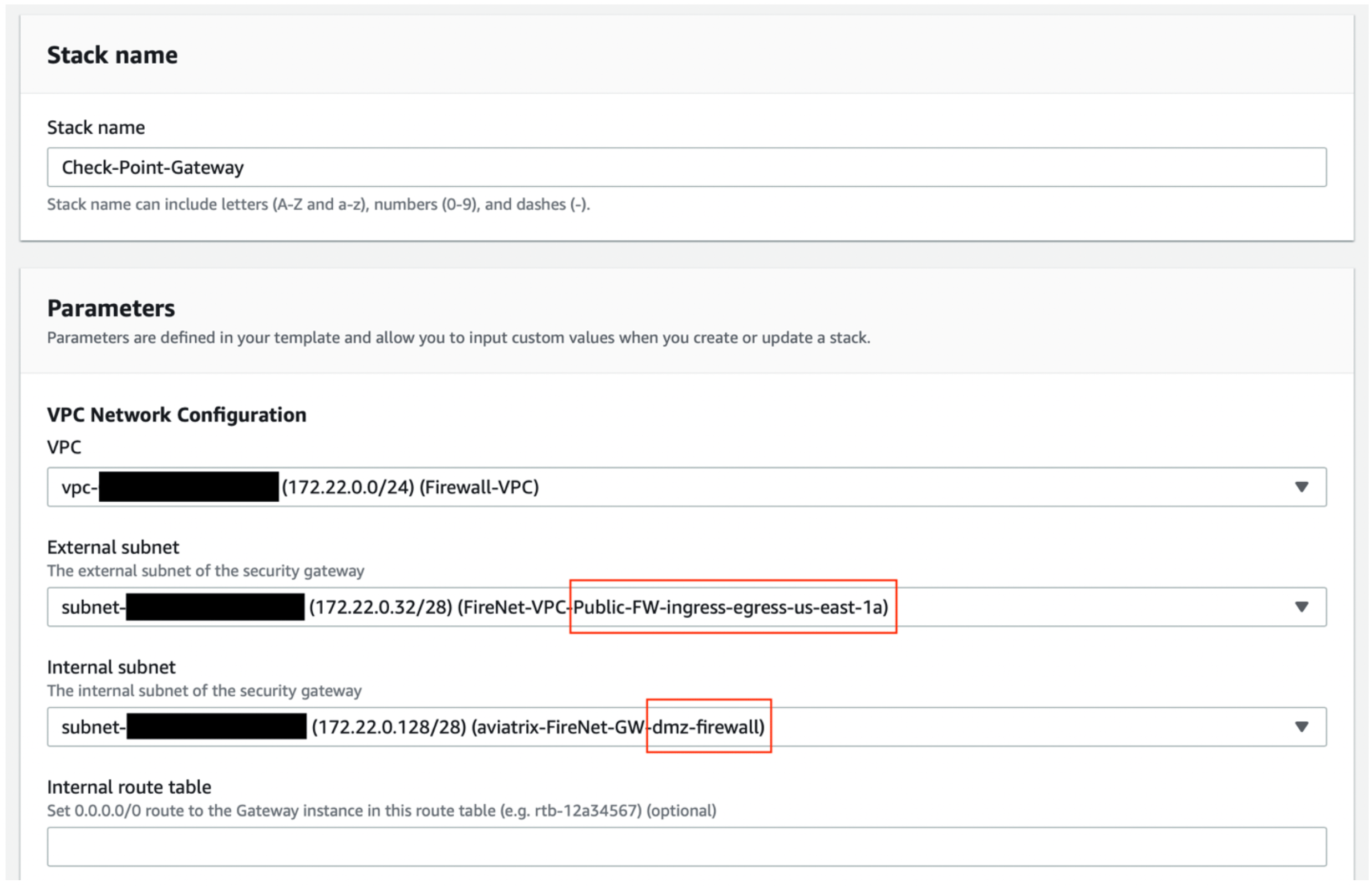
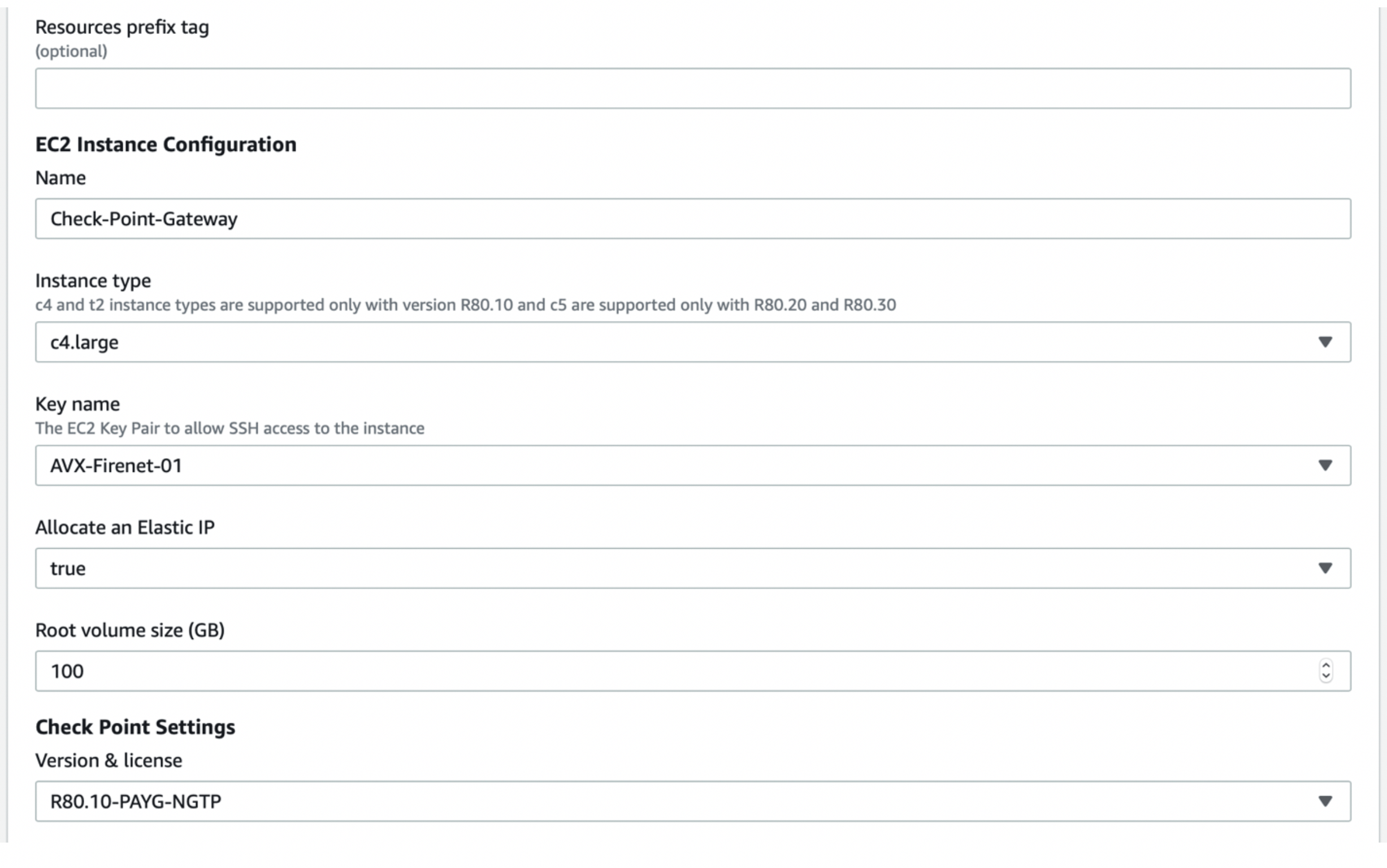
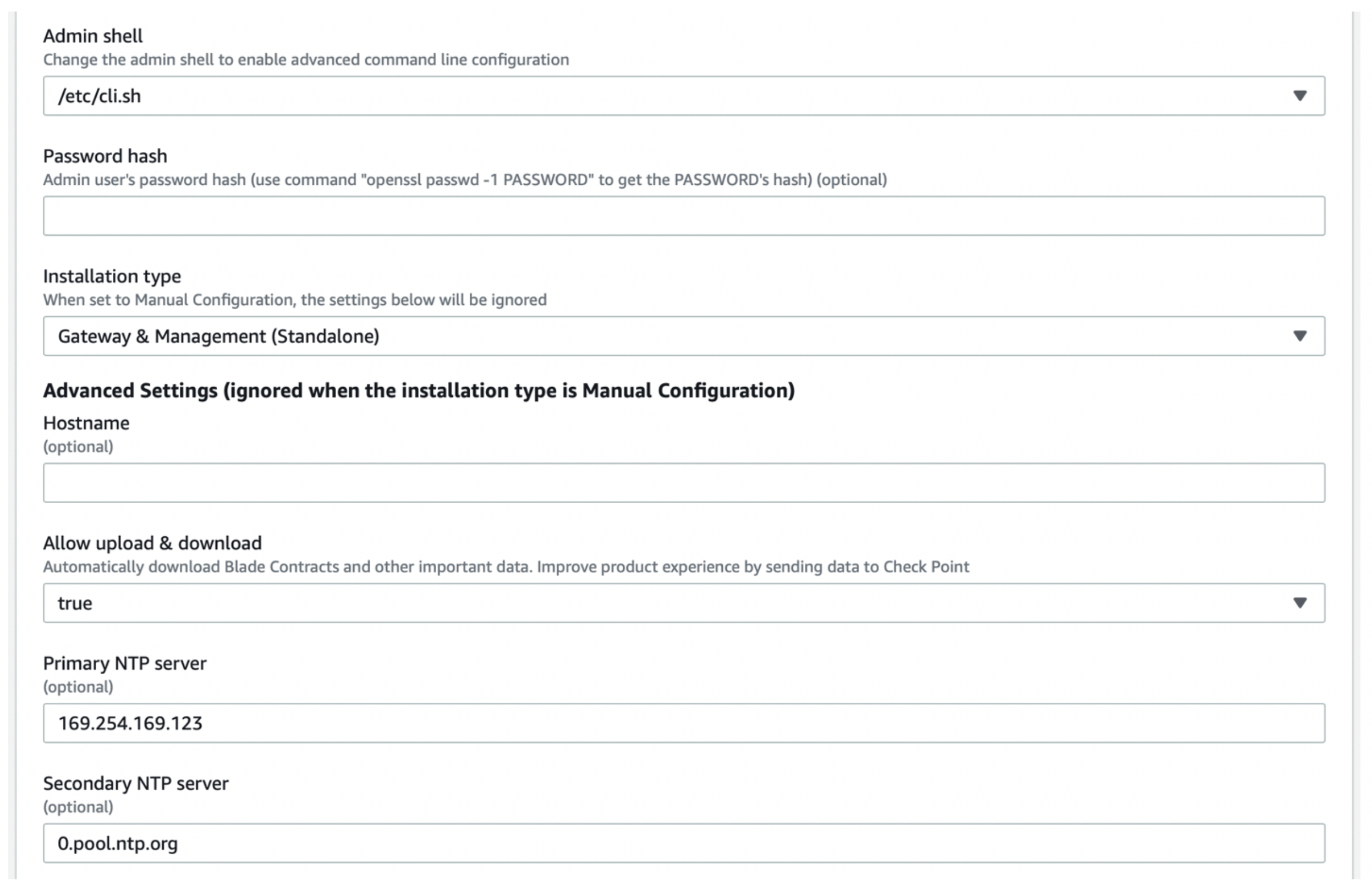
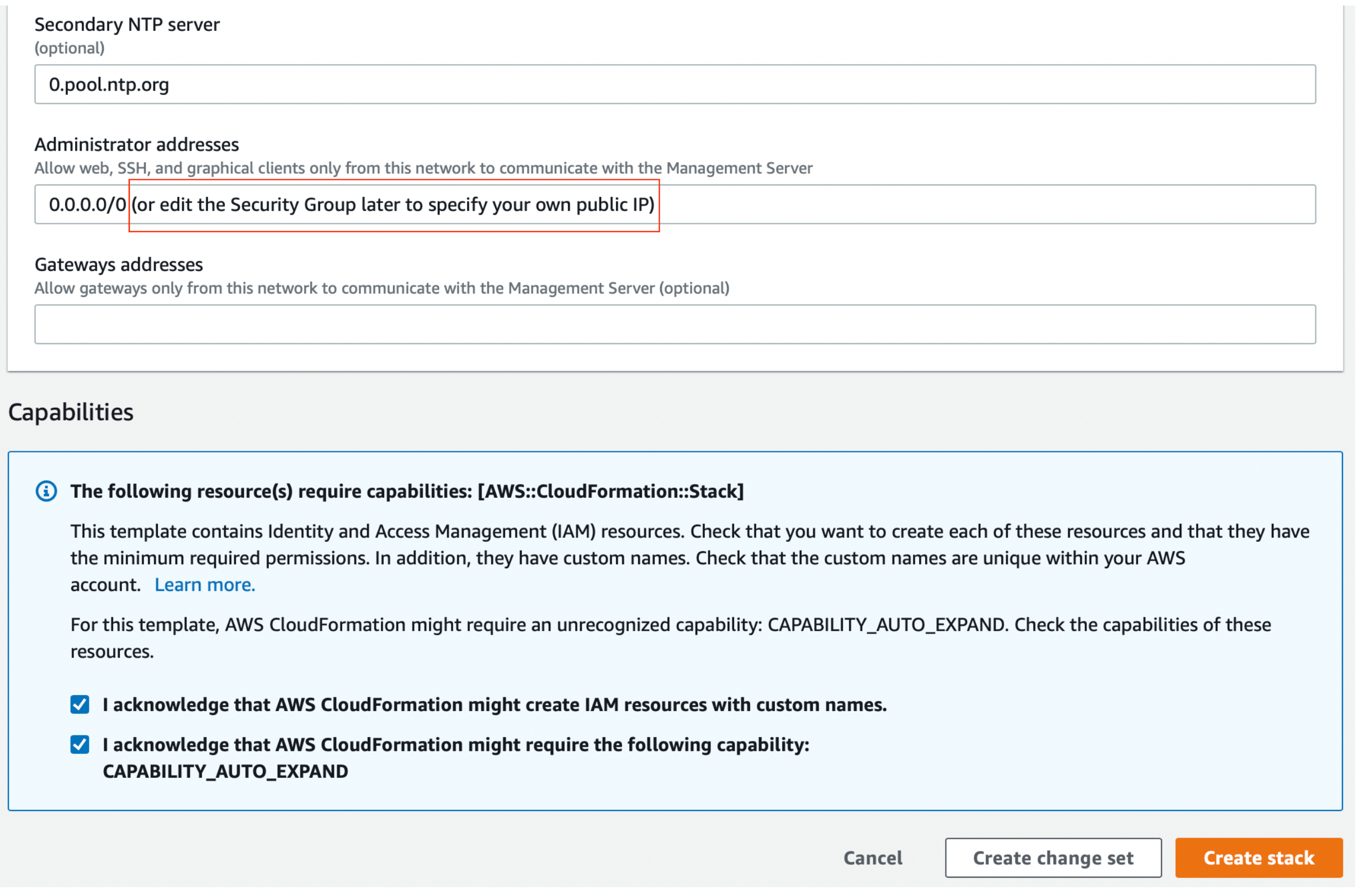

Logging into the Gaia Portal
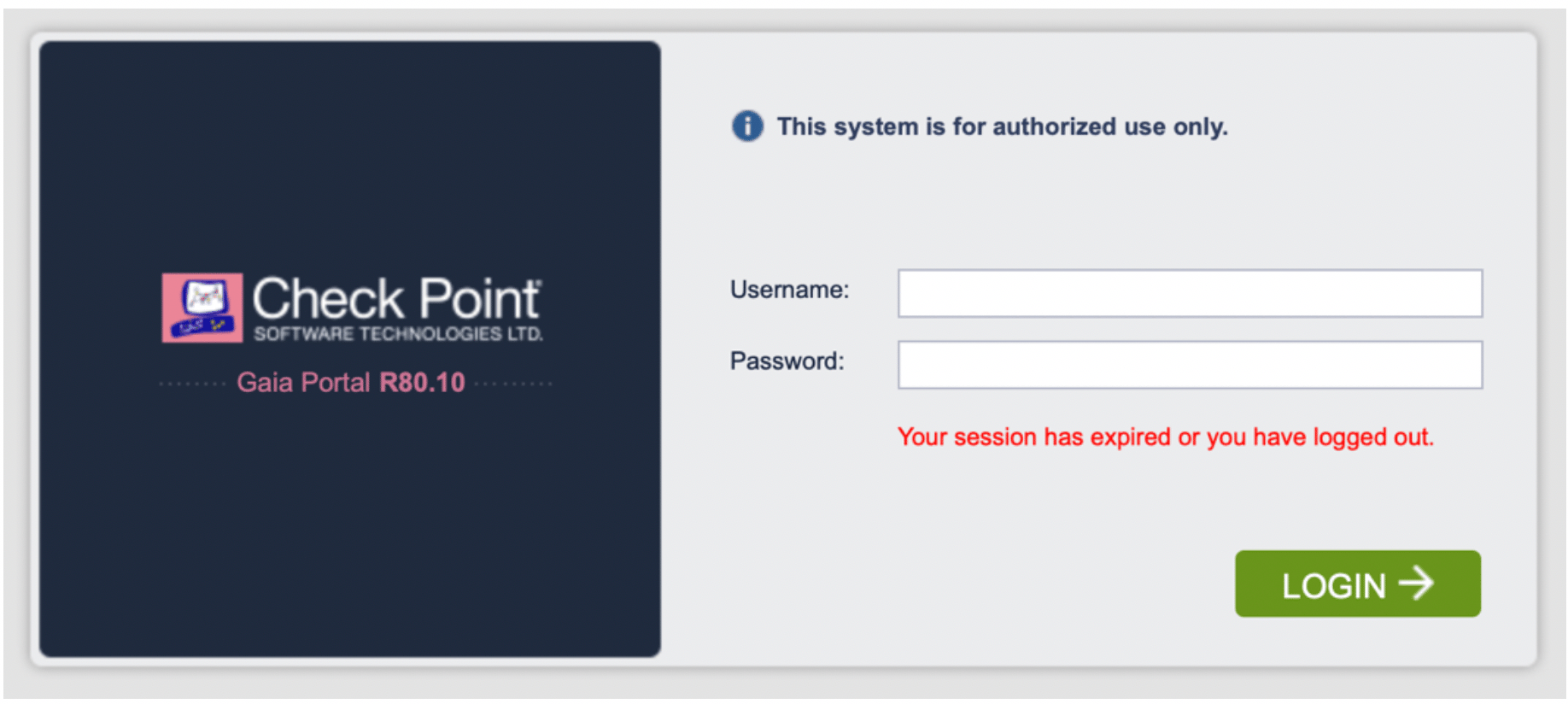
Open a browser and go to https://management_eip/ to log into the Gaia Portal. You should be prompted with a screen like the one below. Enter the user name as admin and the password you configured in the previous step.
Updating the Route Table
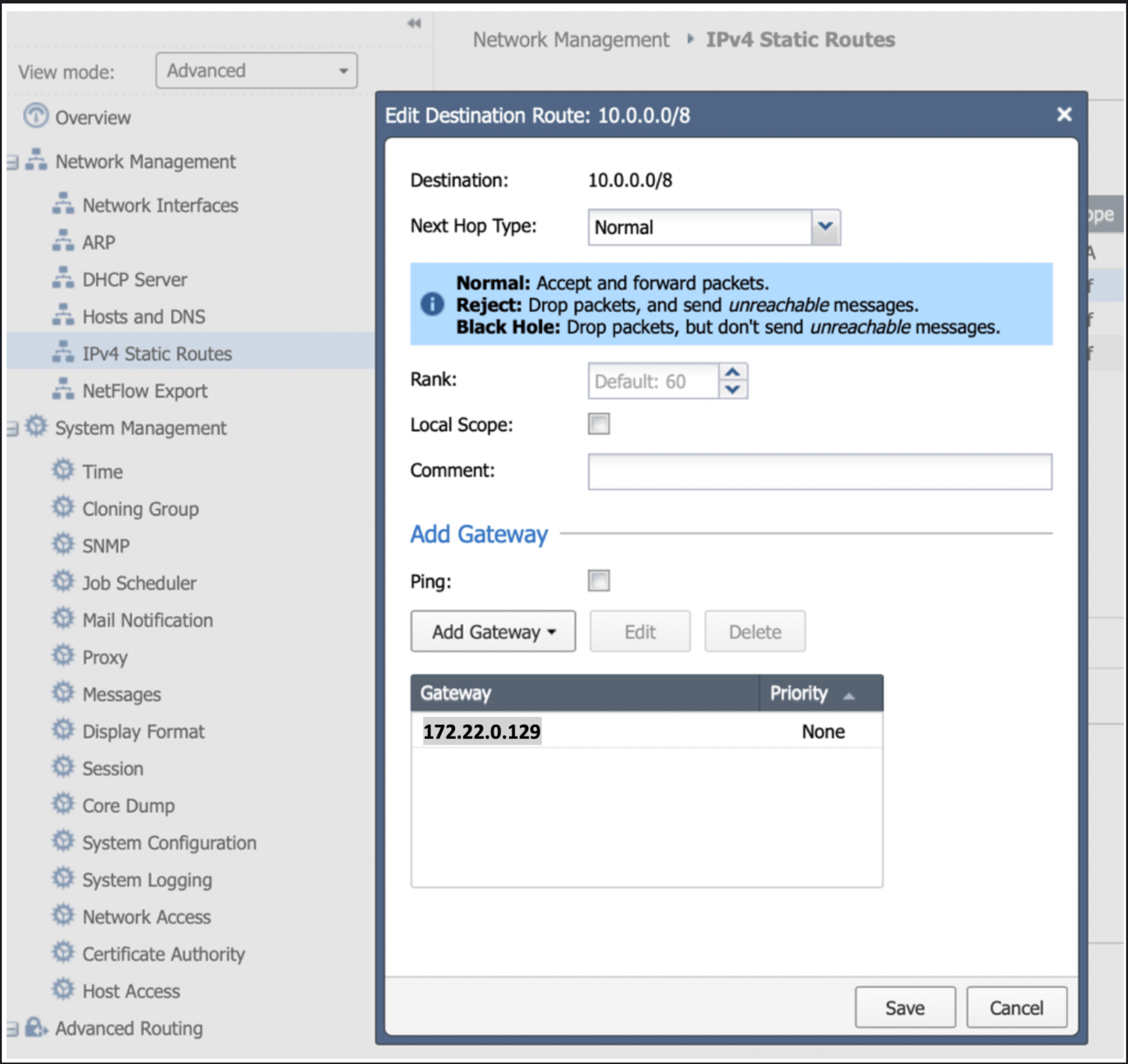
The next step is to update the route table. In this example, you add three return routes, each for a RFC 1918 address pointing back to the VPC router of the subnet aviatrixdmz-firewall (or aviatrixhagw-dmz-firewall if you are attaching the instance to the backup gateway instead). Go to the AWS console > VPC > Subnets and filter by “dmz-firewall” – that will allow you to determine the VPC router IP, which is the first host of each subnet.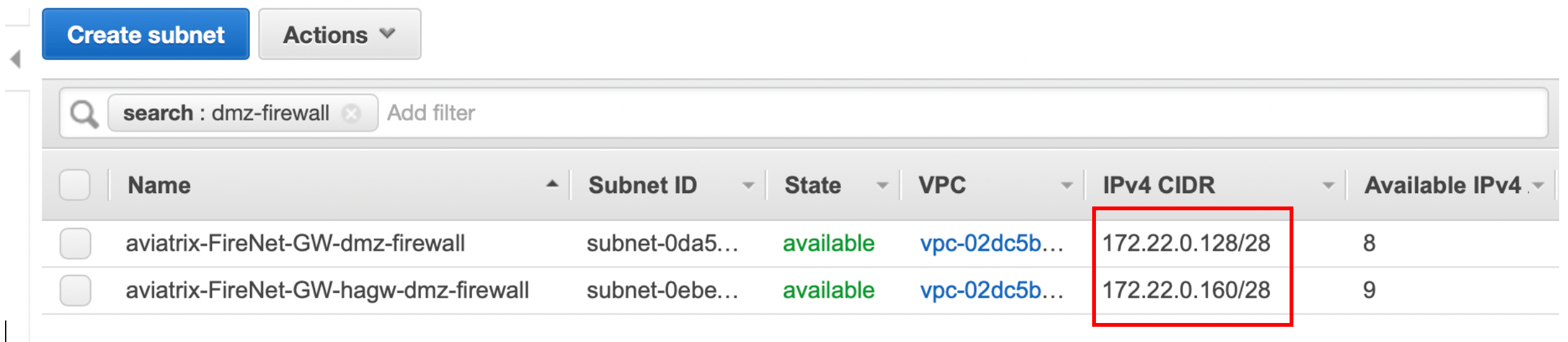
Downloading and Installing the SmartConsole
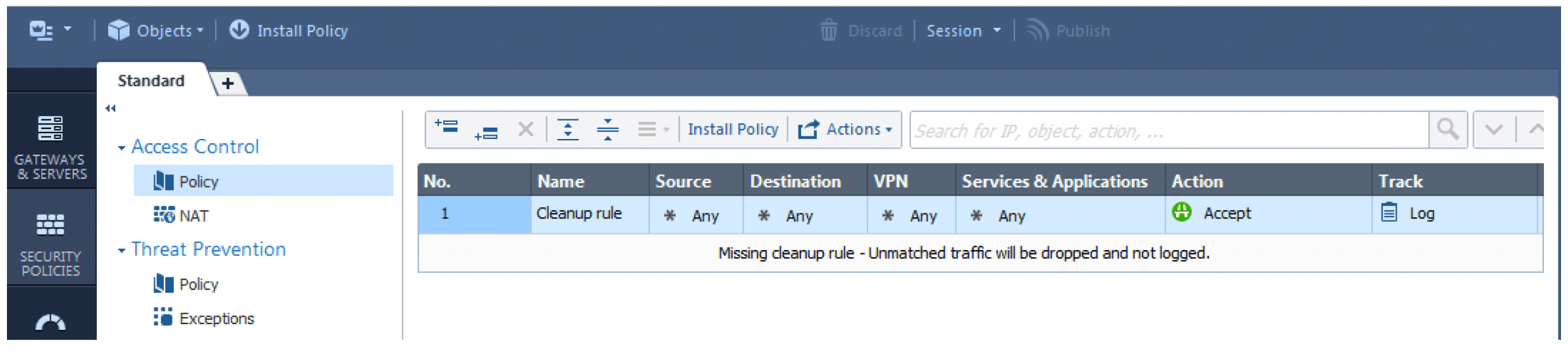
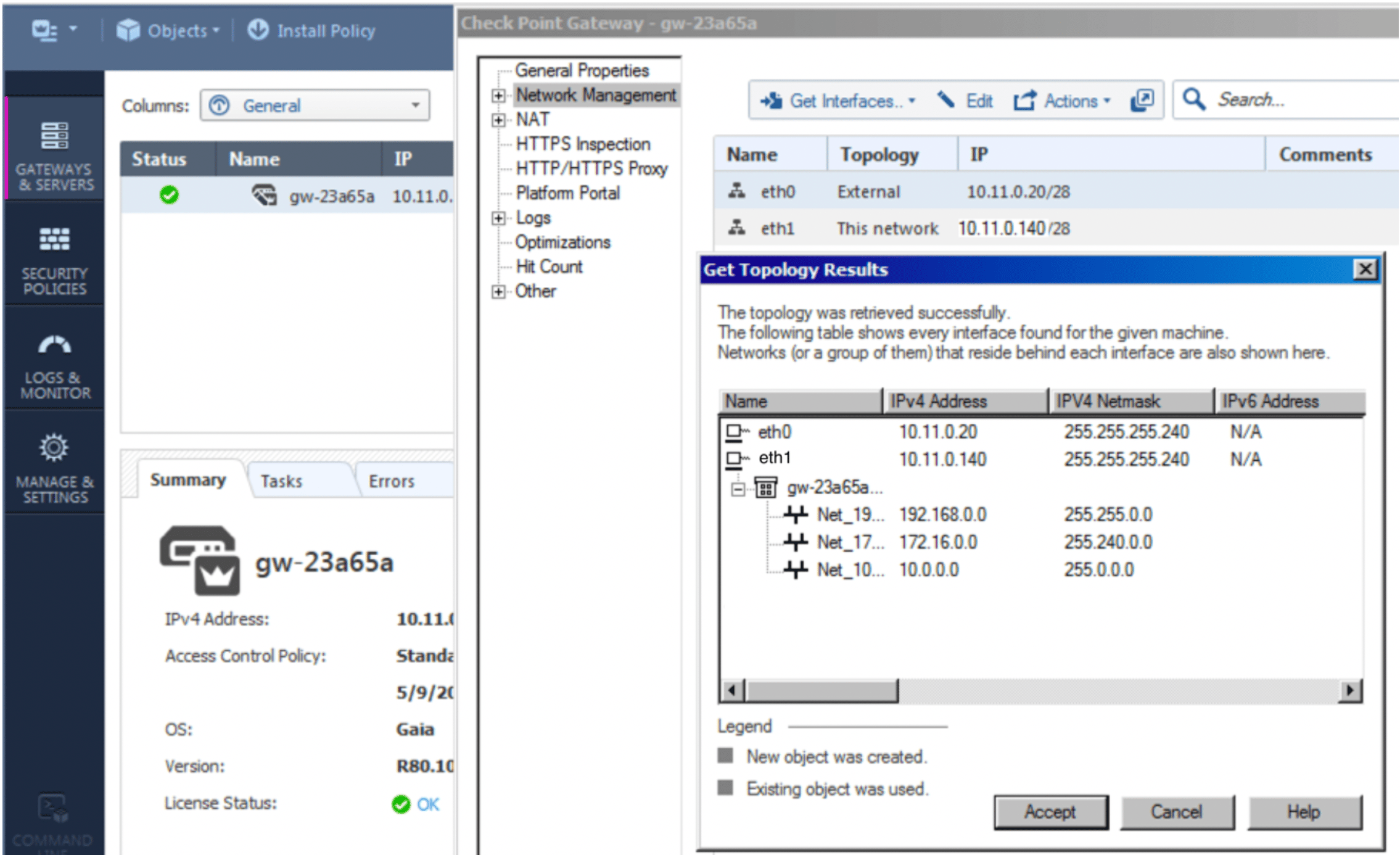
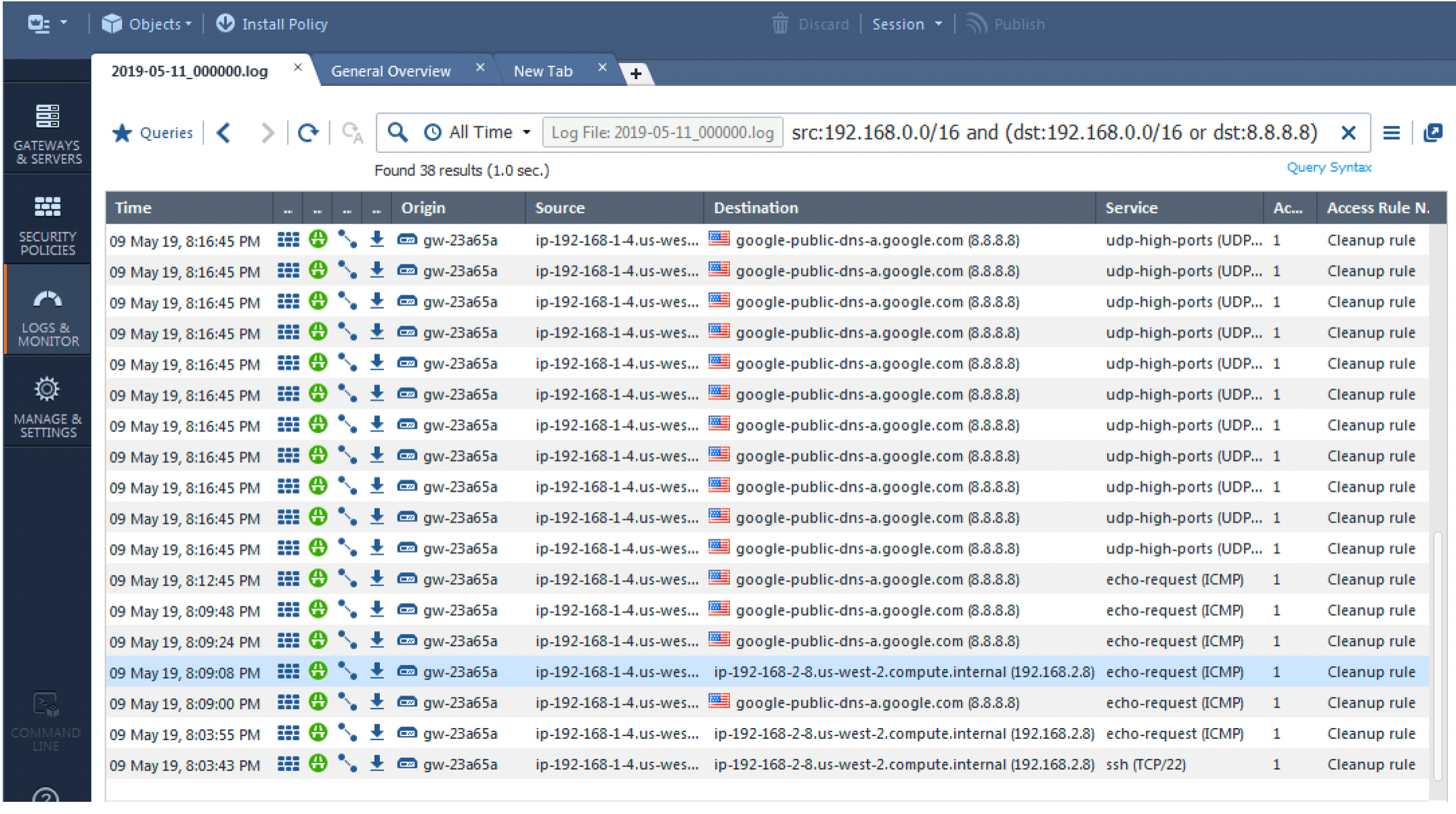
Download and install the SmartConsole (if you have not done so already) using this link: R80.10. On SmartConsole you need to define a security policy that will allow the traffic to be inspected/logged and update the topology. In the SmartConsole go to via Security Policies and then Policy and change the default policy to accept and log traffic. This should be customized to comply with your project requirements. Install the policy on the gateway(s) in question. Your basic policy should look like this: