

Controller release 7.0.1577 or greater is required to use Transit FireNet in
CoPilot. You can use FireNet in CoPilot to manage your existing Transit
FireNet environment or build a new Transit FireNet environment.
Supported firewall vendors
are Palo Alto VM-Series, Check Point CloudGuard, and Fortinet FortiGate.
Panorama
is also supported as an IPv4 firewall manager for Palo Alto VM-Series.
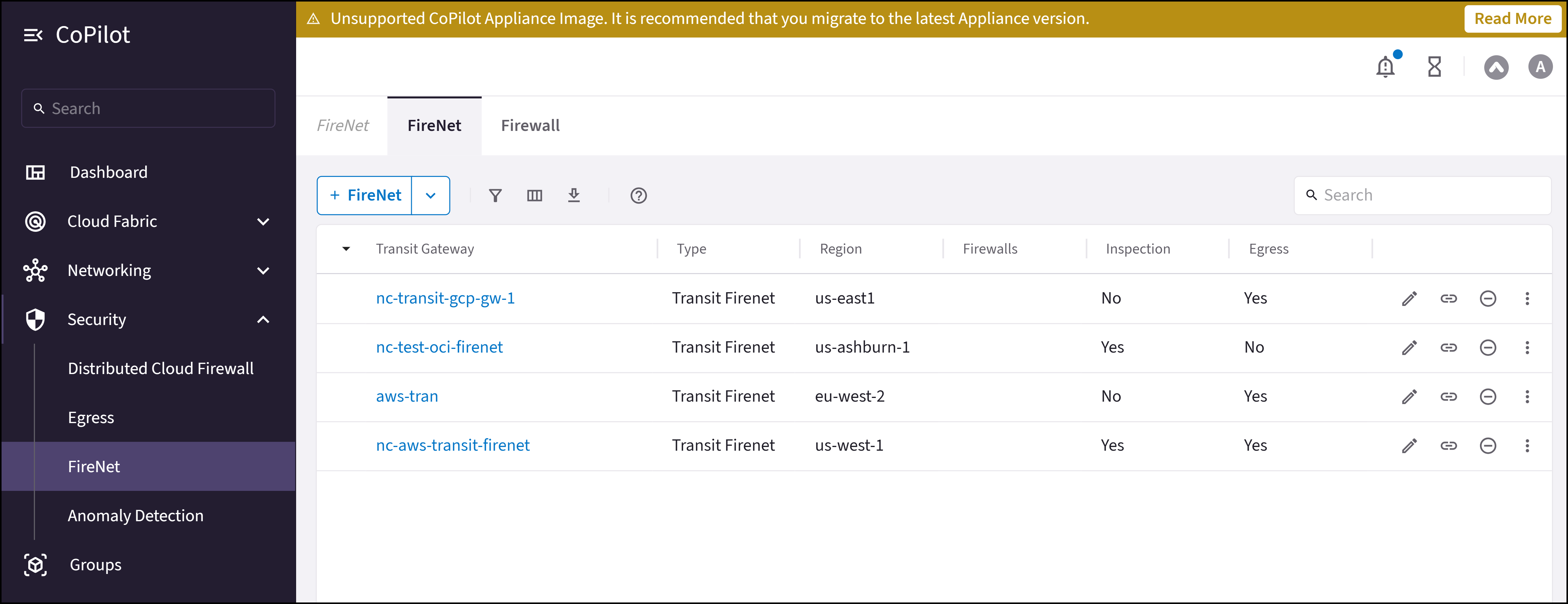
Transit FireNet Prerequisites
- If you want to attach Spokes to your Transit FireNet, you must create the Spokes beforehand .
- Subscribe to the firewall instance (AWS only) .
- GCP: a minimum of four VPCs (Transit FireNet VPC, Egress VPC, Management VPC, LAN VPC) is required for the GCP FireNet solution with the Palo Alto VM-Series firewall. All VPCs should be in the same region.
- Any Transit FireNet connections that use BGP over LAN must also have DNAT or SNAT configured.
- Transit Gateways cannot have network segmentation enabled.
- Transit Gateways cannot have any pre-existing attachments.
If desired, you cancreate VPCs/VNets ahead of time
that have the Transit + FireNet VPC Function option selected, ensuring that
the necessary subnets and interfaces are already created in those VPC/VNets in
preparation for using the Transit FireNet feature. If when adding FireNet to a
Transit gateway you decide to use a VPC/VNet that does not have the Transit +
FireNet function selected, you must subsequently create the necessary subnets
and interfaces in the relevant cloud service provider.
Workflow
-
Add one or more FireNets.
You can create a standard Transit FireNet (where traffic is inspected), an
Egress FireNet,
or an
AWS TGW FireNet.
After you create a Transit FireNet, you can select it on the FireNet tab and:Creating a Transit FireNet automatically adds Transit Egress Capability to this Transit gateway. You can check this by going to Cloud Fabric > Gateways > Transit Gateways and clicking the name of the Transit FireNet you just created.
- Add a firewall and associate it with a Transit FireNet
- Associate an existing firewall with a Transit FireNet
- Create connection policies for a FireNet
-
Configure Vendor Integration (optional)
To turn On IPv6 on an existing FireNet, revoke the existing Vendor Integration settings, enable IPv6 on the FireNet, and then reconfigure Vendor Integration.
- Run Transit FireNet diagnostics (optional)
- Transit FireNet Workflow for AWS
- Transit FireNet Workflow for AWS TGW
- Transit FireNet Workflow for Azure
- Transit FireNet Workflow for GCP
- Transit FireNet Workflow for OCI
Primary and Secondary FireNet (AWS only)
In AWS (not AWS TGW) you can deploy a Transit FireNet architecture that consists of one Primary and up to ten Secondary Transit FireNet gateways. This allows you to scale to more than 125 HPE-enabled Spoke gateways and reduce the overall number of firewall deployments. The Primary FireNet is the Transit Gateway where firewalls are attached. This FireNet can have its own Spoke Gateways and Site2Cloud or external connections. Secondary FireNet Transit Gateways send traffic to the Primary FireNet to be inspected by the firewall. A Secondary FireNet can only attach to one Primary FireNet. Secondary FireNets can bypass Primary if the traffic does not require inspection. Traffic that does not require inspection is routed to the closest next hop.Prerequisites for Primary and Secondary FireNet
- Segmentation must be enabled on the gateways that will function as the Primary and Secondary FireNets before attachment occurs. You cannot enable segmentation after attachment.
- SNAT/NAT cannot be configured for the FireNets in a Primary/Secondary FireNet configuration.
Prerequisites for Secondary FireNet
- GWLB cannot be enabled
- No firewalls attached
- No egress static CIDR configured
- No exclude CIDR configured
- Local ASN configured
- Network segmentation enabled
Secondary FireNet does not support IPv6.
Related Topics
- FireNet Design Patterns
- Editing a Transit FireNet
- Attaching a Spoke to a Transit FireNet
- Configuring Transit FireNet Inspection Policies
- Removing Transit FireNet
- Viewing FireNet Route Table Information
- Disassociating or Deleting Firewall Association
- Managing Firewall Attachments
- Configuring your firewalls to check FireNet traffic flow