- Intelligent Cloud Analytics
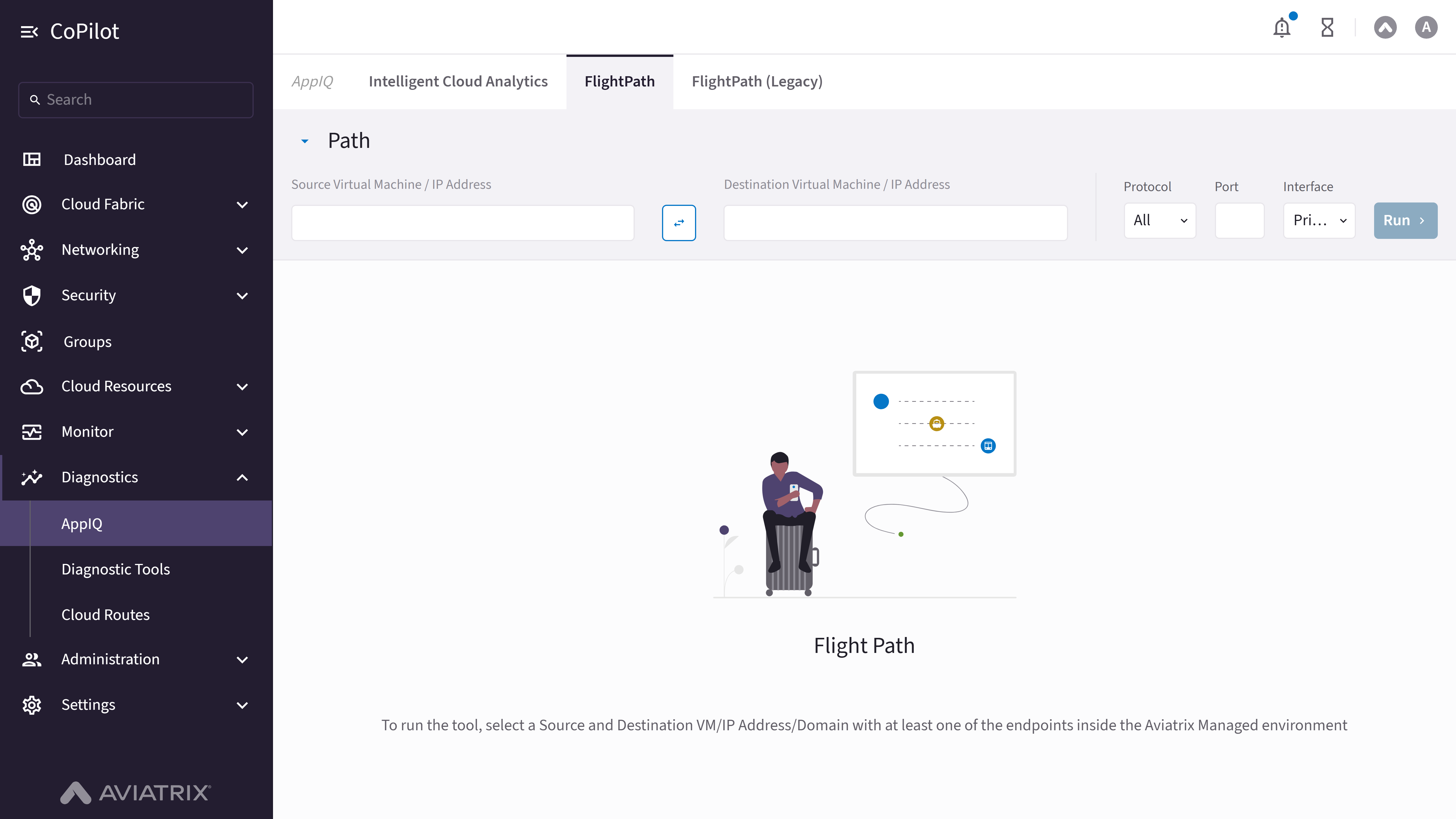
- FlightPath
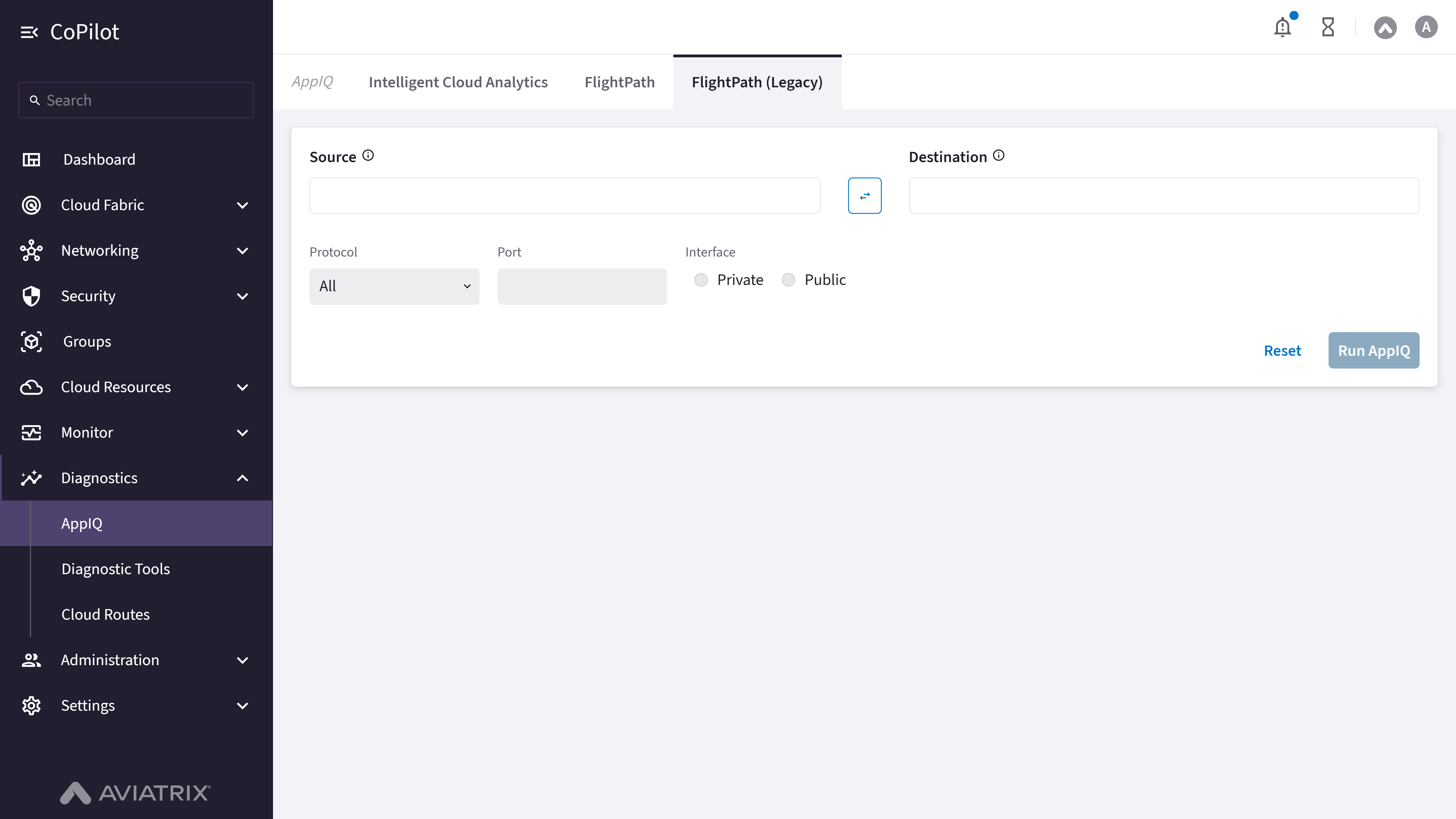
- FlightPath (Legacy)
Purpose
The Intelligent Cloud Analytics page shows cloud fabric topology, application connections, inter-app latencies, and security metrics. You can edit the view configuration to change which apps, SmartGroups, and connections are displayed.Note: The Intelligent Cloud Analytics page is labeled Preview in
the CoPilot UI.
Elements
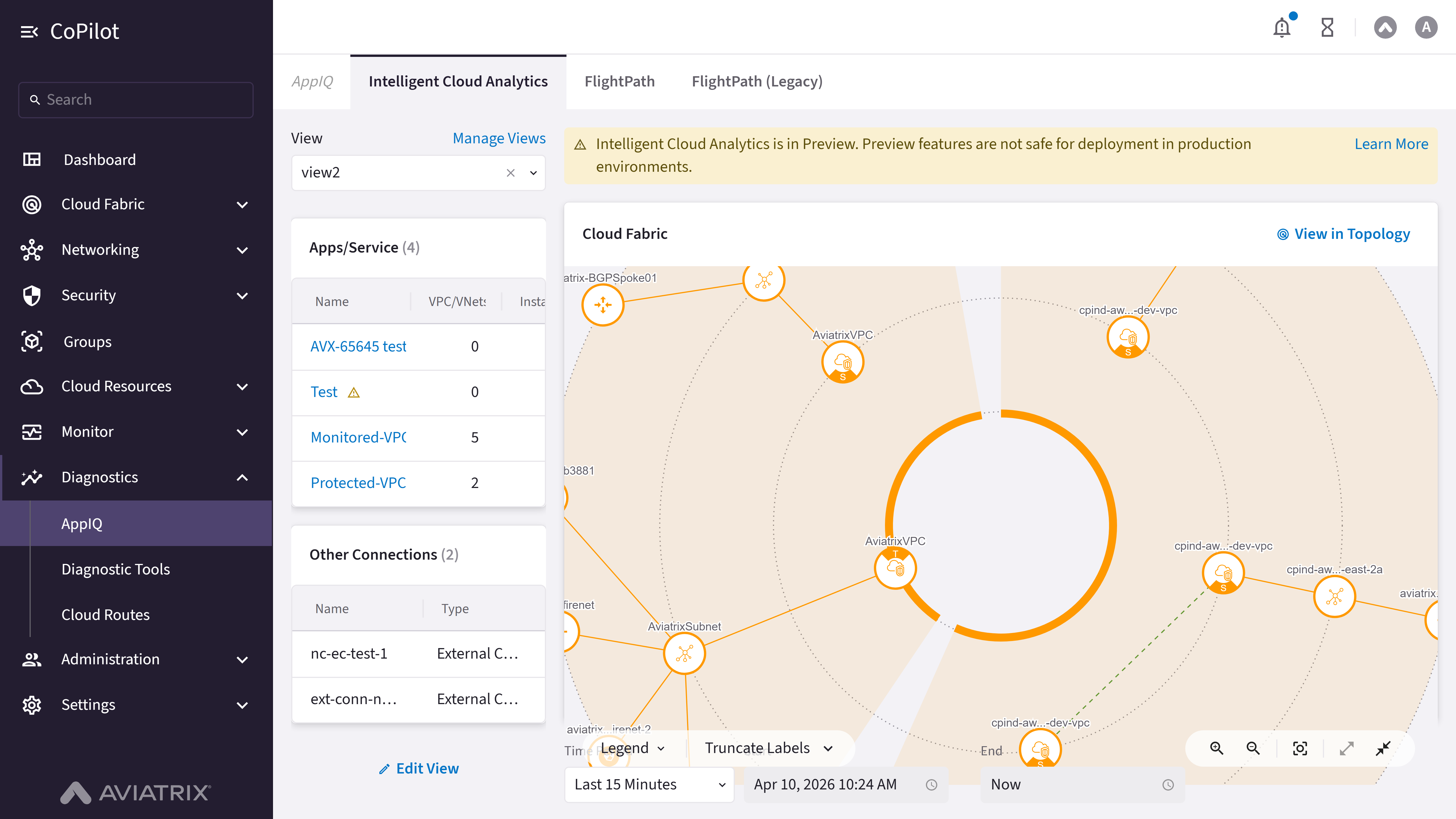
- View: Dropdown to select view.
- Manage Views: Links to manage views.
- Edit View button: Opens dialog to edit view configuration.
- Apps/Service table: Shows applications and services with VPC/VNets and instances.
- Other Connections table: Shows external connections and their types.
- View in Topology button: Navigates to topology view.
- Cloud Fabric visualization: Interactive topology diagram showing cloud fabric connections.
- Legend button: Shows the legend for the topology diagram.
- Label Option selector: Sets label display in the topology diagram to Show, Truncate, or Hide (default: Truncate).
- Time Period: Selects time period (e.g., Last 15 Minutes).
- Start: Start date and time field.
- End: End date and time field.
- Inter App Latencies: Shows latency between applications.
- Layout selector: Switches the Inter App Latencies view between Heat Map and Table.
- Troubleshoot with FlightPath button: Opens FlightPath troubleshooting.
- Connection Latencies table: Shows connection latencies with source, destination, and latency.
- Traffic Sent: Top 5: Chart showing top 5 traffic sent.
- Traffic Received: Top 5: Chart showing top 5 traffic received.
- Security dropdown: Selects the SmartGroup or app/service to show security metrics for.
- Distributed Cloud Firewall: Shows Distributed Cloud Firewall rules count.
- Network Domains: Shows Network Domains count.
- Anomalies Detected: Shows Anomalies Detected count.
- Egress FQDN: Shows Egress FQDN count.
Actions
View Intelligent Cloud Analytics
View Intelligent Cloud Analytics
To view intelligent cloud analytics:
- Go to Diagnostics > AppIQ > Intelligent Cloud Analytics.
- The page appears with Cloud Fabric visualization, Apps/Service table, Other Connections table, Inter App Latencies heat map, Connection Latencies table, and traffic charts.
- Use View to switch views. Optionally, use Time Period, Start, and End to set the time range.
- Use Security dropdown to view Distributed Cloud Firewall, Network Domains, Anomalies Detected, and Egress FQDN for the selected SmartGroup or app/service.
- Optionally, click View in Topology to open topology view, Legend or Truncate Labels for the diagram, or Troubleshoot with FlightPath to run path analysis.
Parameter Details
Edit Intelligent Cloud Analytics View
Edit Intelligent Cloud Analytics View
To edit the Intelligent Cloud Analytics view:
- Go to Diagnostics > AppIQ > Intelligent Cloud Analytics.
- Click Edit View to open the Edit View dialog.
- Update Name, SmartGroups, Other Application/Services, External Connection (S2C), or Edge as needed.
- Save the configuration.