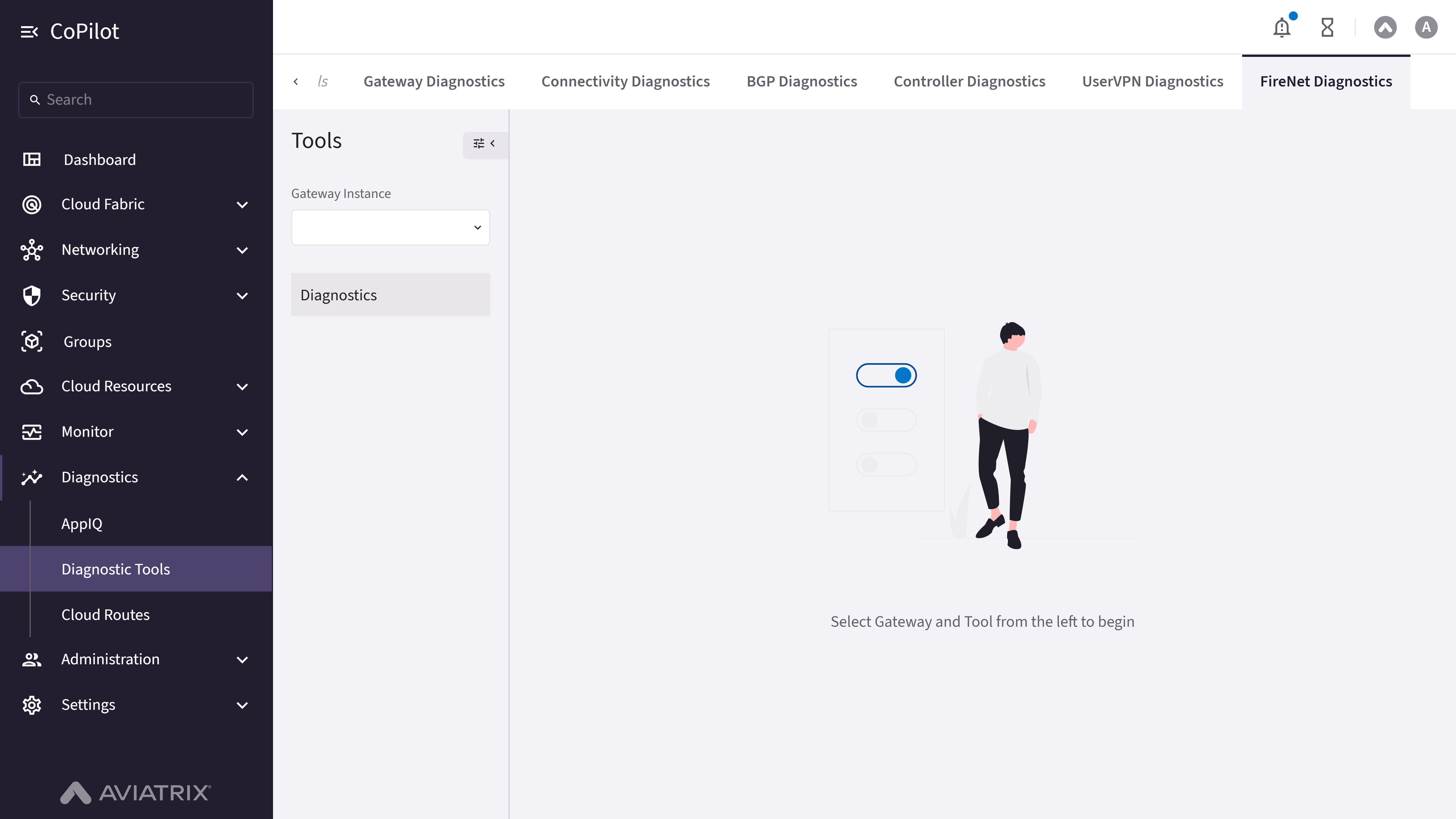
- Gateway Diagnostics
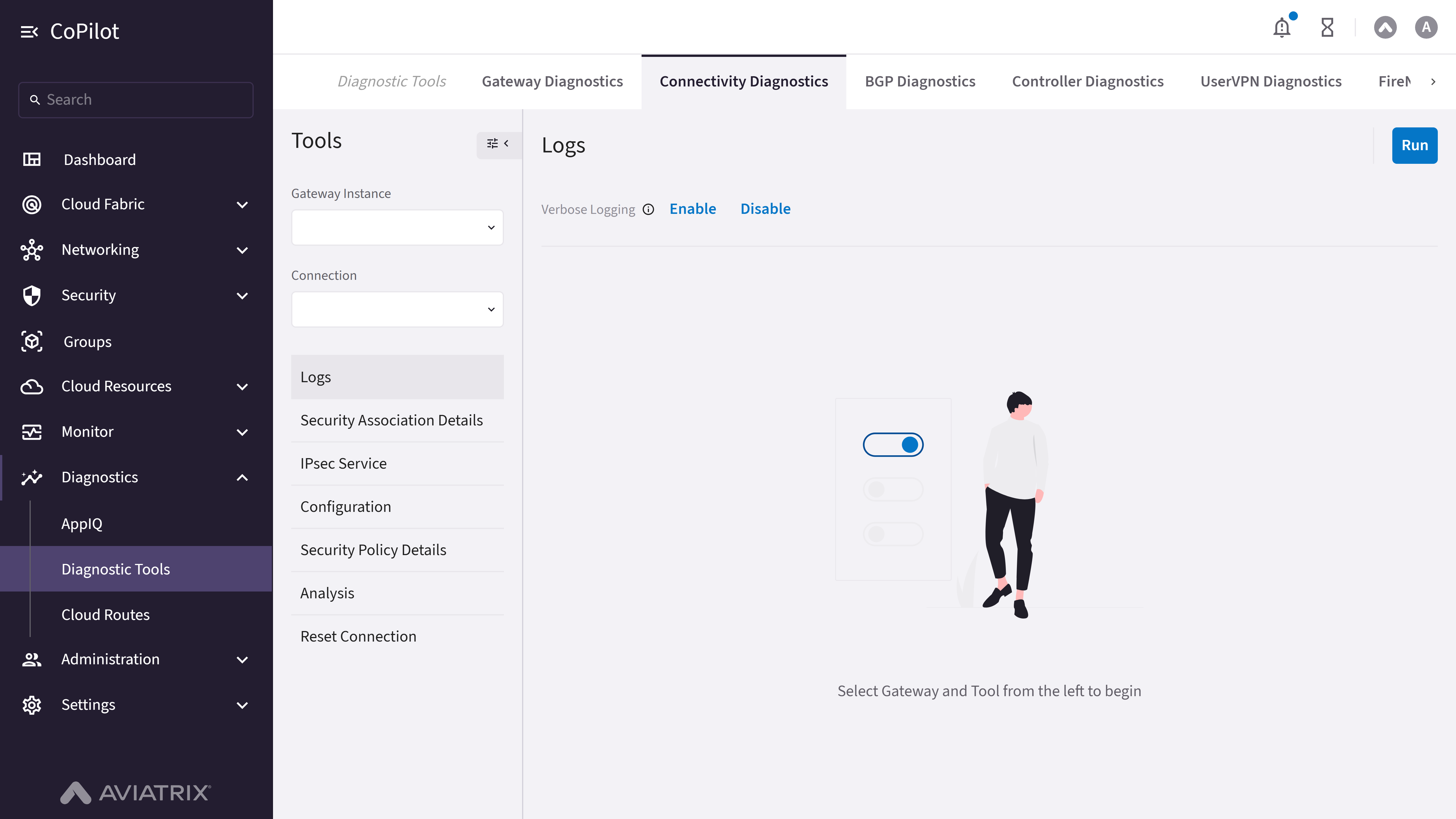
- Connectivity Diagnostics
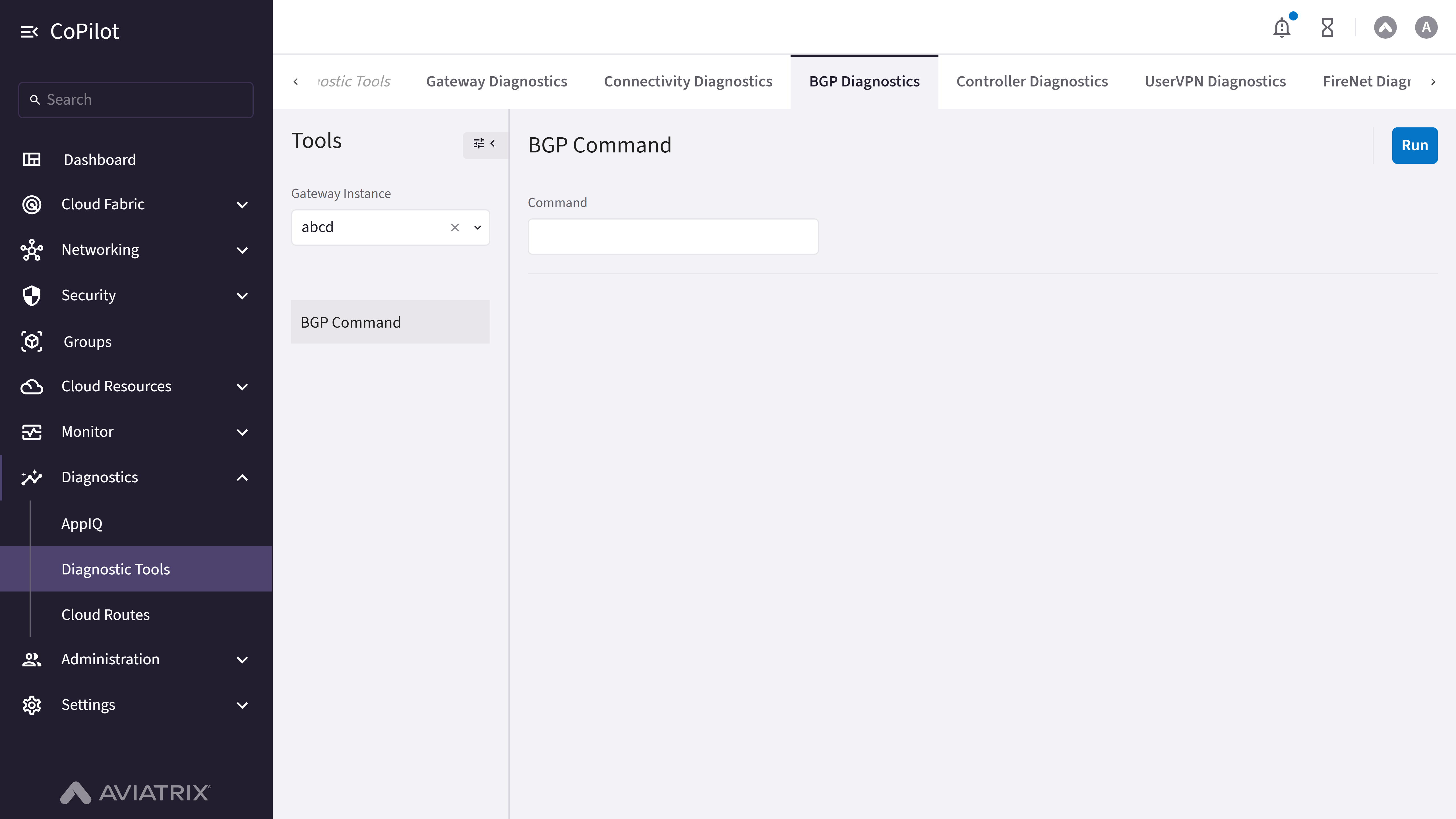
- BGP Diagnostics
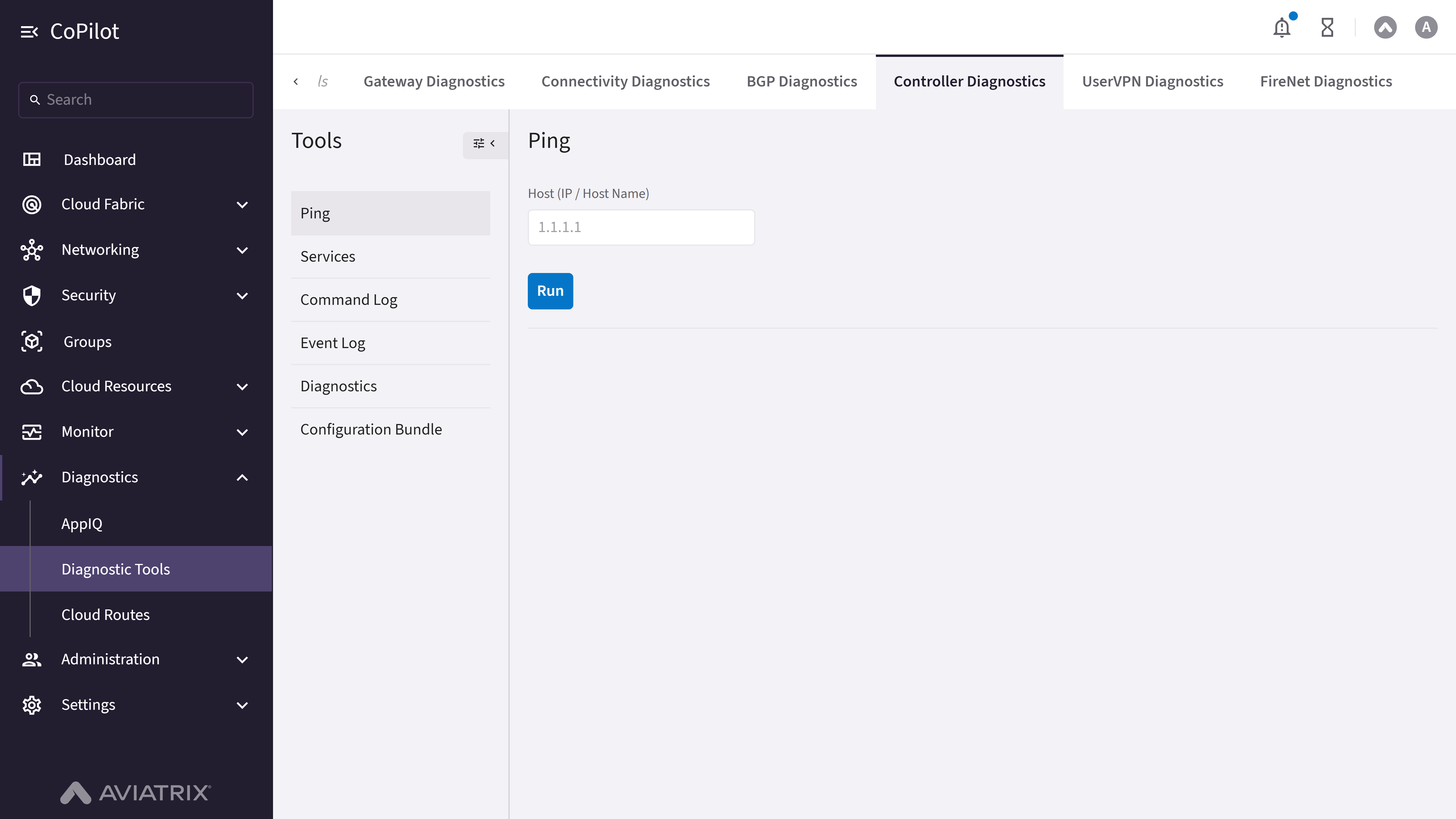
- Controller Diagnostics
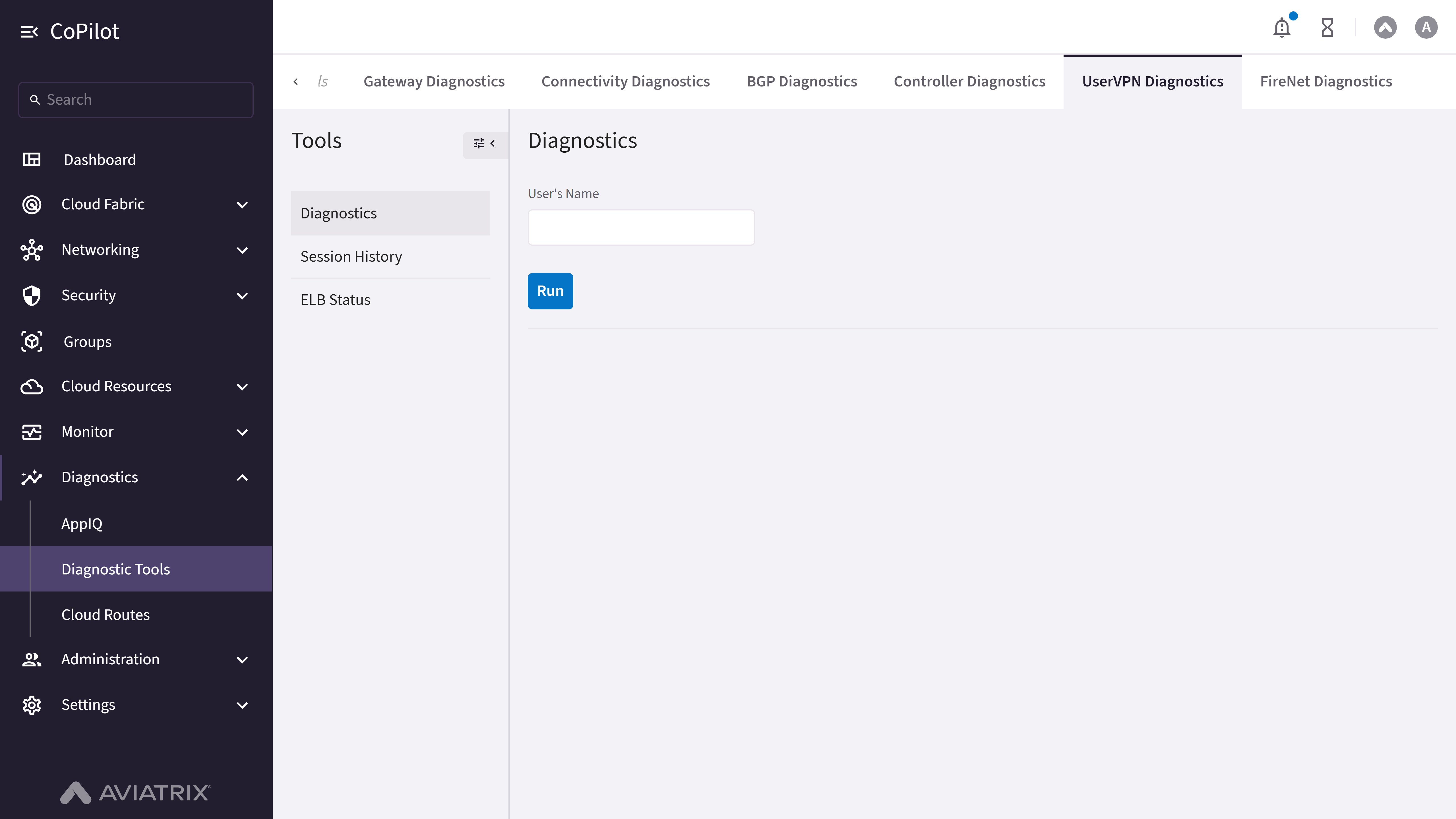
- UserVPN Diagnostics
- FireNet Diagnostics
Purpose
The Gateway Diagnostics section provides tools to test gateway reachability, capture packets, trace paths, check connectivity, view active sessions and interface stats, manage services, run built-in diagnostics, and download tracelogs.Elements
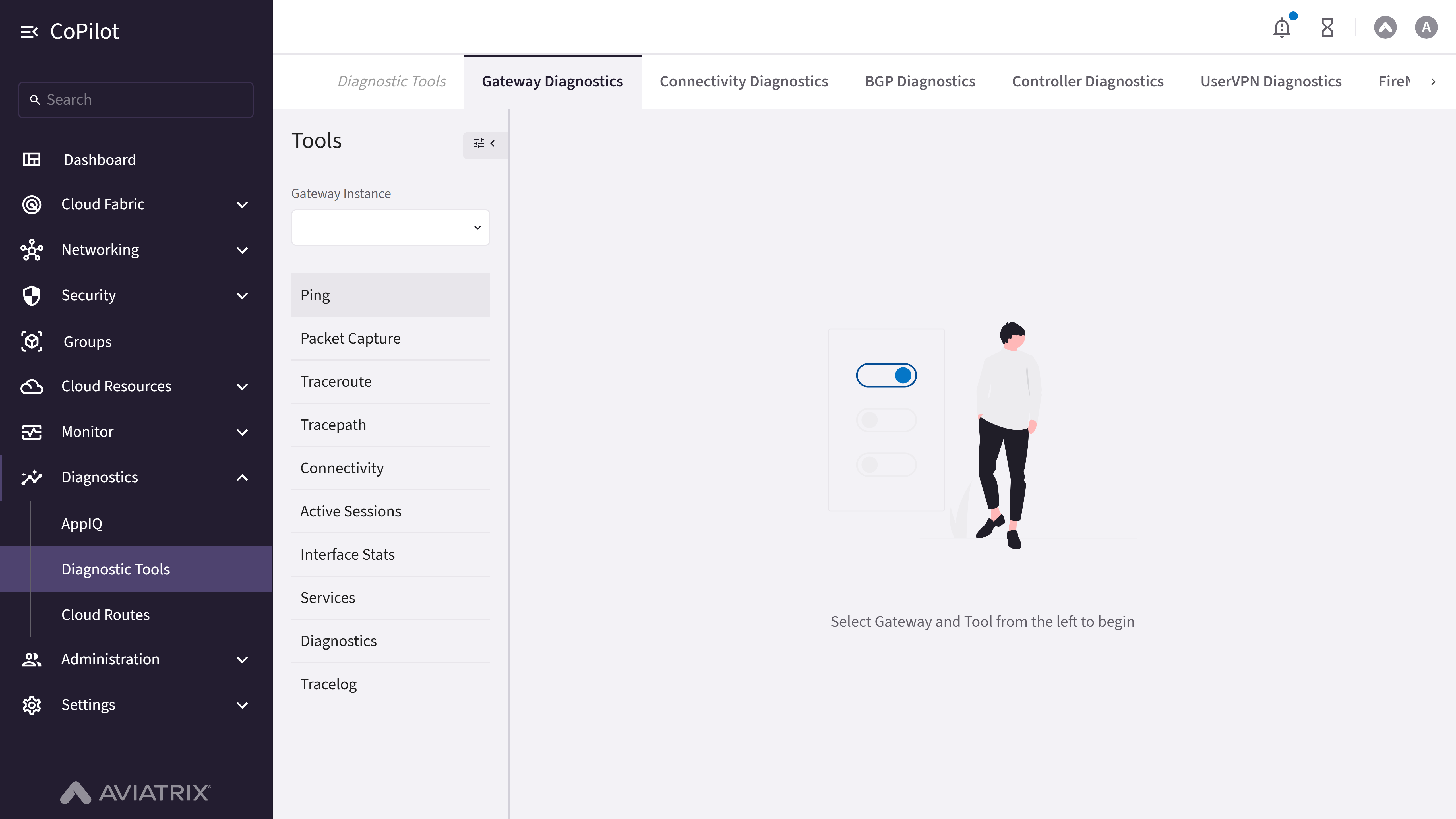
- Ping, Packet Capture, Traceroute, Tracepath, Connectivity, Active Sessions, Interface Stats, Services, Diagnostics, and Tracelog sub-tabs or tools, each with run/refresh controls and results panels.
Actions
Run Ping
Run Ping
To test gateway reachability with ping:
- Go to Diagnostics > Diagnostic Tools > Gateway Diagnostics.
Select the Ping tab. - Select Interface (default: Use Route Table) and enter Destination (IP / Host Name).
- Click Run to start the ping test. Use Reset to clear the form.
- Review the Results panel for reachability and round-trip time.
Parameter Details
Run Packet Capture
Run Packet Capture
To capture packets on a gateway interface:
- Go to Diagnostics > Diagnostic Tools > Gateway Diagnostics.
Select the Packet Capture tab. - Set Interface, IP / Host Name, Port, Duration, and Packet Length as needed. Click Run.
- Use Download PCAP File to save captured packets. Optionally, use Filter, Columns, Export, or Search on the packet table.
Run Traceroute
Run Traceroute
To trace the path from the gateway to a target:
- Go to Diagnostics > Diagnostic Tools > Gateway Diagnostics.
Select the Traceroute tab. - Select Interface and enter Destination (IP/Host Name). Click Run.
- Review the Results panel for hop details (IP, hostname, time). Use Reset to clear.
Run Tracepath
Run Tracepath
To check path and MTU to a target:
- Go to Diagnostics > Diagnostic Tools > Gateway Diagnostics.
Select the Tracepath tab. - Select Interface and enter Destination (IP/Host Name). Click Run.
- Review the Results panel for path and MTU details. Use Reset to clear.
Run Connectivity Test
Run Connectivity Test
To check reachability for common services:
- Go to Diagnostics > Diagnostic Tools > Gateway Diagnostics.
Select the Connectivity tab. - Enter HostName, Port, and select Protocol (TCP/UDP). Click Run.
- Review the Results panel for DNS, HTTPS, and IP reachability. Use Reset to clear.
View Active Sessions
View Active Sessions
To view live traffic sessions on the gateway:
- Go to Diagnostics > Diagnostic Tools > Gateway Diagnostics.
Select the Active Sessions tab. - Click Run to retrieve the latest active session data for the selected gateway.
View Interface Stats
View Interface Stats
To view real-time interface counters:
- Go to Diagnostics > Diagnostic Tools > Gateway Diagnostics.
Select the Interface Stats tab. - Review the Interface table (packets, errors) and Graph view (bandwidth).
View Gateway Services
View Gateway Services
To view gateway service status:
- Go to Diagnostics > Diagnostic Tools > Gateway Diagnostics.
Select the Services tab. - Review the Service list. Use Restart for a service if supported.
Run Gateway Diagnostics
Run Gateway Diagnostics
To run built-in gateway diagnostic checks:
- Go to Diagnostics > Diagnostic Tools > Gateway Diagnostics.
Select the Diagnostics tab. - Optionally toggle Include Controller to include Controller-side checks.
- Click Run to start tests, or use its dropdown to Show Last Diagnostics Result or Submit To Support instead.
- Review the output console for findings.
Download Tracelog
Download Tracelog
To collect and download gateway logs:
- Go to Diagnostics > Diagnostic Tools > Gateway Diagnostics.
Select the Tracelog tab. - Review the Log list and click Download to save the selected log file.