

GCP Credentials
Before creating a cloud account for Google Cloud (GCP) on Aviatrix CoPilot, follow the steps below to make sure you have the credentials set up for API calls.-
Create a Google Cloud account. Continue to the
next step if you have already done so.
CoPilot supports multiple accounts with each account associated with a different Google Cloud project, but there needs to be at least one account to start with.
- Create a Google Cloud Project. Continue to the next step if you have already created one. Note that the project ID will be used in referencing the project by Aviatrix CoPilot. (As an example, we created a project Aviatrix-UCC. The project ID is aviatrix-ucc-1214.)
Required APIs
Enable the following Google Cloud APIs on the project before you onboard the account:- Compute Engine API
- Cloud Resource Manager API
- Cloud Logging API
- Kubernetes Engine API: required only if you connect GKE clusters.
- Cloud Functions API: required only if you use Cloud Functions.
- Cloud Run Admin API: required only if you use Cloud Run.
- Serverless VPC Access API: required only if you use Cloud Functions or Cloud Run with a VPC connector.
Enable Compute Engine API on the Selected Project
-
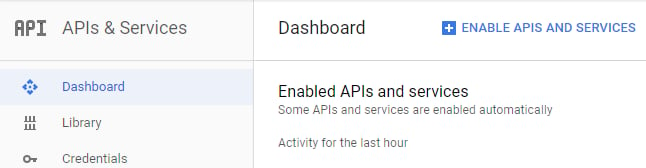
Go to your Google Cloud Platform console, click on the dropdown menu in the
top left, and select APIs and Services. At the Dashboard, click on
Enable APIs and Services.
-
On the Search box, enter “Compute Engine API” and select it from search
results.
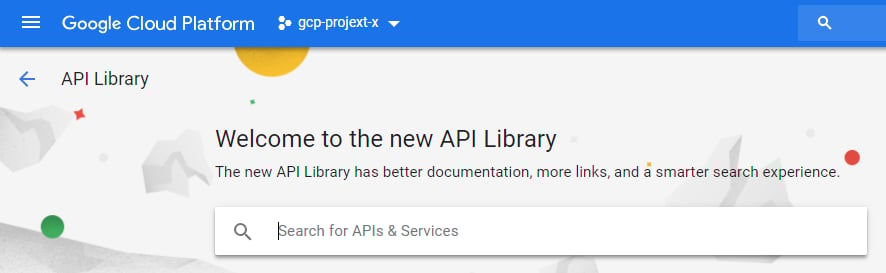
- Click Enable.
Create a Credential File
When you create a cloud account on the Aviatrix Controller for Google Cloud, you will upload a Google Cloud Project Credentials file. Follow the steps below to download the credential file from the Google Developer Console.- Open the Credential page.
- Select the project you are creating credentials for.
-
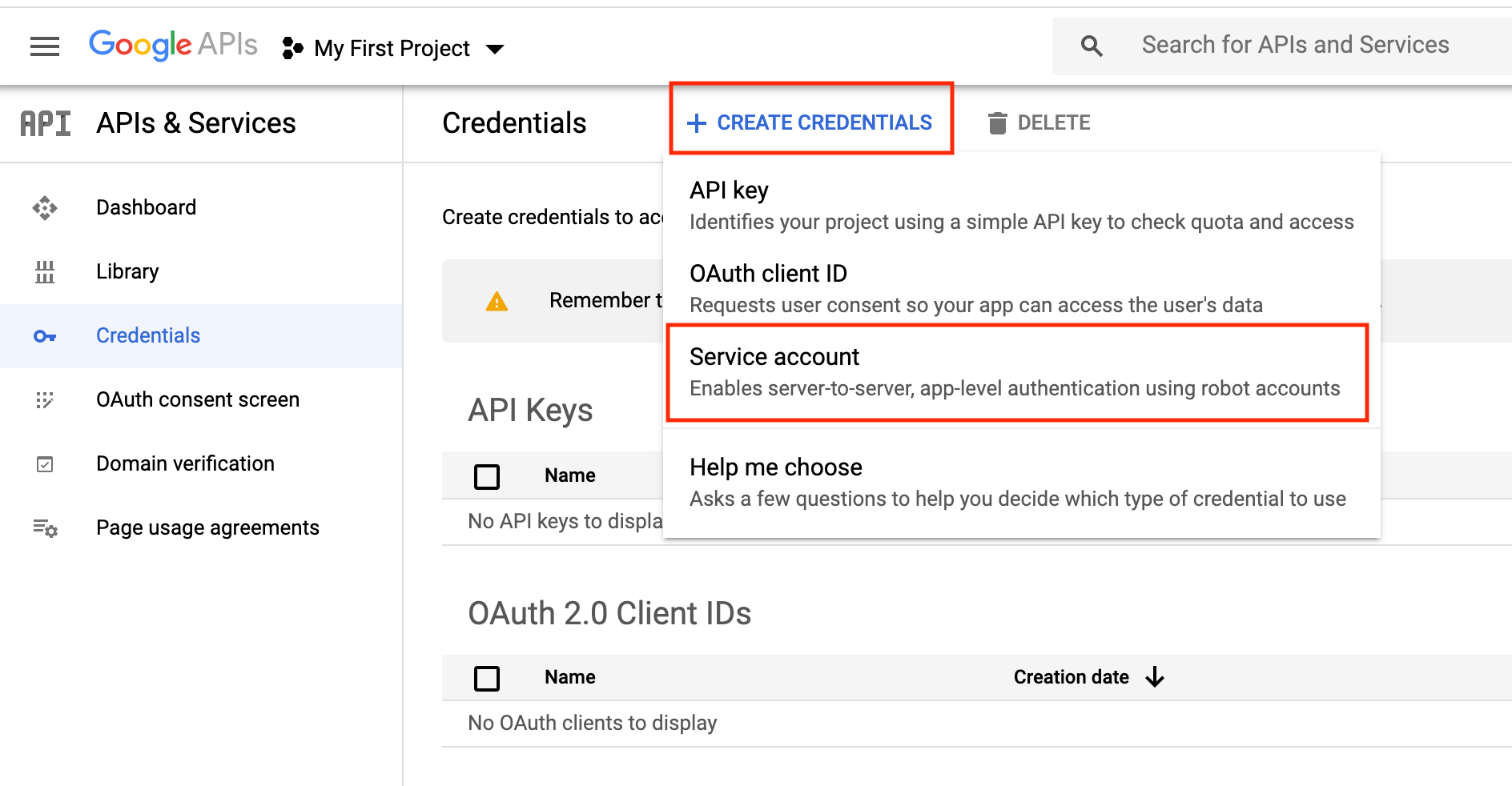
At Credentials, click Create credentials and select Service account
as shown below.
-
At the Service Accounts, enter a service account name and click Create.
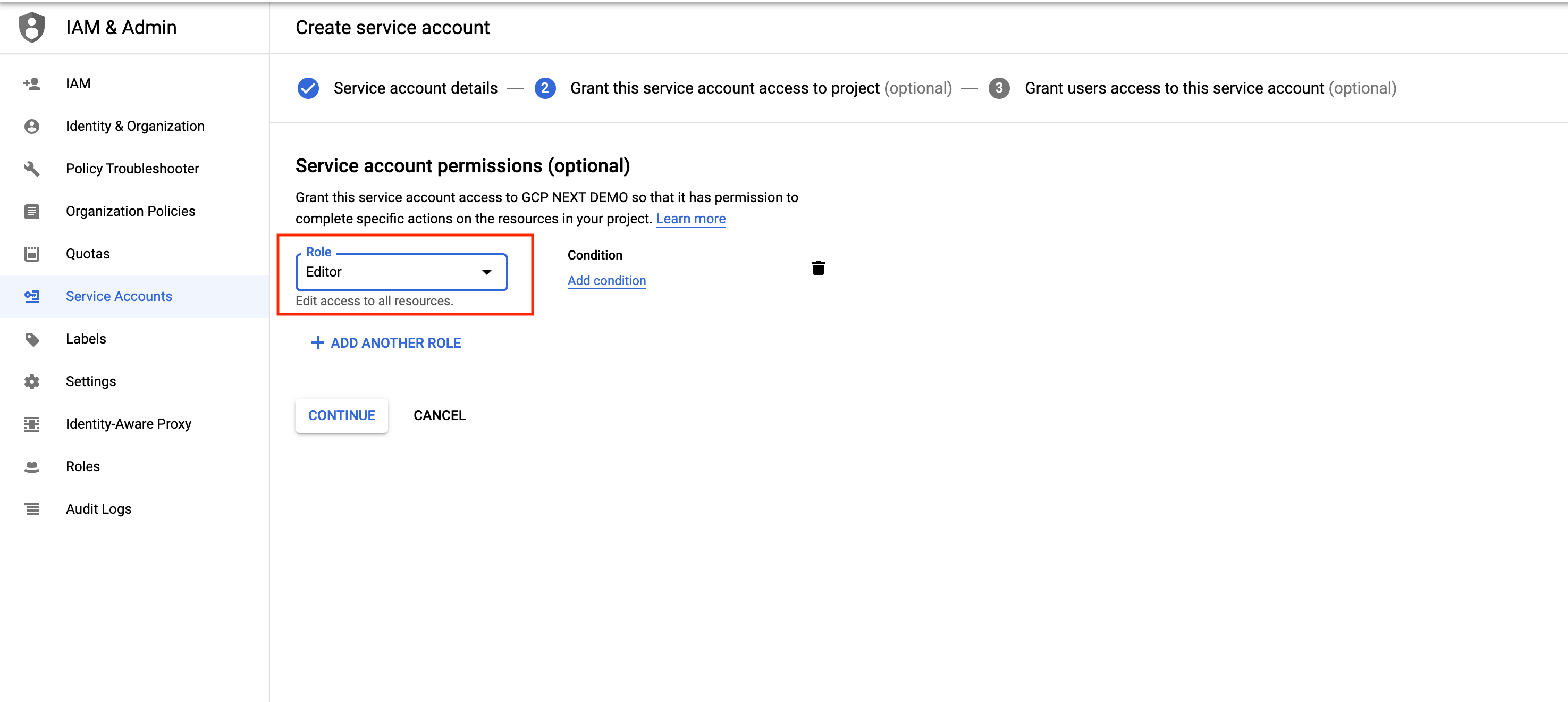
For Service account permissions, select Project, Editor, as shown below.
- Select a service account and then select the Keys tab
- Click the Add Key dropdown menu, and select Create new key.
- Select the JSON radio button and click Create.
- Click Create. The credential file downloads to your local computer.
- Upload the Project Credential file to the Aviatrix Controller at the Google Cloud Platform account create page.
Create a Service Account with Restricted Access
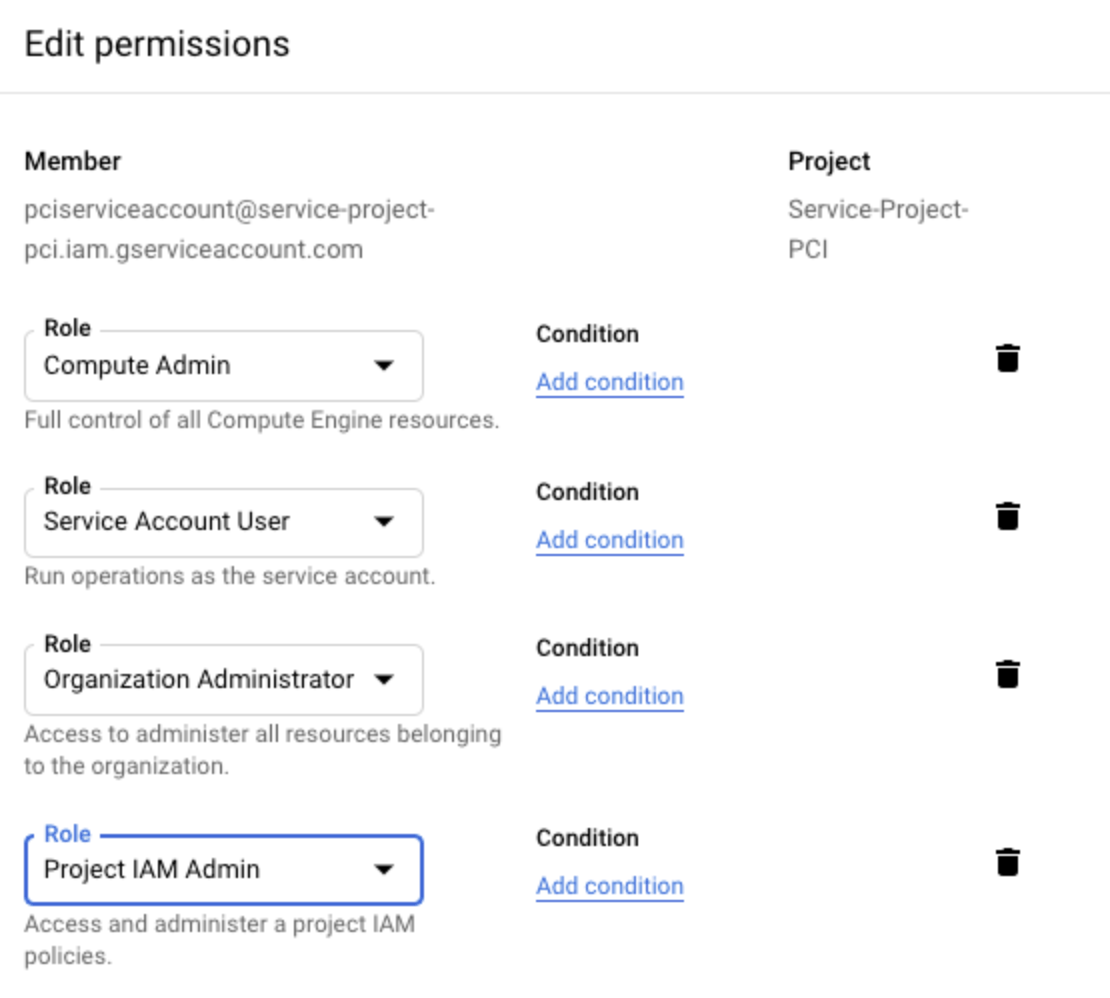
We recommend creating the service account with the Editor role, but in some cases an organization might want to further restrict permission for the service account. In such a situation, Aviatrix recommends having at least the following roles assigned to the service account. These roles allow Aviatrix to perform its functions properly, such as managing the compute resources, route tables, firewall rules, shared service VPC network, etc.- Compute Admin
- Service Account User
- Organization Administrator (required for GCP Shared VPC)
- Project IAM Admin (required for GCP Shared VPC)
- container:
container.googleapis.com - cloud Resource Manager:
cloudresourcemanager.googleapis.com