

Access Account
The Aviatrix Controller is a multicloud and multi-accounts platform. The Controller uses your cloud provider API credentials to make API calls, for example, to launch an Aviatrix gateway instance, on behalf of your cloud accounts. One cloud credential is represented as an Aviatrix access account on the Controller. The Controller supports multiple Aviatrix accounts. One Aviatrix account can have multiple service accounts from different clouds, one from each cloud. For example, an Aviatrix account named DevOps can have an access account for AWS, Azure ARM credentials, and GCP credentials.- Starting from release 3.2, an access account for AWS only consists of the 12-digit account ID.
- For Azure, the account information consists of Azure ARM credentials.
- For GCP (Google Cloud), the account information consists of GCP Credentials.
- For AWS China, please refer to Account with Access Key .
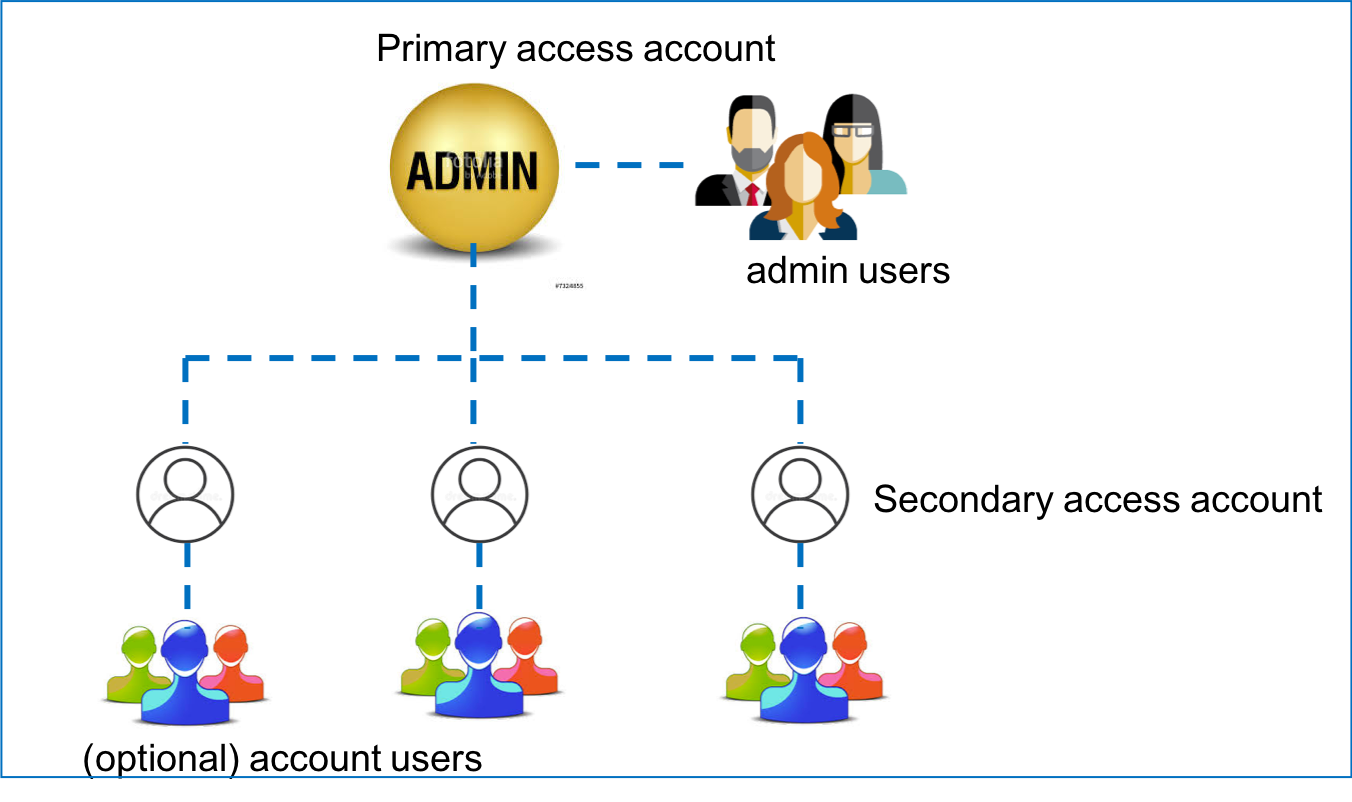
- Launch Aviatrix Gateways in the VPC/VNets that belong to this account.
- Add access accounts from other Cloud Service Providers. For example, if you launched your Aviatrix Controller through the Azure marketplace, your can add access accounts for AWS, GCP, and OCI.
- CoPilot UI
- Terraform
Setting Up Additional Access Accounts for Different Clouds
After you go through the onboarding process and create the primary access account, you can create additional Aviatrix access accounts on the Controller. This allows you to launch gateways and build connectivity across different cloud accounts. For example, if you create a primary access account in Azure, where you launched your Controller, you can add additional access accounts for AWS, GCP, and OCI.To launch an additional access account:- Go to your Aviatrix Controller > Accounts > Access Accounts.
- Click + Add New to create this new access account.
- Enter a unique account name: for example, BU-Group-3.
- Mark the radio button for the appropriate Cloud Service Provider. The fields below change based on which Cloud Service Provider you chose. See the following documents for more information on adding access accounts in each cloud:
- AWS access accounts
-
If you launched your Controller in Azure, GCP, or OCI, leave the IAM roles checkbox unmarked for any additional AWS access accounts, and provide an access key and secret instead. See AWS IAM Roles and Policies for why IAM roles do not work in this case.
- Azure access accounts
- GCP access accounts
- OCI access accounts
- Alibaba access accounts
- After entering the information required, scroll down and select any RBAC or permission groups this account should belong to.
- Click OK.
- The new access account is created.
- Now you can create connectivity between two VPC/VNets in different cloud accounts.
Account Audit
The Aviatrix Controller periodically checks the accounts it manages to make sure they are intact.For AWS Account Audit
If you need help, open a support ticket at the Aviatrix Support Portal.For Azure Account Audit
For the Azure account audit, the process audits the authentication details against the established Azure account credential setups. If the account audit fails, check the account authentication setups. See details in Azure Account Credential Setup.For GCP Account Audit
For the GCP account audit, the process audits the authentication details against the established GCP account credential setups. If the account audit fails, check the account authentication setups. See details in GCP Account Credential Setup.Account Audit Logs
You can download the full set of logs to audit user access activities:- Go to Administration > Audit page on the CoPilot UI.
- Select a desired time period. Then choose any filters as needed. Click Apply.
- Click the Download icon
