

Admin Users and Duo Sign in
Objectives
This document describes a reference design using the Aviatrix Controller console’s user management and Duo authentication capability to manage multiple users with admin privileges. As the cloud Ops team continues to expand to manage more cloud deployments, each team member often needs their own username and password with admin privilege. In addition to a username and password for login credentials, a 2FA authentication can be added for enhanced security to manage cloud Controller. Duo authentication is one of the supported methods. When enabled, it requires the user to accept a push message on the user’s mobile device from Duo service in addition to username and password at the user login time. The following diagram illustrates the user relationship in a typical cloud Ops department. In this example, the Ops team has created three secondary access accounts. An access account is associated with one or more distinct cloud provider’s API credentials. Typically, a cloud account corresponds to an IAM account of a distinct AWS and/or Azure account with a credit card. A default user “admin” is created by the system. In the picture below, admin has created three secondary access accounts. Additional users in admin and access account are added by the admin or admin users.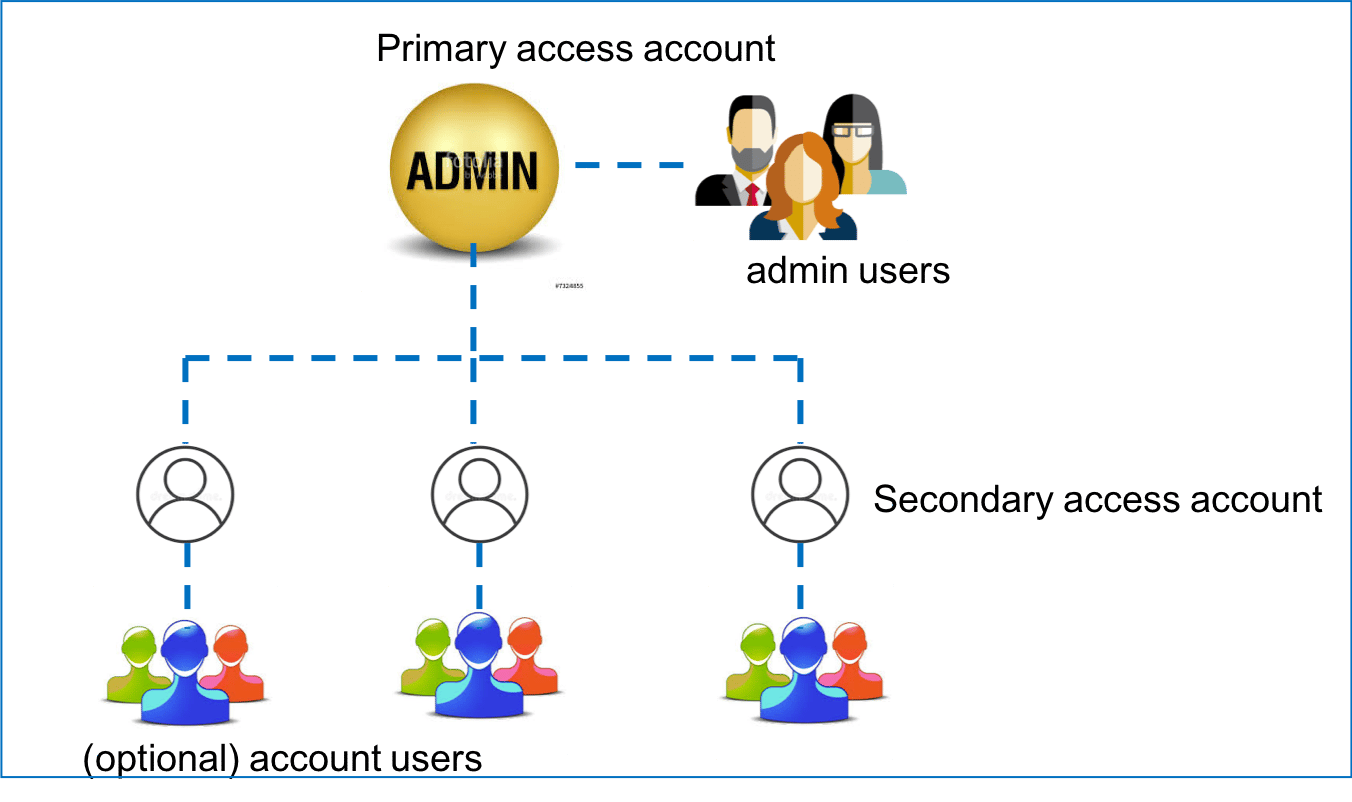
Configuration Workflow for Admin Users
Adding a New Admin User
The page can be found at Accounts > Account Users >+New User.
After the primary access account is created during onboarding, additional admin
users can be added from this page.
When an admin user is created, changed, or deleted, an email is sent to the
admin’s email address as a record for bookkeeping purposes. After the user is
added, the user can log in to the console with the specified username and
password. The user then has full access to the console like the admin. When the
user logs in to the console, the admin username will be displayed in the top
right corner.
Deleting an Admin User
The same page can be used to delete an admin user when the user leaves the group or the user role changes. After the delete button is clicked, a confirmation email is sent to the admin’s email address. Note that an admin cannot be deleted by himself or herself though the user has the full console access. Typically, the admin user is added or deleted by the special username admin.Changing an Admin User’s Password
The admin user’s password can be changed at the same page. An email notification is sent to the admin’s email address after the change is successfully done.Disabling an Admin Login
You need a local user with admin privileges to be created before you can
disable the “admin” account.
Controller > Login Customization. Click Disable to disable the admin login.