

Overview of Controller and Gateway Logging
The Aviatrix Controller and all of its managed gateways can be configured to forward their logs to well known log management systems. The Controller and all the managed gateways will forward the logs directly to the logging server. As such, the Controller and each managed gateway needs network connectivity to the logging server. Aviatrix supports using Remote Syslog (rsyslog) for forwarding log messages. Remote Syslog as the log forwarder is both efficient and the industry standard. Most log collectors support rsyslog as a log forwarder. Log data collected from Aviatrix Controller and all the managed gateways can be forwarded by Remote Syslog to your log server, such as to:- Datadog
- NetFlow
- AWS CloudWatch
The process the Gateways and Controller use for exporting their log files is
different in Controller software versions earlier than 7.0.1726. In addition,
the log file prefix previously included the log filename and log timestamp.
For details, see Field Notice
42.
Configuring Aviatrix to Send Logs to Your Log Server
For information about configuring Aviatrix Controller and its managed gateways to send logs to your log server, see the following topics:- Enabling Aviatrix Controller Logging
- Remote Syslog Configuration on Controller
- Remote Syslog Configuration on the Remote syslog Server
- Using Rsyslog with Datadog
Enabling Aviatrix Controller Logging
To enable logging at the Aviatrix Controller, go to Controller > Settings > Logging page. After setting the logging configuration in this page, you must click Enable for the configuration to be saved. After logging is enabled, both the Controller and all gateways will forward logs directly to the logging server.A total of 10 profiles from index 0 to 9 are supported for remote syslog, while index 9 is reserved for CoPilot.Newly deployed gateways will be added to a profile if it is the only profile
enabled in the index range of 0 to 8,If more than one profile is enabled in the range of 0 to 8, the newly deployed
gateway will not be added to any profile in the range of 0 to 8. You can use the
advanced options in the logging “Edit Options” window to edit the exclude and
include list.Newly deployed gateways will always be added to profile 9 which is reserved for
CoPilot to monitor.
Remote Syslog Configuration on Controller
On the Aviatrix Controller, go to Controller > Settings > Logging > Remote Syslog tile:- In Profile Index, select a profile to edit and then click the Status button to expand the configuration pane.
- Profile Name: The name of this profile.
- Server: FQDN or IP address of the remote syslog server
- Port: Listening port of the remote syslog server. By default, it is 6514.
- Server CA Certificate: Certificate Authority (CA) certificate
- Client Certificate: Client certificate signed by the same CA
- Client Private Key: Private key of the client that pairs with the public certificate
- Protocol: TCP or UDP (TCP by default)
- Optional Custom Template: Useful when forwarding to 3rd party servers like Datadog (Details below)
- Click ENABLE.
Remote Syslog Configuration on the Remote syslog Server
On the Remote syslog server:- Install rsyslog and rsyslog-gnutls packages
- Create a new config file in /etc/rsyslog.d with similar content as shown below depending on your rsyslog version to enable the tls connection. Please make sure key paths are readable by the syslog user.
- Make sure the output directory /var/log is writable by rsyslog user/daemon.
- Restart rsyslog service and check port is listening and that there are no errors in /var/log/syslog.
- Confirm the port is allowed in the security group / fireware for incoming traffic.
- Go to /var/log/aviatrix directory.
- Find the directory of the desired Controller or gateway:
- Controller’s directory name is in a format of
Controller-public_IP_of_controller - Gateway’s directory name is in a format of
GW-gateway_name-public_IP_of_gateway
- Controller’s directory name is in a format of
- Each controller/gateway directory should have:
- auth.log
- syslog
Format for CA Certificates from External Logging Servers
The Aviatrix Controller expects certificates in PEM format. Convert any certificates downloaded from your external logging server’s documentation into PEM format. Attempting to upload the wrong format may return an Exception Error.Using Rsyslog with Datadog
Go to Controller/Settings/Logging/Remote Syslog and enable the service.- Server: intake.logs.datadoghq.com
- Port: 10514
- Protocol: TCP
- For Optional Custom Template, copy the following string and replace the string DATADOG_API_KEY with your own key.
Aviatrix Log Formats
The Aviatrix Controller and all of its managed gateways can be configured to forward their logs to well known log management systems. This section describes Aviatrix log keywords that can be identified by log management systems for further analysis.Aviatrix Log Keywords
The following types of Aviatrix log keywords can be identified by the Log Management System for further analysis:- AviatrixVPNSession
- AviatrixUser
- AviatrixLicenseVPNUsers
- AviatrixRule
- AviatrixGwMicroSegPacket
- AviatrixGwNetStats
- AviatrixGwSysStats
- AviatrixFQDNRule
- AviatrixTunnelStatusChange
- AviatrixCMD
- AviatrixBGPOverlapCIDR
- AviatrixBGPRouteLimitThreshold
- AviatrixGuardDuty
- AviatrixFireNet
- AviatrixVPNVersion
- AviatrixGatewayStatusChanged
AviatrixVPNSession:
This log is for gateways that have VPN enabled. Logs with this prefix come from the Controller and contain information such as the VPN username, the VPN gateway IP address and name where the user connects to, client virtual IP address, connection duration, total received bytes, total transmitted bytes, and login and logout time. Two logs will be generated for each VPN connection. One is when the connection is established, the other when it is disconnected. Example logs: Connect Log:AviatrixUser:
This log is for gateways that have VPN enabled. Logs with this prefix come from each VPN gateway managed by the Controller. The log contains the information for the TCP session, such as inbound and outbound interface, source IP address, destination IP address, TTL value, protocol name, and packet length. The log record is for each packet that passes through the VPN connection from the client to the destination. Two example logs:AviatrixLicenseVPNUsers:
This log is for gateways that have VPN enabled. Logs with this prefix come from the Controller and can be used to monitor the license usage of active vpn users connected to all vpn gateways. One example log:There is a typo in some versions (as noted in the above example) that
incorrectly shows this entry as
AviatrixLicsenseVPNUsers instead of
AviatrixLicenseVPNUsers.AviatrixRule:
You need to configure security policies to see AviatrixRule log. Logs with this prefix come from each gateway managed by the Controller. Any packet that triggers the security policy rule will generate a log record of this type with the first 100 bytes of the packet. It contains the information such as gateway IP address, inbound and outbound interface, MAC address, TTL value, protocol name, source IP address, destination IP address and packet length. An example for a deny rule event is shown below. The log event prefix is “AvxRl gw1 D:”, where the gateway name is gw1, “D” represents Drop.AviatrixGwMicroSegPacket:
You need to configure Distributed Firewalling micro-segmentation policies to see AviatrixGwMicrosegPacket logs. Logs with this prefix come from your configured Distributed Firewalling micro-segmentation policies. These logs contain the following information:- timestamp
- source IP
- destination IP
- protocol (for example, ICMP or TCP)
- port number
- if a policy is enforced
- if a policy was allowed or denied
- gateway name
- policy ID
AviatrixGwNetStats:
Logs with this prefix come from each gateway managed by the Controller. These logs are sampled every minute and give details about gateway network interface. Two example logs:AviatrixGwSysStats:
Logs with this prefix come from each gateway managed by the Controller. These logs are sampled every minute and give details about gateway memory, cpu and disk load. Two example logs:AviatrixFQDNRule
You need to configure FQDN allow lists in order to see these logs. Logs with this prefix come from each gateway managed by the Controller. Domain name filtering can be configured per gateway via Controller. And every time a gateway tries to access a domain name, it will check if the domain name passes the configured filters. If it does, access will be allowed with the state as MATCHED, otherwise it will be discarded with state as NO_MATCH. Two example logs:AviatrixTunnelStatusChange
Logs with this prefix come from the Controller whenever a tunnel status changes. old_state means old state of the tunnel, and new_state is the new changed state of tunnel. Example log:AviatrixCMD
Logs with this prefix come from the Controller whenever a CLI command is issued. It contains information on the CLI command that was issued, the results of the execution, reason a message if there is a failure and who issued the command. Example log:AviatrixBGPOverlapCIDR
Log messages with this prefix come from the Controller whenever it detects overlapping CIDRs between on-prem learned and Spoke VPC CIDRs. Example log:AviatrixBGPRouteLimitThreshold
Log messages with this prefix come from the Controller whenever it detects that total BGP routes exceed the 80 routes. (AWS VGW has a total 100 route limit.) Example log:AviatrixGuardDuty
Log messages with this prefix come from the Controller whenever it receives an alert message from AWS GuardDuty. Example log:AviatrixFireNet
Log messages with this prefix come from the Controller whenever a firewall instance state changes. Example log:AviatrixVPNVersion
Log messages with this prefix come from the Controller whenever it rejects an Aviatrix VPN client connection. Example log:AviatrixGatewayStatusChanged
These log messages will be seen from the Controller’s syslogs when a gateway’s status changes Example log:AWS CloudWatch Integration
Only AWS gateways and Controllers are supported. Other cloud types are not
supported. AWS gateways created from an access account with an AWS secret key
and access key are not supported.
Configuring AWS CloudWatch
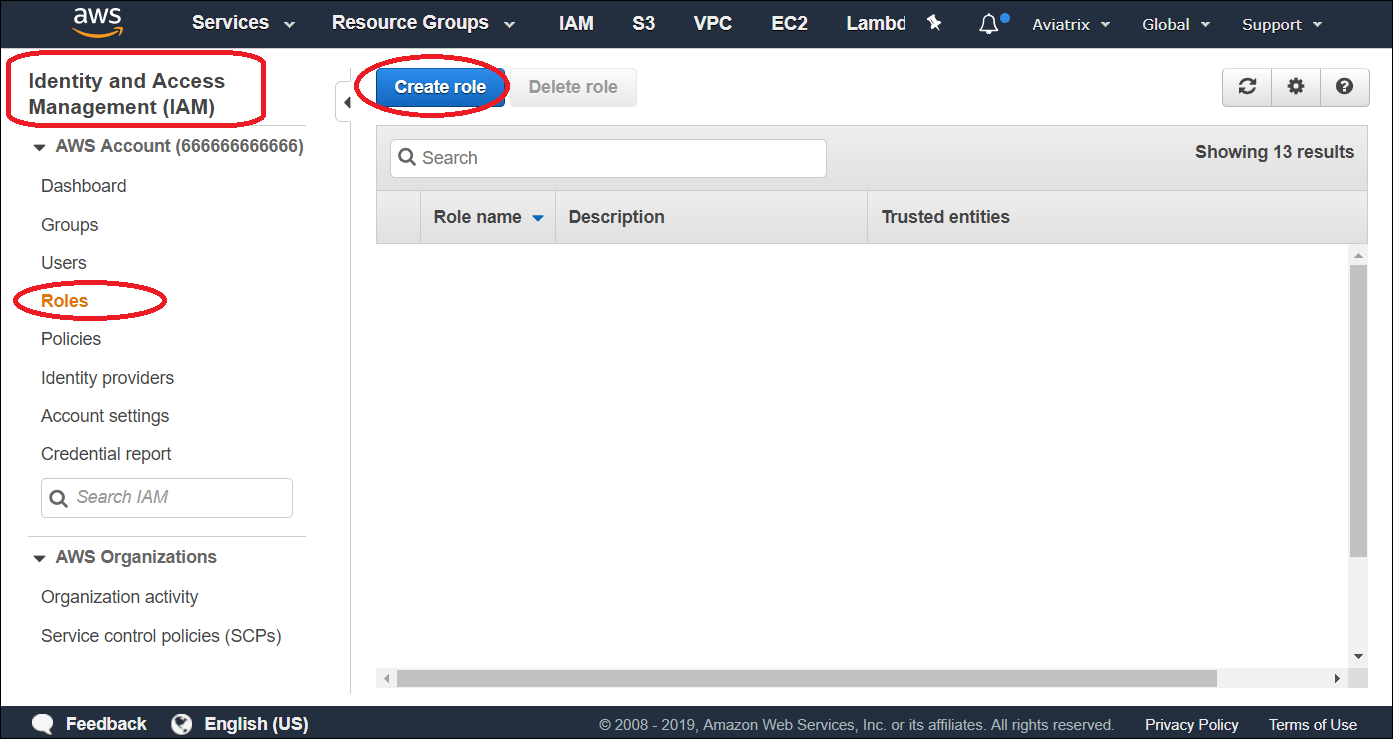
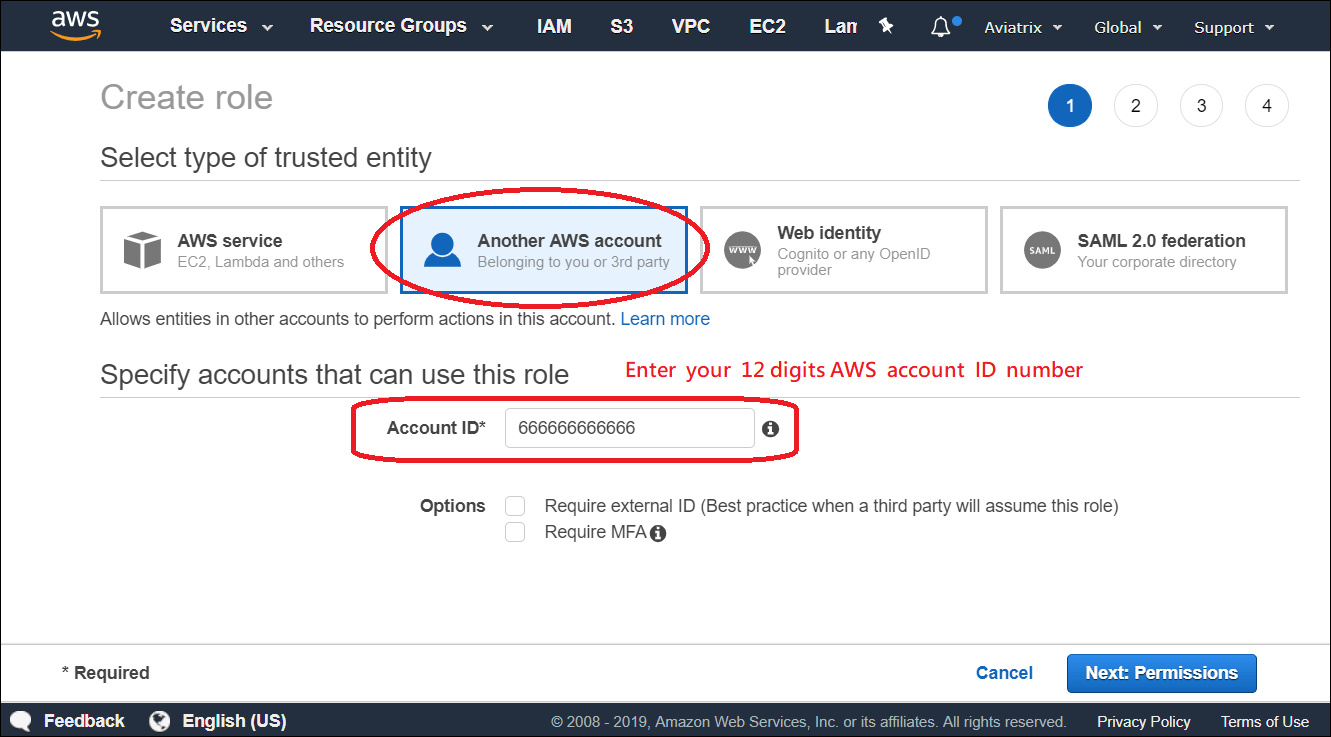
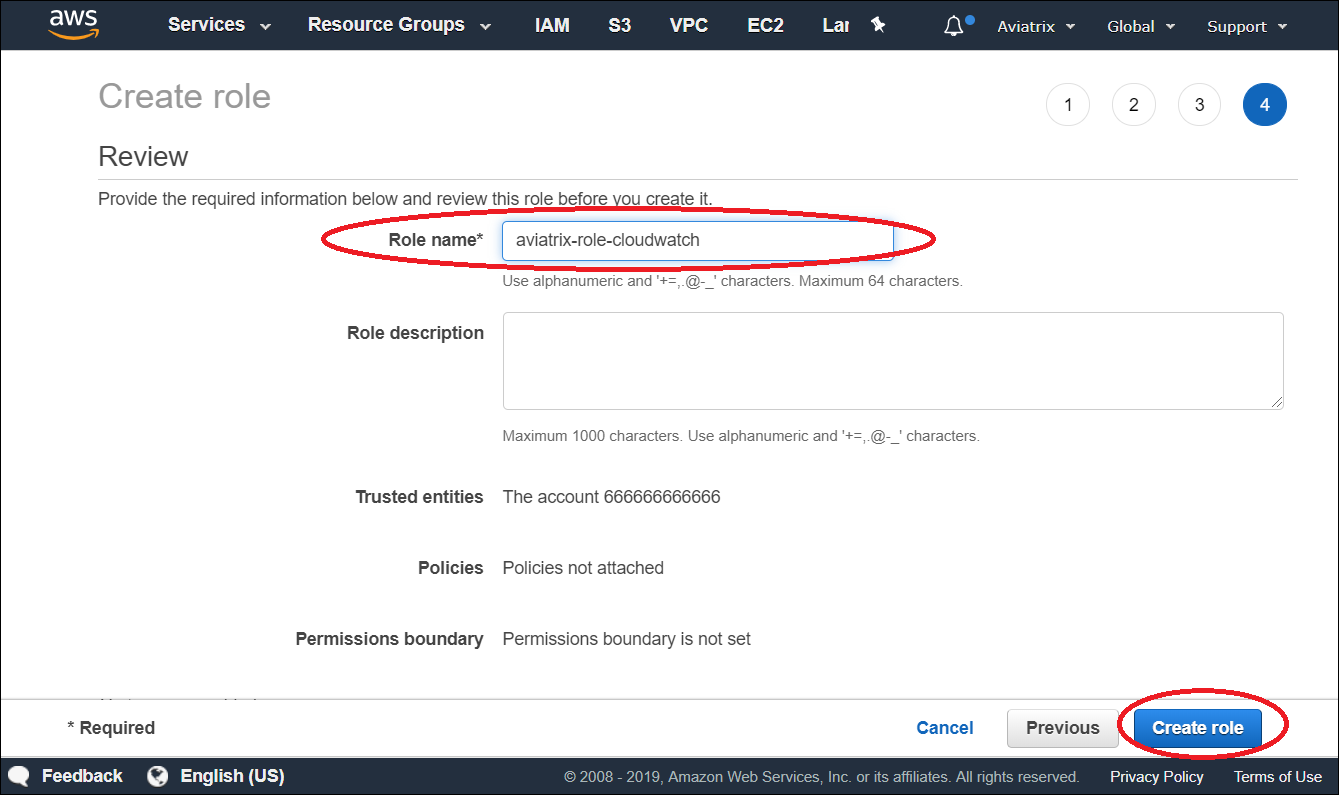
For Aviatrix Controllers and gateways in different AWS accounts to send/update logs to the collector’s AWS account, follow the instructions below to set up IAM role and policies on the collector’s AWS account.- Go to AWS console, create an IAM role with a name aviatrix-role-cloudwatch.
- Add Trust-Relationships for Aviatrix Controllers’ and all gateways’ AWS accounts. If you are already using CloudWatch for logs from all your AWS accounts, you may have already built the trust relationship between accounts. If this is the case, skip this step.
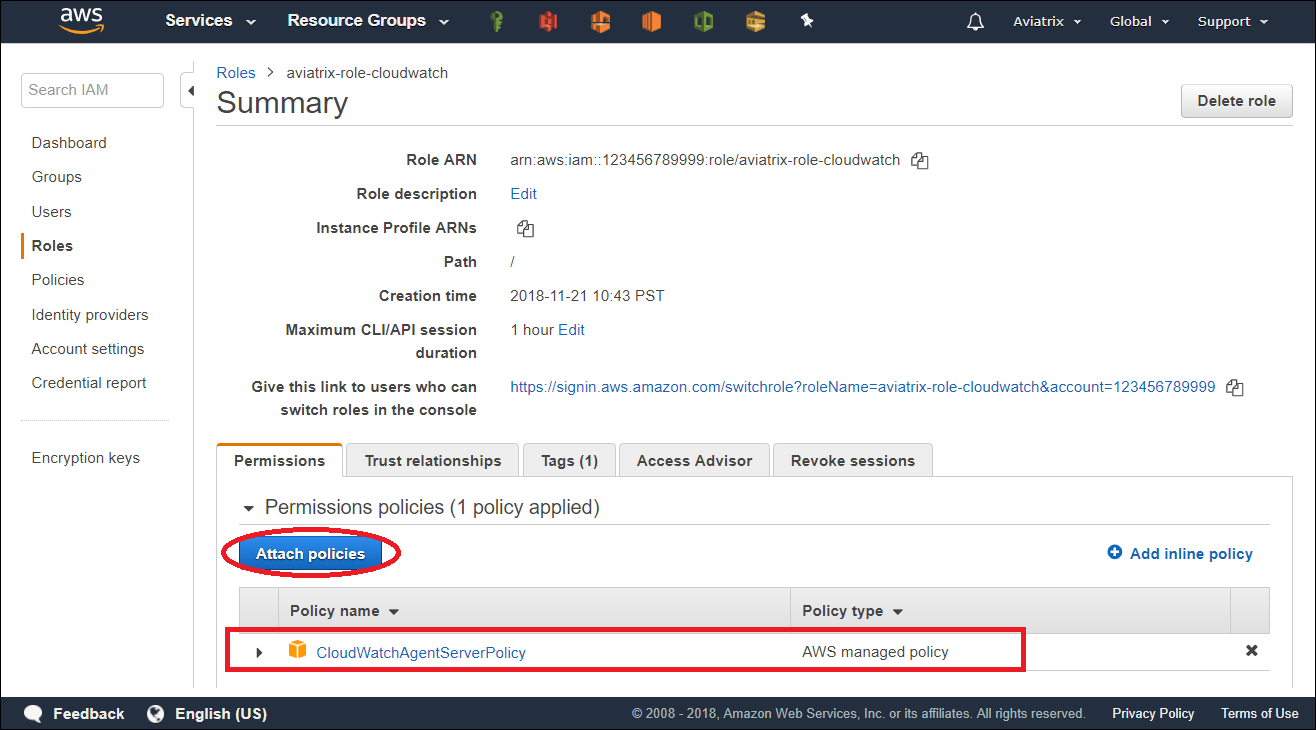
- Attach AWS IAM Cloudwatch policy to the role aviatrix-role-cloudwatch.
 b: Add Trust-Relationships for controllers and gateways AWS accounts

 c: Attach AWS IAM policy for “CloudWatchAgentServerPolicy” to the role
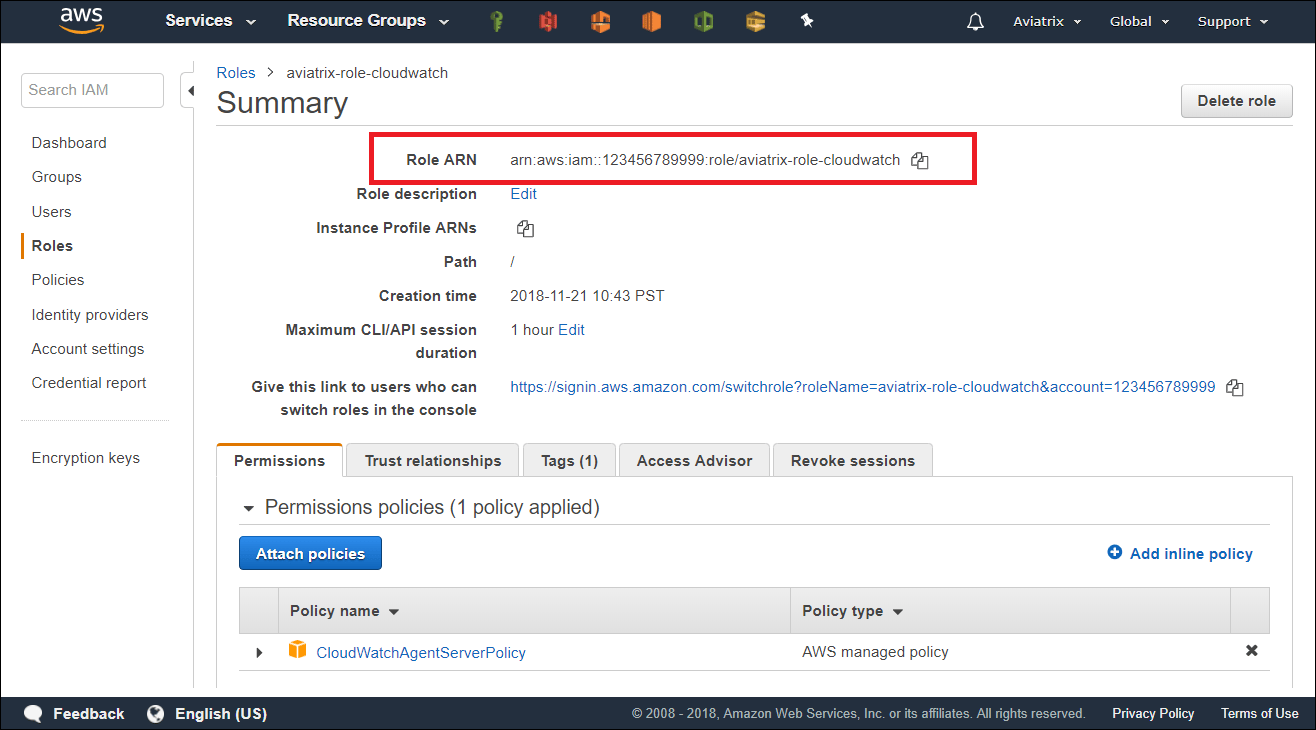
Enable CloudWatch log on the Controller
ARN of IAM role: Specify the ARN of the IAM role in the collector’s AWS
account. * Region: Specify which region you wish to store your logs.

Verifying your AWS CloudWatch integration
In AWS CloudWatch: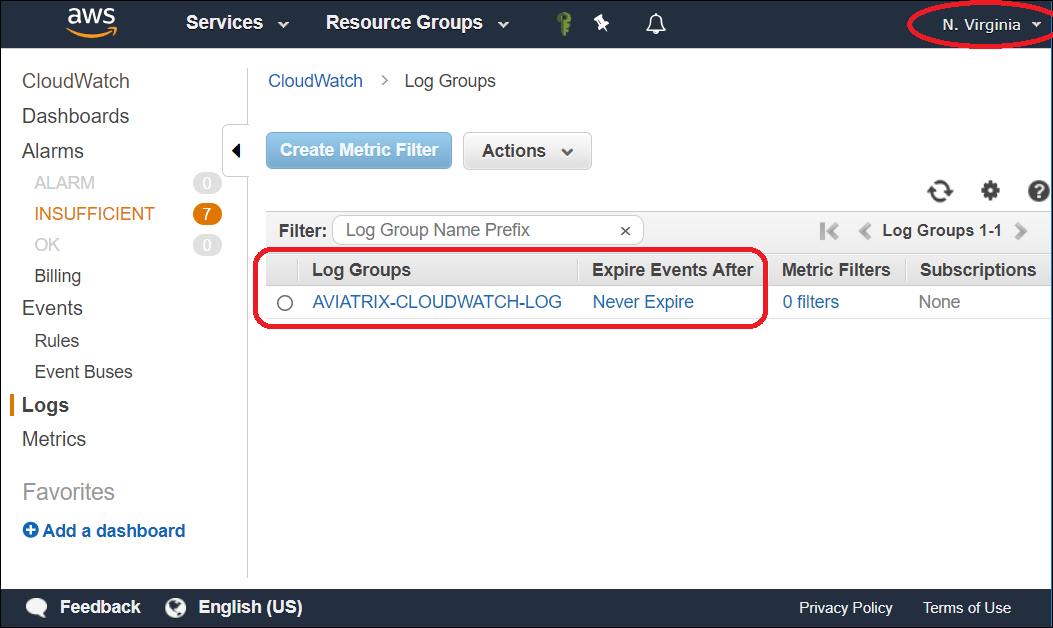
 To view the Aviatrix Controller’s and Gateways’ CloudWatch Service Status:
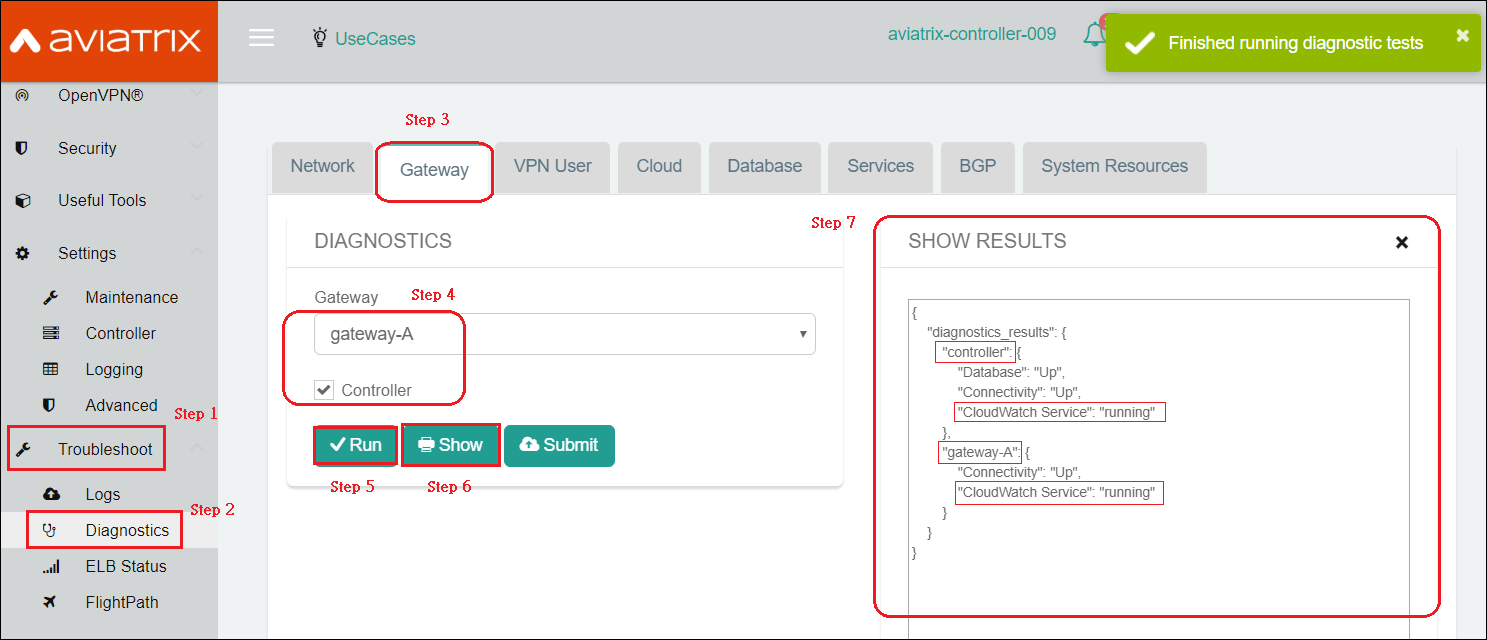
Logs from CloudWatch can be exported to S3 buckets. Please see the AWS
Documentation.