When you build your Aviatrix Multicloud Transit Network by launching Aviatrix Gateways and other constructs, Aviatrix CoPilot automatically draws a topology map that shows your current network environment. In Topology, you can search for any objects that are plotted. This allows you to quickly isolate and identify resources that you are looking for in your entire environment and across clouds. You can run diagnostics for individual gateways in your multicloud network directly from the topology map. Performing diagnostics from Topology can dramatically reduce the time spent troubleshooting issues. You can use views to show only the parts of your network environment you want to see. You can filter the views using the various properties of your managed resources.

Working with Topology

This section describes the Topology feature of Aviatrix CoPilot. Topology provides a visual representation of deployed networks (VPCs/VNets that contain VMs), gateways, instances, and gateway connections. From this map, you can also identify FireNet gateways, Edge gateways, external connections (S2C), and more. The New Topology Experience option is On by default, and the views on the Overview page described below relate to the New Topology Experience. If you turn this Off, you will see the Classic topology map (if the Old Topology Experiences toggle under Settings > Configuration > General is On). The Topology feature gives you visibility into your network as follows:
  • Network View (Overview page) You can access Network View from the menu options below the topology map on Topology > Overview. In Network View, CoPilot displays a network topology map that shows the logical and physical layout of how network resources are connected across multiple clouds. Topology provides a visual representation of deployed networks (VPCs/VNets), gateways, instances, and gateway connections. CoPilot automatically draws the map when it connects to Aviatrix Controller. In the right-hand pane, you can alter the content of the topology map by creating and saving views with selected filters, including latency. The Topology Overview displays both managed and unmanaged VPCs and VNets. However, only VPCs and VNets that contain VMs are included, so empty VPCs/VNets are not shown. A VPC/VNet can be marked as Aviatrix managed where:
    • Aviatrix managed = Yes — Indicates an Aviatrix gateway exists in the VPC/VNet.
    • Aviatrix managed = No — Indicates no Aviatrix gateways exist in the VPC/VNet.
  • Geo View (Overview page) You can access Geo View from the menu options below the topology map on Topology > Overview. In Geo View, CoPilot displays a geographical map that shows the regions of your managed network resources and their related connections. You can click on the regions to display their VPC/VNets. In Geo View, under Layers Control, you can modify the map to display VPC/VNets and geoblocked countries.
Geoblocking is a legacy feature and only available if you had it enabled prior to Controller version 7.2.4820. If Geoblocking is disabled (from Configuration > License tab) then the Geo Blocked Countries layer option is not available. Users with admin permissions and running on Controller version 7.2.4820 or earlier can enable the feature.
  • Transit View (Transit page)
    This view is deprecated. Using the New Topology Experience on the Overview page is recommended instead.
    Under Topology > Transit, CoPilot shows the topology of your Aviatrix transit network in relation to your deployed Aviatrix Transit Gateways. By clicking on the Aviatrix transit icon, you can see all the transit VPCs/VNets that are managed by Aviatrix Controller. By clicking on a region icon, you can see the spoke VPC/VNets that the Controller currently manages. By clicking on a spoke VPC/VNet, you can see all network constructs inside that spoke. You can use the search field to find specific resources.
  • Topology Replay (Replay page) In Topology Replay, CoPilot shows what changed in your environment and when it changed. CoPilot shows when route, credential, and other metrics in your cloud network constructs have changed over time. A timeline panel shows you all of the changes (as change sets) that were recorded over the last month. You can analyze the additions, modifications, and deletions recorded in each change set. You can delete change sets when you no longer need them.

Show Managed Resources by Using Filters

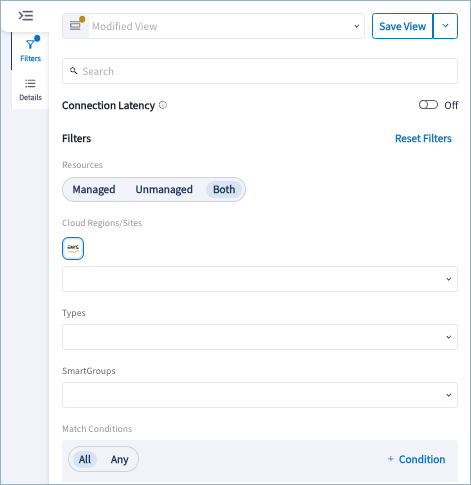
You can filter your network managed resources in the topology map to show only the resources you want. See Create a Topology View for details. In Cloud Fabric > Topology > Overview, you can filter the resources that display for Network View. image of filters pane Filters allow you to narrow your focus to only the resources you want to see. You can then save the selected filters as a View. See Create a Topology View for details. You can filter the topology map by using search and by selecting managed and unmanaged resources, CSP vendor and region, associated properties and tags, and conditions. You can use the Search tool to filter the Topology map by name, ID, type, etc. using letters, numbers, or characters. You can configure the following filter criteria:
FilterDescription
ResourcesManaged: shows VPCs/VNets and related resources that are managed by Aviatrix.

Managed VPCs and VNets have been onboarded to the Aviatrix Platform and contain Aviatrix resources.

Unmanaged: shows unmanaged VPCs/VNets and related resources.

Unmanaged VPCs and VNets have not been onboarded and therefore do not contain any Aviatrix resources.

Both: shows both of the above
Cloud Regions/SitesSelect one or more cloud providers: AWS or Azure

Select a region or regions that correspond with the selected cloud providers.
TypesSpoke VPC/VNet, Subnet, Virtual Machine (VM), Gateway VM
SmartGroupsSelect a previously created SmartGroup. You can enter multiple values for SmartGroups.
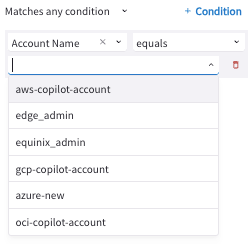
You can also filter by condition. When you select + Condition, you must select the following:
  1. Condition type
  2. Qualifier
  3. Value
image of the condition fields From the Condition Type field, you can choose a Properties or Cloud Tags condition type. These same properties are displayed on the Details pane when you select a resource in the map. For information about the properties you can filter on, see Topology Resource Property Reference. After you choose a condition type, two more fields display. You then select an operator to associate with the condition type, and enter or select a value in the third field.
If the operator requires text input for the value, you must press Enter to generate the map output.
You can add up to ten filter conditions.
Condition TypeOperator
PropertiesThe most common qualifiers are: contains, does not contain, equals, does not equal, starts with, does not start with, ends with, does not end with
Cloud TagsThe most common qualifiers are: contains, does not contain, equals, does not equal, starts with, does not start with, ends with, does not end with
Depending on the operator selected, different types of values can be selected. Some of the available options include the following:
  • Select or enter multiple values
  • Select true/false
  • Select a greater than/less than or equals/does not equal value
  • Select a contains/does not contain or starts with/ends with
  • Enter a time value (License Expiry, Launch Time)
You can save the selected filters as a reusable View.

Details Pane

When you click on a resource in the Topology map, you can view information about that resource in the Details pane on the right side of the page. details panel The Details pane has a Properties tab and a Resources tab. The content of these tabs changes depending on the resource selected. For lists and descriptions of the properties by selected resource, see Topology Resource Property Reference. The Properties tab includes information about the object you selected. The specific properties vary with the object selected, but can include details such as the name of the object, the CSP region it’s in, its public and private IP addresses, associated CIDRs (IPv4 and IPv6), the status, whether or not it’s Aviatrix-managed (onboarded), among others. The Resources tab shows the names and types of resources associated with the resource you select in the map. If you select an object in the Resources tab, the map adjusts to focus on that resource and the Properties tab displays for that resource.
Topology Resource Property Reference

The topology map’s supported filter fields include identifiers and tags for constructs, health, and status metrics. The filters also include associative properties like CSP Vendor and Region. This section describes the properties of managed resources you can filter on in the map for Transit Gateway VPC/VNets, Spoke Gateway VPC/VNets, AWS TGWs, and user instances (virtual machines).

Transit VPC/VNet Property Descriptions

You can filter your Transit VPC/VNet topology in the topology map using the following fields for Transit VPCs (innermost circle of the topology map).
Transit VPC/VNet PropertyDescription
Account NameThe CSP Account associated with this VPC.
CloudThe CSP that this VPC/VNet belongs to (AWS, Azure, etc.).
ManagedWhether or not this VPC is managed by an Aviatrix Gateway.
NameThe VPC’s name tag.
NAT GatewaysList of the VPC’s NAT Gateways.
Peer ConnectionsList of the VPC’s peer connections.
RegionThe CSP region where the VPC is located.
S2C (Site2Cloud) ConnectionsList of the VPC’s Site2Cloud tunnels.
TypeThe Topology construct type (in this case, VPC).
Virtual MachinesNumber of VM’s (instances) the VPC contains.
VPC/VNet CIDRList of the VPC/VNet’s CIDRs (IPv4 and IPv6).
VPC/VNet IDThe VPC/VNet’s unique identifier.

Spoke VPC/VNet Property Descriptions

You can filter your Spoke VPC topology in the topology map using the following fields for Spoke VPC/VNets (second from inner circle in the topology map).
Spoke VPC/VNet PropertyDescription
Account NameThe CSP Account associated with this VPC.
Cloud (not shown in list)The CSP that this VPC/VNet belongs to (AWS, Azure, etc.).
ManagedWhether or not this VPC is managed by an Aviatrix Gateway.
NameThe VPC’s name tag.
NAT GatewaysList of the VPC’s NAT Gateways.
Peer ConnectionsList of the VPC’s peer connections.
Region (in a different dropdown)The CSP region where the VPC is located.
S2C ConnectionsList of the VPC’s Site2Cloud tunnels.
TypeThe Topology construct type (in this case, VPC).
Virtual MachinesNumber of VM’s (instances) the VPC contains.
VPC CIDRList of the VPC’s CIDRs (IPv4 and IPv6).
VPC IDThe VPC’s unique identifier.

Transit Gateway Property Descriptions

You can filter your Transit Gateway topology in the topology map using the following fields for Transit Gateways virtual machines (second from outermost circle in the topology map).
Transit Gateway VM PropertyDescription
NameThe name of the instance.
TypeThe Topology construct type (in this case, VPC).
RegionThe CSP region in which the instance is located.
Instance IDID of the image from which the instance was built.
CloudThe CSP that this VPC belongs to (AWS, Azure, etc.).
Account NameThe CSP Account associated with this VPC.
VPC IDThe ID of the instance’s VPC.
VPC NameThe name of the instance’s VPC.
Subnet IDThe ID of the instance’s subnet.
Instance StatusDenotes whether the instance is running.
ManagedWhether this VPC is managed by an Aviatrix Gateway.

true = managed
false = unmanaged
Public IPThe public IP of the instance.
Private IPThe private IP of the instance (IPv4 and IPv6).
Public DNS NameThe public DNS name of the instance.
Private DNS NameThe private DNS name of the instance.
Launch TimeThe timestamp when the VM (Gateway in this case) was launched.
Public IPThe Public IP of the instance (IPv4 and IPv6).
Instance SizeThe size of the instance (e.g. “t2.micro,”).
HypervisorThe instance’s hypervisor.
KernelThe Linux kernel version of the Gateway instance.
TagsThe resource tags associated with this gateway.
High Performance Encryption ModeWhether the gateway has high performance encryption active.
Source NATDenotes whether Source NAT is active on this gateway.
Associated GatewayThe Aviatrix Gateway with which this VM is associated.
License ExpiryThe timestamp when the gateway’s license expires.
License IDThe unique identifier of the instance’s license.
Stateful FirewallDenotes whether stateful firewall rules are enabled or disabled on the gateway.

Spoke Gateway Property Descriptions

You can filter your Spoke Gateway topology in the topology map using the following fields for Spoke Gateways virtual machines (second from outermost circle in the topology map).
Spoke Gateway VM PropertyDescription
NameThe name of the instance.
TypeThe Topology construct type.
RegionThe CSP region in which the instance is located.
Instance IDID of the image from which the instance was built.
CloudThe CSP of the VPC.
Account NameThe CSP Account associated with this VPC.
VPC IDThe ID of the instance’s VPC.
VPC NameThe name of the instance’s VPC.
Subnet IDThe ID of the instance’s subnet.
Instance StatusDenotes whether the instance is running.
ManagedWhether this VPC is managed by an Aviatrix Gateway.
* true = managed
* false = unmanaged
Public IPThe Public IP of the instance.
Private IPThe private IP of the instance (IPv4 and IPv6).
Public DNS NameThe Public DNS name of the instance.
Private DNS NameThe Private DNS name of the instance.
Launch TimeThe timestamp when the VM (Gateway in this case) was launched.
Public IPThe Public IP of the instance (IPv4 and IPv6).
Instance SizeThe size of the instance (e.g. “t2.micro,”).
HypervisorThe instance’s hypervisor.
KernelThe Linux kernel version of the Gateway instance.
TagsThe resource tags associated with this gateway.
High Performance Encryption ModeWhether the gateway has high performance encryption active.
Source NATDenotes whether Source NAT is active on this gateway.
Associated GatewayThe Aviatrix Gateway with which this VM is associated.
License ExpiryThe timestamp when the gateway’s license expires.
License IDThe unique identifier of the instance’s license.
Stateful FirewallDenotes whether stateful firewall rules are enabled or disabled on the gateway.

External Connection Property Descriptions

You can filter your Site2Cloud external connection topology using the following fields (outermost circle on the topology map).
External Connection PropertyDescription
NameThe name of the external connection.
TypeThe Topology construct type (in this case, external connection).
CloudThe cloud that the external connnection belongs to (AWS, Azure, etc.).
StatusDenotes whether the external connection is running.
Remote CIDRThe CIDR of the external device.
Associated GatewayThe Aviatrix Gateway with which this external connection is associated.
Tunnel TypeThe configured tunnel, such as Spoke_BGP, Site2Cloud, etc.
Auth TypeAuthentication type, if applicable.
IKE VersionInternet Key Exchange (IKE) protocol version, if applicable.

AWS TGW Property Descriptions

You can filter your AWS TGW topology in the topology map using the following fields for AWS TGWs (innermost circle on the topology map).
AWS TGW PropertyVPC/VNet CIDR Description
NameThe name of the AWS Transit Gateway.
Account NameThe Aviatrix account that corresponds to an IAM role or account in AWS.
RegionOne of the AWS regions.
AWS TGW ASNTGW ASN number. The default AS number is 64512.
AWS TGW CIDRThe TGW CIDR ranges.
Instance IDID of the image from which the AWS TGW was built.

User Virtual Machine Property Descriptions

You can filter your Virtual Machine topology in the topology map using the following fields for user virtual machines that are in Aviatrix-managed VPCs/VNets (second from outermost circle on the topology map).
User Virtual Machine PropertyDescription
Account NameThe CSP Account associated with this VPC.
Associated GatewayThe Aviatrix Gateway with which this VM is associated.
CloudThe CSP that this VPC belongs to (AWS, Azure, etc.).
HypervisorThe instance’s hypervisor.
Image IDID of the image from which the instance was built.
Instance IDID of the image from which the instance was built.
Instance SizeThe size of the instance (e.g. “t2.micro,”).
KernelThe Linux kernel version of the Gateway instance.
Launch TimeThe timestamp when the VM (Gateway in this case) was launched.
NameThe name of the instance.
Private IPThe private IP of the instance (IPv4 and IPv6).
Private DNS NameThe Private DNS name of the instance.
Public DNS NameThe Public DNS name of the instance.
Public IPThe Public IP of the instance (IPv4 and IPv6).
RegionThe CSP region in which the instance is located.
StatusDenotes whether the instance is running.
Subnet IDThe ID of the instance’s subnet.
TypeThe Topology construct type (in this case, Virtual Machine).
VPC IDThe ID of the instance’s VPC.
VPC NameThe name of the instance’s VPC.

Subnets Property Descriptions

You can filter your Subnet topology in the topology map using the following fields for subnets that are Aviatrix-managed (third from outermost circle on the topology map).
Subnet PropertyDescription
Account NameThe CSP Account associated with this VPC.
CloudThe CSP that this VPC belongs to (AWS, Azure, etc.).
Interface IDThe ID of the gateway interface the subnet is on.
NameThe name of the subnet.
RegionThe CSP region in which the instance is located.
Subnet CIDRThe CIDR of the subnet.
Subnet IDThe ID of the instance’s subnet
TypeThe Topology construct type (in this case, Subnet).
VPC IDThe ID of the instance’s VPC.
VPC NameThe name of the instance’s VPC.

Edge Site Property Descriptions

You can filter your Edge Site topology in the topology map using the following fields for Edge Sites (innermost circle on the topology map).
Edge Gateway PropertyDescription
NameThe name of the Edge site.
TypeThe topology construct type (in this case, Edge Site).
Account NameThe account associated with this Edge Site.
CloudThe CSP that the Edge Site belongs to (self-managed, Equinix, Megaport).
Site IDSite name for the Edge Gateway
StatusUp or Down
ManagedAviatrix managed = True or False
S2C ConnectionThe name of the Site2Cloud Connection, if one exists

Edge Gateway Virtual Machine Property Descriptions

You can filter your Edge Gateway topology in the topology map (second from outermost circle on the topology map), by using the following fields.
Edge Gateway VM PropertyDescription
NameThe name of the Edge Gateway.
TypeThe topology construct type (in this case, Virtual Machine).
Instance IDID of the image from which the instance was built.
CloudThe CSP that the Edge Gateway belongs to (self-managed, Equinix, Megaport).
Account NameThe CSP account associated with this Edge Gateway.
Site IDSite name for the Edge Gateway
Subnet IDID for the subnet
Instance StatusUnknown/No
ManagedAviatrix managed, True/False
Public IPWAN interface IP (IPv4 and IPv6)
Private IPPrivate IP address (IPv4 and IPv6)
High PerformanceYes/No
Source NATTrue/False

Edge External Connection Property Descriptions

You can filter your Edge External Connection topology in the topology map (second from outermost circle on the topology map), by using the following fields.
Edge Gateway VM PropertyDescription
NameThe name of the Edge Gateway.
TypeThe topology construct type (in this case, Virtual Machine).
CloudThe CSP that the Edge Gateway belongs to (self-managed, Equinix, Megaport).
VPC/VNet NameThe name of the associated Edge Site.
StatusUp/Down
Remote CIDRThe CIDR of the external device.
Associated GatewayThe Edge Gateway with which this VM is associated.
Tunnel TypeThe configured tunnel, such as Spoke_BGP, Site2Cloud, etc.
Auth TypeAuthentication type, if applicable.
IKE VersionInternet Key Exchange (IKE) protocol version, if applicable.
ManagedAviatrix managed, True/False
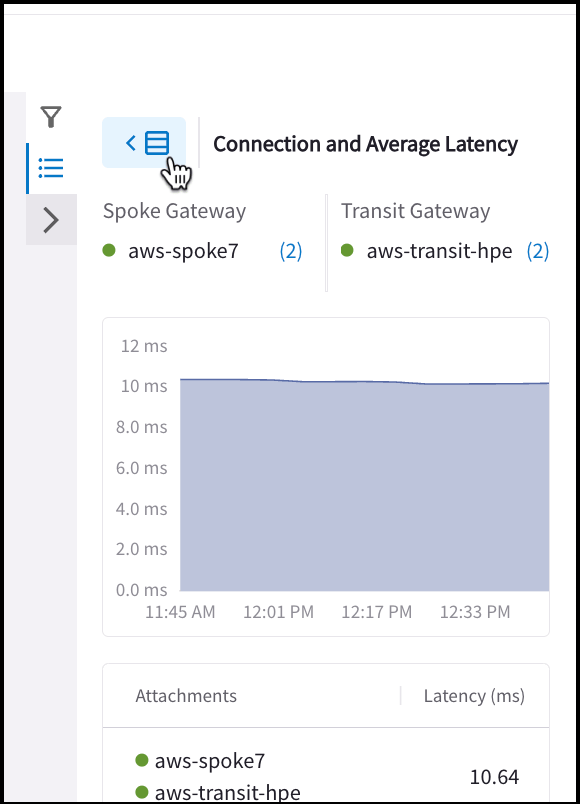
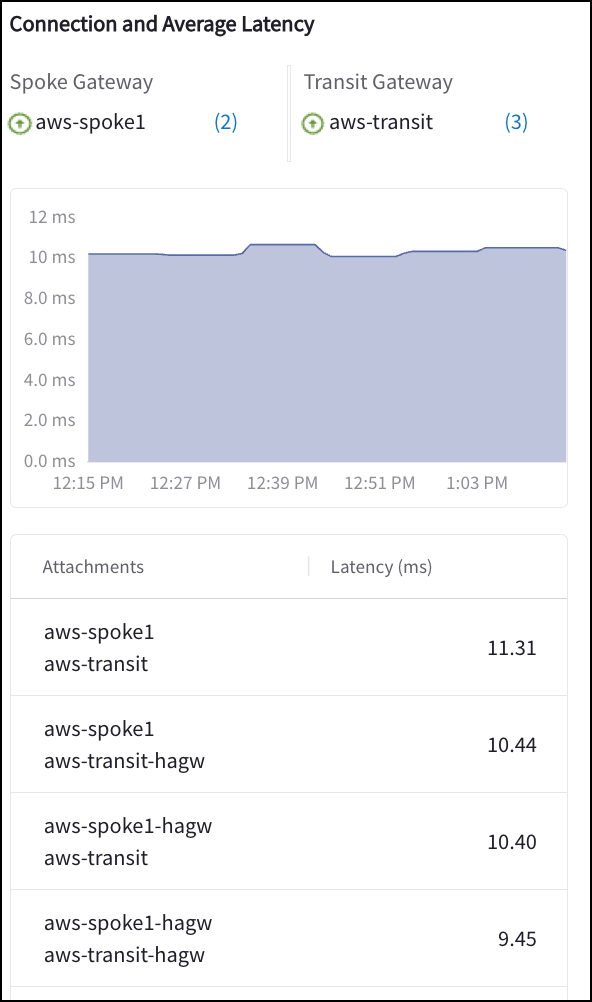
In Cloud Fabric > Toplogy > Overview (New Topology Experience), you can click the links between resources to show the Connection and Average Latency information.

Viewing a Map of Your Network Topology

When you build your Aviatrix Multicloud Transit Network by launching Aviatrix Gateways and other constructs, Aviatrix CoPilot automatically draws a map to show your current network topology. To view the topology map, go to Cloud Fabric > Topology or type Topology in the navigation search. The Network View is displayed by default. You can filter the topology map on multiple fields to show only the gateways and constructs you want to see in your network. You can save the conditions to create a topology filter.

Topology Map (New Topology Experience)

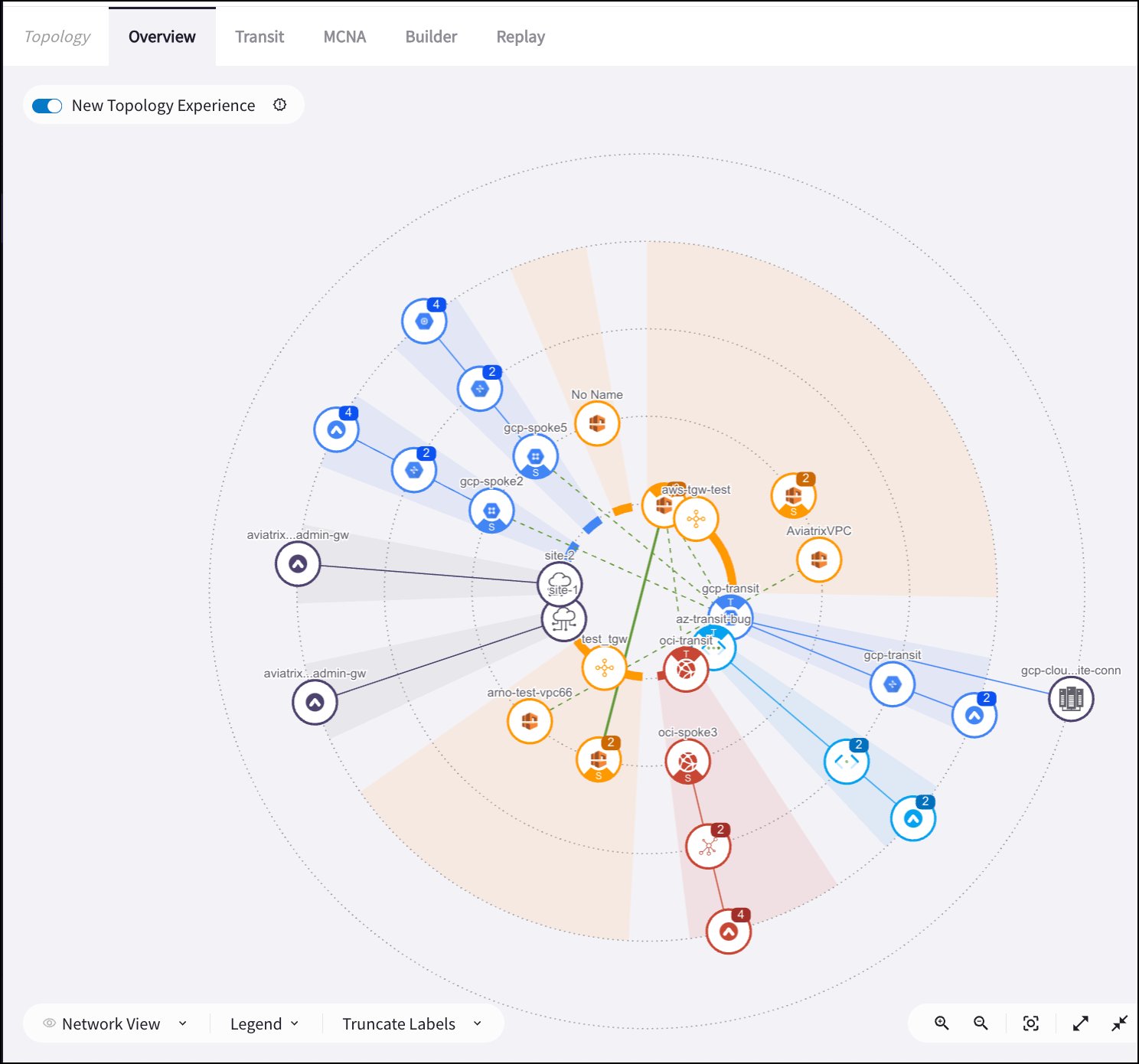
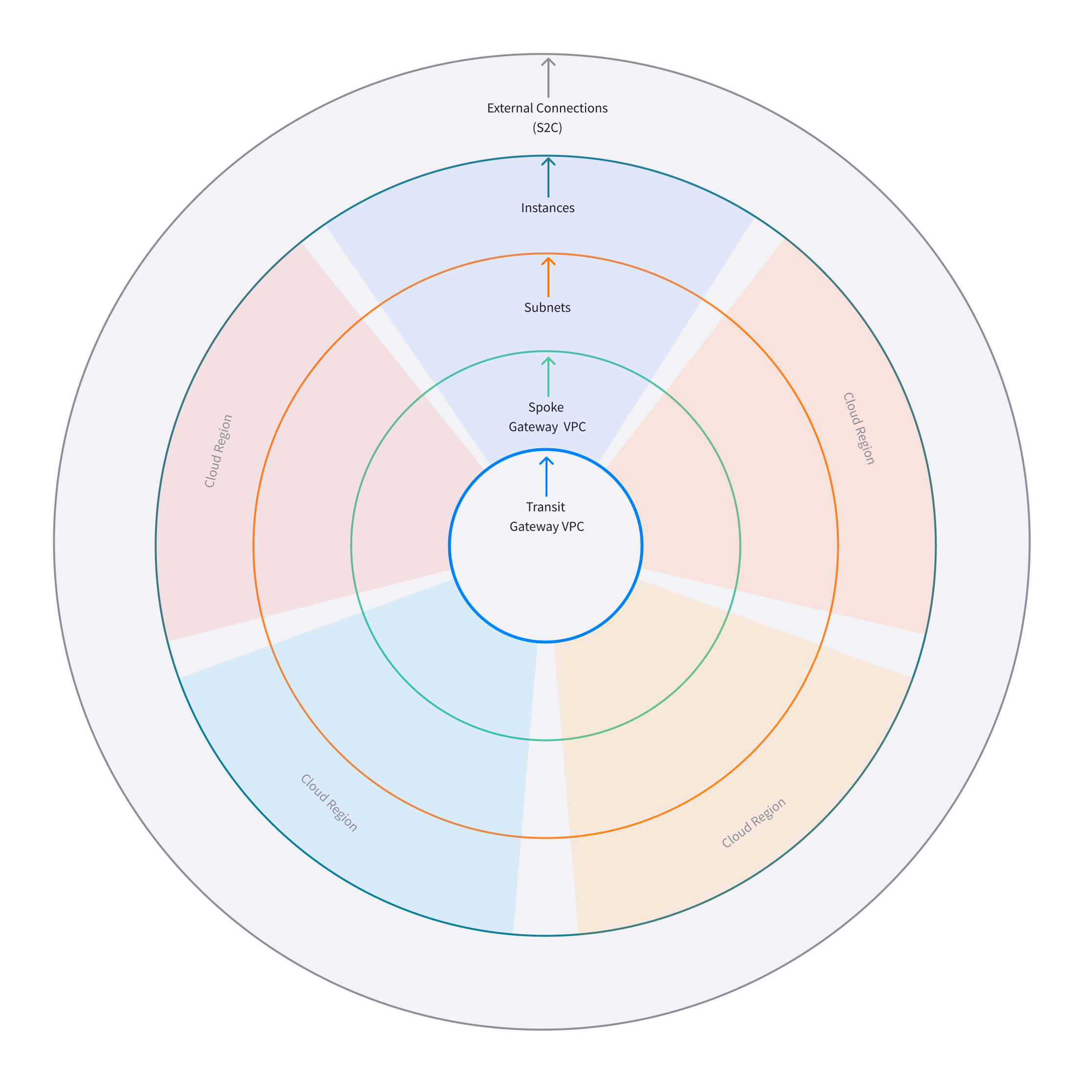
In CoPilot release 3.0.1, a new topology map was introduced (Topology New Experience). The new map can display larger network topologies. Use the toggle at the top of the map to switch between the New Topology Experience and the old map. The illustration below shows the network constructs that are laid out in the five circles of the topology map (Network View). The following resources are placed on the circle working from the outermost circle to the innermost circle:
  1. External Connections (S2C) (outermost circle)
  2. Instances (Virtual Machine instances for Transit, Spoke, and Edge Gateways, and User VM)
  3. Subnets
  4. Spoke Gateway and Edge Site VPC/VNets
  5. Transit Gateway and Edge Site VPC/VNets (innermost circle)
The following illustration shows a topology map populated with nodes that represent the constructs in the network architecture: You can apply any number of filters to search for resources in the map. You can also use the icons below the map to expand or collapse all VPCs and VNets.
If you do not see resources you expect to see represented in the map, expand the VPCs/VNets and check the filter settings.
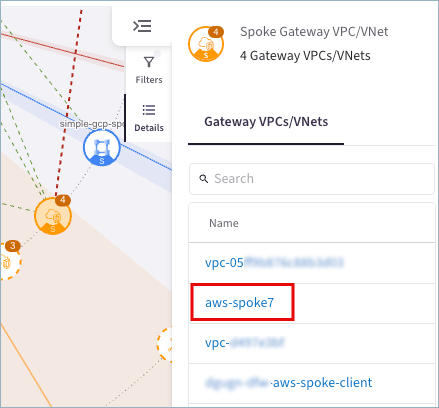
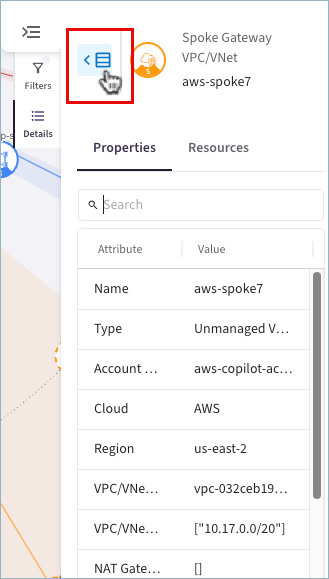
If you click any badge in the Topology map that has grouped entities, hyperlinks for each entity display in the details panel. You can click the hyperlinks to display details for an entity. After you are finished you can click the icon in the upper left of the panel to go back to the previous view.

Topology Legend

Network View

The topology legend in the Network View shows what the colored lines and icons in the Topology indicate. The colored lines in the Topology map (Network View) denote the following:
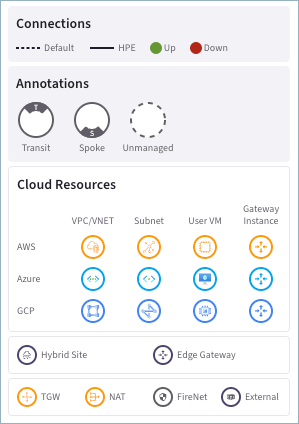
  • Green solid line: the attached gateways have Max Performance enabled, and the connection is up.
  • Green dotted line: there is a peering or gateway attachment connection between the two gateways and the connection is up.
  • Red solid line: the attached gateways have Max Performance enabled, and the connection is down.
  • Red dotted line: there is a peering or gateway attachment connection between the two gateways and the connection is down. If you click this connection you see a No data found message.
Move your cursor over the connections to see the connection endpoints. Click on the connections to open a side panel with details. The colored badges represent the various cloud providers, resource types, Edge resources, FireNet gateways, and unmanaged assets. User VMs are virtual machines that are not associated with a gateway. They display as Virtual Machine in the Topology. Gateways display as Gateway Virtual Machine in the Topology. Unmanaged assets are VPC/VNets and their related resources that do not contain any Aviatrix gateways.

Geo View

The topology legend in the Geo View shows what the colored lines and icons in the topology indicate. The colored lines in the Geo View map indicate:
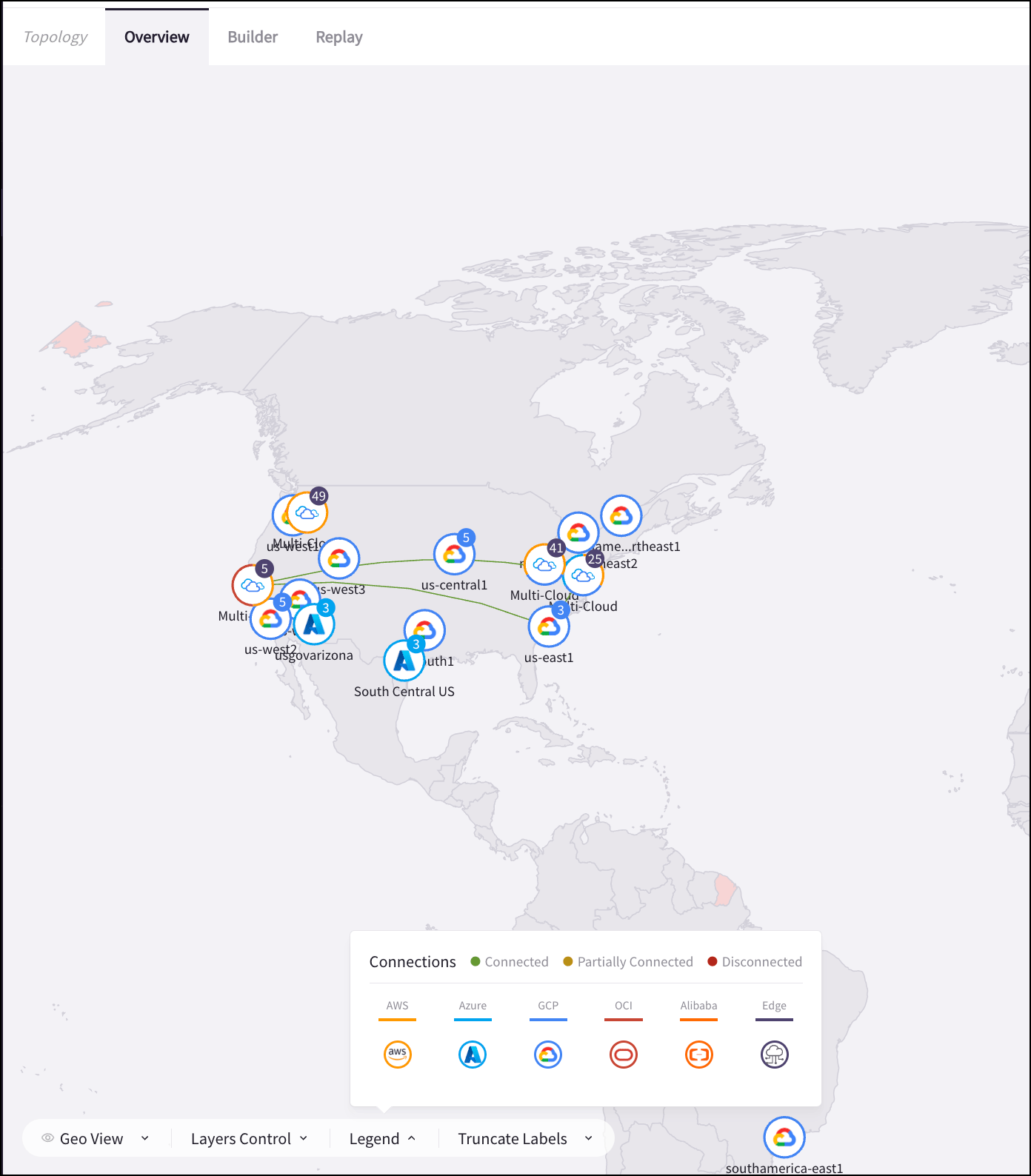
  • Green solid line: all the connections between the regions are up.
  • Orange solid line: some connections between the regions are up, and others are not.
  • Red solid line: all connections between the regions are down.

Topology Map Controls

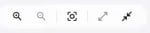
The following shows the zoom-in, zoom-out, node-expand, and node-collapse topology controls. For large topologies that have many constructs, you can zoom in to the map for selection of granular nodes to display their properties. For smaller monitors, you can zoom out of the map to better see the external connections in the outermost circle. By default, all nodes for your constructs are plotted on the map when you open the Topology page. You can show or hide all subnets and instances under VPC/VNets in your map by using the expand-node and collapse-node controls. You can also show, hide, or truncate labels in the Topology map.
Access Gateway VM Details from Topology Map

In Network View, when you select a Gateway Virtual Machine (in the second from outermost circle), options display below Properties in the side panel.
  • Click View Gateway to open Cloud Fabric > Gateways with details about the Gateway.
  • Click Tools > Gateway Diagnostics to run relevant diagnostics on the selected instance.
These options display only when you select individual, not grouped, gateway VMs in the Topology map. You either drill down into the Topology map or click the hyperlinks in the side panel before the options display.

Viewing Connections in the Topology Map

Gateways that have a peering connection (Transit-Transit, Transit-Spoke, Spoke-Spoke), or a gateway attachment connection (such as Specialty Gateways) show a green or red solid or dotted connection between them. Move your cursor over the connections to see the connection endpoints. Click on the connections to display the Connection and Average Latency details in the right pane. The table below the average latency graph shows the attachments for the connected gateways and the latency between them in milliseconds (ms). Connections for Transit-Spoke/Spoke-Spoke peerings are merged when you zoom out on the Topology (make sure no filter criteria are applied). You can click on the connection while zoomed out to open a panel with details about the connection.
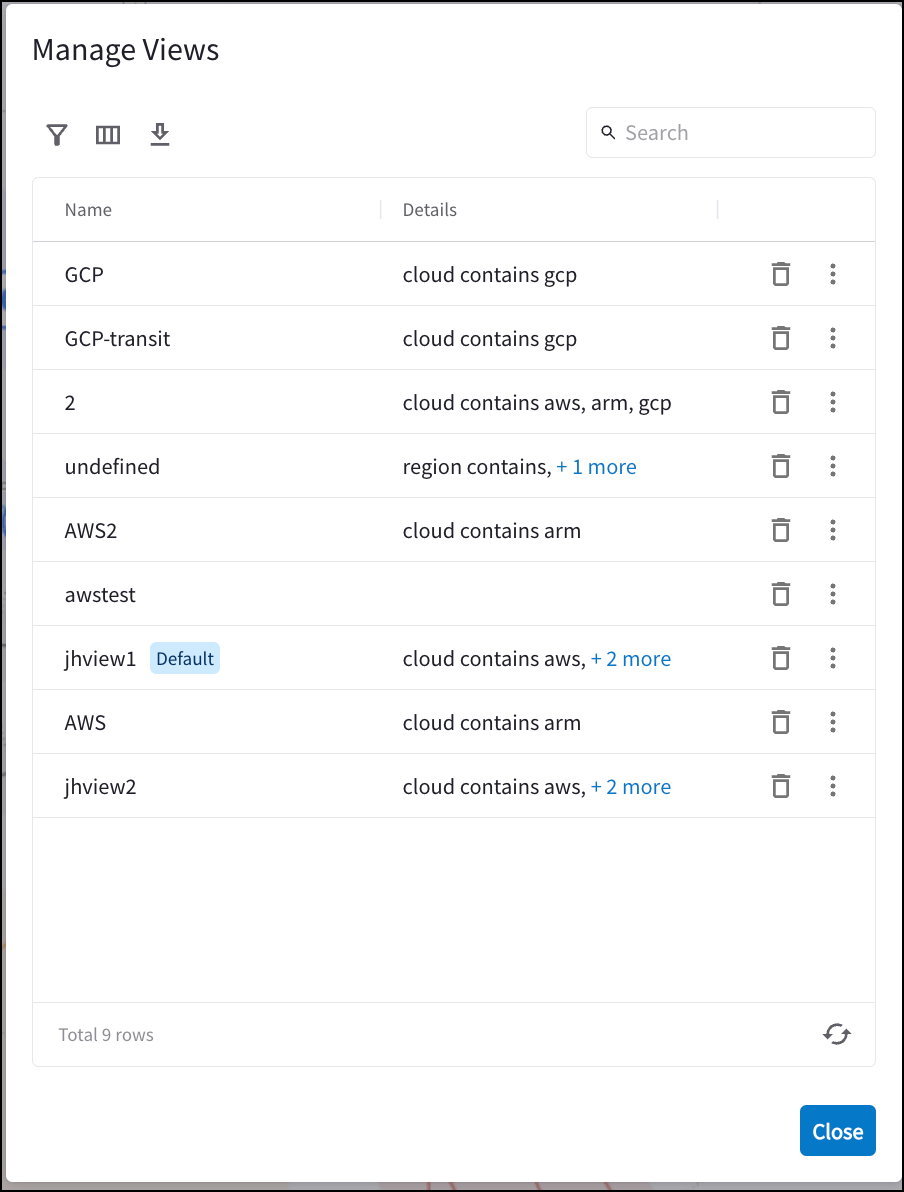
Setting the Default Topology View

If you have created and saved any Topology views, you can make one of these views the default. On the Topology Network View (New Topology Experience), expand the Views drop-down and select Manage Views. The Manage Views dialog displays. Click the vertical ellipsis next to the view that you want to use as the default. Click Set as Default View. Click Close. In the Manage Views dialog, you can also remove a view as the default, or delete the view entirely.