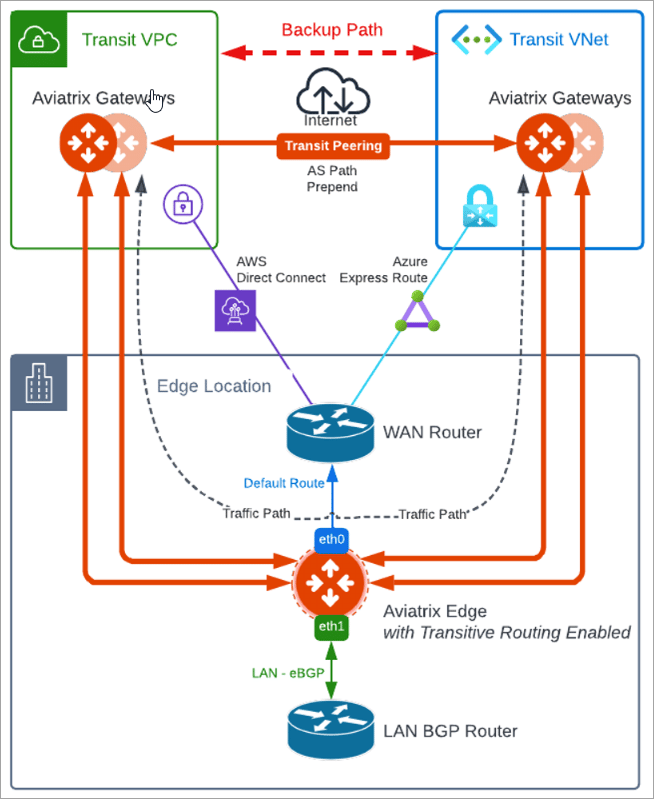
Configuring Transit Peering over Public Network with Edge Spoke Gateway
To create Transit Peering over public network, follow these steps.-
Ensure that you have AS numbers configured on both Transit Gateways.
- In Aviatrix CoPilot, go to Cloud Fabric > Gateways > Transit Gateways tab.
- Select the Transit Gateway in one cloud service provider.
- In the Transit Gateway’s Settings tab, expand the Border Gateway Protocol (BGP) section.
- Ensure the Local AS number is configured, and click Save.
Make note of this AS number to use later to set AS Path Prepend.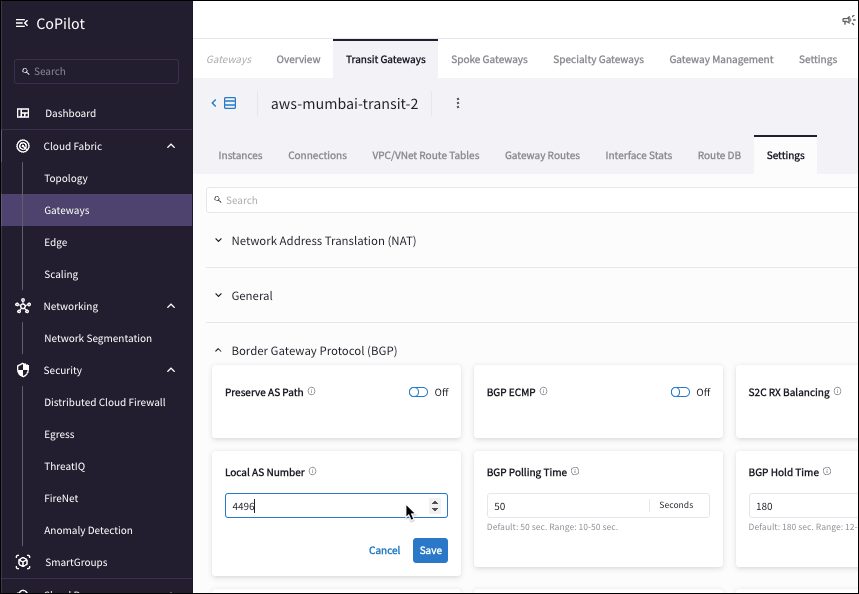
- Repeat Step 1 to set the Local AS Number for the other Transit Gateway in another cloud service provider.
-
Peer the Transit Gateways.
- Go to Cloud Fabric > Gateways > Transit Gateways tab.
- Locate the Transit Gateway in one cloud service provider and click the Edit icon.
- In Edit Transit Gateway, from the Peer To Transit Gateways dropdown list, select the Transit Gateway in the other cloud service provider and click Save.
- Both Transit Backbone VNE/VPCs need to match configuration. * You cannot peer non-HA Transit Gateway with another Transit Gateway in HA mode.
-
Set the AS Path Prepend.
- Go to Cloud Fabric > Gateways > Transit Gateways tab.
- Select the Transit Gateway where you want to set Prepend.
- In the Transit Gateway’s Settings tab, expand Border Gateway Protocol (BGP) section.
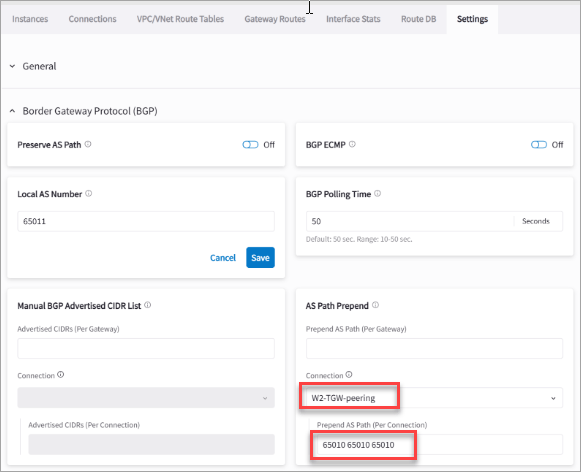
- Scroll down to AS Path Prepend, and select the Transit Peering connection name. You can configure per connection or per gateway (all connections).
- In Prepend AS Path (Per Connection) field, input the Transit Gateway Local AS Number three times separated by space.
-
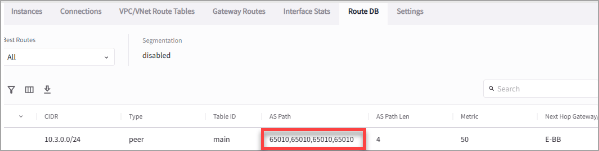
To view the AS Prepended routes:
- Go to Cloud Fabric > Gateways > Transit Gateways tab.
- Select the Transit Gateway where you set the As Path Prepend.
- Click the Transit Gateway’s Route DB tab to view the prepended routes.