- General
- License
- Logging Services
- Telemetry Export
- Private Mode
- Certificate Store
Purpose
The General tab displays and changes general CoPilot system settings, including security, feature, and advanced settings.Elements
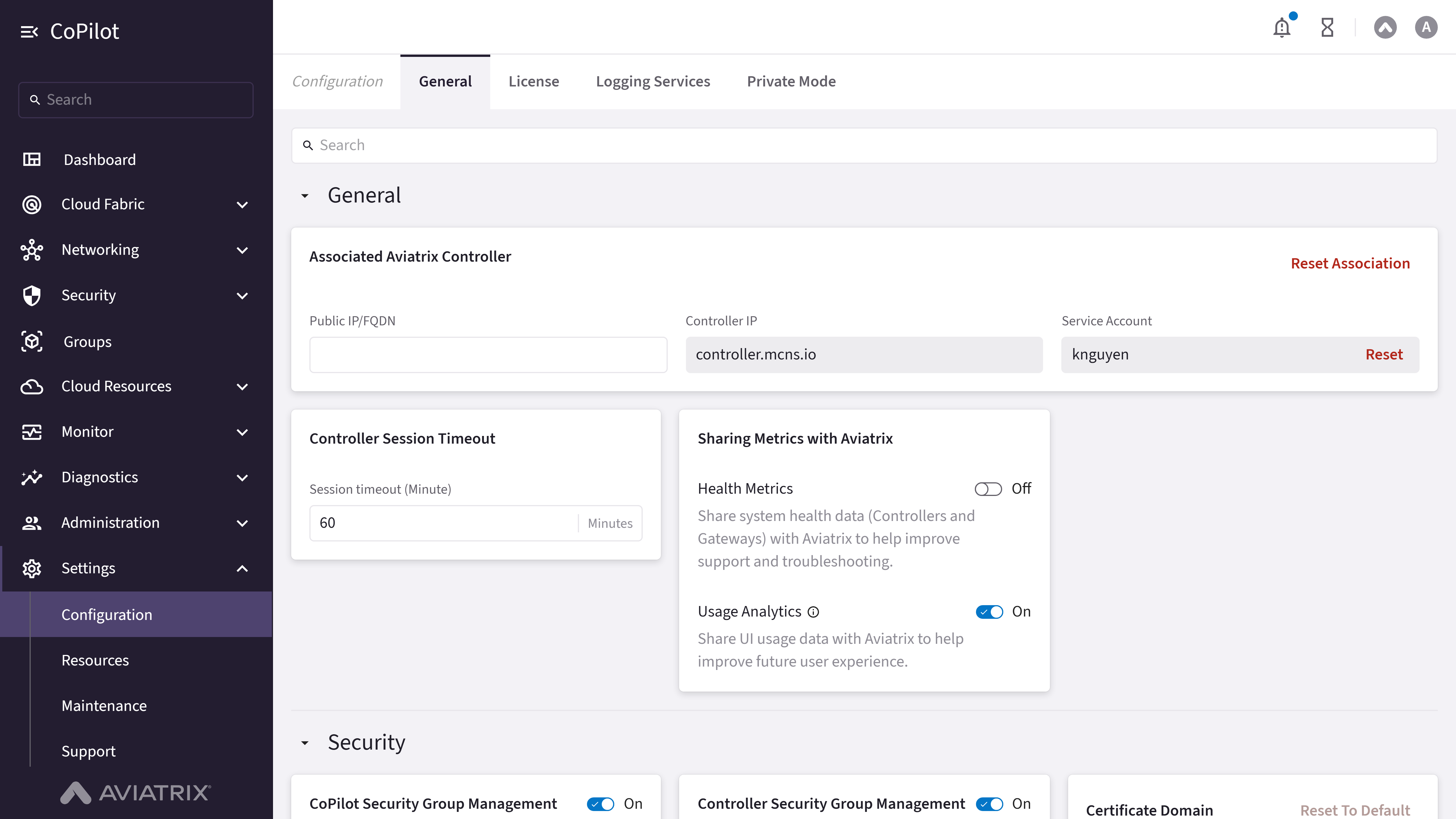
- Associated Aviatrix Controller: Section for managing controller association with fields for Public IP/FQDN, Controller IP, and Service Account.
- Reset Association button: Resets the controller association.
- Reset button: Resets the service account.
- Support for IPv6:
- Controller Session Timeout: Numeric input for session timeout in minutes.
- Sharing Metrics with Aviatrix: Section with toggles for Health Metrics and Usage Analytics.
- Security: CoPilot Access Control (Controller 9.0 and later) or CoPilot Security Group Management and CoPilot IP Access List Management (Controller versions earlier than 9.0), Controller Security Group Management, Certificate Domain, Controller IP Access, CoPilot Certificate, Controller Certificate.
- Features: CoPilot UI Experiences (Billing Insights), Network Insights API.
- Advanced: Tunnel Down Detection Time, Tunnel TCP Maximum Segment Size (MSS), Tunnel Anti-Replay Window, Gateway to Controller Communication (Keep-Alive Speed), DNS Servers for CoPilot, DNS Server for Controller, Federal Information Processing Standard (FIPS).
Actions
Enable IPv6 on Controller
Enable IPv6 on Controller
Turning on Support for IPv6 lets the Controller configure IPv6 on Aviatrix gateways and on the customer VPC/VNets where those gateways are deployed. It does not place IPv6 on the Controller or CoPilot management networks.To enable Support for IPv6 on the Controller:
Note: The Support for IPv6 toggle is labeled Preview in the
CoPilot UI.
- Go to Settings > Configuration > General.
- Locate Support for IPv6. Turn On the Support for IPv6 toggle.
- Click Save.
Parameter Details
Configure CoPilot Access Control (Controller 9.0 and later)
Configure CoPilot Access Control (Controller 9.0 and later)
Note: CoPilot Access Control is labeled Preview in the CoPilot UI.
- Go to Settings > Configuration > General.
- In CoPilot Access Control, click Enable (or Edit Configuration if already configured).
- In the CoPilot Access Control dialog, select a mode: Security Group Rules (adds Aviatrix-managed security group rules for a selected VPC/VNet and CoPilot instance) or CoPilot-Managed (CoPilot manages access using custom rules you define, by CIDR/protocol/port).
- Acknowledge the mode-change warning, then click Save.
Parameter Details
Configure CoPilot Security Group Management or IP Access List Management (Controller versions earlier than 9.0)
Configure CoPilot Security Group Management or IP Access List Management (Controller versions earlier than 9.0)
To configure security settings on Controller versions earlier than 9.0:
- Go to Settings > Configuration > General.
- Turn On CoPilot Security Group Management or CoPilot IP Access List Management, and configure the associated fields. Click Save.
Parameter Details
Configure Controller Security Group Management, Certificate Domain, or Controller IP Access
Configure Controller Security Group Management, Certificate Domain, or Controller IP Access
To configure the remaining security settings:
- Go to Settings > Configuration > General.
- Turn On Controller Security Group Management, select an Account, and (Controller 10.1 and later) optionally add NAT-ed Gateway IP Address CIDRs for access from Private IP-only gateways. Click Save.
- To change the certificate domain, edit Certificate Domain, or click Reset To Default to restore the default domain.
- To restrict Controller access by IP, turn On Controller IP Access, then click Create Access List to add one or more IP Address/CIDR + Description rows (port 443 is fixed), and optionally turn on Enforcement. Click Save.
- To replace the default self-signed certificates, click Upload Certificate under CoPilot Certificate or Controller Certificate.
Parameter Details
Configure Feature Settings
Configure Feature Settings
To configure feature settings:
- Go to Settings > Configuration > General.
- In CoPilot UI Experiences, turn On or Off Billing Insights. Click Save.
- In Network Insights API, use the header toggle to enable or disable the API. When enabled, select an entry in API Specifications and click Download to download it, or click Reset API Key to generate a new key.
Parameter Details
Configure Advanced Settings
Configure Advanced Settings
To configure advanced settings:
- Go to Settings > Configuration > General.
- Set Tunnel Down Detection Time, Tunnel TCP Maximum Segment Size (MSS), Tunnel Anti-Replay Window, Keep-Alive Speed, DNS options, or Federal Information Processing Standard (FIPS) as needed. Click Save.