

Topology
The following diagram shows an example of network connectivity for Edge Transit Gateway to Transit Gateways in the cloud and Edge Spoke Gateways at remote sites.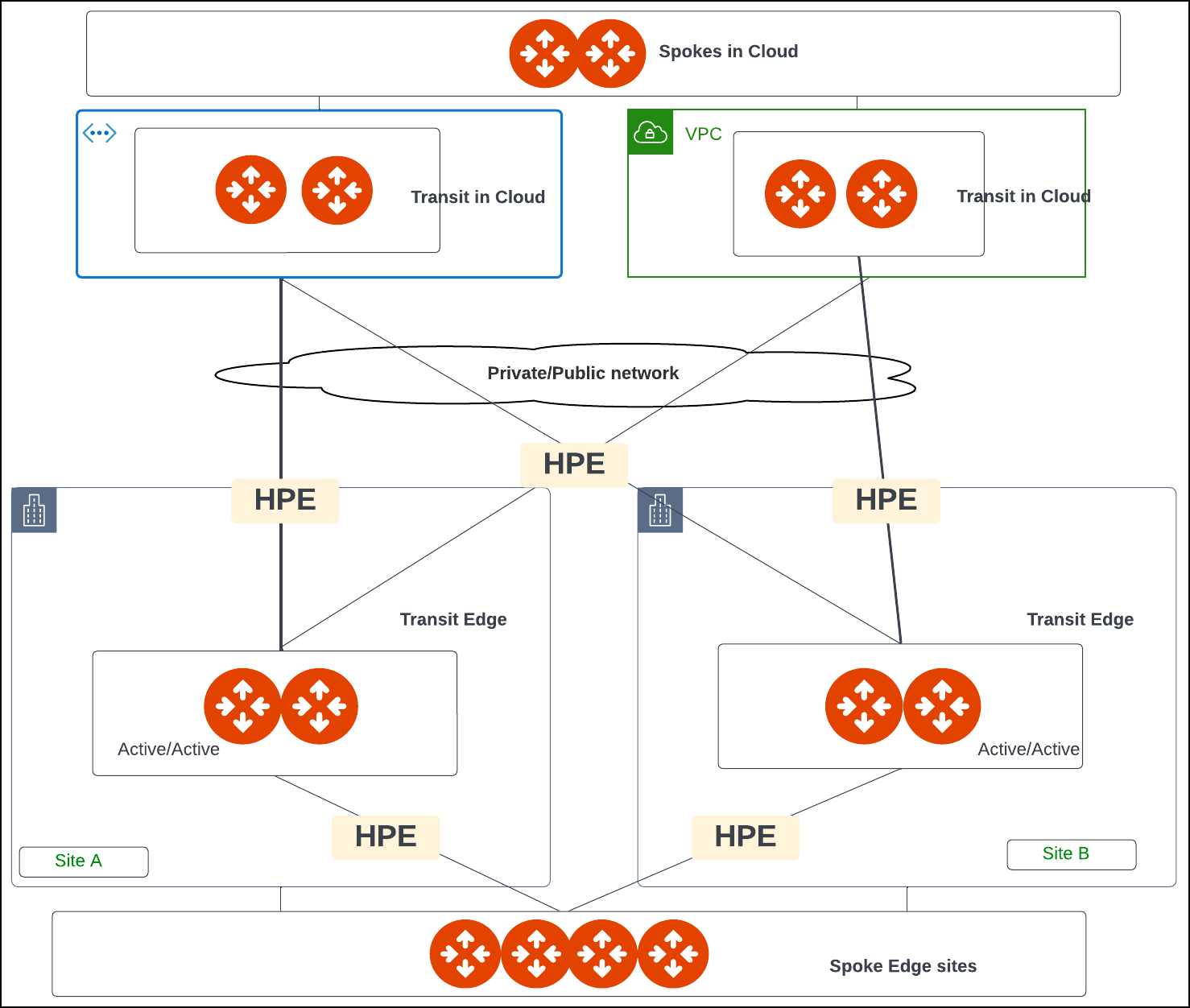
Prerequisites
Before you deploy an Edge Transit Gateway on the Aviatrix Edge Platform, ensure the prerequisite steps are complete.Create the Primary and Secondary Edge Transit Gateway (Aviatrix Edge Platform)
Follow the steps below to create and deploy a primary and secondary highly available (HA) Edge Transit Gateways on the Aviatrix Edge platform.Step 1: Gateway Configuration
In Aviatrix CoPilot, go to Cloud Fabric > Hybrid Cloud > Edge Gateways > Transit Gateways tab. Click + Transit Gateway, then provide the following information.
Click Next to
configure the gateway interfaces.
Step 2: Interface Configuration
In the Interface Configuration section, configure the WAN and Management interfaces. By default, an Edge Transit Gateway has two interfaces: one WAN interface on eth0 and one Management interface on eth2. You will need these configuration information to configure the interfaces. If High Availability mode is selected, then configure both the primary and secondary Edge gateway interfaces.Configure the WAN Interface
Edge Transit Gateway on the Aviatrix Edge Platform supports up to 4 WAN interfaces. In Interface Configuration, click WAN, then provide the following information.
If BGP is turned On, provide the following information.
If BGP is turned On, in Gateway Configuration, enter the Local AS Number
of the local Edge Gateway.
To add another WAN interface, click + WAN Interface again and provide the
required information.
If a required field is missing, the interface tab is highlighted to indicate
there is an error.
Configure the Management Interface
In Interface Configuration, click MGMT, then provide the following information.
If a required field is missing, the interface tab is highlighted to indicate
there is an error.
Click Next to view the interface mapping.
Step 3: Interface Mapping
Interface Mapping is provided for reference purposes (view only). The table shows a mapping of the Edge Gateway’s logical interface names to the Edge Gateway’s Linux interface names. These interface names are used in the Aviatrx log files and error messages. When performing diagnostic or troubleshooting on the Aviatrix Platform, you can refer to this mapping for the interface name.Backup Peering
If the Edge Gateway is deployed in Active-Active high availability mode: In Backup Peering, select a WAN interface to use to establish the attachment peering between the primary and HA Edge Gateway. Select whether the attachment is over a Private Network or Public Network. Click Done to create the primary and HA gateways.Step 4: Verify the Edge Gateway Creation
See, Verify the Edge Gateway Creation.Modify the Primary and Secondary Edge Transit Gateway
Some fields cannot be changed once a gateway is created. Fields that cannot be
changed are disabled.
Step 1: Gateway Configuration
Step 2: Interface Configuration
For IP settings, use the applicable format. For example, if the Edge Gateway’s
WAN IP is 10.1.1.151, enter 10.1.1.151/24 to indicate the netmask.
WAN BGP
MGMT Interface
If a required field is missing, the interface tab is highlighted to indicate
there is an error.
Step 3: Interface Mapping
The Interface Mapping shows how the Edge Gateway’s logical interface names maps to the Gateway’s Linux interface names. These interface names are used in the Aviatrix log files and error messages. The mapping is provided for your reference when performing any diagnostic and troubleshooting on the Aviatrix Platform.Next Steps
- For hybrid, multicloud, or LAN-side connectivity, you can attach the Edge gateway to multiple Aviatrix gateways. See Edge Gateway Attachments .
- For remote site connectivity, you can connect the Edge gateway to remote devices. See Edge Gateway External Connection.