

- Single VLAN connected to the Edge Gateway via a single vNIC.
- Multiple VLANs connected to the Edge Gateway via a single vNIC (Trunk Port) and sub-interfaces for each VLAN.
- VRRP on Edge Gateway.
- LAN-side BGP.
- Connectivity to single or multiple Transit Gateways from Edge Gateway.
Topology
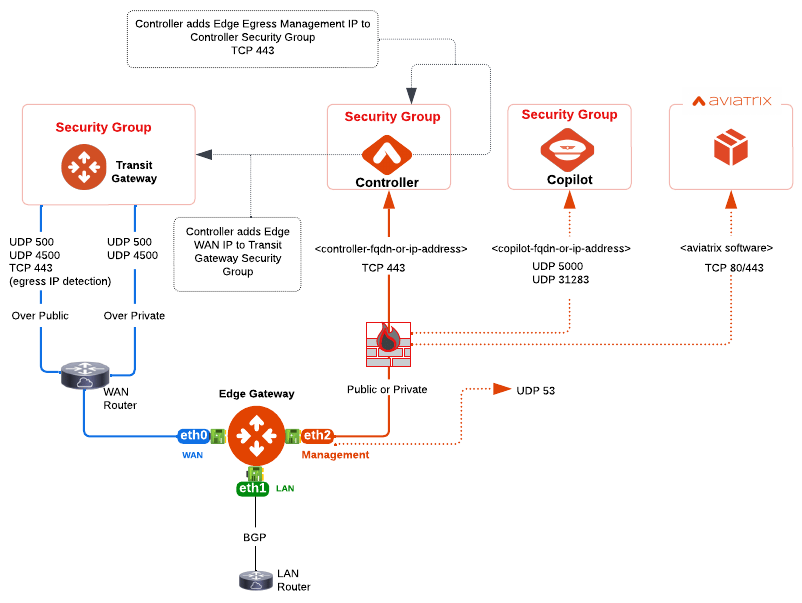
Prerequisites
Before you deploy an Edge Spoke Gateway on the Aviatrix Edge Platform, ensure the prerequisite steps are complete.Create the Primary and Secondary Edge Spoke Gateway (Aviatrix Edge Platform)
Follow the steps below to create and deploy a primary and secondary highly available (HA) Edge Transit Gateways on the Aviatrix Edge platform. This diagram provides a high-level view of the process for deploying Edge Spoke Gateway using Aviatrix CoPilot.Step 1: Gateway Configuration
- In Aviatrix CoPilot, go to Cloud Fabric > Hybrid Cloud > Edge Gateways > Spoke Gateways tab.
- Click + Spoke Gateway, then provide the following information.
- Click Next to configure the gateway interfaces.
Step 2: Interface Configuration
In the Interface Configuration section, configure the WAN, LAN, and Management interfaces. By default, an Edge Spoke Gateway has three interfaces: one WAN interface on eth0, one LAN interface on eth1, and one Management interface on eth2. You will need these IP addresses to configure the interfaces. If High Availability mode is selected, then configure both the primary and secondary Edge gateway interfaces.Configure the WAN Interface
To configure the WAN interface: In Interface Configuration, click WAN, then provide the following information.Configure the LAN Interface
To configure the LAN interface: Click LAN, then provide the following information.
If your LAN is segmented into virtual LANs (VLANs), click + VLAN Interface
to add one or more VLAN sub-interfaces, then provide the following information
for each VLAN sub-interface.
When a secondary HA Edge Gateway is configured, the VLAN configurations that are
shared between the primary and secondary gateway and are non-editable on the
secondary gateway.
Configure the MGMT Interface
To configure the Management interface, click MGMT, then provide the following information.
If a required field is missing, the interface tab is highlighted to indicate
there is an error.
Step 3: Interface Mapping
Interface Mapping is provided for reference purposes (view only). The table shows a mapping of the Edge Gateway’s logical interface names to the Edge Gateway’s Linux interface names. These interface names are used in the Aviatrix log files and error messages. When performing diagnostic or troubleshooting on the Aviatrix Platform, you can refer to this mapping for the interface name.
The secondary gateway interface mappings are shown only when high availability
is configured for the primary Edge Gateway.
Step 4: Verify the Edge Gateway Creation
See, Verify the Edge Gateway Creation.Next Steps
- For hybrid, multicloud, or LAN-side connectivity, you can attach the Edge gateway to multiple Aviatrix gateways. See Edge Gateway Attachments.
- For remote site connectivity, you can connect the Edge gateway to remote devices. See Edge Gateway External Connection.