

- For encrypted connectivity from remote site to edge location, you can attach an Edge Spoke Gateway deployed at the remote site to an Edge Transit Gateway deployed at the edge location. See Attach an Edge Spoke Gateway to an Edge Transit Gateway.
- For encrypted connectivity from edge location to cloud, you can attach an Edge Spoke Gateway deployed at the edge location to a Transit Gateway in cloud. See Attach an Edge Spoke Gateway to a Transit Gateway.
Attach an Edge Spoke Gateway to an Edge Transit Gateway
If you want to use Jumbo Frames for the attachment peering connection between the Edge gateways, make sure to enable Jumbo Frames on the Edge gateways before you create the attachment. To attach an Edge Spoke Gateway to an Edge Transit Gateway:- In Aviatrix CoPilot, go to Cloud Fabric > Hybrid Cloud > Edge Gateways > Spoke Gateways page.
-
In the table, locate the Edge Spoke Gateway to which you want to attach the
Edge Transit Gateway, then click the Manage Gateway Attachments icon
 on the
right side of the row.
on the
right side of the row.
-
In Manage Gateway Attachments > Transit Gateway, click + Attachment and
provide the following information.
-
In the Advanced section, enter or select the following:
- To attach the Edge Spoke Gateway to another Edge Transit Gateway, click + Attachment again and provide the required information. You can attach an Edge Spoke Gateway to multiple Edge Transit Gateways. Each attachment can be configured with different parameters, such as connecting WAN interfaces, connection over private or public networks, and enabling high-performance encryption.
- Click Save.
Attach an Edge Spoke Gateway to a Transit Gateway
To attach an Edge Spoke Gateway to a Transit Gateway, perform the prerequisites then create the attachment.Prerequisites
Before you create the attachment:- Ensure Local ASN Number is configured on Edge and Transit Gateway.
-
If the Edge to Transit Gateway attachment is over public network, you need to
update the WAN Public IP on the Edge Gateway.
- Go to Cloud Fabric > Hybrid Cloud > Edge Gateways tab.
- Click Spoke Gateways.
- Locate the Edge Gateway, and click its Edit icon on the right.
- In Edit Edge Gateway, go to Interface Configuration and click WAN.
- In Public IP, click Discover.
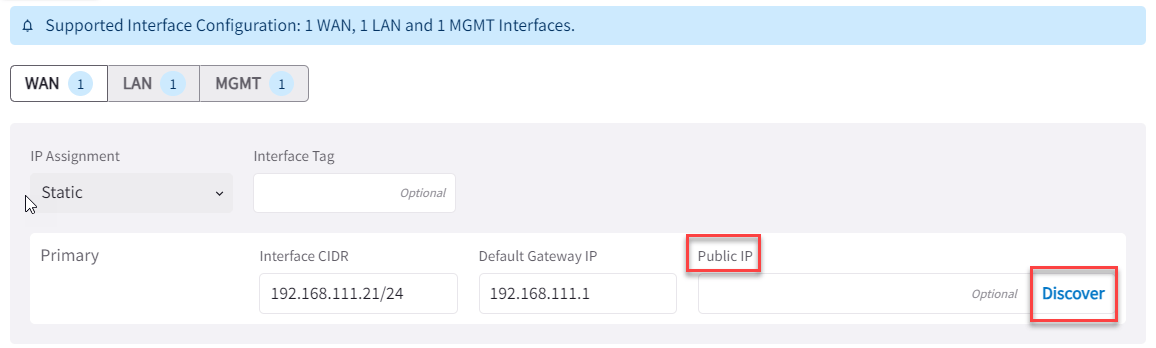
- Verify the WAN Public IP and click Save.
Attach Edge Spoke Gateway to Transit Gateway
To create a High Performance Encryption attachment peering, make sure the Transit Gateway is created with High Performance Encryption enabled. If you want Jumbo Frame enabled for the attachment peering, make sure to enable Jumbo Frame on the Edge Gateway before you attach it to the Transit Gateway. To create the attachment:- In Aviatrix CoPilot, go to Cloud Fabric > Hybrid Cloud > Edge Gateways tab.
- Click Spoke Gateways.
-
Locate the Edge Spoke Gateway, and click Manage Gateway Attachments icon
-
In Manage Gateway Attachments > Transit Gateway tab, click
+Attachment and provide the following information.
- To attach the Edge Spoke Gateway to another Transit Gateway, click + Attachment again and provide the required information. You can attach an Edge Spoke Gateway to multiple Transit Gateways. Each attachment can be configured with different parameters, such as connecting interfaces, connection over private or public network, high-performance encryption, and Jumbo Frame.
- Click Save.
Manage Gateway Attachments
You can attach an Edge Spoke Gateway to multiple Transit Gateways. Each attachment can be configured with different parameters, such as connecting interfaces, connection over private or public network, high-performance encryption, and Jumbo Frame. Click + Attachment and provide the required information.
Advanced