- Virtual Machines
- Kubernetes Clusters
- Serverless
Purpose
The Virtual Machines page displays and manages all virtual machine instances across cloud providers, showing their configuration details, network information, and associated resources.Elements
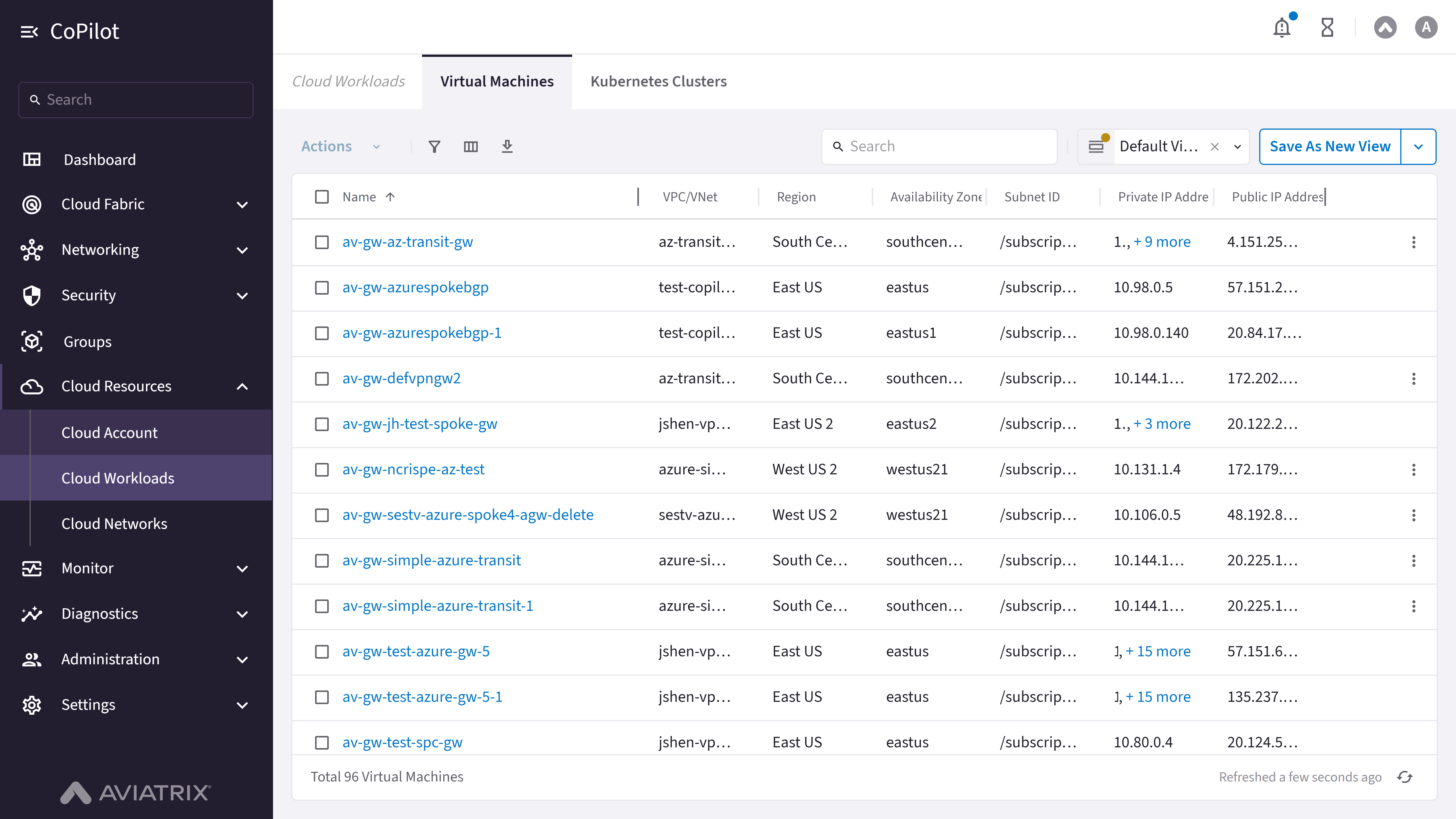
- Virtual Machines table: Shows a list of all virtual machine instances with their details including name, VPC/VNet, instance ID, size, cloud provider, region, and network information.
- Actions button: Creates a SmartGroup from the selected virtual machines (disabled until at least one row is selected).
- Show filters button: Button to show or hide filter options for the virtual machines table.
- Select columns button: Button to select which columns to display in the table.
- Export button: Button to export virtual machines data.
- Search box: Search box for filtering virtual machines in the table.
- Default View dropdown: Dropdown to select or manage default view settings for the table.
- Clear button: Button to clear current view settings.
- Open button: Button to open a saved view.
- Save As New View button: Button to save the current view configuration as a new view.
- More Options button: Button to access additional view management options.
- Table row checkboxes: Checkboxes for selecting individual virtual machines.
- Table header checkbox: Checkbox in table header to select all virtual machines.
- Row actions menu: Menu with actions for individual table rows (accessed via ellipsis icon).
- Total count display: Text showing total number of virtual machines (e.g., “Total 3 Virtual Machines”).
- Refresh status: Text showing last refresh time with a refresh button.
Actions
View Virtual Machines
View Virtual Machines
To view virtual machines:
- Go to Cloud Resources > Cloud Workloads > Virtual Machines.
- The Virtual Machines page appears with the Virtual Machines table listing all instances.
- Optionally, use Search, Show filters, Select columns, or Default View to customize the view.
- Optionally, use Open, Save As New View, or Clear to manage view settings.
- Optionally, click Export to export data or use the refresh control to refresh the table.
- Select rows with Table row checkboxes or Table header checkbox to use Actions for bulk operations, or use the Row actions menu for a single instance.