

Purpose
The Cloud Accounts page displays and manages all cloud accounts configured in Aviatrix CoPilot, including AWS, Azure, GCP, OCI, and Alibaba Cloud accounts, with their audit status and RBAC group assignments.Elements
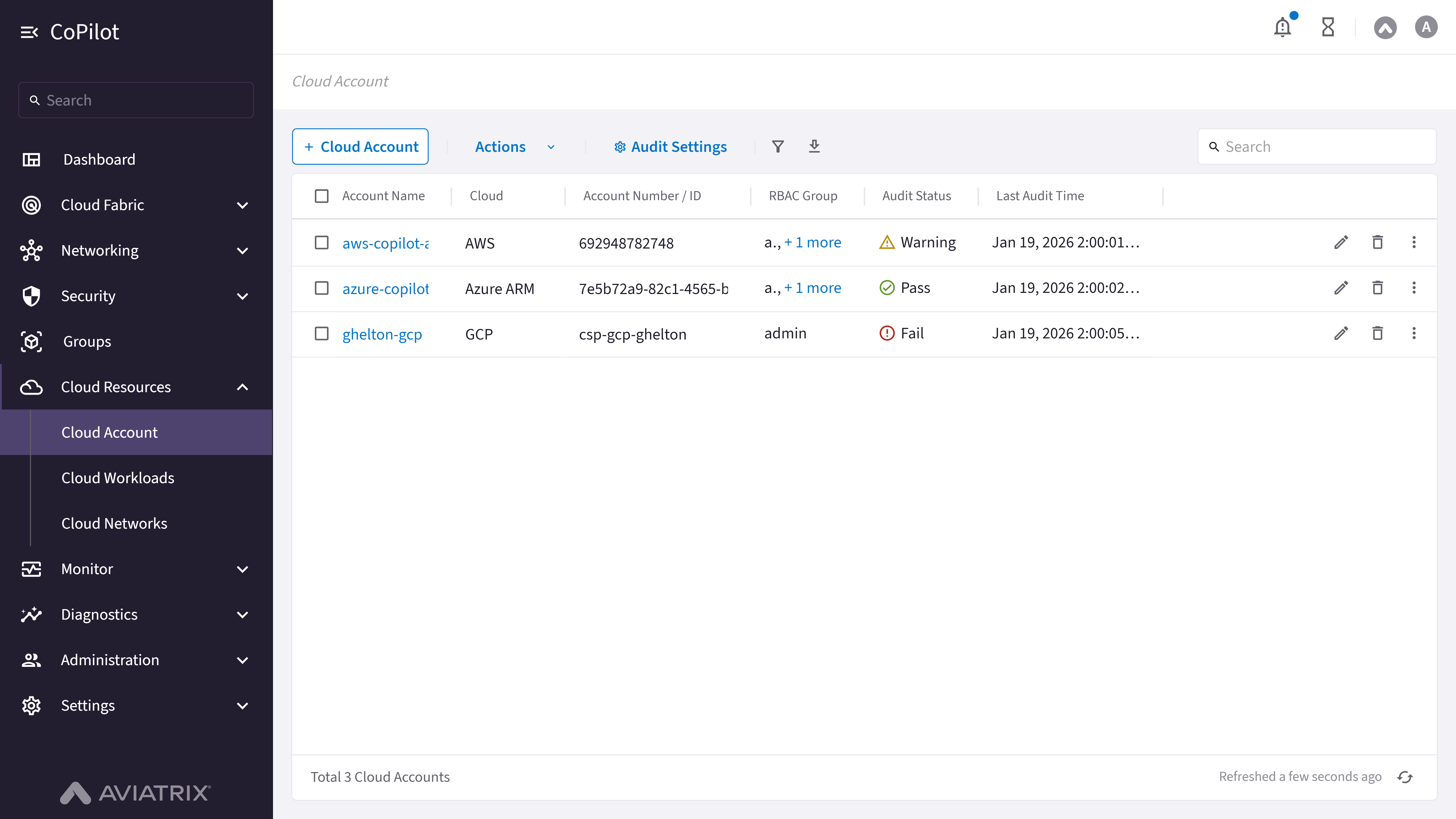
- + Cloud Account button: Button to add a new cloud account.
- Actions menu: Bulk actions for the selected cloud accounts: Audit Account (audit all selected accounts) and Update IAM Policy (enabled only when at least one selected account is an AWS account).
- Audit Settings button: Opens a dialog to configure the Email Notification and Background Audit toggles for account auditing.
- Cloud Accounts table: Shows a list of all configured cloud accounts from all cloud providers (AWS, Azure, GCP, OCI, and Alibaba Cloud).
- Account Name link: Opens a detail panel for the cloud account.
- Row actions menu (kebab icon): Opens Edit (not available for the Self Managed / Aviatrix account type), Delete, and Actions (a submenu with Audit Account, and Update IAM Policy if the account is an AWS account).
- Show filters button: Button to show or hide filter options.
- Select columns button: Button to select which columns to display in the table.
- Export button: Button to export cloud account data.
- Search box: Search box for filtering cloud accounts in the table.
- Refresh button: Button to refresh the cloud accounts table data.
Actions
Manage Cloud Accounts
Manage Cloud Accounts
View Cloud Accounts
View Cloud Accounts
To view cloud accounts:
- Go to Cloud Resources > Cloud Account.
- The Cloud Accounts page appears with the Cloud Accounts table listing all configured accounts.
- Optionally, use Search, Show filters, or Select columns to customize the view.
- Optionally, click Export to export data or Refresh to refresh the table.
Parameter Details
Add Cloud Account
Add Cloud Account
To add a new cloud account:
- Go to Cloud Resources > Cloud Account.
- Click + Cloud Account.
The Connect Cloud Account dialog appears. - Enter Account Name.
- Select the Cloud Type: AWS (Standard, GovCloud, or China), Azure (Global, GovCloud, or China), GCP, OCI, or Alibaba Cloud.
- Complete the credential fields shown for the selected cloud type (see Parameter Details).
- Optionally, assign the account to one or more groups in Add to RBAC Groups.
- Click Save to add the account or Cancel to close without saving.
For AWS, if prompted, confirm that the CloudFormation script to establish
trust with the primary access account has been run.
Parameter Details
Edit Cloud Account
Edit Cloud Account
To edit an existing cloud account:
- Go to Cloud Resources > Cloud Account.
- Locate the account in the Cloud Accounts table, open its row actions menu, and select Edit.
The Edit Cloud Account dialog appears with Cloud Type and Account Name shown as read-only, and the credential fields for that cloud type (see the Add Cloud Account Parameter Details) pre-filled with the account’s current values. - Update the credential fields as needed.
- Click Save to apply changes or Cancel to discard.
The cloud type and account name cannot be changed after the account is
created.
Delete Cloud Account
Delete Cloud Account
To delete a cloud account:
- Go to Cloud Resources > Cloud Account.
- Locate the account in the Cloud Accounts table, open its row actions menu, and select Delete.
- Confirm the deletion.
Audit and Maintain Cloud Accounts
Audit and Maintain Cloud Accounts
Audit a Cloud Account
Audit a Cloud Account
To audit one or more cloud accounts:
- Go to Cloud Resources > Cloud Account.
- To audit a single account, locate it in the Cloud Accounts table, open its row actions menu, then select Actions > Audit Account. To audit multiple accounts, select their rows and click the toolbar’s Actions > Audit Account.
Audit Account checks connectivity and configuration health for an account
that is already saved. It replaces the previous Test Connection action,
which validated credentials before saving a new or edited account.
Configure Audit Settings
Configure Audit Settings
To configure account audit settings:
- Go to Cloud Resources > Cloud Account.
- Click Audit Settings.
The Audit Settings dialog appears with Email Notification and Background Audit toggles. - Turn Email Notification or Background Audit On or Off as needed.
- Click Save.
Update IAM Policy for an AWS Account
Update IAM Policy for an AWS Account
To update the IAM policy for one or more AWS cloud accounts:
- Go to Cloud Resources > Cloud Account.
- To update a single AWS account, locate it in the Cloud Accounts table, open its row actions menu, then select Actions > Update IAM Policy. To update multiple AWS accounts, select their rows and click the toolbar’s Actions > Update IAM Policy.
- Review the IAM policy details in the dialog and confirm.