- Auto Right-Sizing
- Events
- Maintenance Windows
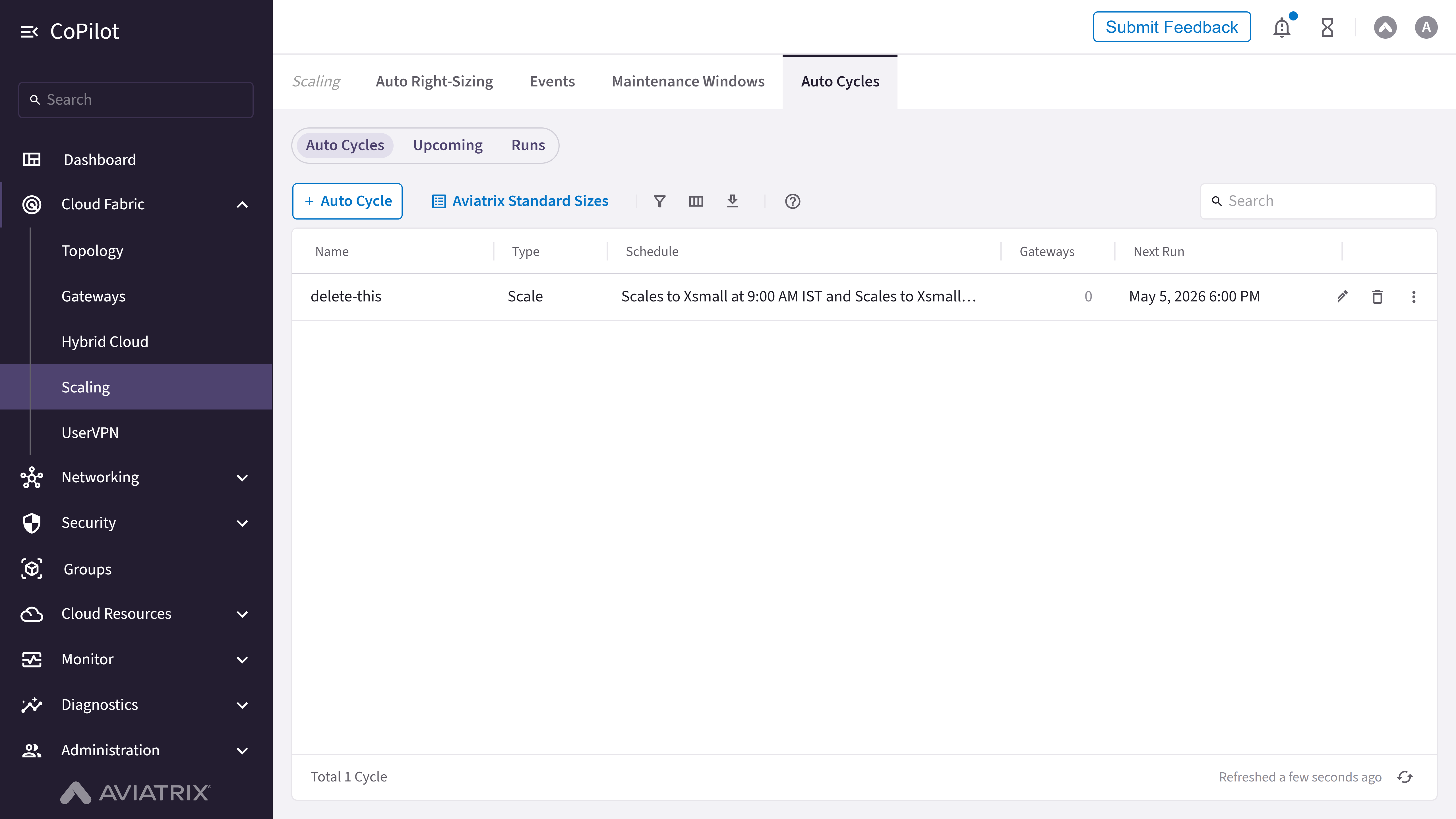
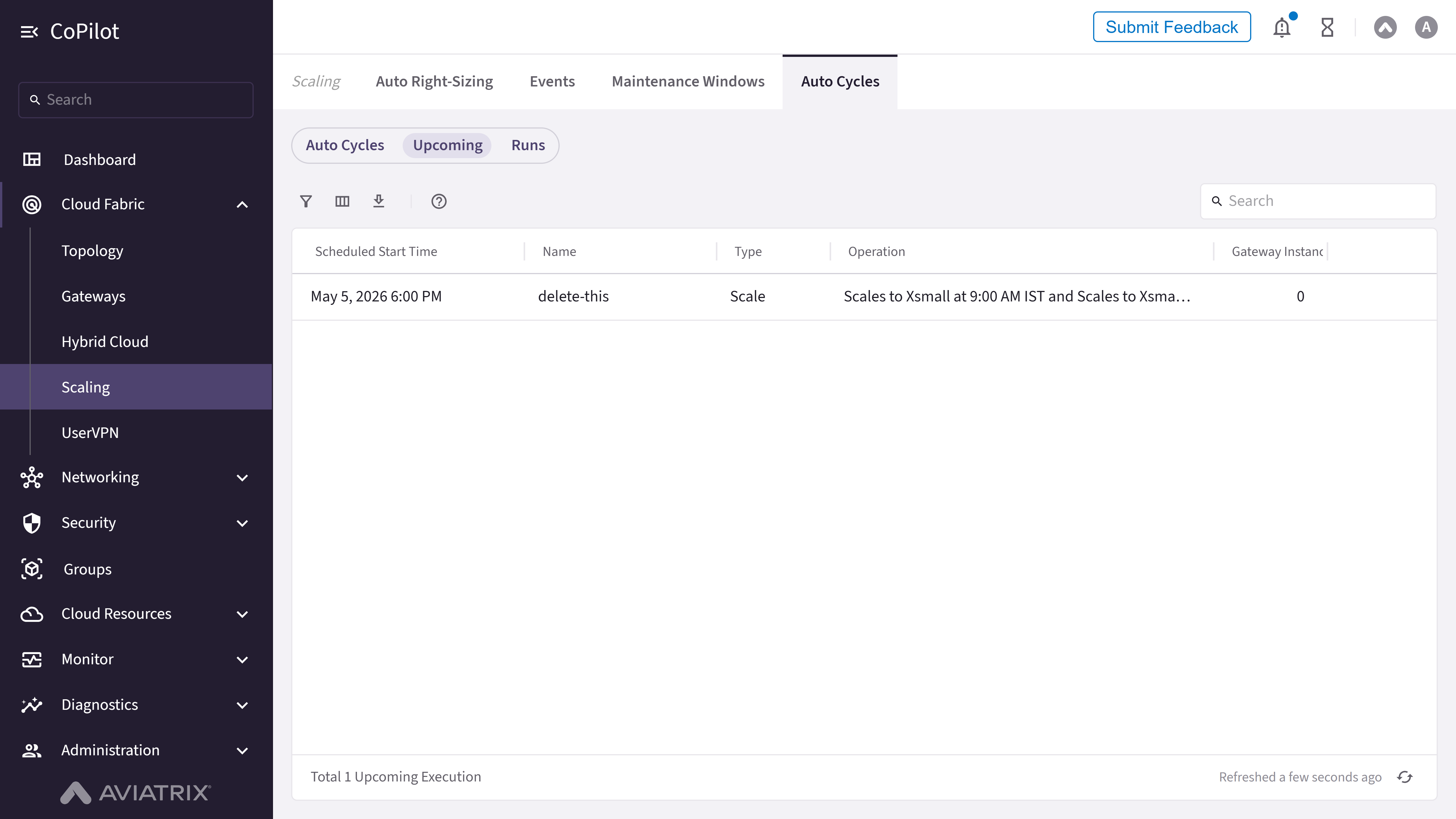
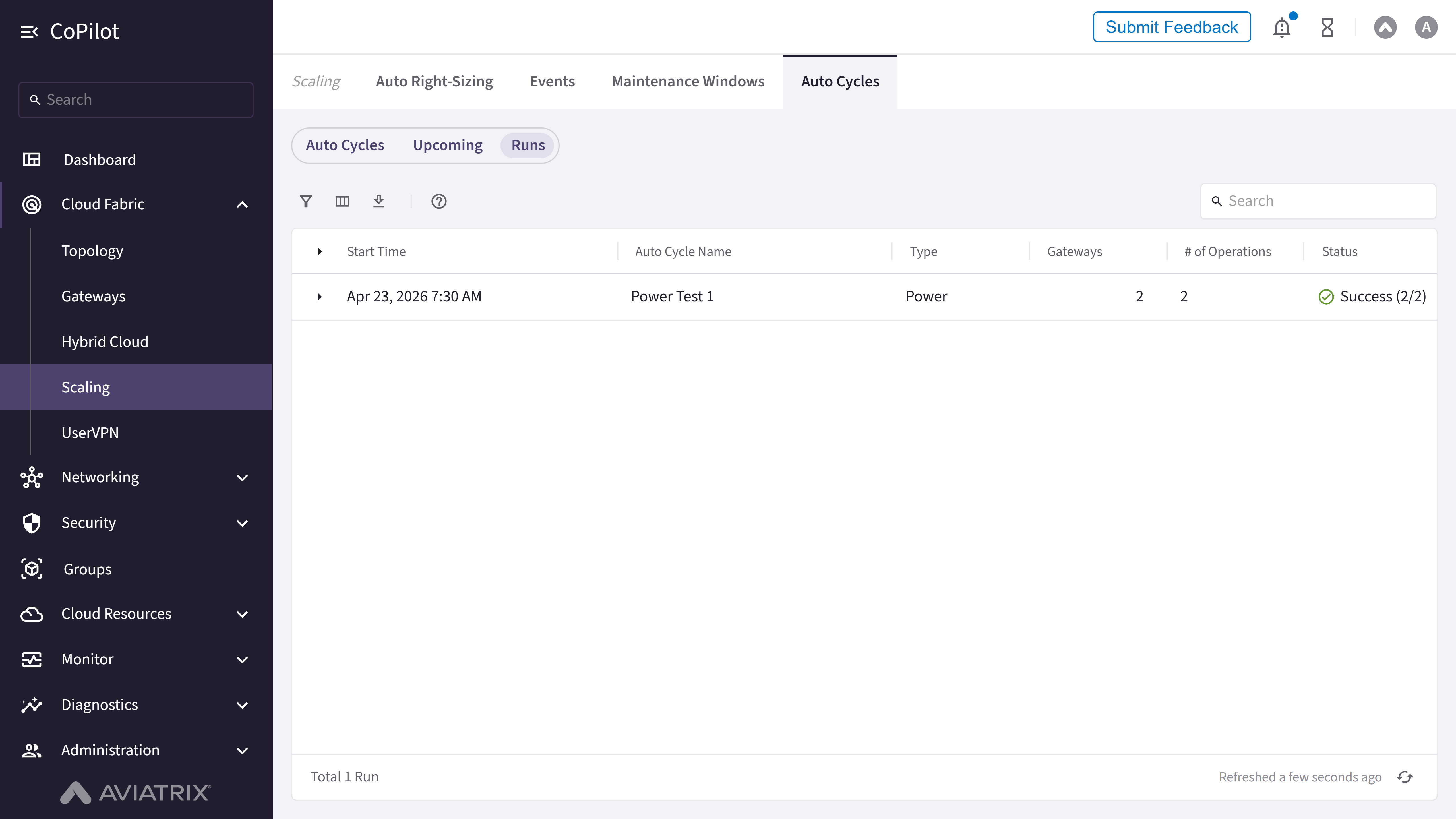
- Auto Cycles
Purpose
The Auto Right-Sizing page provides options to configure automatic resizing of cloud resources based on usage metrics to optimize performance and cost.Elements
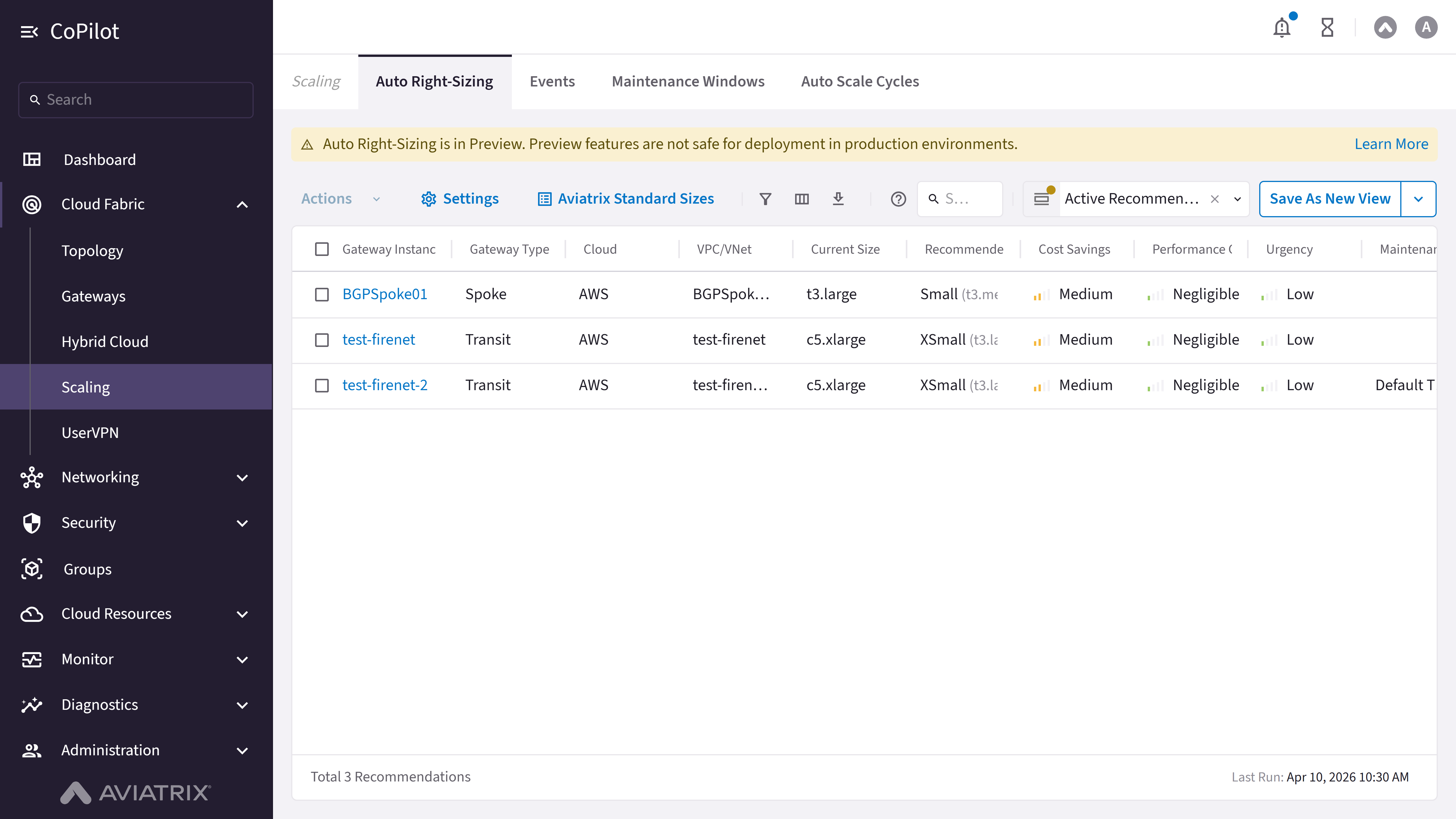
- Actions button: Performs bulk Resize Gateway Instances, Dismiss Recommendations, and Ignore Recommendations from VPC/VNets, on selected Gateway instances.
- Settings button: Changes monitoring frequency, excludes VPC/VNets, and disables Auto Right-Sizing.
- Aviatrix Standard Sizes: Displays Aviatrix standard sizes versus cloud provider sizes for better comparison.
- Auto Right-Sizing table: Displays Gateway Instances and their right-sizing recommendations based on usage metrics.
Actions
View Auto Right-Sizing Recommendations
View Auto Right-Sizing Recommendations
To view right-sizing recommendations for gateway instances:
- Go to Cloud Fabric > Scaling > Auto Right-Sizing.
The Auto Right-Sizing page appears with a table of gateway instances and their recommendations. - Optionally, click a gateway instance to view details.
- Optionally, review Aviatrix Standard Sizes to compare Aviatrix sizes with cloud provider sizes.
Parameter Details
Resize Gateway Instances
Resize Gateway Instances
To resize gateway instances based on Auto Right-Sizing recommendations:
- Go to Cloud Fabric > Scaling > Auto Right-Sizing.
The Auto Right-Sizing page appears with a table of gateway instances. - Select one or more gateway instances.
- Click Actions, then select an action: Resize Now to resize immediately, Schedule Resize to schedule a one-time resize during a maintenance window, or Setup Auto Cycle to schedule recurring scale or power operations.
- If Resize Now, click Resize Now to confirm.
- If Schedule Resize, select a maintenance window or click + Maintenance Window to create one, then click Schedule Resize.
- If Setup Auto Cycle, select an existing cycle or click + Auto Cycle to create one. See the Auto Cycles tab for cycle configuration options.
Dismiss Recommendations
Dismiss Recommendations
To dismiss recommendations for the current monitoring period:
- Go to Cloud Fabric > Scaling > Auto Right-Sizing.
The Auto Right-Sizing page appears with a table of gateway instances. - Do one of the following: select one or more gateway instances and click Actions > Dismiss Recommendations; or click the vertical ellipsis next to a gateway instance and select Dismiss Recommendation; or click a gateway instance to view details, then click Resize > Dismiss Recommendation.
- Click Dismiss when prompted.
Ignore Recommendations from VPC/VNets
Ignore Recommendations from VPC/VNets
To ignore recommendations so they do not display in subsequent monitoring periods:
- Go to Cloud Fabric > Scaling > Auto Right-Sizing.
The Auto Right-Sizing page appears with a table of gateway instances. - Do one of the following: select one or more gateway instances and click Actions > Ignore Recommendations from VPC/VNets; or click the vertical ellipsis next to a gateway instance and select Ignore Recommendations from this VPC/VNet; or click a gateway instance to view details, then click Resize > Ignore Recommendations from this VPC/VNet.
- Click Ignore when prompted.
Configure Auto Right-Sizing Settings
Configure Auto Right-Sizing Settings
To configure monitoring frequency and exclude VPC/VNets:
- Go to Cloud Fabric > Scaling > Auto Right-Sizing.
The Auto Right-Sizing page appears. - Click Settings.
The Auto Right-Sizing Settings dialog appears. - Select the Monitoring Frequency: Every 24 hours, Every 12 hours, or Every hour.
- Select the VPC/VNets to exclude from the monitoring scan.
- Optionally, disable Auto Right-Sizing if needed.
- Click Save.