

- On the Security > Egress > Protected VPC/VNets tab, do one of the following:
- Select one or more VPC/VNets in the table and click Protect in the Actions menu.
- Click Protect next to a VPC/VNet in the table.
- The Protect VPC/VNet dialog displays all trusted traffic flows observed in
the selected VPC/VNet. Select one or more domains to continue to allow
traffic to flow to those domains. You can use the AI FQDN Analyzer to view
details on the domains and determine if you want to trust them.
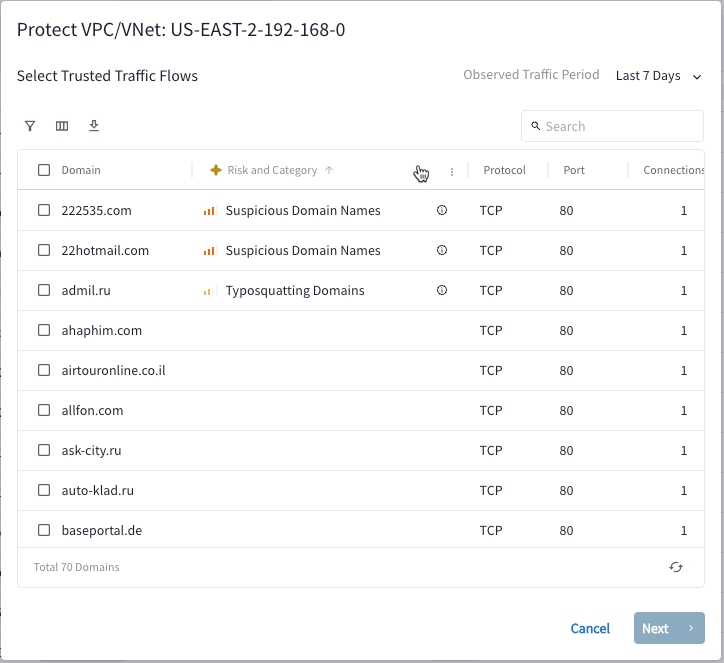
If there are no domains listed, you cannot proceed to the next step.
- Click Next. The Review Distributed Cloud Firewall Rule Changes page displays.
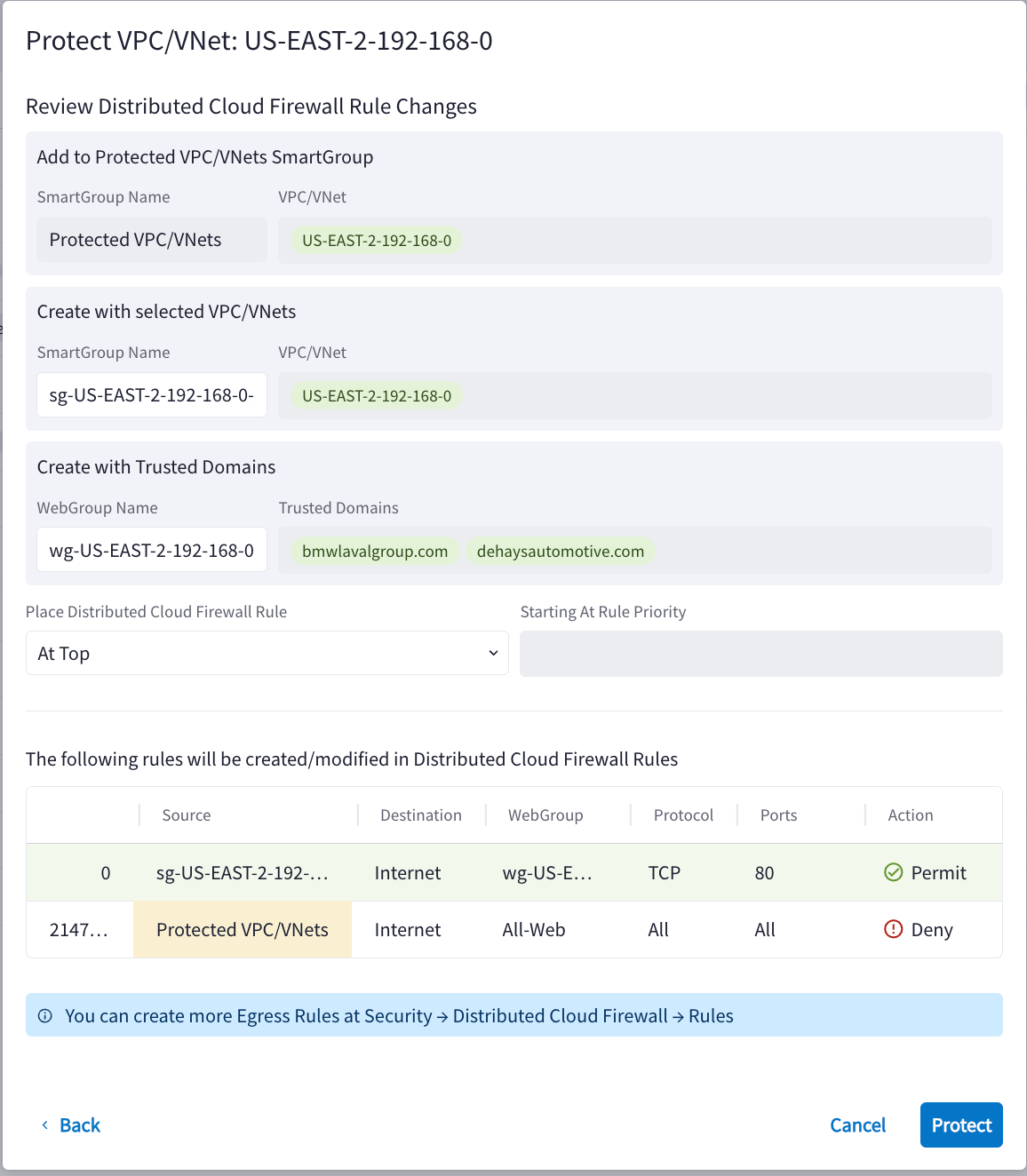
- The selected VPC/VNets will be added to the Protected VPC/VNets SmartGroup. This SmartGroup contains all VPC/VNets that are protected.
- Another SmartGroup is created that contains just the VPC/VNets you selected.
- The selected trusted domains will be added to a new WebGroup.
- Select where the new DCF rules will be placed. You can also enter a value for Starting at Rule Priority (if applicable).
- A new DCF rule will be created for the selected VPC/VNets that permits traffic from the VPC/VNets to the trusted domains.
- The Protected VPC/VNets Rule will be updated with the selected VPC/VNets. This acts as a Default Deny Rule.
- Click Protect.
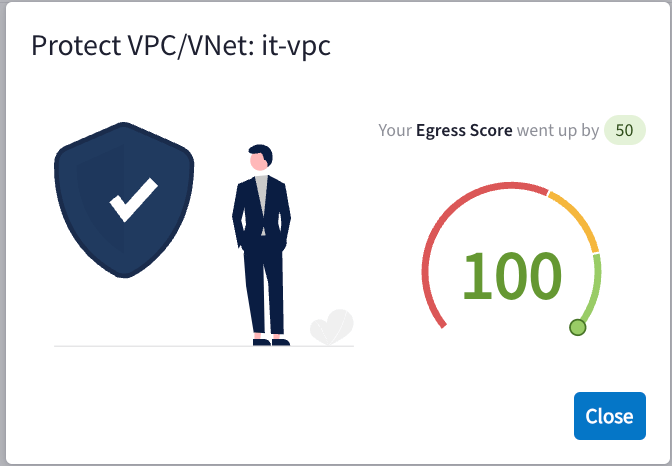
- A message displays indicating any change in Egress Score.
Next Steps
- View the Egress Security Score
- The selected VPC/VNets will be added to the Protected VPC/VNets SmartGroup. This SmartGroup contains all VPC/VNets that are protected.
- Another SmartGroup is created that contains just the VPC/VNets you selected.
- The selected trusted domains will be added to a new WebGroup.
- A new DCF rule will be created for the selected VPC/VNets that permits traffic from the VPC/VNets to the trusted domains.
- The Protected VPC/VNets Rule will be updated with the selected VPC/VNets. This acts as a Default Deny Rule.
- A new WebGroup is created for the trusted domains.
- The Protected VPC/VNets SmartGroup and Rule are updated.