- Recommended for production environments
- Recommended only for test environments
Onboard Your AWS Account By Using CloudFormation
The CloudFormation template creates the required IAM roles and policies in AWS that allow Aviatrix to manage your cloud network. These include the following:- aviatrix-platform-app role
aviatrix-role-ec2-<long-id>role- aviatrix-platform-app-policy policy
- In the Aviatrix PaaS console, go to Cloud Resources > Cloud Accounts and click +Cloud Account.
- Enter an Account Name and click AWS.
- Select AWS IAM Role and CloudFormation Script.
- Click Launch CloudFormation. The AWS CloudFormation quick create stack template opens.
- In the template, you can optionally modify the stack name and IAM role or leave them with their default settings.
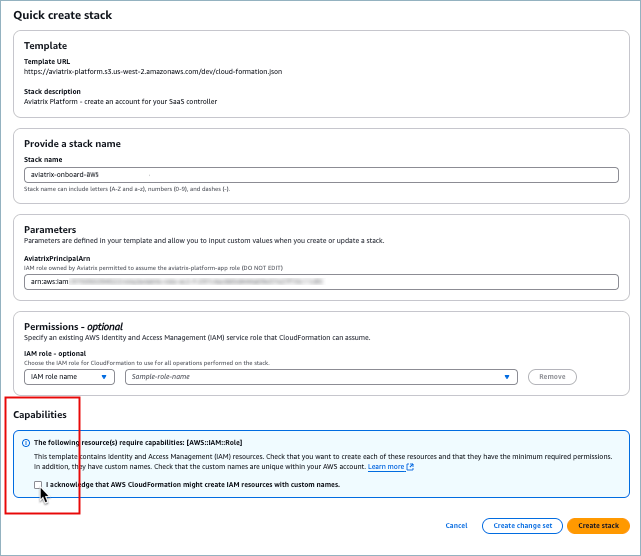
- Under Capabilities, click the acknowledgment and then click Create stack.
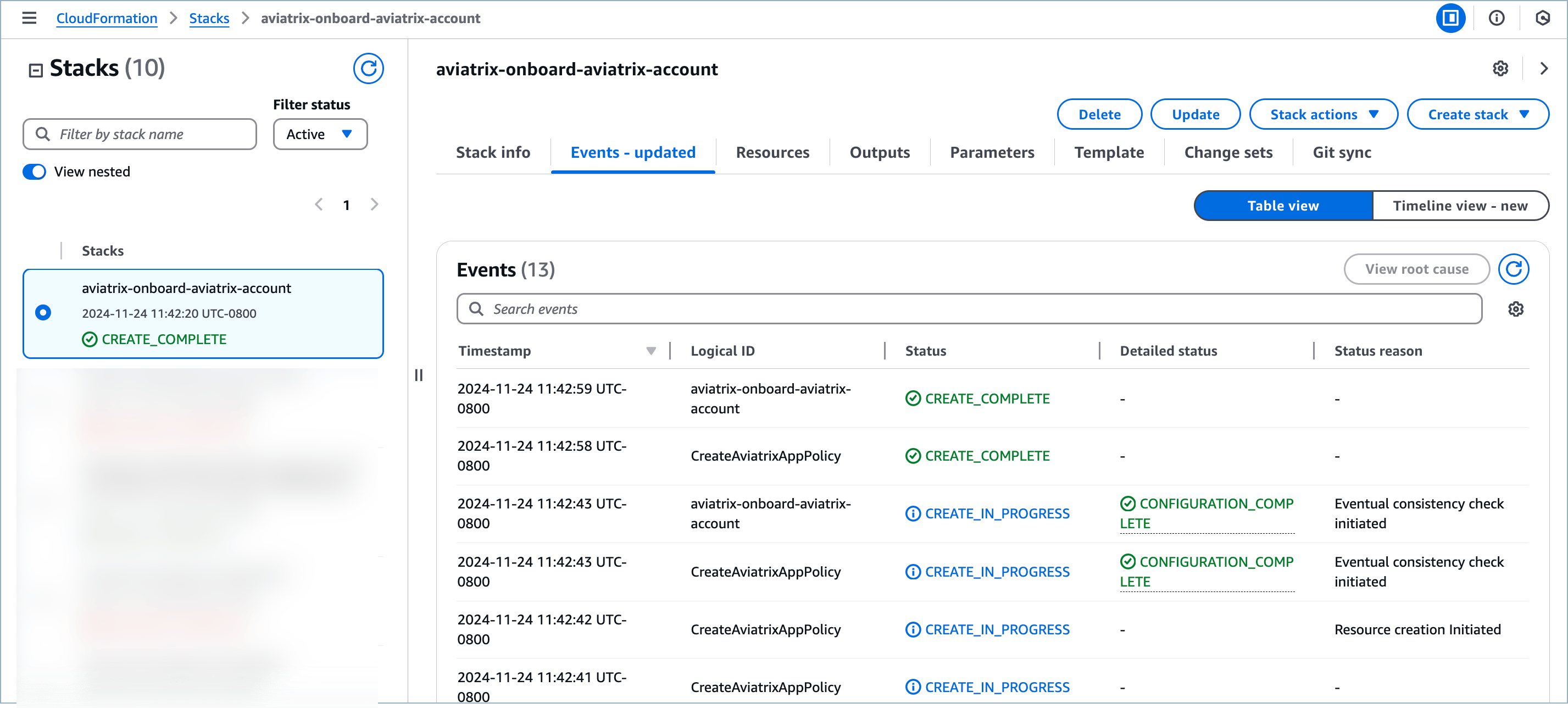
- On AWS CloudFormation > Stacks > Events, watch the Status column for CREATE_COMPLETE to display. Refresh the list periodically to see updates.
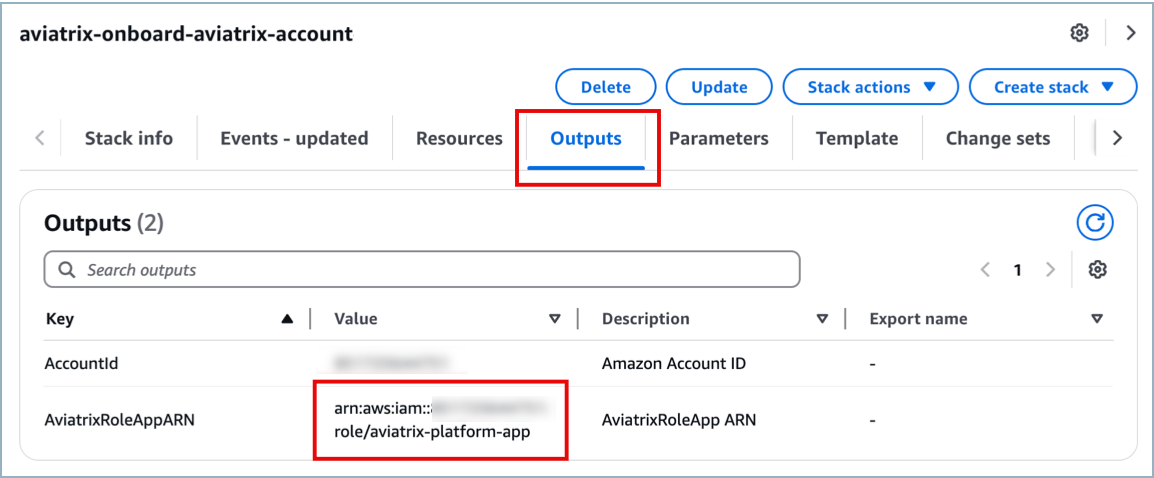
- When creation completes, click the Outputs tab and copy the Value for
AviatrixRoleAppARN. This is the ARN in the format
arn:aws:iam::<account-id>:role/aviatrix-platform-app.
- Return to the Aviatrix Onboard Cloud Account dialog box, paste the value into the field AWS Role ARN, and click Next. You will see a Discovering Cloud Resources message that changes to a success message after a minute or two.
- Click Close. 11. Verify that the new cloud account displays in the list on Cloud Accounts > Overview.
Onboard Your AWS Account By Using a Key and Secret
Your Aviatrix ID will be used with your AWS key and secret so that Aviatrix PaaS can perform actions on your behalf.Onboarding with a key and secret is recommended for test environments only,
not for production.
- Go to Cloud Resources > Cloud Accounts and click +Cloud Account.
- Enter a unique Account Name and click AWS.
- Select AWS Key/Secret.
- Enter the Access Key ID and Access Secret for your AWS account.
- Enter your AWS Account Number.
- Click Next.
- Verify that the new cloud account displays in the list on Cloud Accounts > Overview.
Troubleshoot AWS Onboarding Issues
If onboarding fails, the AWS CloudFormation stack shows failures in the Status column and the final status should display ROLLBACK_COMPLETE. Before trying to onboard your AWS account again, you must remove the CloudFormation template, two IAM roles, and a policy created in AWS by the template.-
In AWS console, go to CloudFormation > Stacks.

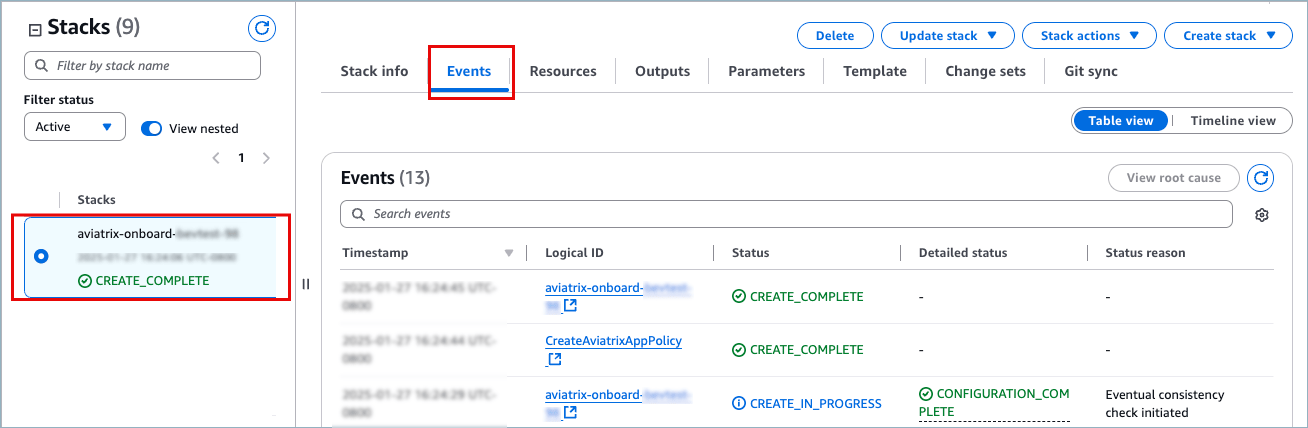
- Select the failed stack. The default name is aviatrix-onboard-aws, but the name could have been modified.
-
In the pane that displays to the right, click the Events tab.
-
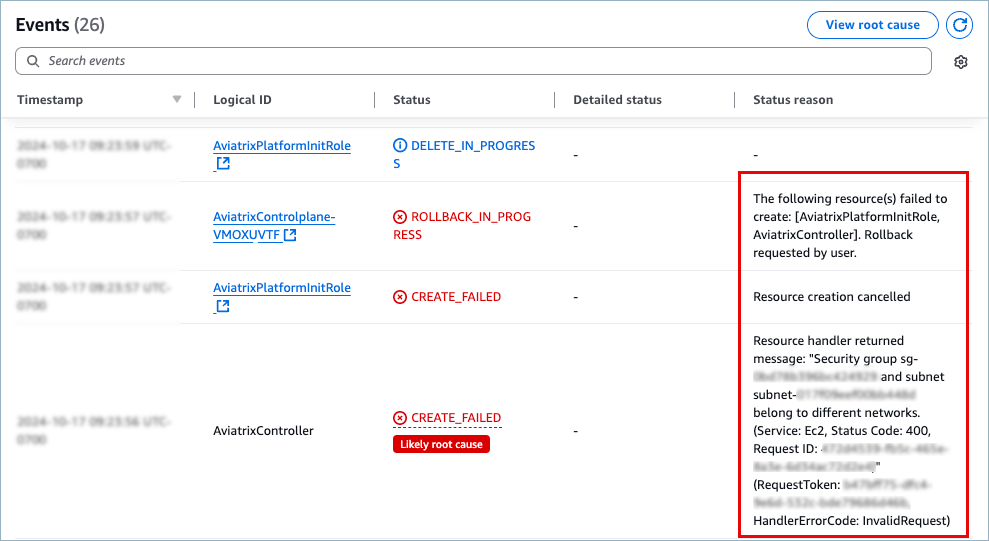
Scroll through the Events table and look for messages in the Status
reason column. Examples of some root cause descriptions:
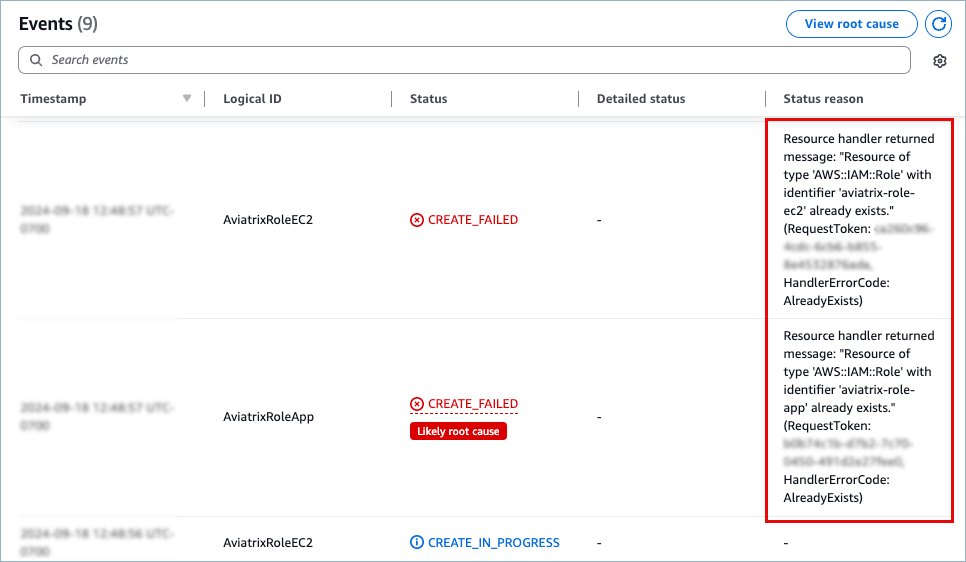
- Resolve the issues mentioned. If the problem is due to existing roles or policies, you will resolve those in the following steps.
- Click Delete to permanently remove the failed stack.
- Read the AWS warning and click Delete. Stack status changes to DELETE_COMPLETE after several seconds. If you refresh the Stacks pane, the stack name disappears.
- To remove the roles, go to AWS IAM > Access Management > Roles and select and delete the following:
- aviatrix-platform-app
aviatrix-role-ec2-<long-id>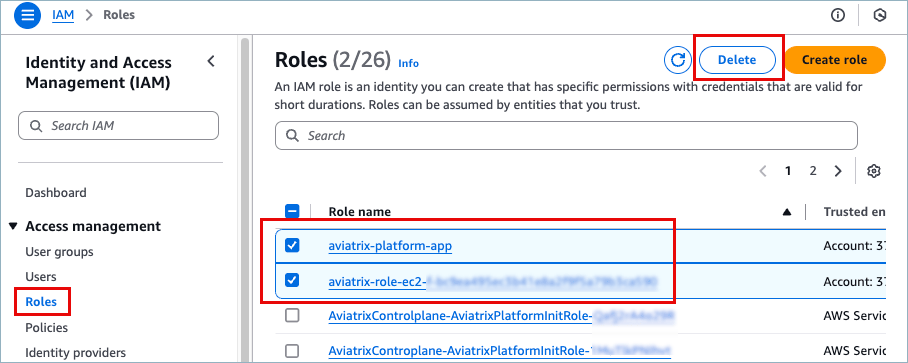
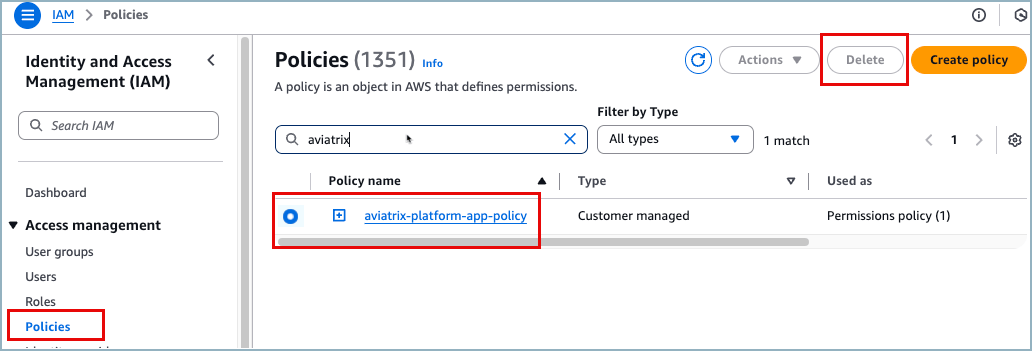
- To remove the policy, go to Access Management > Policies and then search for and delete the following:
- aviatrix-platform-app-policy