

Purpose
The Reports page lets you generate reports to understand telemetry, inventory, and health of your managed resources: resource utilization (gateway system and network metrics), inventory (gateways, VPCs, subnets, S2C connections, instances), and FlightCheck health check reports.Elements
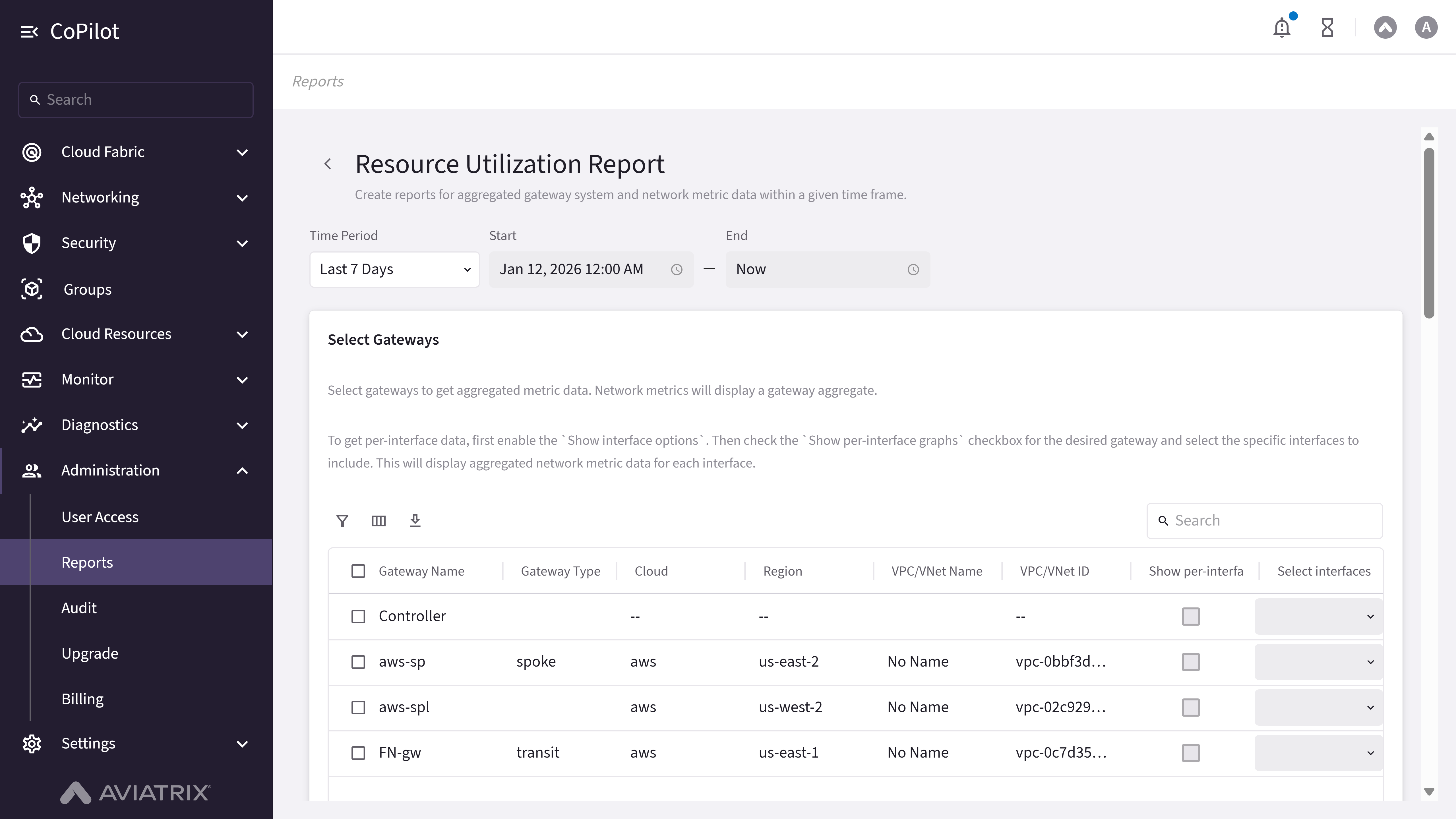
- Resource Utilization: Time period, gateways selection (Gateway Name, Gateway Type, Cloud, Region, VPC/VNet Name, VPC/VNet ID, and per-interface graph options), system and network metrics, report format (group by metric or gateway), Create Report.
- Inventory Report: Steps for cloud(s), region(s), VPC/VNets, resource type(s), properties, optional filters; Orientation, Document Size, Save As, PDF, TSV, PDF Preview.
- FlightCheck: Orientation, Document Size, Save As, PDF, TSV, PDF Preview.
- Back to Reports Dashboard button: Returns to the main Reports page.
Actions
Create Resource Utilization Report
Create Resource Utilization Report
To create a resource utilization report:
- Go to Administration > Reports.
- Open the Resource Utilization Report flow (e.g., from report type selection).
- Set Time Period, Start, and End. In Select Gateways, choose gateways; optionally, check Show per-interface graphs for a gateway and use Select interfaces for per-interface graphs to choose which interfaces to include in per-gateway network metric data. In Select System Metrics and Select Network Metrics, choose metrics. Select Group by metric or Group by gateway. Click Create Report.
Parameter Details
Resource Utilization Report:Create Inventory Report
Create Inventory Report
To create an inventory report:
- Go to Administration > Reports.
- Open the Inventory Report flow. Select cloud(s), region(s), VPC/VNets, resource type(s), and properties. Optionally, add filters. Set Orientation, Document Size, and Save As. Click PDF or TSV to export.
Parameter Details
Inventory Report:Create FlightCheck Report
Create FlightCheck Report
To create a FlightCheck health check report:
- Go to Administration > Reports.
- Open the FlightCheck report flow. Set Orientation, Document Size, and Save As (default: FlightCheck_Report_YYYY_MM_DD). Click PDF or TSV to export.