

Pre-Deployment Checklist
Before configuring SAML integration between Aviatrix and OneLogin, make sure the following is completed:- The Aviatrix Controller is deployed.
- Have a valid OneLogin Account with admin access.
- Download and install the Aviatrix SAML VPN client .
OneLogin Account
A valid OneLogin account with admin access is required to configure the integration.Aviatrix CoPilot
All users must use the Aviatrix VPN client to connect to the system. Download the client for your OS here .Configuration Steps
Follow these steps to configure Aviatrix to authenticate against your OneLogin IDP:- Create a OneLogin SAML App for Aviatrix.
- Create a SAML Endpoint in Aviatrix CoPilot.
OneLogin SAML App
Before you start, pick a short name to be used for the SAML application name. In the notes below, we will refer to this as aviatrix_onelogin, but it can be any string. We will use the string you select for the SAML application name to generate a URL for OneLogin to connect with Aviatrix. This URL is defined below as SP_ACS_URL. This URL should be constructed as:- Log in to OneLogin as an administrator.
- Add a new App (Apps > Add Apps).
- Search for “SAML Test Connector.”
- Select SAML Test Connector (Advanced).
-
Enter the Configuration values and click Save.
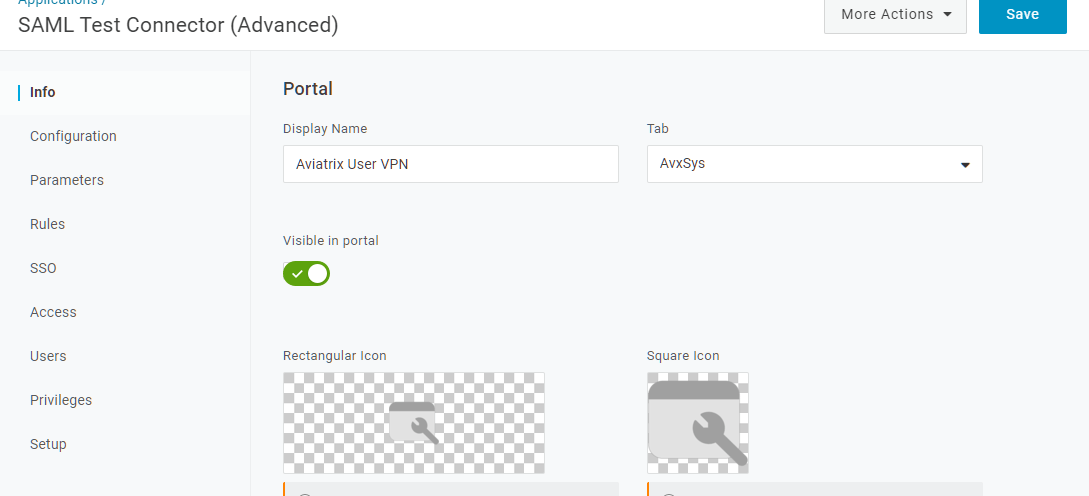


- Click on Configuration tab.
-
Enter the values.
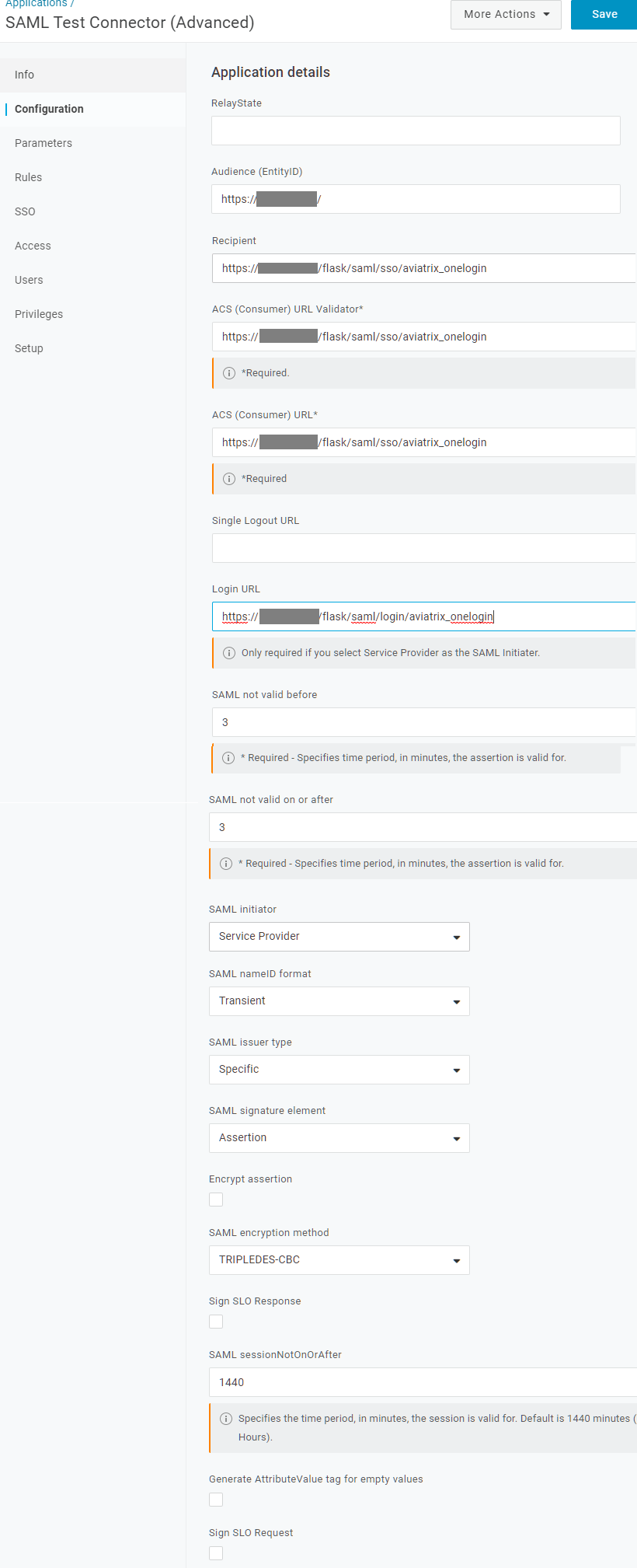
- Click Save.
- Select the Parameters tab.
-
Add the following custom parameters (case sensitive).
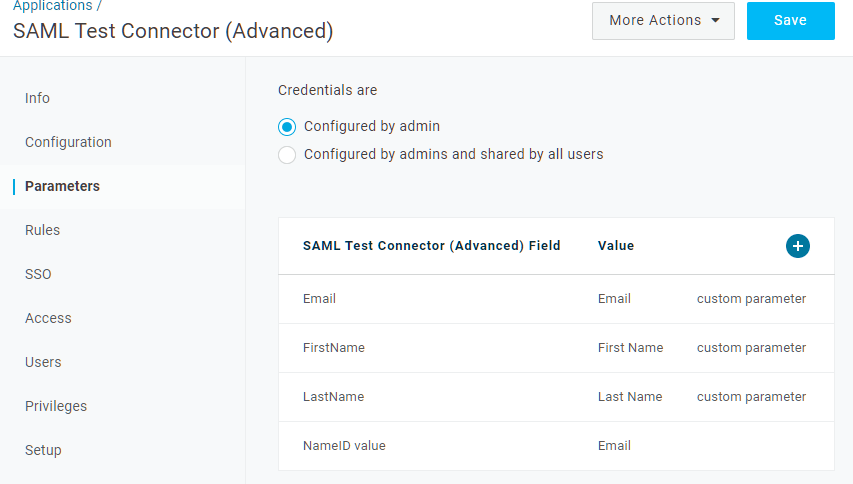
-
Optionally, add a field to map to the profile in Aviatrix.
- Click Save.
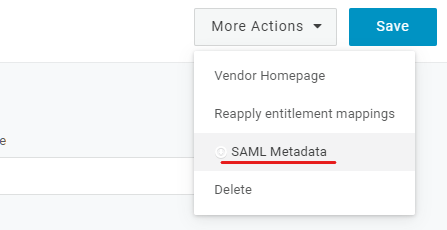
- Click on More actions dropdown menu.
-
Copy the Metadata URL.
Aviatrix CoPilot SAML Endpoint
- Go to Aviatrix CoPilot > CloudFabric > UserVPN > select the Settings tab.
- Under SAML, click + SAML Endpoint.
-
Enter the following information:
Testing the Integration
- Log into Aviatrix CoPilot > Cloud Fabric > UserVPN > select the Settings tab.
- Under SAML, find the SAML endpoint. In the Test column, select the link provided.
Creating a VPN User
Create a new VPN user . Use the VPN gateway created above.Validating
- Go to Aviatrix CoPilot > CloudFabric > UserVPN > select the Users tab.
- Download the configuration for your test user created in the previous step.
- Open the Aviatrix VPN Client application.
- Click Load Conf and select the file downloaded.
- Click Connect.