- Intelligent Cloud Analytics
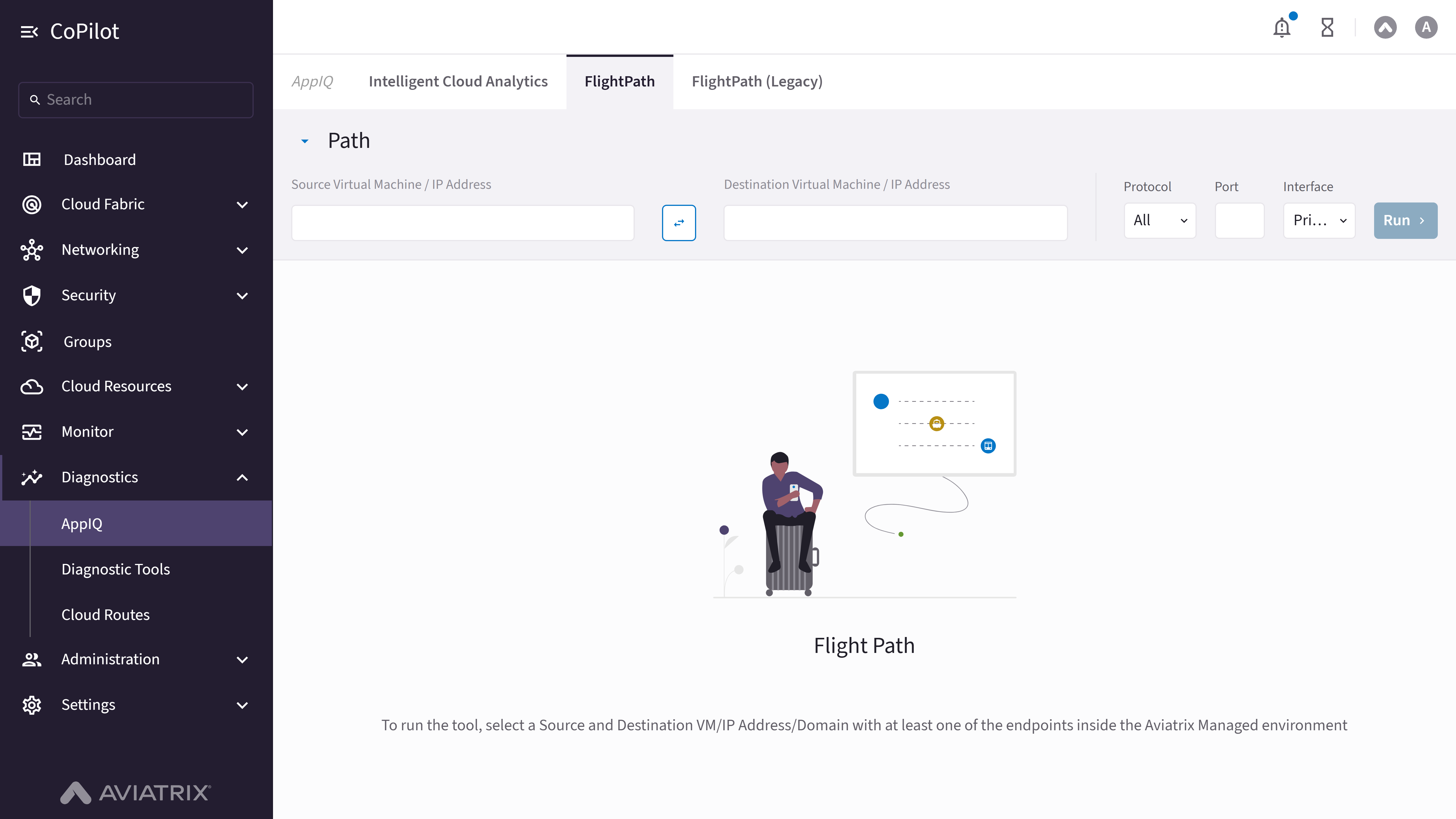
- FlightPath
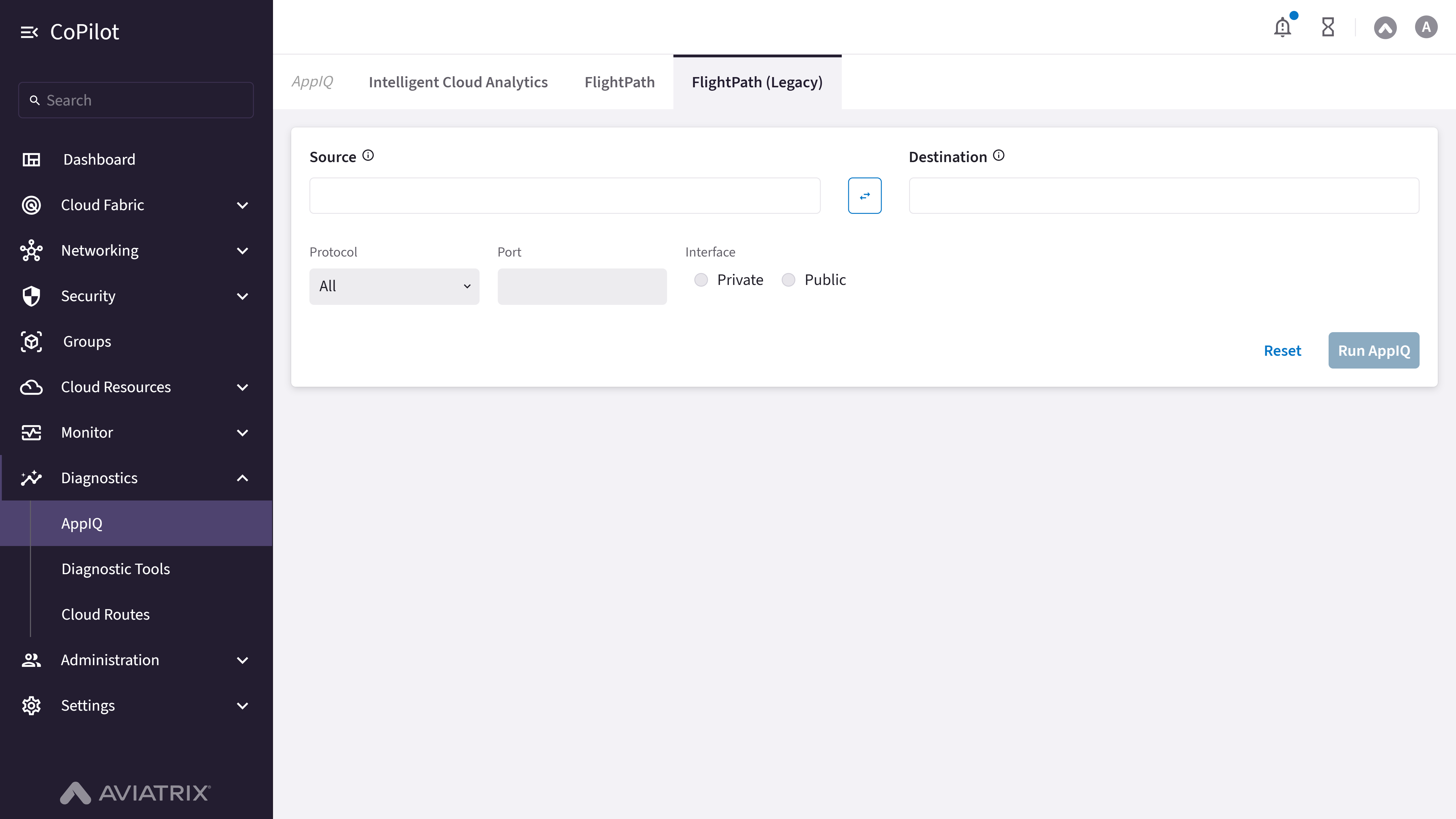
- FlightPath (Legacy)
Purpose
The Intelligent Cloud Analytics page shows cloud fabric topology, application connections, inter-app latencies, and security metrics. When no views exist, the page shows an empty state with the Intelligent Cloud Analytics Manager overview and a View control to create the first view. After at least one view exists, you can select a view and edit its configuration to change which apps, SmartGroups, and connections are displayed.Note: The Intelligent Cloud Analytics page is labeled Preview in
the CoPilot UI.
Elements
- Intelligent Cloud Analytics Manager empty-state message: Shown when no views exist (includes the feature overview text).
- View button: Opens Create View to define the first view (admin users only; shown in the empty state).
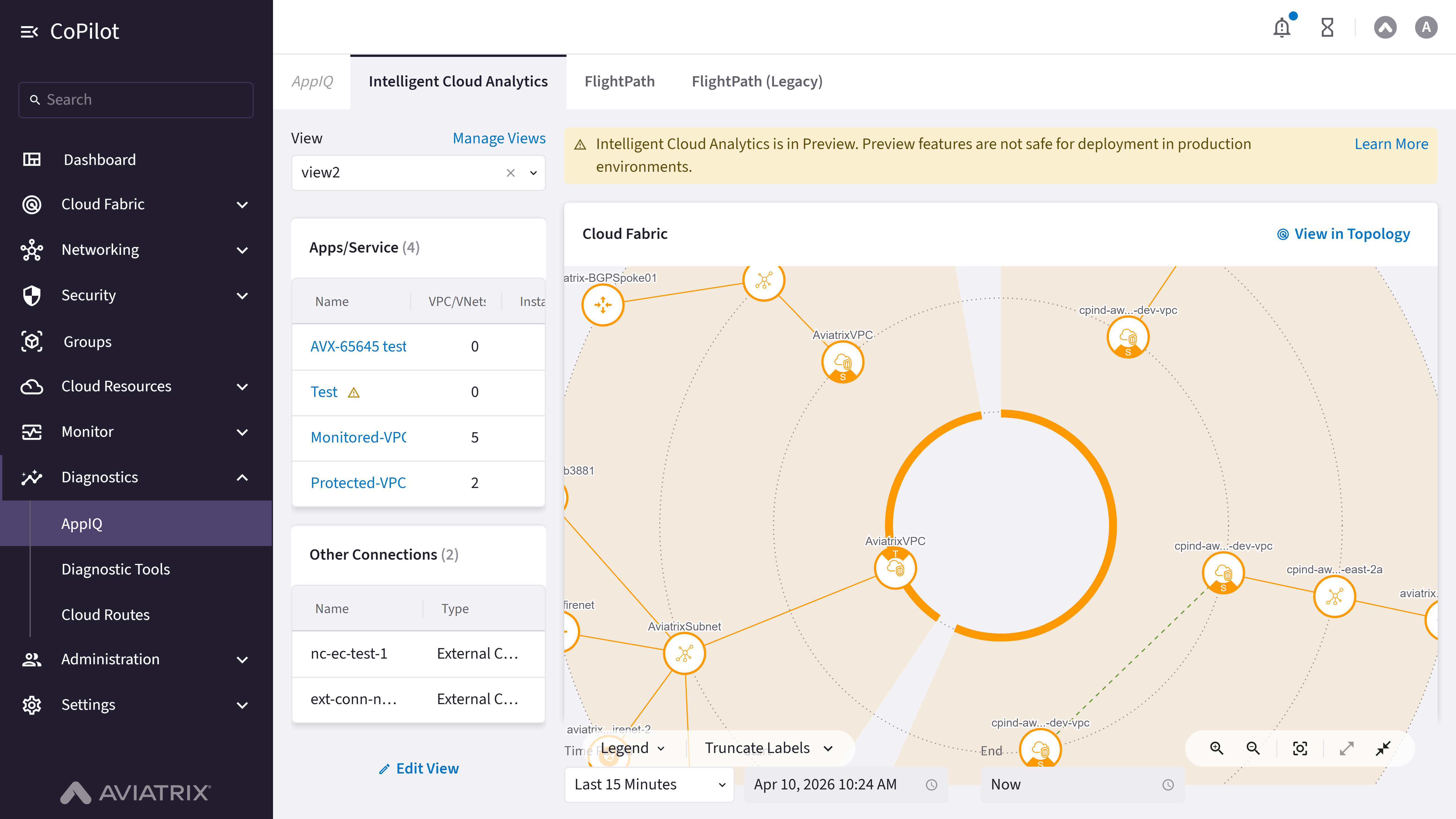
- View: Dropdown to select view (shown when one or more views exist).
- Manage Views: Link to manage views.
- Edit View button: Opens the edit view page for the selected view.
- Apps/Service table: Shows applications and services with VPC/VNets and instances.
- Other Connections table: Shows external connections and their types.
- View in Topology button: Navigates to topology view.
- Cloud Fabric topology diagram: Interactive diagram showing cloud fabric connections for the selected view.
- Legend button: Shows the legend for the topology diagram.
- Truncate Labels control: Sets label display in the topology diagram (default: Truncate Labels).
- Time Period: Selects time period (e.g., Last 15 Minutes).
- Start: Start date and time field.
- End: End date and time field.
- Inter App Latencies: Shows latency between applications.
- Layout selector: Switches the Inter App Latencies view between Heat Map and Table.
- Troubleshoot with FlightPath button: Opens FlightPath troubleshooting.
- Connection Latencies table: Shows connection latencies with source, destination, and latency.
- Traffic Sent: Top 5: Chart showing top 5 traffic sent.
- Traffic Received: Top 5: Chart showing top 5 traffic received.
- Security section resource selector: Selects the SmartGroup or app/service to show security metrics for.
- Distributed Cloud Firewall: Shows Distributed Cloud Firewall rules count.
- Network Domains: Shows Network Domains count.
- Anomalies Detected: Shows Anomalies Detected count.
- Egress FQDN: Shows Egress FQDN count.
Actions
View Intelligent Cloud Analytics
View Intelligent Cloud Analytics
To view intelligent cloud analytics:
- Go to Diagnostics > AppIQ > Intelligent Cloud Analytics.
- The page appears with Cloud Fabric visualization, Apps/Service table, Other Connections table, Inter App Latencies heat map, Connection Latencies table, and traffic charts.
- Use View to switch views. Optionally, use Time Period, Start, and End to set the time range.
- If no views exist yet, click View to open Create View, define the view, and click Save before continuing.
- Use the Security resource selector to view Distributed Cloud Firewall, Network Domains, Anomalies Detected, and Egress FQDN for the selected SmartGroup or app/service.
- Optionally, click View in Topology to open topology view, Legend or Truncate Labels for the diagram, or Troubleshoot with FlightPath to run path analysis.
Parameter Details
Create or Edit Intelligent Cloud Analytics View
Create or Edit Intelligent Cloud Analytics View
To create or edit an Intelligent Cloud Analytics view:
- Go to Diagnostics > AppIQ > Intelligent Cloud Analytics.
- To create the first view, click View to open Create View. To change an existing view, click Edit View.
- Under Applications and Services of Interest, update Name and SmartGroups as needed.
- Under Related Connections/Associations, update Other Application/Services, External Connection (S2C), or Edge as needed.
- Click Save. Use Cancel to discard changes.