

Maintenance Window Overview
Maintenance updates are required and are scheduled on a regular basis for Aviatrix updates. Any available update not completed within a week might be forced. When selecting the schedule for a maintenance window, the day and time are configured according to the time zone set in your user preferences. The default is the time zone of your browser.Urgent unscheduled updates might occasionally be required, such as addressing
CVEs. In these circumstances, Aviatrix might need to perform updates outside
the scheduled maintenance window.
Example
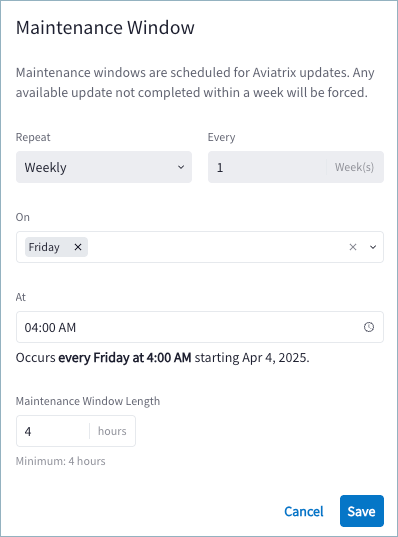
Assume the following settings for a maintenance window: Fridays at 4:00 AM for a length of 4 hours. Given those settings, a maintenance update can occur according to the following schedule:- A maintenance can be performed on Friday of each week.
- The selected start time is 4:00 AM, with a window length of 4 hours.
- Maintenance can start at or after 4:00 AM and any time up to 8:00 AM.
- A maintenance will not start after 8:00 AM, which is the end of the 4-hour window.
- When a maintenance event starts, it will continue until it completes. Best
effort will be made to complete the maintenance before the end of the window.
Configure a Maintenance Window
You can set the date, time, and length of the maintenance window for updates to Aviatrix PaaS. This allows you to choose days and times that are convenient, such as off-peak hours for your business. For more information about maintenance windows for updates, see Maintenance Window Overview. To configure a maintenance window, do the following:- Go to Settings > Maintenance and click Manage. Note that an uneditable default cycle of once every week is set for the maintenance window.
- Select one or more days of the week when you prefer updates to occur.
- Select the time for updates to occur.
- Enter a length of time within which an update should be performed. The maintenance window must be at least 4 hours.
- Click Save.