

AWS Performance Test Results
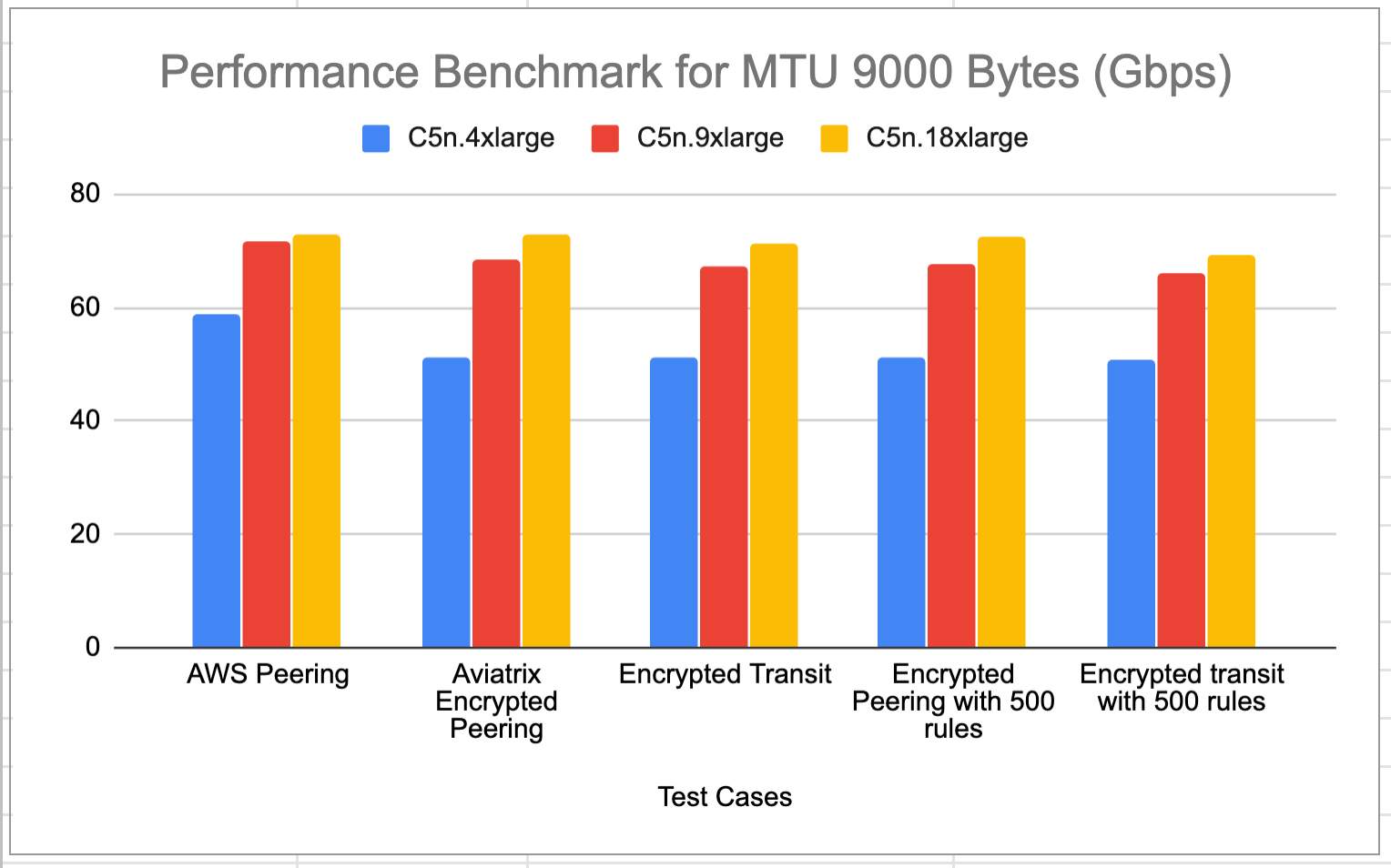
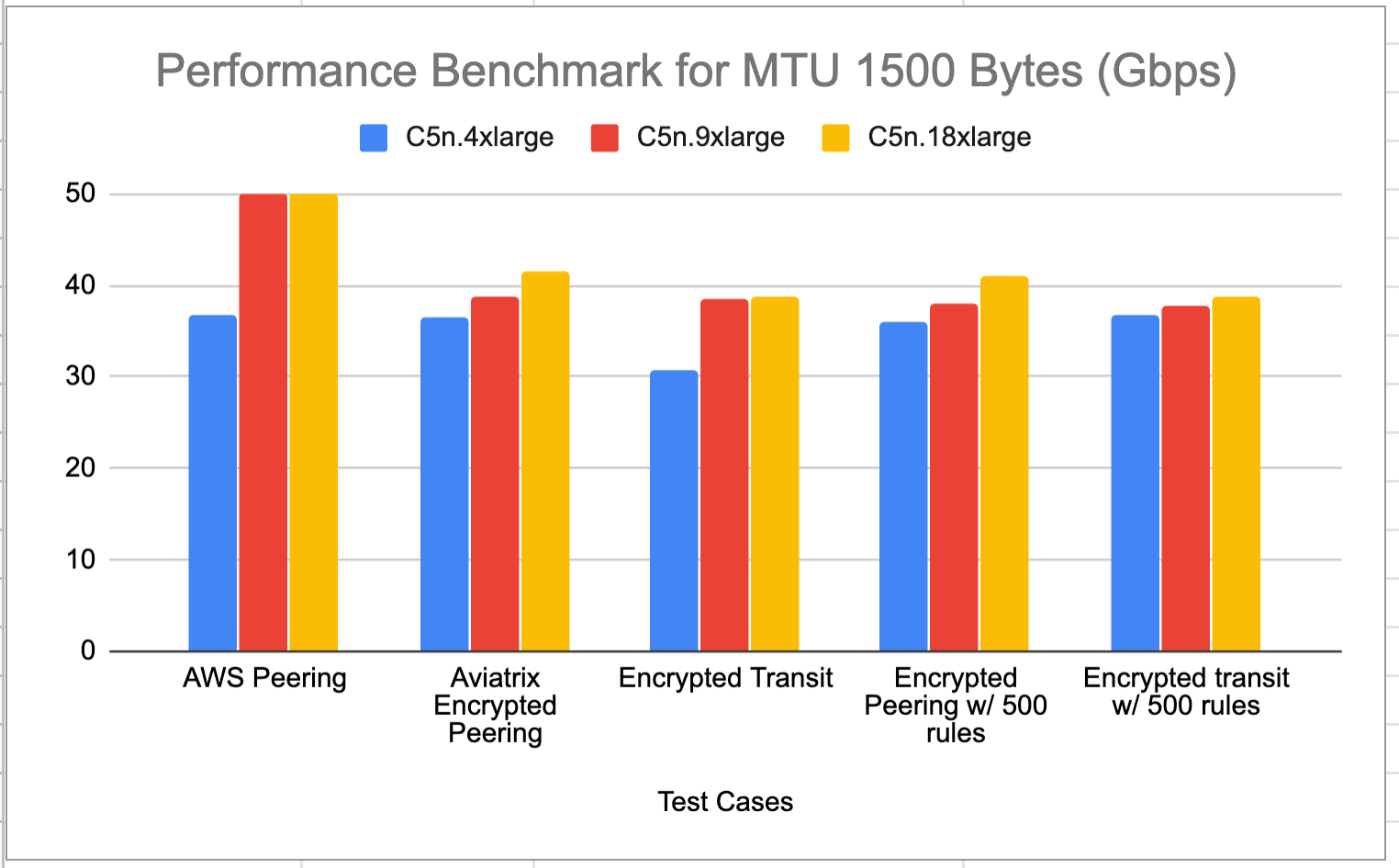
Aviatrix ActiveMesh HPE achieves line rate performance with encryption in AWS when Jumbo Frames are deployed (the default setting for AWS instances). The test benchmark baseline is the native AWS peering where no Aviatrix Gateways are deployed in the VPCs. Adding 500 stateful firewall rules have little impact to the performance. The test topologies are shown below.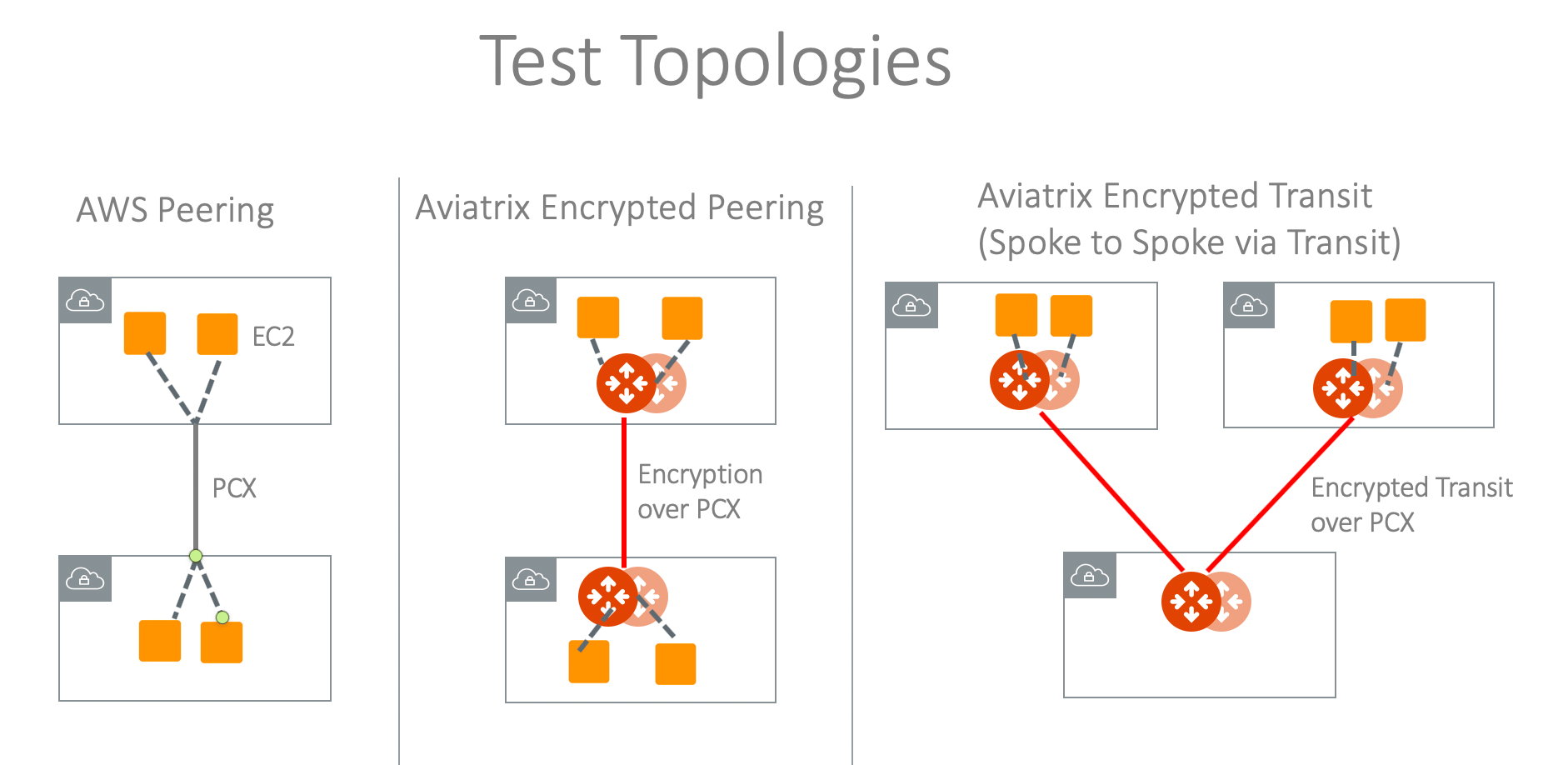
MTU = 9000 Bytes (AWS default setting)
MTU = 1500 Bytes
Single Gateway in AWS Performance Test Results
This test is done without HA enabled in either Spoke or Transit Gateways. The traffic is end-to-end from user instance > Spoke Gateway > Multi-Cloud Transit Gateway > Spoke Gateway> Instance. For MTU = 9000 Bytes, the result is shown in the diagram below.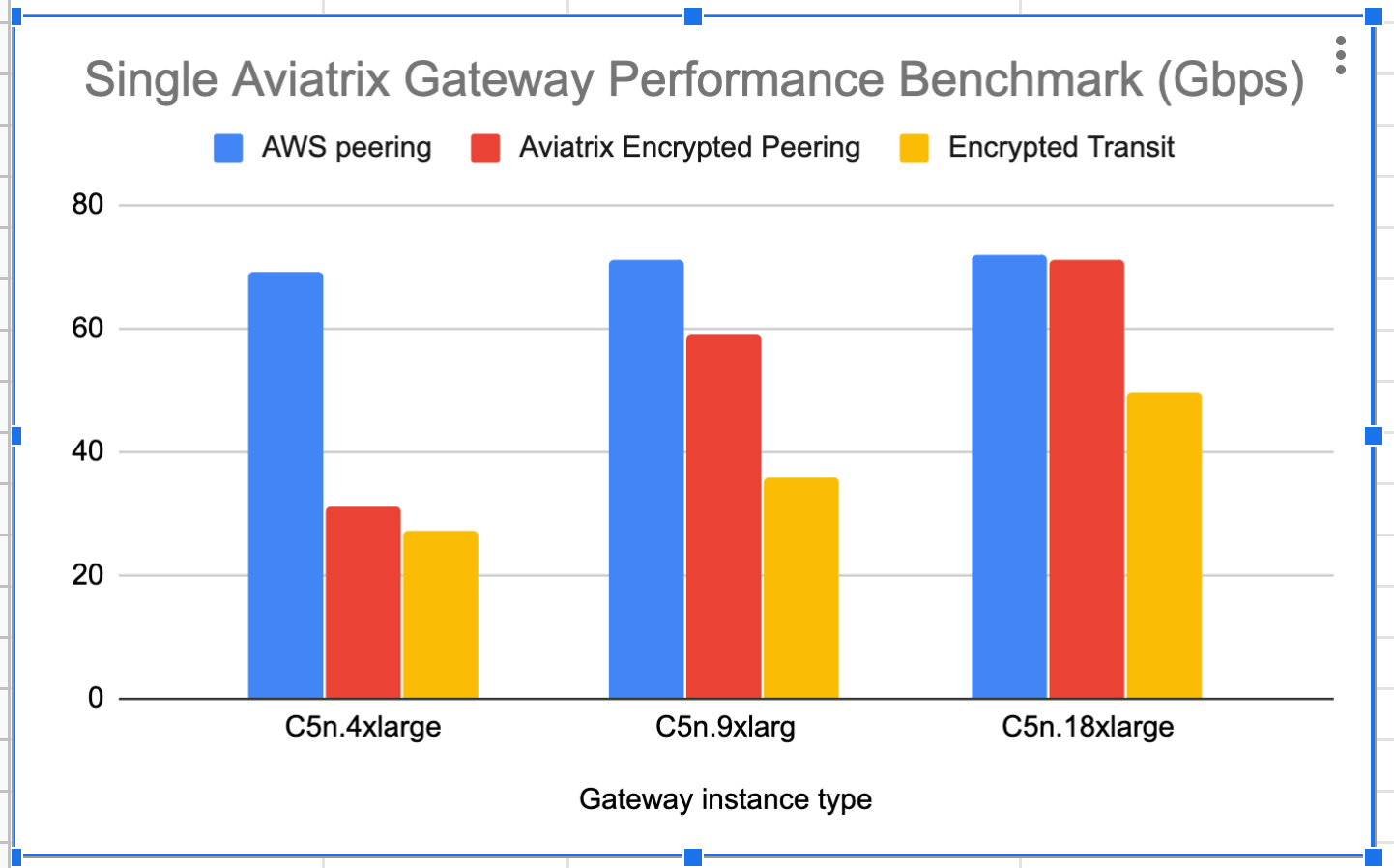
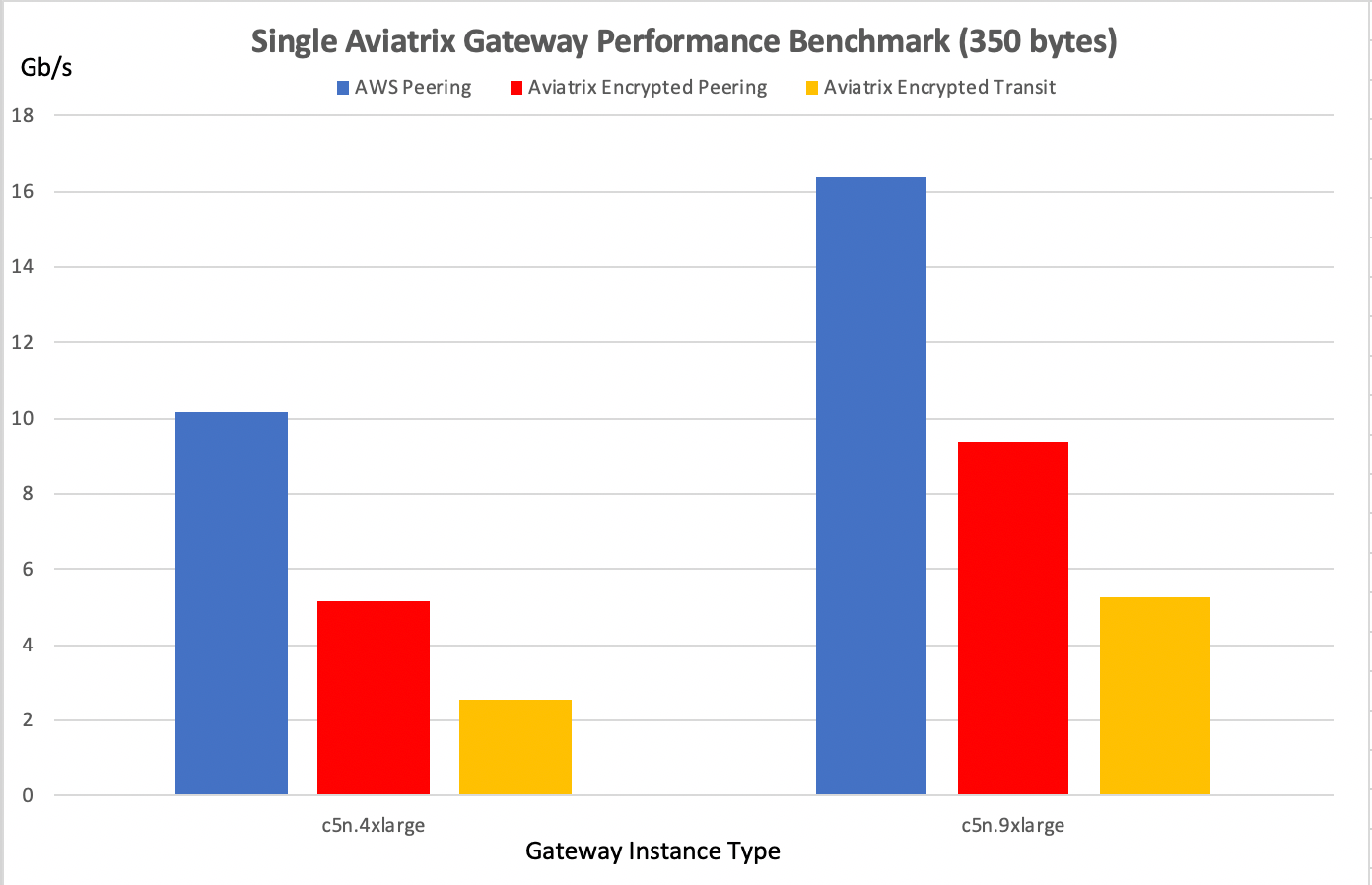
T3 Instance Series Performance
Azure Performance Test Results
The performance results below are from tests conducted with the topology of Test VMs > Spoke > Transit > Spoke > Test VMs in the same region with active-mesh deployment. Test VMs’ route tables are load balanced to point to either primary Spoke Gateways or HA Spoke Gateways to take advantage of the active-mesh deployment. The test topology is shown below.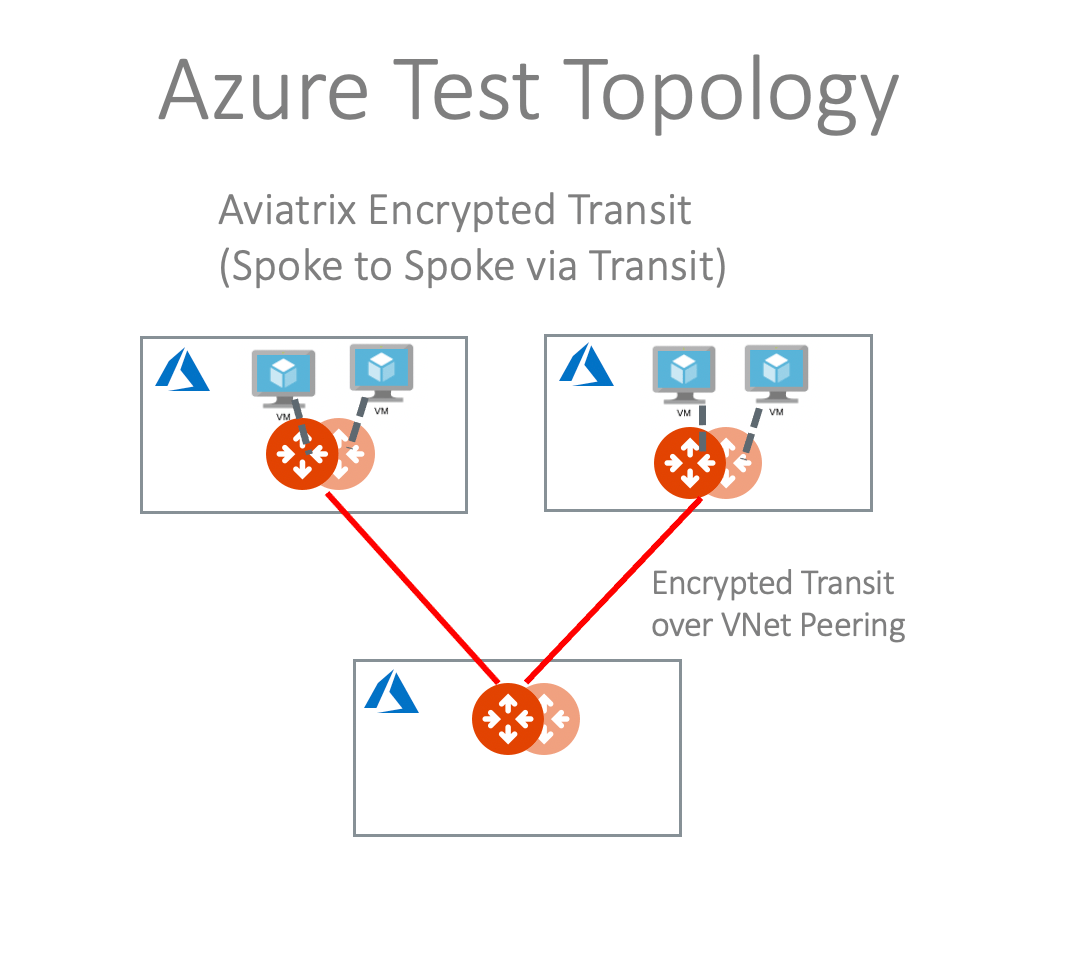
GCP Performance Test Results
The test topology is shown below with the following conditions:- VM - Spoke - Transit - Spoke - VM
- HA enabled
- HPE mode enabled

N1 Series Performance
N2 Series Performance
C2 Series Performance
To deploy Aviatrix Gateways with N2 or C2 series successfully, you need to
apply CPU Quota Increase
request to GCP support first.
OCI Performance Test Results
The performance results below are from tests conducted with the topology of Test VMs > Spoke > Transit > Spoke > Test VMs in the same region with active-mesh deployment. Test VMs’ route tables are load balanced to point to either primary Spoke Gateways or HA Spoke Gateways to take advantage of the active-mesh deployment.How to Tune Performance
Check MTU size
To check MTU size, use Trace Path.- In Aviatrix Controller, go to Troubleshoot > Diagnostics > Network.
- In Gateway Utility, select a gateway and specify a destination host name or IP address.
- Click Trace Path. The MTU of the devices along the path is shown.