

Working with Topology
This section describes the Topology feature of Aviatrix CoPilot. Topology provides a visual representation of deployed networks (VPCs/VNets that contain VMs), gateways, instances, and gateway connections. From this map, you can also identify FireNet gateways, Edge gateways, external connections (S2C), and more. The New Topology Experience option is On by default, and the views on the Overview page described below relate to the New Topology Experience. If you turn this Off, you will see the Classic topology map (if the Old Topology Experiences toggle under Settings > Configuration > General is On). The Topology feature gives you visibility into your network as follows:-
Network View (Overview page)
You can access Network View from the menu options below the topology map on Topology > Overview. In Network View, CoPilot displays a network topology map that shows the logical and physical layout of how network resources are connected across multiple clouds.
Topology provides a visual representation of deployed networks (VPCs/VNets), gateways, instances, and gateway connections. CoPilot automatically draws the map when it connects to Aviatrix Controller.
In the right-hand pane, you can alter the content of the topology map by creating and saving views with selected filters, including latency.
The Topology Overview displays both managed and unmanaged VPCs and VNets. However, only VPCs and VNets that contain VMs are included, so empty VPCs/VNets are not shown. A VPC/VNet can be marked as Aviatrix managed where:
- Aviatrix managed = Yes — Indicates an Aviatrix gateway exists in the VPC/VNet.
- Aviatrix managed = No — Indicates no Aviatrix gateways exist in the VPC/VNet.
- Geo View (Overview page) You can access Geo View from the menu options below the topology map on Topology > Overview. In Geo View, CoPilot displays a geographical map that shows the regions of your managed network resources and their related connections. You can click on the regions to display their VPC/VNets. In Geo View, under Layers Control, you can modify the map to display VPC/VNets and geoblocked countries.
Geoblocking is a legacy feature and only available if you had it enabled prior to Controller version 7.2.4820. If Geoblocking is disabled (from Configuration > License tab) then the Geo Blocked Countries layer option is not available. Users with admin permissions and running on Controller version 7.2.4820 or earlier can enable the feature.
-
Transit View (Transit page)
Under Topology > Transit, CoPilot shows the topology of your Aviatrix transit network in relation to your deployed Aviatrix Transit Gateways. By clicking on the Aviatrix transit icon, you can see all the transit VPCs/VNets that are managed by Aviatrix Controller. By clicking on a region icon, you can see the spoke VPC/VNets that the Controller currently manages. By clicking on a spoke VPC/VNet, you can see all network constructs inside that spoke. You can use the search field to find specific resources.This view is deprecated. Using the New Topology Experience on the Overview page is recommended instead.
- Topology Replay (Replay page) In Topology Replay, CoPilot shows what changed in your environment and when it changed. CoPilot shows when route, credential, and other metrics in your cloud network constructs have changed over time. A timeline panel shows you all of the changes (as change sets) that were recorded over the last month. You can analyze the additions, modifications, and deletions recorded in each change set. You can delete change sets when you no longer need them.
Show Managed Resources by Using Filters
You can filter your network managed resources in the topology map to show only the resources you want. See Create a Topology View for details. In Cloud Fabric > Topology > Overview, you can filter the resources that display for Network View.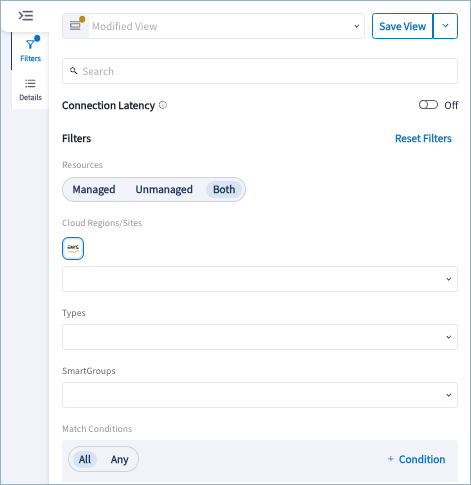
You can also filter by condition. When you select + Condition, you must select the following:
- Condition type
- Qualifier
- Value
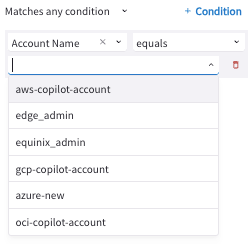
Depending on the operator selected, different types of values can be selected. Some of the available options include the following:
- Select or enter multiple values
- Select true/false
- Select a greater than/less than or equals/does not equal value
- Select a contains/does not contain or starts with/ends with
- Enter a time value (License Expiry, Launch Time)
Details Pane
When you click on a resource in the Topology map, you can view information about that resource in the Details pane on the right side of the page.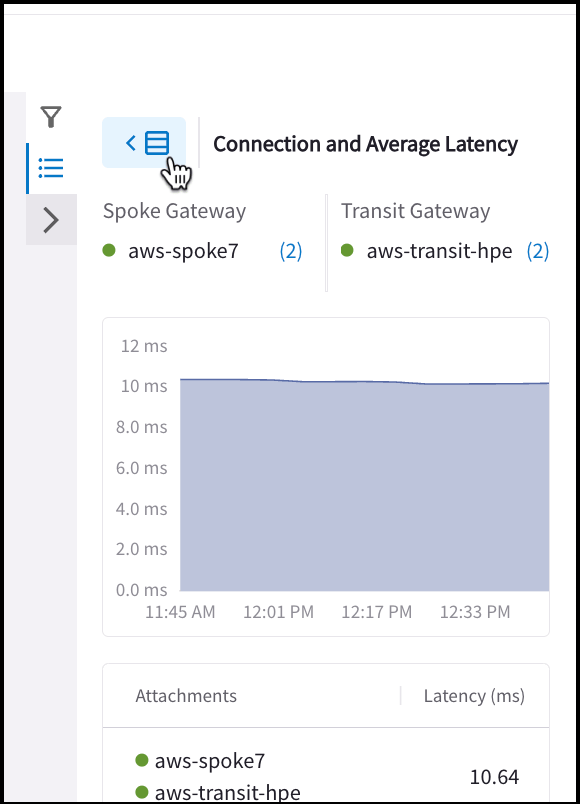
Topology Resource Property Reference
The topology map’s supported filter fields include identifiers and tags for constructs, health, and status metrics. The filters also include associative properties like CSP Vendor and Region. This section describes the properties of managed resources you can filter on in the map for Transit Gateway VPC/VNets, Spoke Gateway VPC/VNets, AWS TGWs, and user instances (virtual machines).Transit VPC/VNet Property Descriptions
You can filter your Transit VPC/VNet topology in the topology map using the following fields for Transit VPCs (innermost circle of the topology map).Spoke VPC/VNet Property Descriptions
You can filter your Spoke VPC topology in the topology map using the following fields for Spoke VPC/VNets (second from inner circle in the topology map).Transit Gateway Property Descriptions
You can filter your Transit Gateway topology in the topology map using the following fields for Transit Gateways virtual machines (second from outermost circle in the topology map).Spoke Gateway Property Descriptions
You can filter your Spoke Gateway topology in the topology map using the following fields for Spoke Gateways virtual machines (second from outermost circle in the topology map).External Connection Property Descriptions
You can filter your Site2Cloud external connection topology using the following fields (outermost circle on the topology map).AWS TGW Property Descriptions
You can filter your AWS TGW topology in the topology map using the following fields for AWS TGWs (innermost circle on the topology map).User Virtual Machine Property Descriptions
You can filter your Virtual Machine topology in the topology map using the following fields for user virtual machines that are in Aviatrix-managed VPCs/VNets (second from outermost circle on the topology map).Subnets Property Descriptions
You can filter your Subnet topology in the topology map using the following fields for subnets that are Aviatrix-managed (third from outermost circle on the topology map).Edge Site Property Descriptions
You can filter your Edge Site topology in the topology map using the following fields for Edge Sites (innermost circle on the topology map).Edge Gateway Virtual Machine Property Descriptions
You can filter your Edge Gateway topology in the topology map (second from outermost circle on the topology map), by using the following fields.Edge External Connection Property Descriptions
You can filter your Edge External Connection topology in the topology map (second from outermost circle on the topology map), by using the following fields.Latencies for Links in Your Network Topology
In Cloud Fabric > Toplogy > Overview (New Topology Experience), you can click the links between resources to show the Connection and Average Latency information.Viewing a Map of Your Network Topology
When you build your Aviatrix Multicloud Transit Network by launching Aviatrix Gateways and other constructs, Aviatrix CoPilot automatically draws a map to show your current network topology. To view the topology map, go to Cloud Fabric > Topology or type Topology in the navigation search. The Network View is displayed by default. You can filter the topology map on multiple fields to show only the gateways and constructs you want to see in your network. You can save the conditions to create a topology filter.Topology Map (New Topology Experience)
In CoPilot release 3.0.1, a new topology map was introduced (Topology New Experience). The new map can display larger network topologies. Use the toggle at the top of the map to switch between the New Topology Experience and the old map. The illustration below shows the network constructs that are laid out in the five circles of the topology map (Network View). The following resources are placed on the circle working from the outermost circle to the innermost circle:- External Connections (S2C) (outermost circle)
- Instances (Virtual Machine instances for Transit, Spoke, and Edge Gateways, and User VM)
- Subnets
- Spoke Gateway and Edge Site VPC/VNets
- Transit Gateway and Edge Site VPC/VNets (innermost circle)
Topology Legend
Network View
The topology legend in the Network View shows what the colored lines and icons in the Topology indicate. The colored lines in the Topology map (Network View) denote the following:- Green solid line: the attached gateways have Max Performance enabled, and the connection is up.
- Green dotted line: there is a peering or gateway attachment connection between the two gateways and the connection is up.
- Red solid line: the attached gateways have Max Performance enabled, and the connection is down.
- Red dotted line: there is a peering or gateway attachment connection between the two gateways and the connection is down. If you click this connection you see a No data found message.
Geo View
The topology legend in the Geo View shows what the colored lines and icons in the topology indicate. The colored lines in the Geo View map indicate:- Green solid line: all the connections between the regions are up.
- Orange solid line: some connections between the regions are up, and others are not.
- Red solid line: all connections between the regions are down.
Topology Map Controls
The following shows the zoom-in, zoom-out, node-expand, and node-collapse topology controls. For large topologies that have many constructs, you can zoom in to the map for selection of granular nodes to display their properties. For smaller monitors, you can zoom out of the map to better see the external connections in the outermost circle. By default, all nodes for your constructs are plotted on the map when you open the Topology page. You can show or hide all subnets and instances under VPC/VNets in your map by using the expand-node and collapse-node controls. You can also show, hide, or truncate labels in the Topology map.Access Gateway VM Details from Topology Map
In Network View, when you select a Gateway Virtual Machine (in the second from outermost circle), options display below Properties in the side panel.- Click View Gateway to open Cloud Fabric > Gateways with details about the Gateway.
- Click Tools > Gateway Diagnostics to run relevant diagnostics on the selected instance.