

Introduction
Transit BGP to LAN allows Aviatrix Transit Gateways to communicate with a pair of instances in different VNets in Azure without running any tunneling protocol such as IPsec or GRE. One use case is to interoperate with third-party virtual appliances such as SD-WAN cloud instances that do not have the capability to support BGP over any tunneling protocols. For example, integrating with SD-WAN gateways can be deployed as below where an Aviatrix Multicloud Transit Gateway connects to a third-party cloud instance in different VNets in Azure.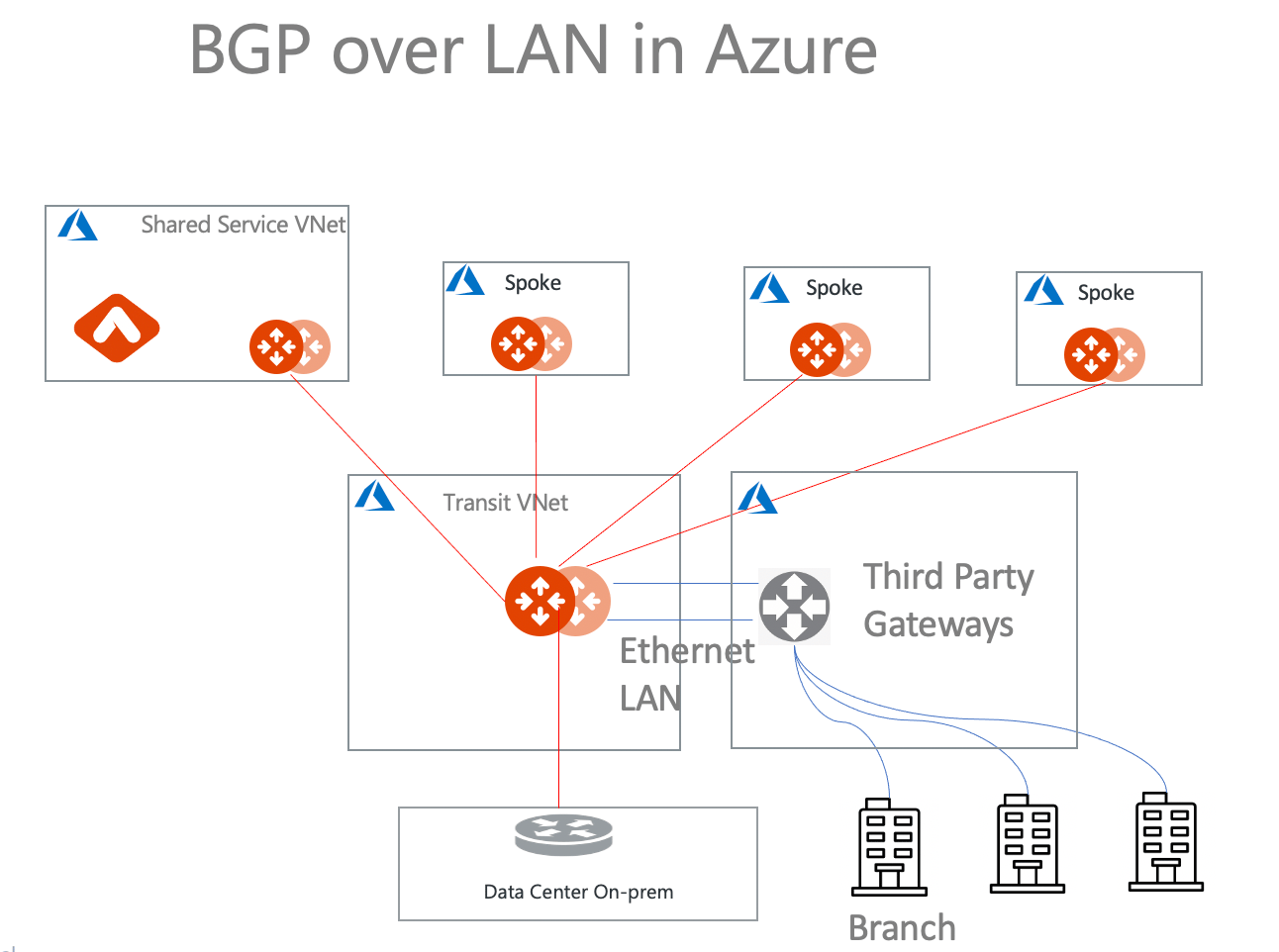
- Multicloud Transit Network Workflow Instructions (AWS/Azure/GCP/OCI)
- Aviatrix Transit Gateway to External Devices
- Transit Network Design Patterns
- ActiveMesh 2.0 is required. To migrate to ActiveMesh 2.0, see Migrating from Classic Aviatrix Encrypted Transit Network to Aviatrix ActiveMesh Transit Network.
- This solution is available in AWS and Azure. To configure this solution for AWS, see Multicloud Transit BGP over LAN in AWS Workflow. Adjust the topology depending on your requirements.
- LAN interfaces for Aviatrix Transit Primary and third-party cloud instance must be in the different VNets.
The key ideas for this solution are:
- A BGP session establishes between a third-party cloud instance and Aviatrix Transit Gateway via each LAN interface in different VNets.
- Data plane traffic also runs between a third-party cloud instance and Aviatrix Transit Gateway via each LAN interface without a tunnel protocol such as IPsec and GRE.
Prerequisites
- This feature is available for 6.3 and later. Upgrade Aviatrix Controller to at least version 6.3.
- In this example, you are going to deploy the below VNets in Azure:
- Transit VNets (for example, 10.1.0.0/16 and 10.2.0.0/16) by creating a VNet with the VPC Function Aviatrix FireNet VNet option enabled.
- Spoke VNets (for example, 192.168.11.0/24 and 192.168.21.0/24) by creating a VNet as per the previous step or manually deploying it in each cloud portal. You can use your existing cloud network.
- Third-party cloud instance supports high throughput.
Deploying Aviatrix Multicloud Transit Solution
Refer to Global Transit Network Workflow Instructions for the below steps. Adjust the topology depending on your requirements.- Deploy Aviatrix Multicloud Transit Gateway and HA with High Performance Encryption Mode enabled in Transit VNet.
Select the BGP Over LAN checkbox to enable that function.
- Deploy Spoke Gateway and HA to launch Aviatrix Spoke gateway and enable HA with High Performance Encryption enabled in Spoke VNet.
- Attach Spoke Gateways to Transit Network.
- (Optional) You can attach Azure Spoke VNet via native peering if you prefer not to encrypt the traffic between the Transit VNet and the Spoke VNet.
Launch Third-Party Cloud Instances
Deploy third-party cloud instances in a separate Transit VNet.- Create a third-party cloud instance and put the MGMT interface in the public gateway subnet.
- Create a new public WAN subnet and a dedicated routing table for the WAN interface if needed.
- Create a new private LAN subnet and a dedicated routing table for the LAN interface.
- Make sure the IP forwarding function on third-party cloud instance interfaces is enabled.
An Aviatrix Transit Gateway and third-party cloud instance CANNOT be deployed
in the same Transit VNet.
Building BGP over LAN
Creating Azure VNet Peering Between Aviatrix Transit VNet and Third-Party Cloud Instance Transit VNet
- In CoPilot, navigate to Networking > Connectivity > Native Peering.
- Click +Native Peering.
- In the Create Native Peering dialog, select Azure Cloud.
- Select the VNet where the Aviatrix Transit gateway is located as Peer1.
- Select the VNet where the third-party cloud instance is located as Peer2.
- You can also select the route tables for each VNet by sliding Select Route Tables to On.
- Click Save.
Configuring BGP over LAN on Aviatrix Transit Gateway
- CoPilot UI
- Terraform
- In CoPilot, navigate to Networking > Connectivity > External Connections (S2C).
- Click +External Connection.
- In the Add External Connection dialog, select Connect Public Cloud to External Device.
- Select BGP over LAN from the drop-down.
- Enter the following information in the fields provided.
- To create the BGP connection, click Save.
(Optional) Downloading the BGP over LAN configuration sample from Aviatrix Controller
- On the External Connections (S2C) tab, click the vertical ellipsis and then select Download Configuration.
- In the Download Configuration dialog, select the following:
- Vendor: select the device you are using (any device that is capable of running IPsec and BGP).
- Platform: select the applicable platform for the chosen device.
- Software: automatically selected based on the Vendor/Platform you select.
- Click Download.
Configuring BGP over LAN on Third-Party Cloud Instance
- Log in to the Azure portal.
- Create a user-defined routing table with default route (0.0.0.0/0) pointing nexthop to the Aviatrix Primary Transit LAN IP for the subnet where the third-party cloud primary instance LAN interface is located.
- Create a user-defined routing table with default route (0.0.0.0/0) pointing nexthop to the Aviatrix HA Transit LAN IP for the subnet where third-party cloud HA instance’s LAN interface is located, for HA deployment.
- (Optional) Open the downloaded BGP over LAN configuration file.
- Log in to the third-party cloud instance.
- Program route to send traffic to the Aviatrix Transit LAN IP through the third-party cloud instance LAN interface.
- Configure the related BGP and LAN information in the third-party cloud instance.
- Check if the function ‘eBGP multi-hop’ is enabled, if the BGP session is not established.
- Repeat these steps for HA deployment.
You must create a default route 0.0.0.0/0 in the third-party cloud instance
LAN route table to point to the Aviatrix Transit LAN IP over VNET peering in
Azure.
Verifying LAN and Transit Status
- LAN status: Navigate to Diagnostics > Cloud Routes > External Connections. The Status and Tunnel Status columns indicate if the tunnel is Up or Down.
- Transit gateway status: Navigate to Diagnostics > Cloud Routes > Gateway Routes. The Gateway Status and Tunnel Status columns indicate if the gateway and tunnel are Up or Down.