

Aviatrix strongly recommends that you contact Aviatrix Support before
migrating your Controller.
Introduction
The Aviatrix multicloud networking platform is delivered via two images, a Controller image and a gateway image. Both should be maintained with the latest version for managing security and support for the product. Aviatrix intends to publish 2 new images per year. You may need to migrate your Aviatrix Controller in the following situations:- If your Controller uses an old machine image, and you are trying to upgrade to a new software version that requires the latest image.
- If you need to transition to a newer machine image for your Controller based on a recommendation from Aviatrix Support.
- If you launched an existing AWS, Azure, or GCP Controller with a BYOL license and have it updated to software version 6.7.1185 or later, you only need to subscribe to the Aviatrix Secure Networking Platform Metered 2208-Universal 24x7 Support through your Controller. Log in as an admin and go to Settings > Controller > License to subscribe. You do not need to follow the migration steps in this document.
- A machine image is named an “AMI (Amazon Machine Image)” in AWS, a “VM image” (Virtual Machine Image) in Azure, a “machine image” in GCP, and a “custom image” in OCI.
- Fulfill the prerequisites, including backing up your old Controller.
- Delete your old Controller in the CSP Account from which you originally launched it: AWS, Azure, GCP, or OCI.
- Launch a new Controller from the relevant CSP marketplace.
- Restore the data from your old Controller to your new Controller.
- Prerequisites for all clouds
- Prerequisites for CoPilot users
- Controller Migration in AWS
- Controller Migration in Azure
- Controller Migration in GCP
- Controller Migration in OCI
- Setting up your new Controller
- Controller Migration during Disaster Recovery
Prerequisites for all Clouds
- Make sure you have the relevant CSP storage container (an AWS S3 bucket, Azure Blob Storage, Google Cloud Storage, or OCI Object storage service) linked with your Aviatrix Controller. This storage container enables you to back up your data.
- (For AWS, Azure, and GCP Controllers) Get your Customer ID either through Controller > Settings > Controller > License or from your Aviatrix Account Manager. If you are migrating a metered image, subscribe to the Aviatrix Secure Networking Platform Metered 2208-Universal 24x7 Support offer to receive your Customer ID by email.
To ensure that you receive the license email, please whitelist these email addresses:
- Run an audit on the Controller’s primary access account and all the remaining secondary accounts to make sure that the IAM roles and policies are set up as suggested. In your Controller, go to Accounts > Access Accounts > select an account > click Audit. Repeat these steps for all access accounts for the CSP where your Controller instance is located (AWS, Azure, GCP, or OCI).
- Enable a Controller backup using the access account for the CSP from which you launched the Controller (Azure, GCP, or OCI).
In case of a Disaster Recovery (DR) scenario, considering keeping current
backups in separate regions of each CSP.
- Back up your existing Controller. In your Controller, go to Settings > Maintenance > Backup & Restore > Backup. Click Backup now.
- Schedule the migration during a maintenance window.
- Check the current software version of your gateways . You cannot upgrade your Controller unless all gateways are on the same version as the Controller.
- Upgrade to the latest build of your current release. Note that Aviatrix software version upgrade is a version-to-version upgrade. Therefore, you may need to perform multiple upgrades until you reach the latest version on your existing Controller.
- Disable your Controller’s HA configuration if HA is set up. You can re-enable HA on the new Controller once migration is complete.
-
If you are using SAML login for either the Controller login
(Settings/Controller/SAMLLogin) and/or for openvpn authentication
(OpenVPN/Advanced/SAML), please make sure that the endpoints configured on the
Controller and the SAML applications in the IdP match exactly.
Do not add any new configurations to your old Controller before migrating, as those updates may be lost in the migration process.
Prerequisites for CoPilot Users
Controller Migration in AWS
For Controllers launched from AWS, there are two methods you can use to migrate your Controller AMI (Amazon Machine Image):- Controller-driven method (simplest method) - You can easily migrate your existing (BYOL, Metered, or another license) AMI directly from the Controller to a BYOL AMI. The BYOL AMI requires a valid customer ID.
- Manual method (longer method which offers more visibility) - You can migrate your Controller by going through the AWS marketplace and stopping your Controller instance, disassociating your EIP, and so on. This method requires more steps but allows you to see the network and account changes involved in each step. You can also use this method to change licenses if needed.
The Controller-driven method can only migrate between AMIs using the same
license. To change your license, use the manual method.
- To migrate to a BYOL license model, please contact your Aviatrix Sales Account Manager or email [email protected].
- To migrate to a Metered license model, subscribe to the Aviatrix Secure Networking Platform Metered 2208-Universal 24x7 Support offer on the AWS Marketplace.
Controller-Driven Method (AWS)
Before starting, make sure you have completed the prerequisites for all clouds.- In your Controller, go to Settings > Maintenance > Migration.
- Click Migrate.
- The Controller will back up the current configuration, launch a new Controller instance with the latest AMI, and restore the configuration on the new Controller.
- Once the migration is complete, the new Controller will be accessible at the same IP address as the old Controller.
The Controller-driven migration method retains the same EIP (Elastic IP)
address as the old Controller.
Manual Method (AWS)
Before starting, make sure you have completed the prerequisites for all clouds.-
Record the settings of your existing Controller instance, including:
- VPC ID
- Subnet
- Security Group(s)
- IAM role
- EIP (Elastic IP address)
- Private IP address
- Instance type
- Go to your AWS Console > EC2 > Instances. Select the old Controller instance.
-
Disassociate the EIP from your old Controller instance:
- Go to EC2 > Elastic IPs.
- Select the EIP associated with the old Controller.
- Click Actions > Disassociate Elastic IP address.
- Confirm the disassociation.
-
Stop or terminate the old Controller instance:
- Go to EC2 > Instances.
- Select the old Controller instance.
- Click Instance State > Stop instance (or Terminate instance).
-
Subscribe to the new AMI on the AWS Marketplace:
- Go to the AWS Marketplace and subscribe to the appropriate Aviatrix offer.
- If you are migrating to BYOL, subscribe to the Aviatrix Secure Networking Platform BYOL offer.
- If you are migrating to Metered, subscribe to the Aviatrix Secure Networking Platform Metered 2208-Universal 24x7 Support offer.
-
Launch a new Controller instance from the new AMI:
- Use the same VPC, subnet, and security group settings as the old Controller.
- Use the same instance type (or a larger one if needed).
- Assign the same IAM role.
-
Associate the EIP with the new Controller instance:
- Go to EC2 > Elastic IPs.
- Select the EIP that was previously associated with the old Controller.
- Click Actions > Associate Elastic IP address.
- Select the new Controller instance and associate the EIP.
If you used an ELB (Elastic Load Balancer) for your old Controller, remove the
old Controller instance from the ELB’s target group, then register the new
Controller instance to the target group.
- Proceed to Setting up your new Controller.
Controller Migration in Azure
Before starting, make sure you have completed the prerequisites for all clouds.-
Record the settings of your existing Controller VM, including:
- Resource Group
- Virtual Network and Subnet
- Network Security Group (NSG)
- Public IP address
- Private IP address
- VM size
-
Disassociate the public IP address from your old Controller:
- Go to the Azure Portal > your Controller VM > Networking.
- Click on the network interface.
- Go to IP configurations and disassociate the public IP.
-
Stop or delete the old Controller VM:
- Go to the Azure Portal > Virtual Machines.
- Select the old Controller VM.
- Click Stop (or Delete).
-
Launch a new Controller from the Azure Marketplace:
- Go to the Azure Marketplace and search for the appropriate Aviatrix offer.
- Deploy a new Controller VM using the same Resource Group, Virtual Network, Subnet, NSG, and VM size as the old Controller.
-
Associate the public IP address with the new Controller VM:
- Go to the Azure Portal > your new Controller VM > Networking.
- Click on the network interface.
- Go to IP configurations and associate the public IP that was previously used by the old Controller.
- Proceed to Setting up your new Controller.
Controller Migration in GCP
Before starting, make sure you have completed the prerequisites for all clouds.-
Record the settings of your existing Controller instance, including:
- Project
- VPC network and Subnet
- Firewall rules
- External (static) IP address
- Internal IP address
- Machine type
- Zone
-
Disassociate the external IP from your old Controller instance:
- Go to the GCP Console > VPC network > External IP addresses.
- Change the assignment of the static external IP from the old Controller instance to None.
-
Stop or delete the old Controller instance:
- Go to the GCP Console > Compute Engine > VM instances.
- Select the old Controller instance.
- Click Stop (or Delete).
-
Launch a new Controller from the GCP Marketplace:
- Go to the GCP Marketplace and search for the appropriate Aviatrix offer.
- Deploy a new Controller instance using the same Project, VPC network, Subnet, Firewall rules, Machine type, and Zone as the old Controller.
-
Associate the external IP with the new Controller instance:
- Go to the GCP Console > VPC network > External IP addresses.
- Change the assignment of the static external IP to the new Controller instance.
- Proceed to Setting up your new Controller.
Controller Migration in OCI
Before starting, make sure you have completed the prerequisites for all clouds.-
Record the settings of your existing Controller instance, including:
- Compartment
- VCN (Virtual Cloud Network) and Subnet
- Security List / Network Security Group
- Public IP address (Reserved)
- Private IP address
- Shape (instance type)
-
Disassociate the reserved public IP from your old Controller instance:
- Go to the OCI Console > Networking > IP Management > Reserved Public IPs.
- Select the reserved public IP associated with the old Controller.
- Click on it and remove the assignment.
-
Stop or terminate the old Controller instance:
- Go to the OCI Console > Compute > Instances.
- Select the old Controller instance.
- Click Stop (or Terminate).
-
Launch a new Controller:
- Deploy a new Controller instance using the same Compartment, VCN, Subnet, Security List/NSG, and Shape as the old Controller.
-
Associate the reserved public IP with the new Controller instance:
- Go to the OCI Console > Compute > Instances > select the new Controller instance.
- Under Resources, go to Attached VNICs > select the primary VNIC.
- Edit the IP configuration to assign the reserved public IP.
- Proceed to Setting up your new Controller.
Setting up your New Controller
After launching your new Controller from the CSP marketplace, follow these steps to complete the migration:- Open a browser and navigate to the new Controller’s IP address
(
https://<controller-ip>). - Follow the initial setup wizard:
- Set the admin password.
- Set the admin email address.
- Optionally set a proxy configuration if required.
- When prompted, enter your Customer ID.
- Run the initial setup and wait for the Controller to initialize.
Do not upgrade the software version on the new Controller before restoring the
backup. The restore process requires that the new Controller is on the same
software version as the old Controller at the time of backup.
-
Restore the backup from your old Controller:
- Go to Settings > Maintenance > Backup & Restore > Restore.
- Select the CSP storage where your backup is stored (S3, Azure Blob, GCS, or OCI Object Storage).
- Enter the required details (bucket name, file name, access account, etc.).
- Click Restore.
- Wait for the restore to complete. The Controller will reboot automatically after the restore.
- After the Controller reboots, log in with your previous admin credentials (from the old Controller).
-
Verify that the configuration has been restored correctly:
- Check that all access accounts are present under Accounts > Access Accounts.
- Run an audit on all access accounts.
- Verify that all gateways are up and running.
- Check that all tunnels and peerings are in the correct state.
-
If you previously disabled Controller HA, re-enable it on the new Controller:
- Go to Settings > Controller > Redundancy and re-enable Controller HA.
- Update any DNS records that point to the old Controller IP address if the IP address has changed.
-
(For CoPilot users) If your Controller IP address changed:
- If you are on a Controller version earlier than 6.8.1088 or earlier than 6.9.161: Log in to CoPilot and enter the new Controller IP address when prompted.
- If you are on Controller version 6.8.1088 or later or 6.9.161 or later: Update the CoPilot security group to allow inbound 443 from the new Controller’s IP address.
- If you are using SAML authentication, update the SAML application in your IdP with the new Controller IP address or FQDN if it has changed.
- Once you have verified that the new Controller is fully operational, you can terminate the old Controller instance in your CSP console.
Post Migration Tasks
After testing to ensure that the Controller migration is complete and successful, you can delete the old Controller. It can be left in “Stopped” status for a while, but it should never be started. If it is started, this old Controller will reach out to the gateways and the network could have issues with two Controllers trying to monitor/modify the gateways.Migrating the Controller IP Address
After migrating to a new Controller, make sure you have migrated your public IP address as well.- In AWS, Azure, GCP, or OCI, disassociate the Static Public IP or Elastic IP address from your old Controller and associate it with your new Controller.
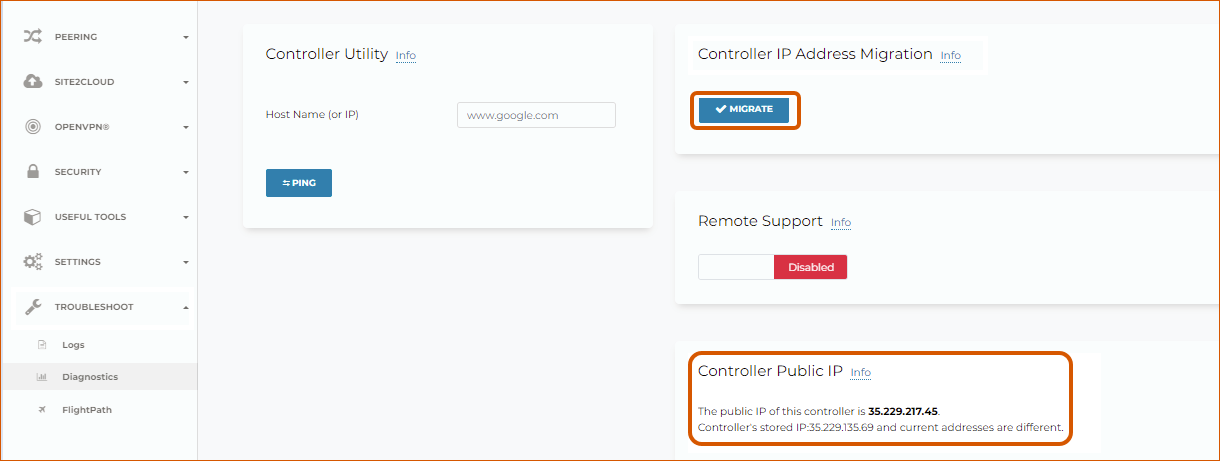
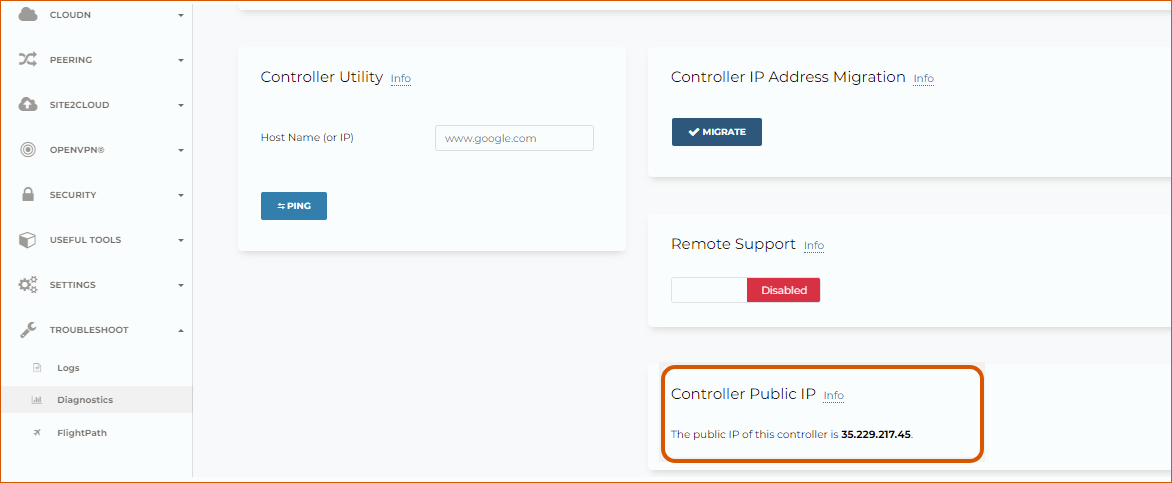
- In your new Controller, in the left sidebar, go to Troubleshoot > Diagnostics and scroll down to the Controller IP Address Migration section. If two IPs display under Controller Public IP, click Migrate.
Controller Migration during Disaster Recovery
In a Disaster Recovery (DR) situation in which an entire CSP region is unavailable, you may not be able to access your old Controller to follow the steps above. In this situation, use the steps below to migrate your Controller.Restoring a Controller to a different region than the old Controller
(cross-region restore) is officially validated and supported for AWS only.
Cross-region restore is not supported for Azure, GCP, or OCI. If your
Controller runs on Azure, GCP, or OCI, contact Aviatrix Support before
attempting to restore to a different region.
-
Deploy a new Controller in a different region from the old Controller.
A best practice is to keep a current backup in a separate region from the region in which you deployed the Controller, so that the backup is accessible during a regional outage.
- Upgrade this new Controller to the current production version.
- If possible, restore your backup.
- In your new Controller, go to Settings > Maintenance > Migration and click Migrate.
- Run a connectivity and performance test to ensure everything is working correctly.
- Deploy CoPilot from the new Controller.
- When your old Controller becomes available again, do not restart that instance until you can ensure that all operations are working with the new Controller. Then, you can delete that instance.