

Introduction
Transit BGP to LAN allows Aviatrix Transit Gateways to communicate with multiple instances in the same VPC in GCP without running any tunneling protocol such as IPsec or GRE (traffic needs to be sent to the subnet gateway for forwarding). One use case is to interoperate with third-party virtual appliances such as SD-WAN cloud instances that do not have the capability to support BGP over any tunneling protocols. For example, integrating with SD-WAN gateways can be deployed as below, where Aviatrix Multicloud Transit Gateways connect to third-party cloud instances in the same VPC in GCP: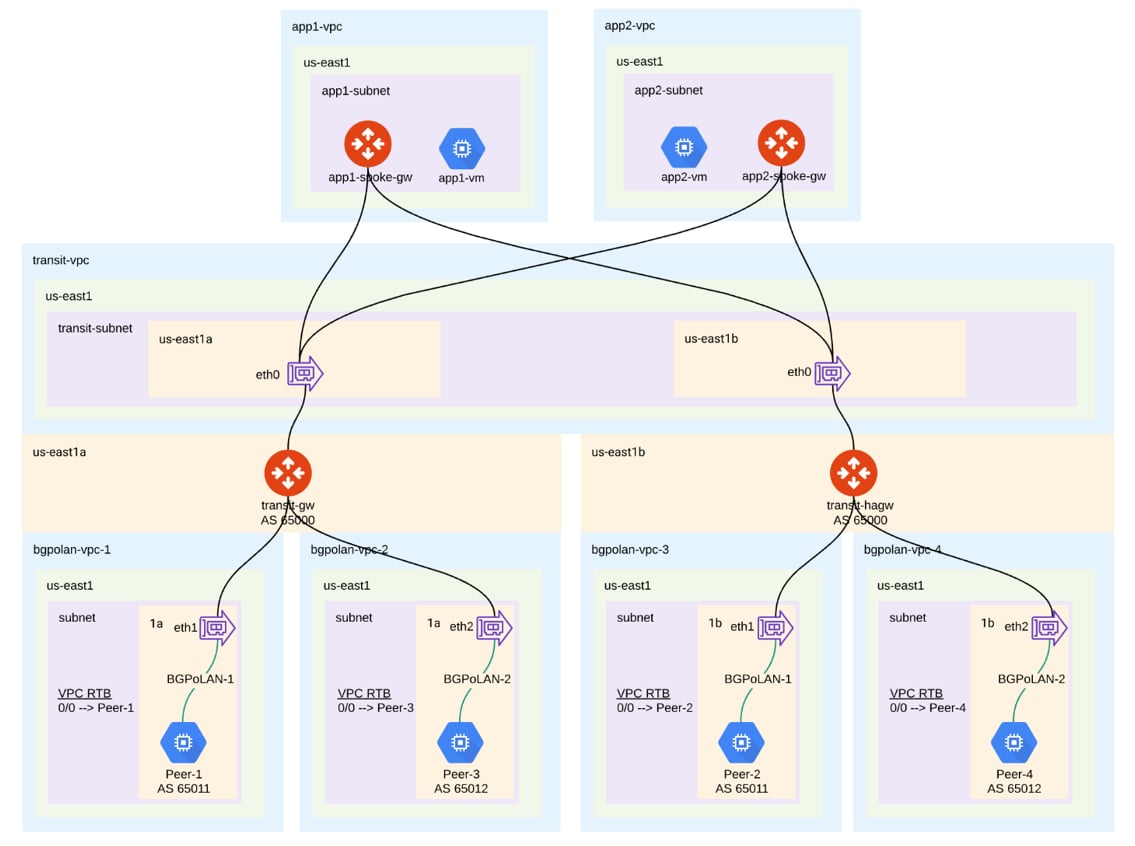
- Multicloud Global Transit FAQ
- Global Transit Network Workflow Instructions (AWS/Azure/GCP/OCI)
- Aviatrix Transit Gateway to External Devices
- Transit Network Design Patterns
- ActiveMesh 2.0 is required. To migrate to ActiveMesh 2.0, see Migrating from Classic Aviatrix Encrypted Transit Network to Aviatrix ActiveMesh Transit Network.
- This solution is available in Azure when connecting to a single BGP peer. Multi-peer BGP is supported in GCP and AWS. The workflow with GCP here is an example. Adjust the topology depending on your requirements. * GCP does not allow interfaces to be added to an instance after deployment. Verify the design before creating the instances to make sure they have all the required interfaces.
The key ideas for this solution are:
- A BGP session establishes between third-party cloud instances and Aviatrix Transit Gateways via each LAN interface in the same VPC.
- Data plane traffic also runs between third-party cloud instances and Aviatrix Transit Gateways via each LAN interface without a tunnel protocol such as IPsec or GRE.
Prerequisites
- Upgrade Aviatrix Controller to at least version 6.6.
- Third-party cloud instance supports high throughput.
Deploying Aviatrix Multicloud Transit Solution
Refer to Global Transit Network Workflow Instructions for the below steps. Adjust the topology depending on your requirements.- Deploy Aviatrix Multicloud Transit Gateway and HA with High Performance Encryption Mode encryption enabled in Transit VPC. Ensure that you create the required number of BGP over LAN connections.
- Deploy Spoke Gateway and HA with High Performance Encryption Mode encryption enabled in Spoke VPC(s).
- Attach Spoke Gateways to Transit Network.
Launching Third-Party Cloud Instances
Deploy third-party cloud instances with an interface in the same VPC as the Aviatrix Transit Gateway.- Create a third-party cloud instance and put the MGMT interface in public gateway subnet.
- Create a new WAN subnet and dedicated routing table for the WAN interface if needed.
- Create a new LAN subnet and a dedicated routing table for the LAN interface.
- Make sure the IP forwarding function is enabled on the third-party cloud instances.
GCP allows a maximum of eight interfaces per instance, and the maximum limit
depends on the number of vCPUs. Due to this limitation, the solution supports
seven BGP peers without FireNet enabled and six BGP peers with FireNet
enabled.
Building BGP over LAN
- CoPilot UI
- Terraform
- In CoPilot, navigate to Networking > Connectivity > External Connections (S2C).
- Click +External Connection.
- In the Add External Connection dialog, select Connect Public Cloud to External Device.
- Select BGP over LAN from the drop-down.
- Enter the following information in the fields provided.
- Click Connect to generate the BGP sessions.
- Create an external connection for each BGP peer.
(Optional) Downloading the BGP over LAN configuration sample from Aviatrix Controller
- On the External Connections (S2C) tab, click the vertical ellipsis

- In the Download Configuration dialog, select the following:
- Vendor: select the device you are using (any device that is capable of running IPsec and BGP).
- Platform: select the applicable platform for the chosen device.
- Software: automatically selected based on the Vendor/Platform you select.
- Click Download.
Configuring BGP over LAN on the Third-Party Cloud Instance(s)
- (Optional) Open the downloaded BGP over LAN configuration file.
- Configure the relevant BGP over LAN information on the third-party cloud instance(s).