
Introduction

The purpose of this document is to provide the instructions for tuning network configurations for sub-10 seconds failover time when network address ranges on-prem and cloud are overlapping. The scenario is described in the following diagram. In the above diagram, Client-1 and Client-2 need to communicate with on-prem network. However, both Client-1 and Client-2 network address ranges overlap with each other, and worse yet, they both overlap with on-prem network address range (10.0.0.0/16). Such scenarios happen when Client-1, Client-2 and the on-prem networks belong to three different organizations. The traditional solution is to build IPsec tunnel between the two networks and use SNAT/DNAT rules to translate each addresses, as demonstrated in this example. Such solution requires a potentially large number of SNAT/DNAT rules which is difficult to configure and maintain. With the introduction of Mapped Site2Cloud for address overlapping networks, you no longer need to wrestle with the individual SNAT/DNAT rules.
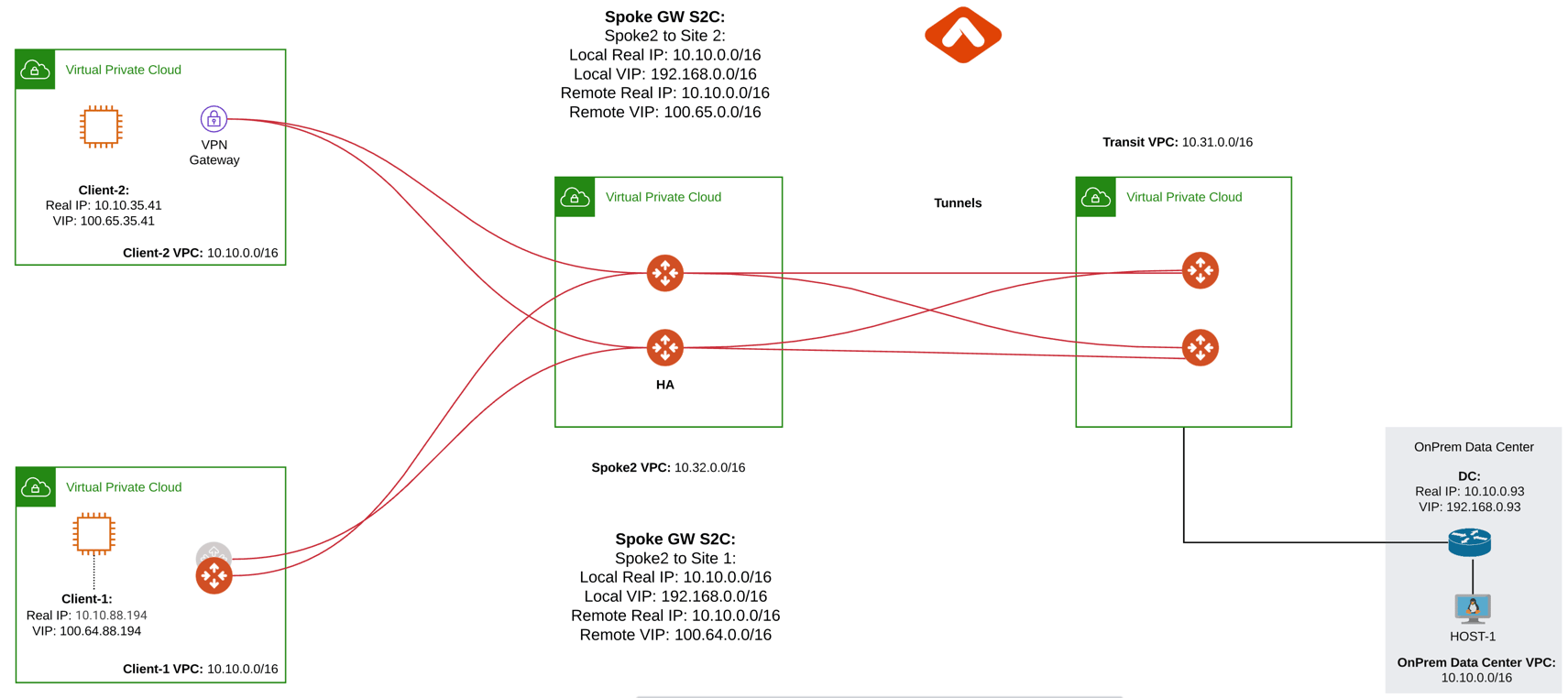
Configuration Steps

This example uses Aviatrix Gateway on client site to simulate fast convergence environment

Step 1: Follow the Multicloud Transit workflow to launch gateways

Log in to the Controller console, go to Multi-CLOUD TRANSIT. Follow step 1, step 4 and step 6 respectively to launch transit and spoke gateways, and attach spoke gateways to transit. Create VPN tunnel between Transit Gateway and On-prem.

Step 2: Create a Site2Cloud tunnel between Spoke Gateway and Client-1

2.1 Configure S2C from Spoke Gateway to Client-1

Go to Controller Console → Site2Cloud → Setup. Click “+Add New”. Fill the form and click OK. Select “Mapped” for the Connection Type field.
FieldValue
VPC ID/VNet NameChoose VPC ID (Select Spoke Gateway VPC)
Connection TypeMapped
Connection NameArbitrary (e.g. S2C-SPK-to-Client1)
Remote Gateway TypeAviatrix
Tunnel TypeRoute-based
AlgorithmsUncheck this box
IKEv2Uncheck this box
Over Private NetworkUncheck this box
Enable HACheck this box
Primary Cloud GatewaySelect the Aviatrix Gateway created above
Backup GatewaySelect the Aviatrix Gateway HA
Remote Gateway IP AddressPublic IP of Client-1 Primary Gateway
Remote Gateway IP Address (Backup)Public IP of Client-1 Backup Gateway
Pre-shared KeyOptional (auto-generated if not entered)
Same Pre-shared Key as PrimaryCheck this box
Custom MappedUncheck this box
Remote Subnet (Real)10.10.0.0/16 (Client-1 Real CIDR)
Remote Subnet (Virtual)100.64.0.0/16 (Client-1 Virtual CIDR)
Local Subnet (Real)10.10.0.0/16 (On-Prem Network CIDR)
Local Subnet (Virtual)192.168.0.0/16 (On-Prem Virtual CIDR)

2.2 Configure S2C from Client Side

Go to Controller Console → Site2Cloud → Setup. Click “+Add New”. Fill the form and click OK. Select “unmapped” for the Connection Type field.
FieldValue
VPC ID/VNet NameChoose VPC ID (Select Client-1 VPC)
Connection TypeUnmapped
Connection NameArbitrary (e.g. S2C-Client1-to-SPK-GW)
Remote Gateway TypeAviatrix
Tunnel TypeRoute-based
AlgorithmsUncheck this box
IKEv2Uncheck this box
Over Private NetworkUncheck this box
Enable HACheck this box
Primary Cloud GatewaySelect the Aviatrix Gateway created above
Backup GatewaySelect the Aviatrix Gateway HA
Remote Gateway IP AddressPublic IP of Spoke Primary Gateway
Remote Gateway IP Address (Backup)Public IP of Spoke Backup Gateway
Pre-shared KeyOptional (auto-generated if not entered)
Same Pre-shared Key as PrimaryCheck this box
Remote Subnet192.168.0.0/16 (On-Prem Virtual CIDR)
Local Subnet10.10.0.0/16 (Client-1 Local Network CIDR)

Step 3: Configure global parameters

Go to Controller Console → Settings → Advanced
  1. Click on “Tunnel” tab and change “Status Change Detection Time” and save settings.
FieldValue
Aviatrix EntityChoose Controller
Detection time (secs)20
  1. Click on “Keepalive” tab and modify Keepalive Template Configuration
FieldValue
Keep Alive Speedfast

Step 4: Configure site2cloud parameters

Go to Aviatrix Controller’s Console → Site2Cloud → Setup.

4.1 Spoke Gateway Side

Select Spoke Gateway VPC, spoke gateway to client site2cloud connection and click “Edit”
  1. Make sure only one tunnel is UP and HA status Active-Standby
  2. DPD Timer is enabled, configure DPD timers as shown below and click “Save and Apply”.
FieldValue
Initial Delay1
Retry1
Maxfail1
  1. Forward Traffic to Transit Gateway is enabled
  2. Event Triggered HA is enabled

4.2 Client Side

Select Client VPC, client to spoke site2cloud connection and click “Edit”
  1. Make sure only one tunnel is UP and HA status Active-Standby
  2. DPD Timer is enabled, configure DPD timers as shown below and click “Save and Apply”.
FieldValue
Initial Delay1
Retry1
Maxfail1
  1. Active Active HA is disabled
  2. Event Triggered HA is enabled

Test site2cloud fast convergence

Bring down IPSec primary tunnel and measure convergence.