- Virtual Machines
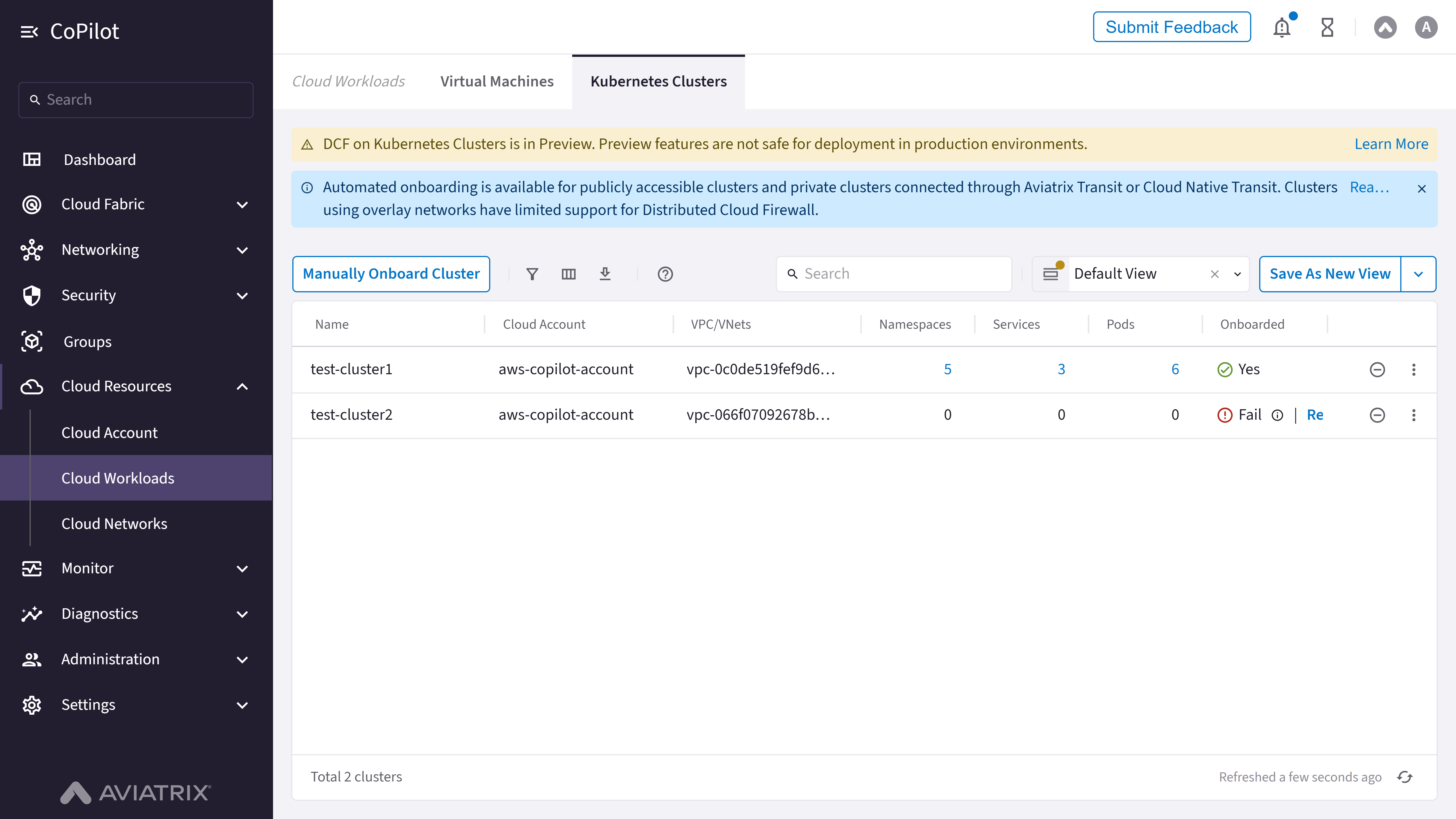
- Kubernetes Clusters
- Serverless
Purpose
The Virtual Machines page displays and manages all virtual machine instances across cloud providers, showing their configuration details, network information, and associated resources.Elements

- Virtual Machines table: Shows a list of all virtual machine instances with their details including name, VPC/VNet, instance ID, size, cloud provider, region, and network information.
- Actions menu: Bulk action to create a SmartGroup from the selected virtual machines (disabled until at least one eligible row is selected; gateway rows cannot be selected for SmartGroups; select up to 20 virtual machines).
- View selector (Default View / Modified View): Loads the default table view or your current modified column, filter, and sort layout.
- Save View button (labeled Save As New View when the default system view is loaded): Saves the current column, filter, and sort layout as a new view, or updates an existing custom view when one is loaded. The adjacent More Options button opens a menu with Discard Changes to revert unsaved changes.
- Manage Views link: Opens from the view selector to rename, delete, or manage saved table views.
- Filter button: Button to show or hide filter options for the virtual machines table.
- Columns button: Button to select which columns to display in the table.
- Download button: Button to download virtual machines data.
- Search box: Search box for filtering virtual machines in the table.
- Table row checkboxes: Checkboxes for selecting individual virtual machines.
- Table header checkbox: Checkbox in table header to select all virtual machines.
- Row actions menu: Per-row menu with Create SmartGroup for virtual machines that are not Aviatrix gateways (admin users only).
- Total count display: Text showing total number of virtual machines (e.g., “Total 3 Virtual Machines”).
- Refresh status: Text showing last refresh time with a refresh button.
Actions
View Virtual Machines
View Virtual Machines
To view virtual machines:
- Go to Cloud Resources > Cloud Workloads > Virtual Machines.
- The Virtual Machines page appears with the Virtual Machines table listing all instances.
- Optionally, use Search, Filter, Columns, or the View selector to customize the view.
- Optionally, use Save View or Manage Views to save or manage table views.
- Optionally, click Download to download data or use the refresh control to refresh the table.
- Select rows with Table row checkboxes or Table header checkbox to use Actions for bulk operations, or use the Row actions menu for a single instance.