

- Egress
- Analyze
- Egress VPC/VNets
- Transit Egress
- FQDN Monitor (Legacy)
Purpose
The Egress tab shows the Egress Security Score, protected VPC/VNets status, and provides access to manage VPC/VNets configuration.This tab is hidden while Egress Security Score is locked (Public Preview
feature
egressVpcScore). When locked, CoPilot opens Analyze by default
after you select Security > Egress.Elements
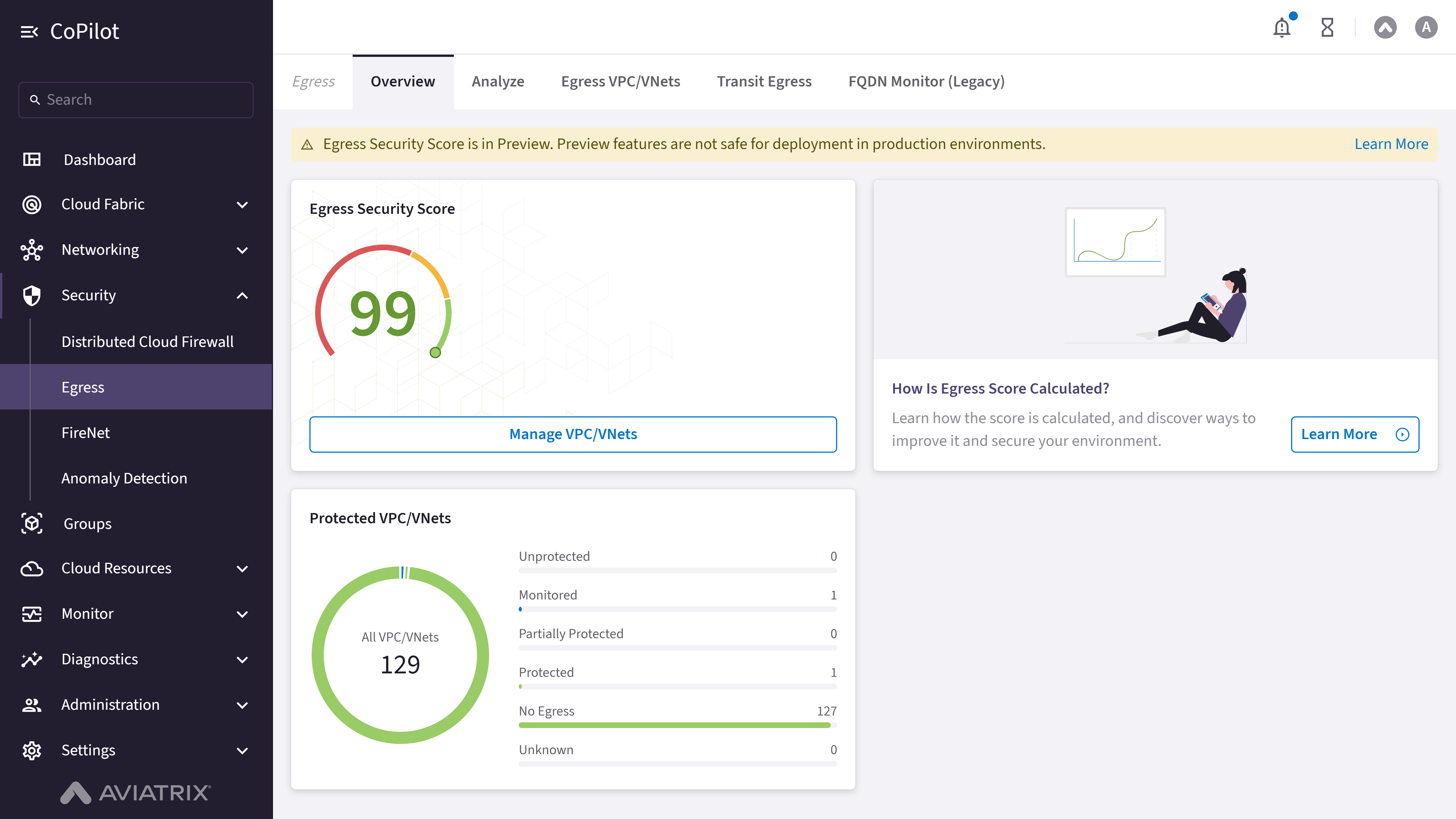
- Egress Security Score: Information card showing egress security score with gauge visualization.
- How Is Egress Score Calculated?: Information card with illustration and description about egress score calculation.
- Protected VPC/VNets: Information card showing breakdown of protected VPC/VNets by status.
- Progress indicators: Progress bars showing metrics.
- Manage VPC/VNets button: Button to navigate to the Egress VPC/VNets page.
- Learn More button: Button to access additional information about egress score calculation.
Actions
View Egress Overview
View Egress Overview
To view the egress security overview:
- Go to Security > Egress > Egress.
- The Egress tab appears with the Egress Security Score, Protected VPC/VNets status, and progress indicators.
- Review the egress security score and protected VPC/VNet breakdown.
- Optionally, click Learn More to access additional information about egress score calculation.
Parameter Details
| CoPilot Parameter Name | Description |
|---|---|
| Egress Security Score | Shows the overall egress security score with gauge visualization. |
| Protected VPC/VNets | Shows the breakdown of protected VPC/VNets by status (e.g., Protected, Unprotected, Monitored). |
| Progress indicators | Progress bars showing metrics related to egress security. |
Manage VPC/VNets
Manage VPC/VNets
To navigate to the Egress VPC/VNets page:
- Go to Security > Egress > Egress.
- Click Manage VPC/VNets.
Purpose
The Analyze page provides analysis of egress traffic patterns, top rules hit, top domains, top source IPs, and egress per VPC/VNet.Elements
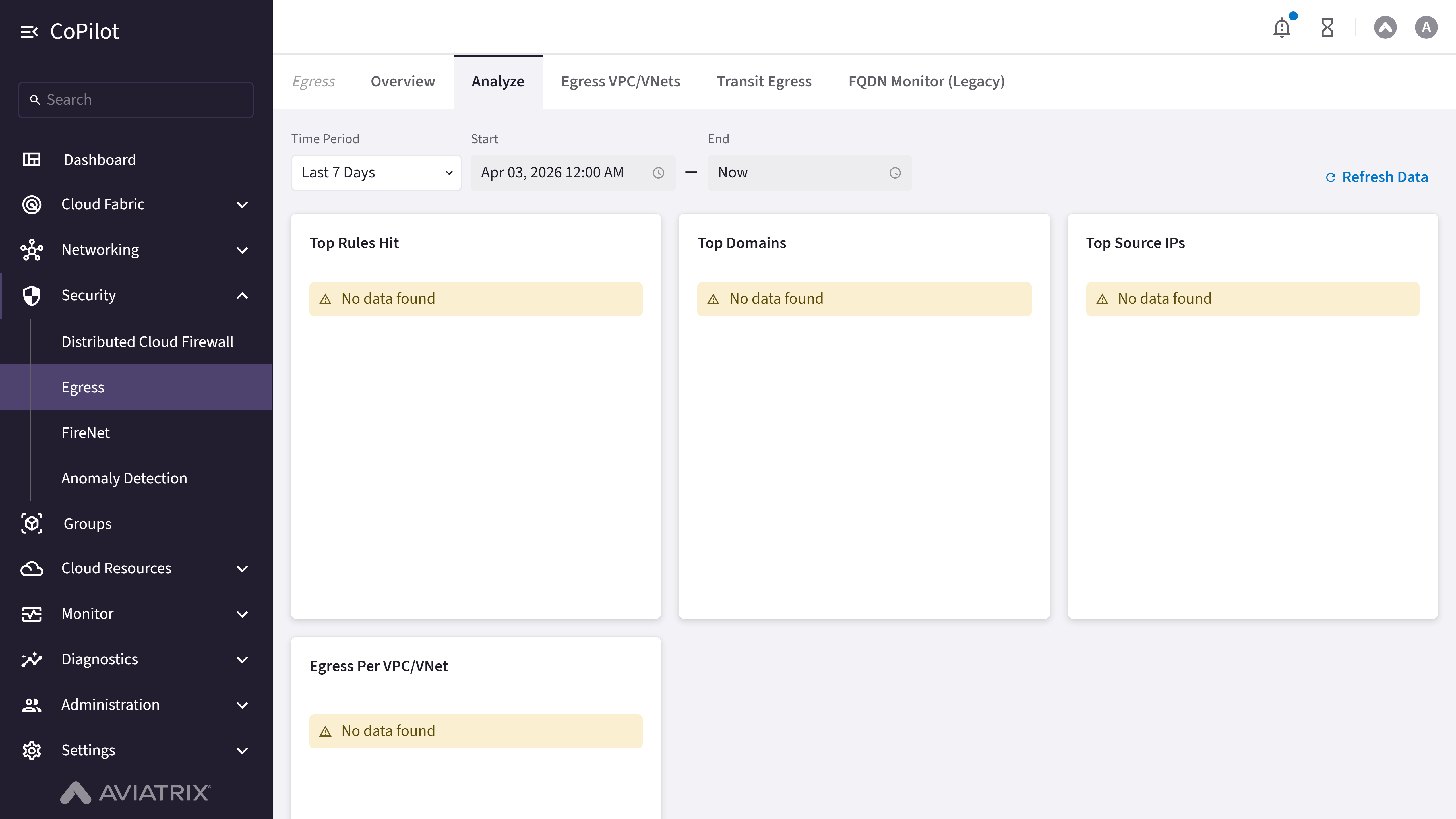
- Time Period: Dropdown to select time period for analysis.
- Start: Date and time picker field for start time.
- End: Date and time picker field for end time.
- Top Rules Hit: Analysis section showing top rules hit.
- Top Domains: Analysis section showing top domains.
- Top Source IPs: Analysis section showing top source IPs.
- Egress Per VPC/VNet: Analysis section showing egress per VPC/VNet.
- Refresh Data button: Button to refresh the analysis data.
Actions
View Egress Analysis
View Egress Analysis
To view egress traffic analysis:
- Go to Security > Egress > Analyze.
- The Analyze page appears with Top Rules Hit, Top Domains, Top Source IPs, and Egress Per VPC/VNet sections.
- Optionally, use the Time Period dropdown or Start and End fields to select a time range for analysis.
- Click Refresh Data to refresh the analysis data.
Parameter Details
| CoPilot Parameter Name | Description |
|---|---|
| Time Period | Dropdown to select time period for analysis. |
| Start | Date and time picker field for start time. |
| End | Date and time picker field for end time. |
| Top Rules Hit | Shows the top rules hit in egress traffic analysis. |
| Top Domains | Shows the top domains accessed in egress traffic. |
| Top Source IPs | Shows the top source IP addresses in egress traffic. |
| Egress Per VPC/VNet | Shows egress traffic analysis per VPC/VNet. |
Purpose
The Egress VPC/VNets page shows a table of VPC/VNets with their egress configuration status, point of egress, and recommended actions.The available columns and actions depend on whether Egress Security Score is
unlocked (requires Micro-Segmentation to be licensed). While it is locked, the
table shows only the legacy columns below and an Enable Local Egress on
VPC/VNets button; the Status, Recommended Action, and row action
menu described here appear only once it is unlocked.
Elements
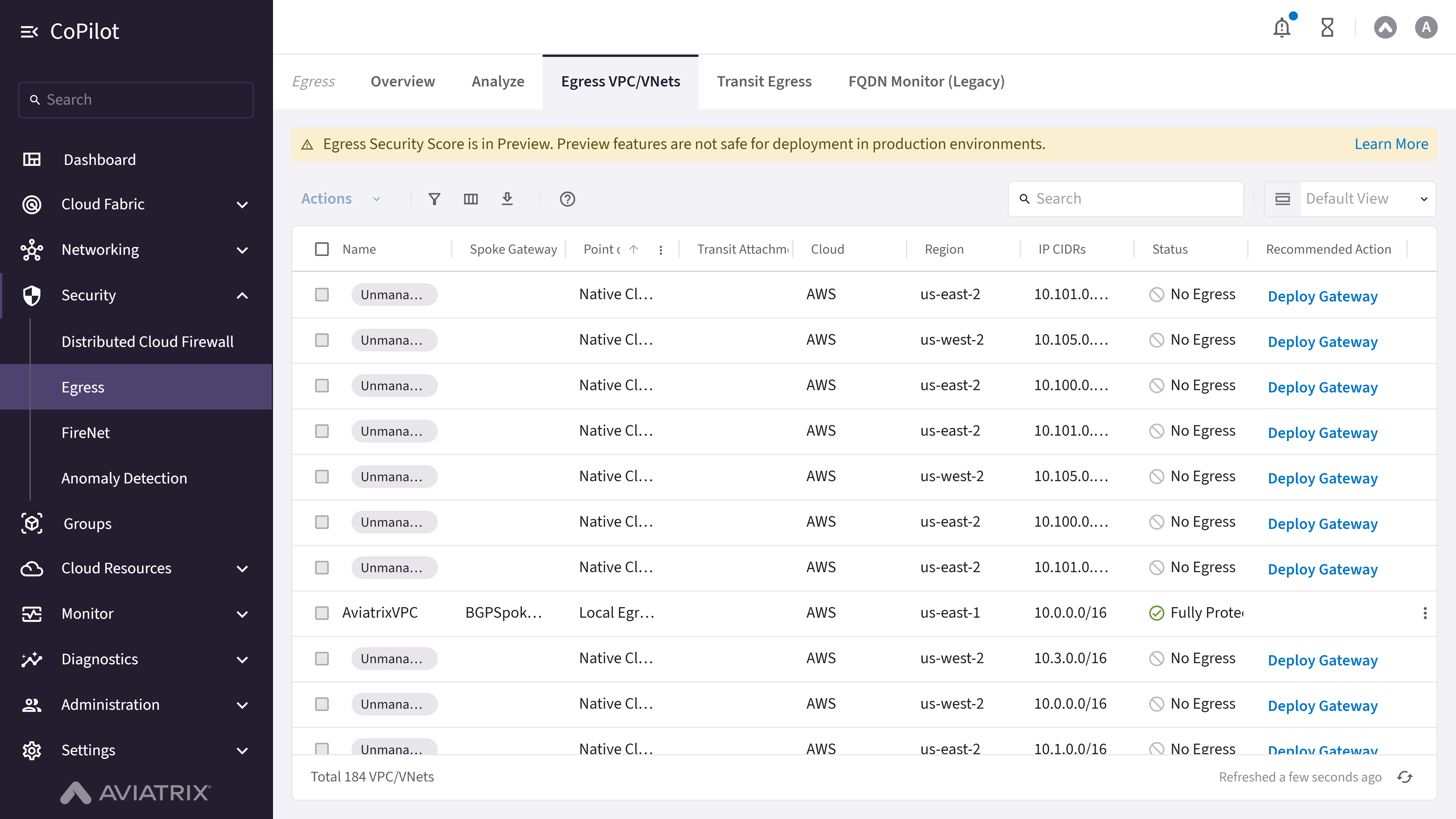
- Egress Security Score is in Preview banner: Notice with a Learn More link, shown while the feature is in Public Preview.
- Enable Local Egress on VPC/VNets button: Shown while Egress Security Score is locked. Opens a dialog to enable Local Egress on the selected VPC/VNets.
- Action menu button: Shown once Egress Security Score is unlocked. Applies Monitor, Protect, Enable Local Egress, or Disable Local Egress to the checked VPC/VNets (up to 20 at a time).
- Search: Search box for filtering table content (unavailable while Egress Security Score is locked).
- Filter button: Button to display filter options.
- Columns button: Button to customize visible columns.
- Download button: Button to download table data.
- Sort button: Button to sort table columns.
- Open: Saved-view control to filter the table by a preset view: Default View, Local Egress, Transit Egress, Monitored VPC/VNets, Unprotected VPC/VNets, or Unmanaged VPC/VNets.
- Total N VPC/VNets: Footer count of rows in the table.
- Refresh status: Footer control showing when table data was last refreshed.
- Row actions menu: Shown once Egress Security Score is unlocked. Per-row actions can include Enable Local Egress, Exclude From Egress Score, Unprotect and Monitor, Disable Local Egress, and Include in Egress Score, depending on the row’s current status.
Actions
View Egress VPC/VNets
View Egress VPC/VNets
To view VPC/VNet egress configuration:
- Go to Security > Egress > Egress VPC/VNets.
- The Egress VPC/VNets page appears with the table of VPC/VNets and their egress status.
- Optionally, use Search, Filter, Open, or Columns to customize the view.
- Optionally, click Download to download table data.
Parameter Details
| CoPilot Parameter Name | Description |
|---|---|
| Name | Shows the VPC/VNet name and management status. An Unmanaged chip appears for VPC/VNets with no onboarded gateway. |
| Spoke Gateway | Shows the Spoke Gateway associated with the VPC/VNet. |
| Point of Egress | Shows the point of egress configuration: Local Egress, Transit Egress, Native Cloud Egress, Unknown, or Mixed. |
| Transit Attachment | Shows the Transit Gateway attachment information. |
| Cloud | Shows the cloud provider where the VPC/VNet is located. |
| Region | Shows the cloud region where the VPC/VNet is located. |
| IP CIDRs | Shows the IP CIDR blocks for the VPC/VNet. |
| Status (Egress Security Score unlocked only) | Shows the protection status: Unknown, Unmanaged, No Egress, Unprotected, Monitored, Partially Protected, Fully Protected, or Ignored. |
| Recommended Action (Egress Security Score unlocked only) | A button showing the recommended action for the VPC/VNet — Deploy Gateway, Monitor, or Protect — that starts the corresponding workflow when clicked. |
Enable or Disable Local Egress on VPC/VNets
Enable or Disable Local Egress on VPC/VNets
To enable Local Egress:
- Go to Security > Egress > Egress VPC/VNets.
- While Egress Security Score is locked, click Enable Local Egress on VPC/VNets. While unlocked, select one or more VPC/VNets and choose Enable Local Egress from the action menu or a row’s action menu.
- Confirm the change in the dialog.
Monitor or Protect VPC/VNets (Egress Security Score unlocked)
Monitor or Protect VPC/VNets (Egress Security Score unlocked)
To monitor VPC/VNets:
- Go to Security > Egress > Egress VPC/VNets.
- Select one or more VPC/VNets whose recommended action is Monitor.
- Choose Monitor from the action menu (or click the Monitor button in the Recommended Action column).
- Confirm in the dialog.
- Select one or more VPC/VNets whose recommended action is Protect.
- Choose Protect from the action menu (or click the Protect button in the Recommended Action column).
- On Select Trusted Traffic Flows, choose the traffic to trust, then click Next.
- On Review Changes, review the changes, then click Protect.
Exclude or Include a VPC/VNet in the Egress Security Score
Exclude or Include a VPC/VNet in the Egress Security Score
To exclude or include a VPC/VNet in the score calculation:
- Go to Security > Egress > Egress VPC/VNets.
- In the row’s action menu, click Exclude From Egress Score (or Include in Egress Score for a previously excluded VPC/VNet).
- Confirm in the dialog.
Purpose
The Transit Egress page shows Transit Gateways configured for egress control and allows enabling egress on Transit Gateways.Elements
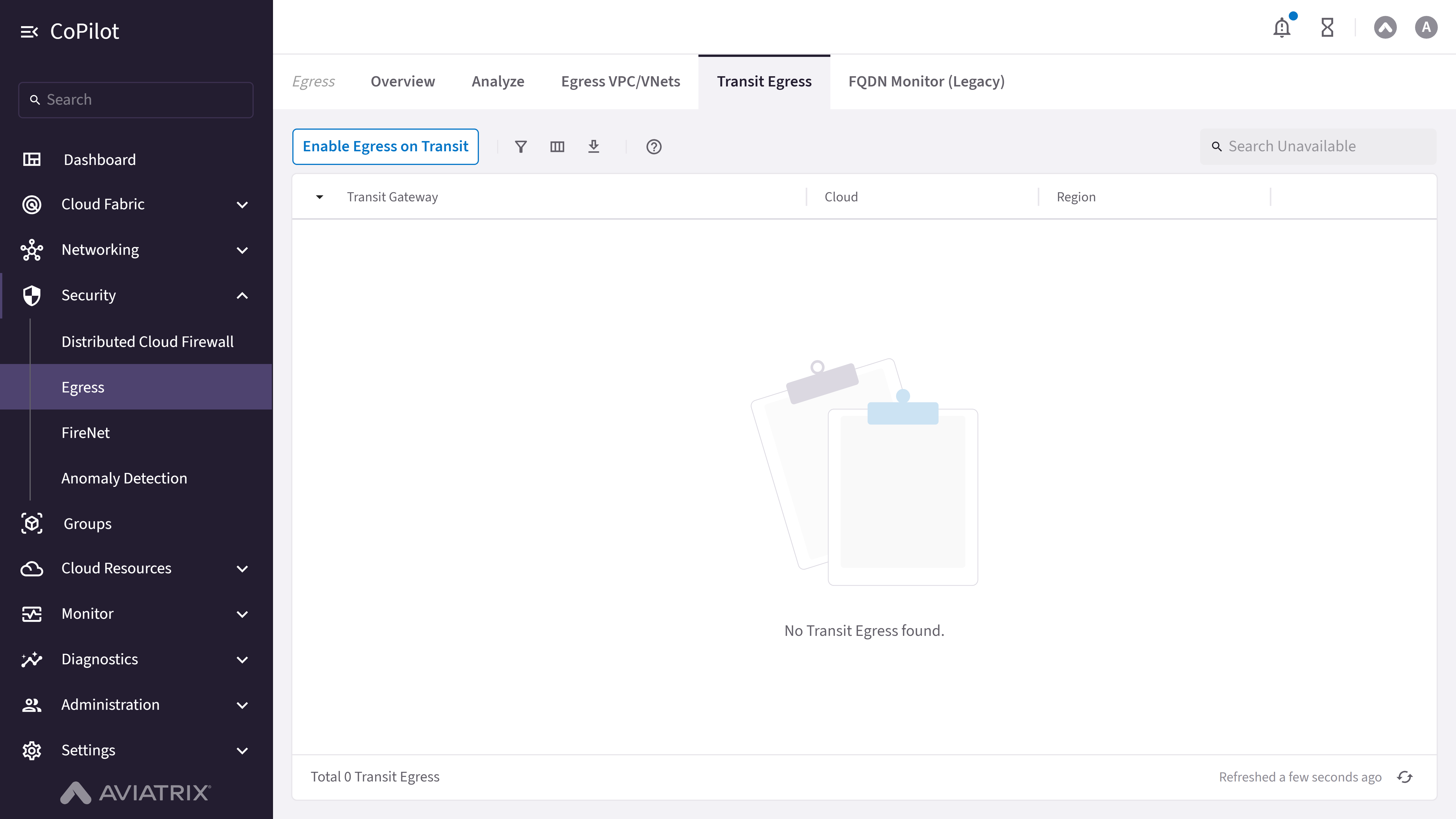
- Enable Egress on Transit button: Opens the dialog to enable egress on a Transit Gateway.
- Filter button: Button to show filters.
- Columns button: Button to customize visible columns.
- Download button: Button to download table data.
- Sort button: Button to sort table columns.
- Search: Search box for filtering the Transit Gateway list.
- Total N Transit Egress: Footer count of Transit Egress rows.
- Refresh status: Footer control showing when table data was last refreshed.
- Transit Egress table: Displays Transit Gateways configured for egress with Transit Gateway, Cloud, and Region columns shown by default. Type, VPC/VNet, Cloud Load Balancer, Firewalls, Inspection, and Egress are hidden by default and can be enabled with Columns.
Actions
View Transit Egress
View Transit Egress
To view Transit Gateways configured for egress control:
- Go to Security > Egress > Transit Egress.
- The Transit Egress page appears with the table of Transit Gateways and their egress configuration.
- Optionally, use Search, Filter, or Columns to customize the view.
- Optionally, click Download to download table data.
Parameter Details
| CoPilot Parameter Name | Description |
|---|---|
| Transit Gateway | Displays the Transit Gateway configured for egress. |
| Type | Displays the gateway type associated with the transit egress setup. |
| Cloud | Indicates the cloud provider where the Transit Gateway runs. |
| Region | Displays the cloud region of the Transit Gateway. |
| VPC/VNet | Displays the VPC or VNet attached to the Transit Gateway. |
| Cloud Load Balancer | Indicates whether a cloud load balancer is associated with egress traffic. |
| Firewalls | Displays the firewall resources used for egress traffic inspection. |
| Inspection | Indicates whether traffic inspection is enabled. |
| Egress | Displays the egress status for the Transit Gateway. |
Enable Egress on Transit Gateway
Enable Egress on Transit Gateway
To enable egress on a Transit Gateway:
- Go to Security > Egress > Transit Egress.
- Click Enable Egress on Transit.
- In the dialog, select the Transit Gateway on which to enable egress.
- Choose Primary Egress or Secondary Egress and configure Attach Secondary Egress(s) if applicable.
- In Launch & Associate Egress Instance(s), configure Egress Instance Size, Attach to Subnet, and add instances with + Egress Instance as needed.
- Click Enable to apply the configuration.
Parameter Details
| CoPilot Parameter Name | Description |
|---|---|
| Transit Gateway | Selects the Transit Gateway on which egress is enabled. |
| Primary Egress | Enables the selected Transit Gateway to provide egress control for attached Spoke Gateways. |
| Secondary Egress | Allows the Transit Gateway to forward traffic to a Primary Transit Egress Gateway for egress control. |
| Attach Secondary Egress(s) | Selects one or more Secondary Transit Gateways to associate with the Primary Egress Gateway. |
| Launch & Associate Egress Instance(s) | Section to create and associate egress instances with the Transit Gateway. |
| Egress Instance Size | Selects the instance size for the egress virtual machine. |
| + Egress Instance | Adds a new egress instance configuration entry. |
| Attach to Subnet | Selects the subnet where the egress instance is deployed. |
| Cancel | Discards the configuration changes and closes the dialog. |
| Enable | Applies the configuration and enables egress on the selected Transit Gateway. |
Purpose
The FQDN Monitor (Legacy) page shows FQDN monitoring data for selected VPC/VNets, including timestamp, source IP, domain, port, rule match, and action information.Elements
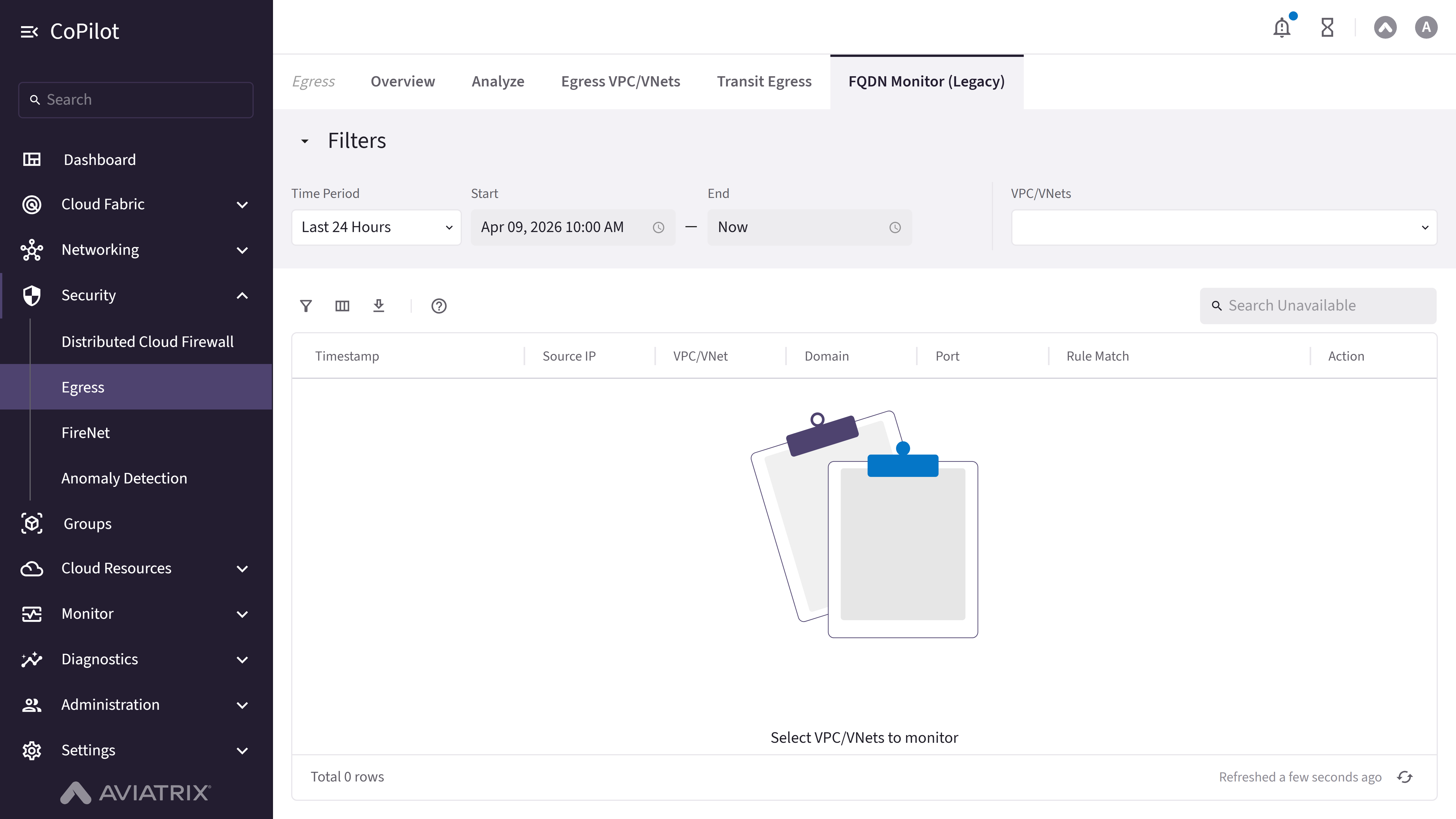
- Filters: Collapsible filters section.
- Time Period: Dropdown to select time period.
- Start: Date and time picker field for start time.
- End: Date and time picker field for end time.
- VPC/VNets: Combobox to select VPC/VNets to monitor.
- Search: Search box (unavailable/disabled).
- Filter button: Button to display filter options.
- Columns button: Button to customize visible columns.
- Download button: Button to download table data.
- Sort button: Button to sort table columns.
- Total N rows: Footer count of FQDN monitor records.
- Refresh status: Footer control showing when table data was last refreshed.
Actions
View FQDN Monitor Data
View FQDN Monitor Data
To view FQDN monitoring data:
- Go to Security > Egress > FQDN Monitor (Legacy).
- The FQDN Monitor page appears with the monitoring table.
- Use Time Period or Start and End fields to select a time range.
- Use VPC/VNets combobox to select VPC/VNets to monitor.
- Optionally, expand Filters, or use Open, Filter, Columns, or Download to customize or download data.
Parameter Details
| CoPilot Parameter Name | Description |
|---|---|
| Timestamp | Shows the timestamp of the FQDN monitoring event. |
| Source IP | Shows the source IP address of the egress traffic. |
| VPC/VNet | Shows the VPC/VNet where the traffic originated. |
| Domain | Shows the domain name accessed in the egress traffic. |
| Port | Shows the port number used for the egress traffic. |
| Rule Match | Shows whether the traffic matched a rule. |
| Action | Shows the action taken for the egress traffic. |