- Overview
- Network Domains
- Settings
- Logical View
- Physical view
- Regional View
Purpose
The Logical view page shows how network domains are connected or isolated based on configured connection policies, without showing Gateway placement or regional details.Elements

- Multi Cloud Network Domain Connectivity canvas: Visual representation of logical segments and their connections.
- Filter dropdown: Filters the Multi Cloud Network Domain Connectivity canvas by segment and nodes.
Actions
View Logical Segmentation
To view the logical network domain connectivity:
- Go to Networking > Network Segmentation > Overview.
Select the Logical View tab. - The Logical View page appears with the Multi Cloud Network Domain Connectivity canvas.
- Review how network domains are connected or isolated based on connection policies.
- Optionally, use the Filter dropdown to filter the canvas by segment and nodes.
Parameter Details
| CoPilot Parameter Name | Description |
|---|---|
| Domain Name | Name of the logical network domain. |
| Connected Domains | List of network domains connected to the segment. |
| Isolation Status | Indicates if the segment is isolated or interconnected. |
| Traffic Flow | Visual representation of data flow between segments. |
| Policy Compliance | Indicates if the segment adheres to defined segmentation policies. |
Purpose
The Physical view page shows how network domains and their members are placed and connected through Transit Gateways and Spoke Gateways across the Transit network.Elements

- Multi Cloud Transit Gateway & Spoke Connectivity canvas: Visual representation of physical segments and their connections.
- Filter dropdown: Filters the Multi Cloud Transit Gateway & Spoke Connectivity canvas by Transit Gateways and nodes.
Actions
View Physical Segmentation
To view the physical network domain connectivity:
- Go to Networking > Network Segmentation > Overview.
Select the Physical view tab. - The Physical view page appears with the Multi Cloud Transit Gateway & Spoke Connectivity canvas.
- Review how network domains and their members are placed and connected through Transit Gateways and Spoke Gateways.
- Optionally, use the Filter dropdown to filter the canvas by Transit Gateways and nodes.
Parameter Details
| CoPilot Parameter Name | Description |
|---|---|
| Transit Gateways | Name of the Transit or Spoke Gateway. |
| Connected Domains | List of network domains connected to the Gateway. |
Purpose
The Regional view page shows where network domain members are deployed across cloud regions to provide geographic visibility of segmentation.Elements

- Multi Cloud Region Segmentation canvas: Visual representation of regions and their domains.
- Filter dropdown: Filters the Multi Cloud Region Segmentation canvas by region and nodes.
Actions
View Regional Segmentation
To view network domain members by cloud region:
- Go to Networking > Network Segmentation > Overview.
Select the Regional View tab. - The Regional View page appears with the Multi Cloud Region Segmentation canvas.
- Review where network domain members are deployed across cloud regions.
- Optionally, use the Filter dropdown to filter the canvas by region and nodes.
Parameter Details
| CoPilot Parameter Name | Description |
|---|---|
| Gateway Regions | Name of the cloud region. |
| Deployed Domains | List of network domains deployed in the region. |
Purpose
The Network Domains page creates and manages network domains that define routing isolation and controlled connectivity between Spoke Gateways through Transit Gateways.Elements

- + Network Domain button: Starts the workflow to create a new network domain.
- Transit Gateways button: Start the workflow to enable Network Segmentation on Transit Gateways.
- Network Domains table: Displays existing network domains with details such as Domain Name, Associations, and Connected To.
- Edit button: Opens the edit workflow for the selected network domain.
- Delete button: Deletes the selected network domain after confirmation.
Actions
View Network Domains
To view network domains:
- Go to Networking > Network Segmentation > Network Domains.
- The Network Domains page appears with the table of existing network domains.
- Review Domain Name, Associations, and Connected To for each domain.
Parameter Details
| CoPilot Parameter Name | Description |
|---|---|
| Name (Domain Name) | Name of the network domain. |
| Associations | Spoke/Edge Gateways or TGW Domain associated with the domain. |
| Connected To | Other network domains connected to this domain. |
Create Network Domain
To create a network domain:
- Go to Networking > Network Segmentation > Network Domains.
- Click + Network Domain.
- Enter the Name for the network domain.
- Configure Associations (Spoke/Edge Gateways or TGW Domain).
- Optionally, configure Connect to Network Domain to define connectivity to other domains. Connectivity is bidirectional.
- Click Save.
Parameter Details
| CoPilot Parameter Name | Description |
|---|---|
| Name | Name of the network domain. |
| Associations | Spoke/Edge Gateways or TGW Domain to associate with the domain. |
| Connect to Network Domain | Other network domains this domain can connect to. |
Enable Network Segmentation on Transit Gateways
To enable network segmentation on Transit Gateways:
- Go to Networking > Network Segmentation > Network Domains.
- Click Transit Gateways.
- In the Configure Transit Gateways for Network Segmentation dialog, toggle Network Segmentation on for the desired Transit Gateways.
- Click Save.
Parameter Details
| CoPilot Parameter Name | Description |
|---|---|
| Name | Name of the Transit Gateway. |
| Cloud | Cloud provider hosting the Transit Gateway. |
| Region | Cloud region of the Transit Gateway. |
| IP Address Space | IP address space configured for the Transit Gateway. |
| Network Segmentation | Toggle to enable or disable network segmentation on the Transit Gateway. |
Edit Network Domain
Edit Network Domain
To edit a network domain:
- Go to Networking > Network Segmentation > Network Domains.
- Locate the network domain in the table and click the Edit icon.
- Update Associations and Connect to Network Domain as needed.
- Save your changes.
Parameter Details
| CoPilot Parameter Name | Description |
|---|---|
| Associations | Spoke/Edge Gateways or TGW Domain associated with the domain. |
| Connect to Network Domain | Other network domains this domain can connect to. |
Delete Network Domain
To delete a network domain:
- Go to Networking > Network Segmentation > Network Domains.
- Locate the network domain in the table and click the Delete icon.
- Confirm the deletion.
Purpose
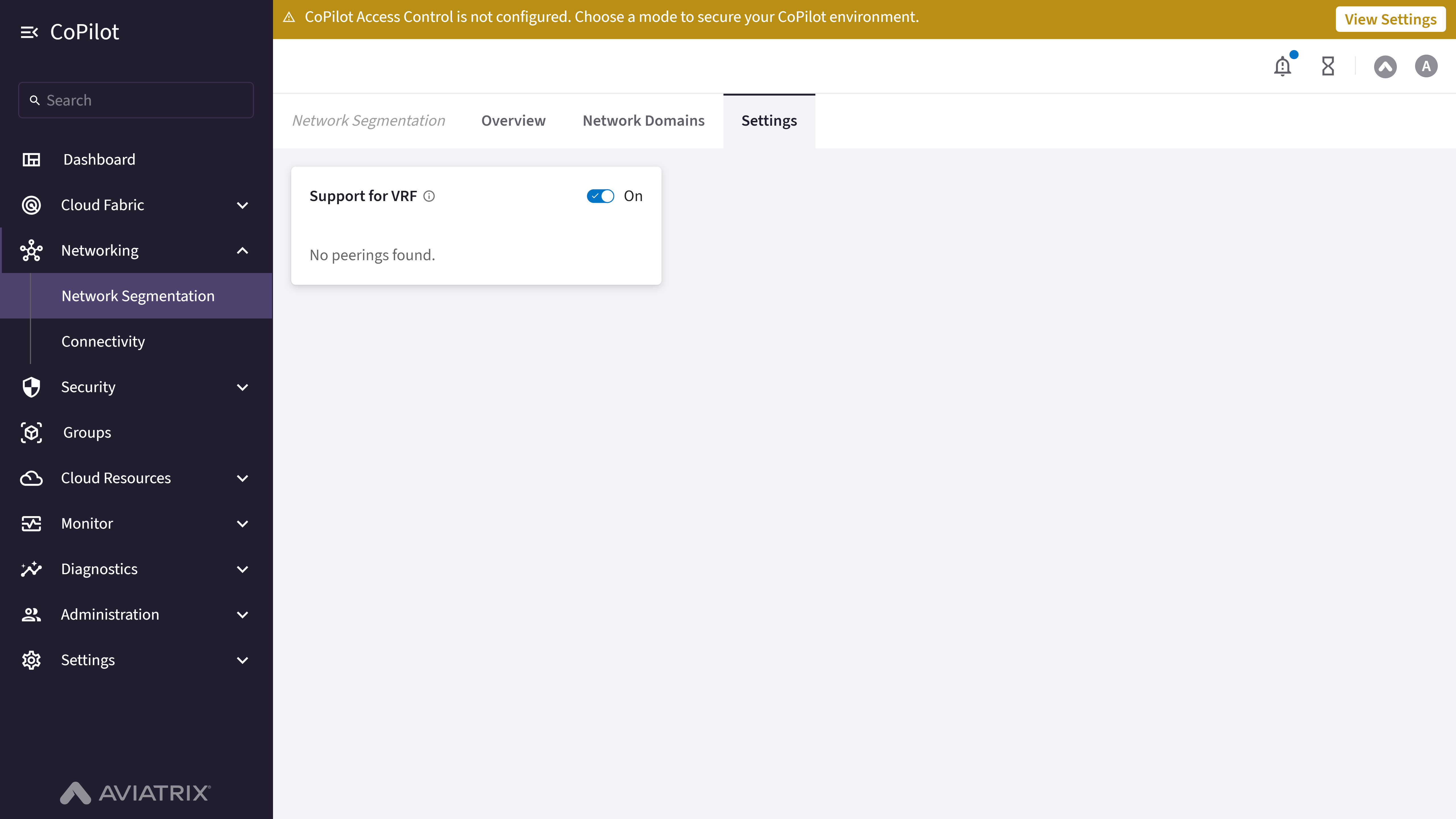
The Settings page manages support for Virtual Routing and Forwarding (VRF) on Aviatrix Transit-to-Transit Peering connections.Elements

- Support for VRF toggle: Enables or disables VRF support, applicable only for Aviatrix Transit-Transit Peering.
- Transit Peering Up-to-date / Stale counts: When VRF support is On and Transit Peerings exist, shows how many peerings are already using VRF (up-to-date) and how many still need to be rolled out (stale).
- Rollout Changes to Transit Peerings button: Opens a dialog to select which Transit Peerings to enable or disable VRF on.
Actions
Enable or Disable Support for VRF
To turn VRF support on or off:
- Go to Networking > Network Segmentation > Settings.
- Turn the Support for VRF toggle On or Off.
- If turning Off, confirm in the Rollout changes to disable Support for VRF? dialog. Disabling causes all Transit Peerings to become stale, and changes roll out immediately.
- If turning On, click Save.
Rollout VRF Support to Transit Peerings
To roll out or remove VRF support on specific Transit Peerings:
- Go to Networking > Network Segmentation > Settings, with Support for VRF turned On.
- Click Rollout Changes to Transit Peerings.
- In the Rollout Support for VRF dialog, select or deselect the peerings to enable or disable VRF on.
- Click Rollout.
Parameter Details
| CoPilot Parameter Name | Description |
|---|---|
| Transit/Edge Spoke Gateway | The Transit or Edge Spoke Gateway on one side of the peering. |
| Peering Type | The type of peering, for example Transit-Transit, Intra-Group, Edge Spoke-Transit, or BGP Spoke-Transit. |
| Transit Gateway Instance | The Transit Gateway instance on the other side of the peering. |